
Path Network
AGVs drive on paths. Instead of drawing every path by hand, you build the network from blocks: straight and curved pieces that click onto the free end of the network, and junctions — diverge, merge, stub — that you set onto an existing path. Each block behaves as one unit: you select, move, rotate and delete it as a whole, and every action is a single undo step.
The network is checked while you build. Open ends, gaps between pieces and merges without a zone show up in the Problems panel and as rings in the 3D view, so you see what is missing before you start the simulation.
Opening the tool
Section titled “Opening the tool”Switch to the Layout Planner (or the DES mode) and click Path network in the toolbar on the left. A panel opens with the catalog:
| Block | What it does |
|---|---|
| Straight 2 m / 1 m | A straight piece. Change its length in the block card after placing it. |
| Curve 90° / 45° left / right | A curve, seen in the direction of travel. |
| Diverge | A branch that leaves a path to the left or right. |
| Merge | A branch that joins a path; the merge zone is set up for you. |
| Stub | A short side track, for example to a station. |
Building the network
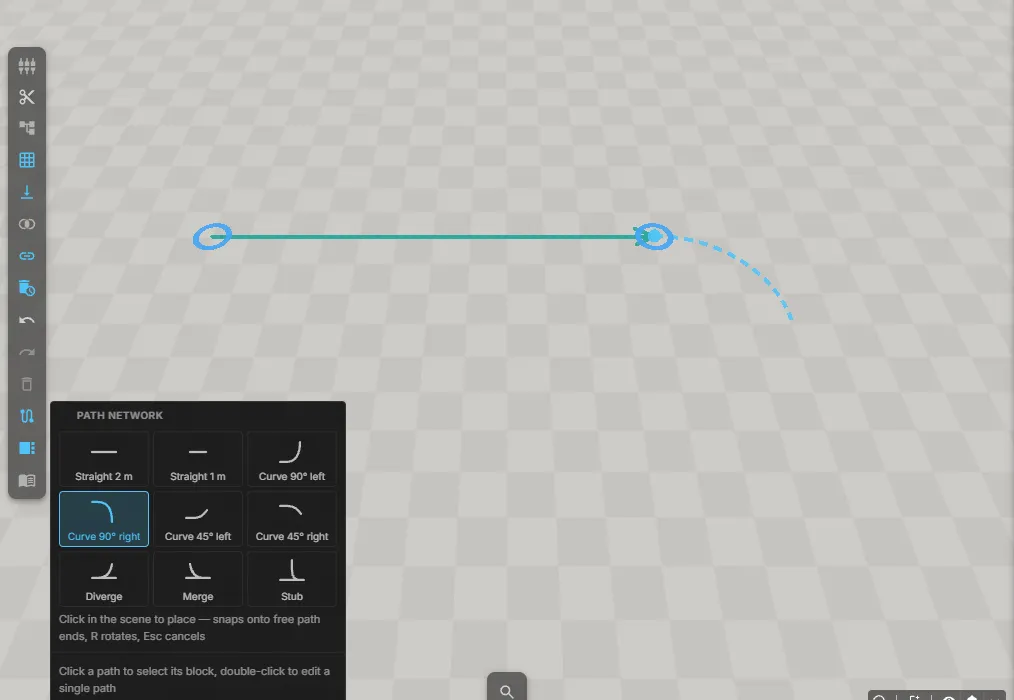
Section titled “Building the network”- Click Straight 2 m and click on the floor. The first piece lies where you click; press R to turn the preview in 15° steps before you click.
- Move the mouse near the free end of that piece. The dashed preview snaps on so that the new piece continues the path without a kink. Click to place it — the two pieces are connected.
- The tool stays active, so you can keep adding pieces. Press Esc to put it down.
Instead of clicking a tile you can also drag it from the panel onto the floor or onto a free end; releasing the mouse places the piece.
Continue from a selected block. If a block is selected, clicking a straight or curve tile appends the new piece directly at that block’s free end — no aiming needed.
Adding junctions
Section titled “Adding junctions”Pick Diverge, Merge or Stub and move the mouse over a path. A point marks where the junction will sit, and the preview shows on which side it branches off: the side of the path the mouse is on, seen in the direction of travel. Click to place it. The path is split at that point, and merge and stub zones are created automatically.
A junction needs room on its path — about 1.8 m before and 0.6 m after the point. On a path that is too short the junction is refused and the panel tells you why.
Selecting, moving and rotating
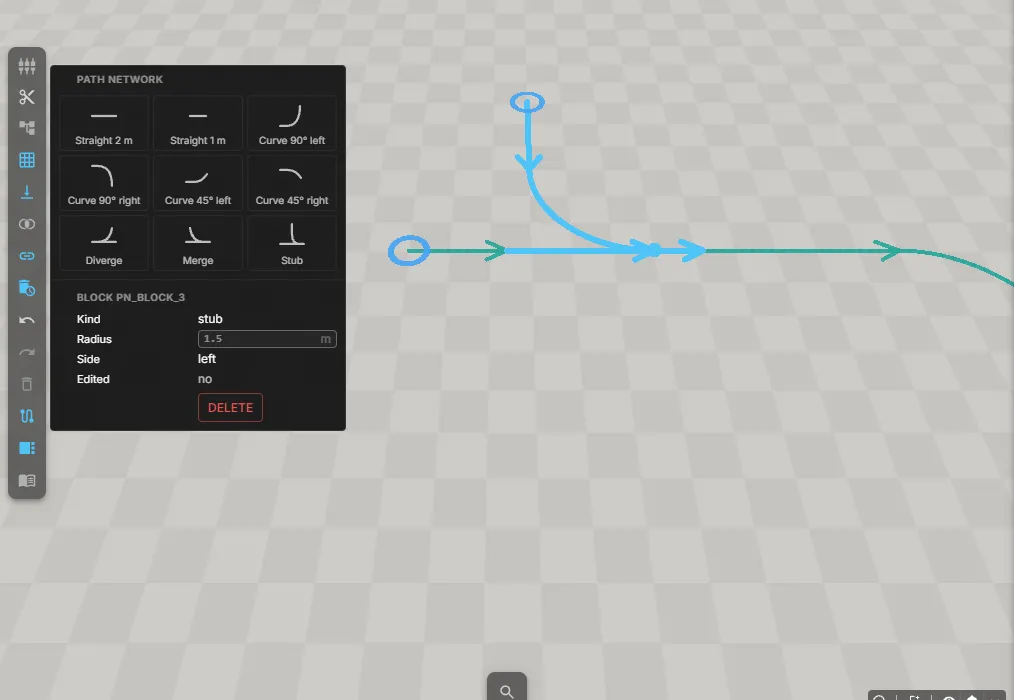
Section titled “Selecting, moving and rotating”- Click a path to select its whole block. A move handle appears in the middle and a rotate knob beside it.
- Drag the move handle to shift the block; drag the knob to rotate it in 15° steps (hold Shift for free rotation). The lines show the new position while you drag; the block is moved when you release. Connections at the old position are released, and the ends connect again wherever they touch another path.
- A junction slides along its path instead of moving freely.
- Double-click a block to edit its paths one by one (end handles, splitting with Alt-click). Esc leaves the block again.
- Delete removes the selected block. Removing a junction closes its path again.
The block card in the panel shows the selected block’s settings. You can change the length of a straight or the radius of a curve as long as you have not edited its paths by hand; Reset to template brings an edited block back to its original shape.
Live checks
Section titled “Live checks”| Ring / message | Meaning |
|---|---|
| Open end | A path ends without a following path. Fine for a dead end, otherwise add a piece. |
| Unreachable start | No path leads into this start. |
| Link gap | Two pieces are meant to be connected but their ends are too far apart. |
| Merge without zone / entry too short | A merging branch has no zone, or not enough room for the vehicle before the merge. |
| Merge zones too close | Two merges follow each other with less room than a vehicle needs. |
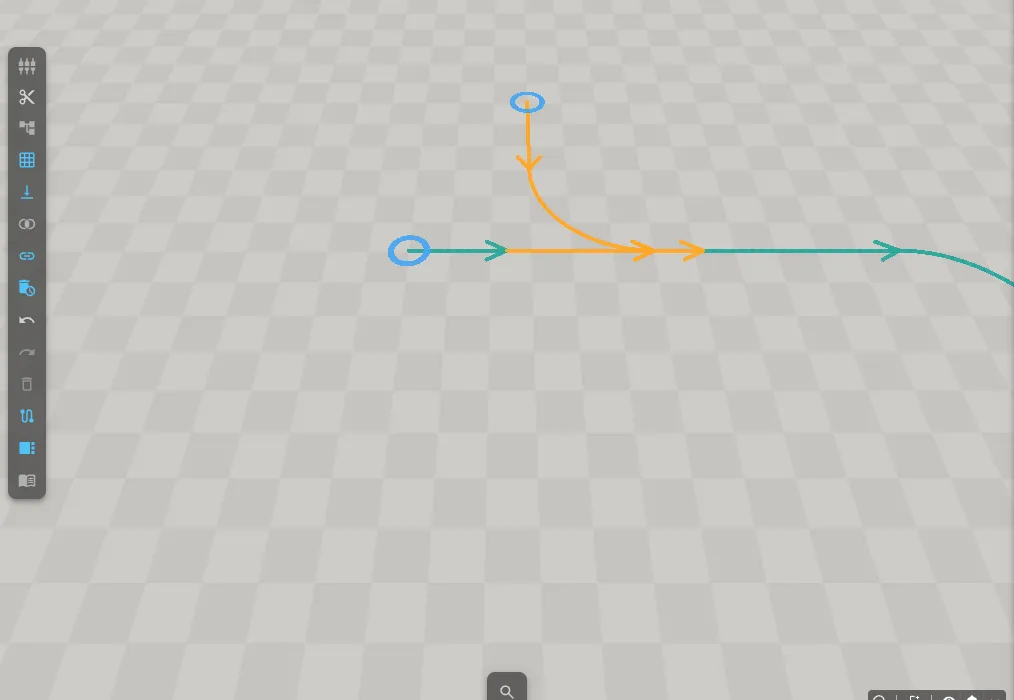
The merge checks use the size of the AGVs in the layout. Without a vehicle they are skipped, and Problems says so.
While the simulation runs
Section titled “While the simulation runs”The path network can only be changed while the simulation is stopped and reset. While it runs, the panel is greyed out; press Reset to edit again. After every change the simulation is reset, so vehicles start from their positions on the new network.
Hiding the network
Section titled “Hiding the network”The network is a layer of its own. In the Groups panel, switch Path Network off to hide all lines, handles and rings — they then cannot be clicked either.