
Signal Binding
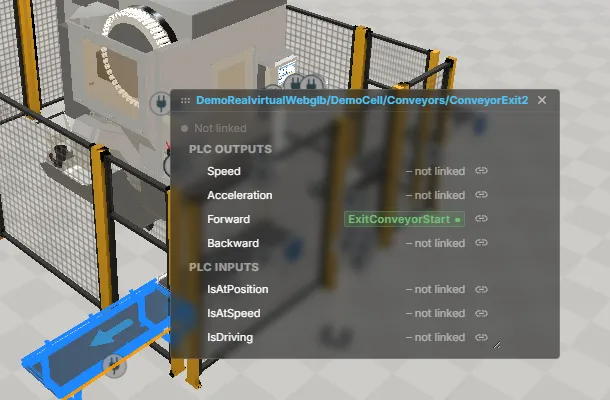
A model has its own signals, and a machine has PLC signals. Binding connects the two. For example, assigning a PLC tag to a conveyor’s Forward slot lets the real controller move the model.
A slot is a fixed connection point declared by a component, such as Forward, TargetSpeed, SensorOccupied or CurrentPosition. The component declares each slot’s fixed direction and value type. You cannot change these from the interface:
- Command slots receive values from the PLC. They are what an interface writes.
- Feedback slots publish values from the simulation back to the interface.
Where the slots are
Section titled “Where the slots are”There is no separate binding panel. Each declared slot has a row in two places, both showing the same slots and states:
- In the Property Inspector, inline in the section of the component that owns the slot.
- In the popover that opens from a component’s signal badge in the 3D scene.
A row reads left to right: the slot name, its current assignment, the link button, and the linked signal. An unbound row simply says not linked.
The Inspector rows are always available. Clicking a badge in the 3D scene opens the popover only when Signal linking is on. This tool-strip toggle is available in the HMI, Planner, DES and Editor workspaces. Its setting is remembered across reloads.
Linking a signal
Section titled “Linking a signal”- Switch Signal linking on if you want to work from the 3D scene.
- Select the component. Its slot rows appear in the Property Inspector; the badge popover shows the same rows.
- Find the command or feedback slot you want to drive.
- Either use the link button and pick a signal from the search overlay, or hold Shift and drag a signal chip onto the row.
- Read the status of the row. No status token, or live, means the source is connected; pending means the saved signal is not available right now.
To replace a binding, drop another compatible signal on the same row. To remove one, use the unlink button on the row. Unbind all in the component’s section removes every link of that component; it asks once and executes on the second click.
The picker offers two groups. CONNECT (live) contains signals from connected interfaces; Model signals contains signals stored in the model. Auto-assign proposes only confident matches and leaves slots it cannot connect unchanged.
Dragging signals
Section titled “Dragging signals”Signal chips are dragged with Shift held down. A short Shift-click without moving is not a drag and changes nothing.
While a drag is running, only the drop targets that would actually accept the signal are highlighted, and the pointer is pulled to the nearest one. Hovering a component in the 3D scene opens its popover automatically after a moment, so the drop can land directly on a slot row. Escape cancels a drag without dropping.
What may be connected to what
Section titled “What may be connected to what”A drop is refused for one of four reasons, and the row states which:
| Reason | Meaning |
|---|---|
| Unavailable | The component declares the slot but provides no runtime contract for it. The row is dimmed and gives the reason |
| No provider | A live signal without a provider identity |
| Type | Bool goes to bool, int to int, float to float. A float slot also accepts an int signal because real controllers address setpoints as integers. An int slot refuses a float signal |
| Direction | A PLC output binds only to a command slot, a PLC input only to a feedback slot |
The same rule decides the drag highlight, the drop, and a click in the picker, so what the picker offers is exactly what a drag would accept.
The first link changes who drives the model
Section titled “The first link changes who drives the model”Claiming a slot puts that part of the model under live control and stops its internal behaviour for that slot. In a demo model that is immediately visible: the built-in motion sequence and recorded playback stop as soon as one of their drives is live-controlled. The viewer says so once, the first time you bind something.
Binding gives the controller control of the slot. Restoring saved bindings when a model loads does not show the notice again.
Forcing a value
Section titled “Forcing a value”Force holds a signal at a fixed value regardless of what is written to it. Use it to test a reaction without a running controller. It applies to real signals stored in the model; a slot without a model signal cannot be forced. To force such a value, first add and wire a model signal, then force it.
Forced signals are marked as forced wherever they are shown, and releasing the force returns the signal to normal operation.
What is saved, and what is not
Section titled “What is saved, and what is not”A binding is stored with the component, the slot, the signal name, the interface and the direction. Runtime values, connection state and forced values are temporary states and are not saved in the binding.
Linking a slot does not modify the model’s own signals: an empty slot stays empty, and binding a model signal adds a relay rather than rewriting what the document declares.
Troubleshooting
Section titled “Troubleshooting”| Symptom | What it means |
|---|---|
| Pending — waiting for CONNECT | The saved interface or signal is not available. Start or reconnect the interface and check that it still exposes that signal |
| Conflict | Two providers offer the same signal, or two feedback slots publish to the same one. Choose an unambiguous provider or a different target |
| Unavailable | The component does not implement the command or feedback this slot would need. The row names the missing capability |
| A signal cannot be dropped | The row tooltip quotes the exact reason — type, direction, missing provider or an unavailable slot |
| Clicking a part in 3D does nothing | Signal linking is switched off. Turn it on in the tool strip |
| A slot cannot be forced | Expected — the slot has no model signal behind it |
| A command stops after a disconnect | The component neutralises a lost command after a short hold. Reconnect the provider or remove the stale binding. Feedback bindings are never neutralised |
The bindings overview panel lists every model link in one table. You can jump to any link in the 3D scene and unlink it with one click. Use it to check a large set of bindings or repair a link whose component has moved.
See also
Section titled “See also”- Signals and alarms — how signal values are shown in the model
- CONNECT interfaces — where the live signals come from
- AI clients (MCP) — binding a whole model with an assistant
- The interface — where the signal-linking toggle sits