
Mesh Statistics and Simplification
Included in the public demo Compare editions
A CAD import often carries most of its triangles in just a few parts: screws, threads, springs or finely tessellated castings. The Editor’s Stats window shows you where that load sits, and its heatmap makes those parts easy to find in the model.
Start with the whole model, then work through the heaviest parts. Simplify reduces their triangles within a fixed deviation limit in millimetres, and shows you the result per part before anything changes.
The Stats window
Section titled “The Stats window”Open Stats from the chart icon in the editor’s left button group — its tooltip is Show Stats. The scope is your current selection, or the entire model when nothing is selected; the subtitle shows Entire model or the selected object. Recount in the window’s toolbar refreshes the counts.
The first sections give you an overview, each with a Total and a Visible column:
- Drawn — Objects, Meshes, Triangles, Vertices, Materials and Draw calls.
- In memory — Geometries, Triangles, Vertices and Buffer size. Geometry shared by several parts counts once here.
Editor display shows how the editor actually batches the model: arenas, instances, standalone meshes and the resulting draw calls. Hover any row for an explanation of its count.
Heaviest parts
Section titled “Heaviest parts”Heaviest parts lists the top 20 parts — mesh nodes — of the scope, sorted by triangle count. If the scope holds more, a note Top 20 of N parts says how many.
| Column | What it tells you |
|---|---|
| Part | The part’s path; long paths show their end. |
| Triangles | The triangle count of that part. |
| Share | Its percentage of all part triangles in the scope. |
| Buffers | The size of its vertex and index buffers. |
Click a row to select that part in the 3D view and the hierarchy. The list keeps its scope after the click, so you can inspect one heavy part after another without the list collapsing to the part you just selected.
Heatmap
Section titled “Heatmap”Turn on Heatmap next to the list to colour every part of the scope by its triangle count. Five fixed classes run from blue through green, yellow and orange to red — few triangles to many.
The classes are based on rank, not on fixed thresholds: each holds about a fifth of the parts. The legend Heatmap — triangles per part shows the triangle range and the number of parts of each class, so you can read what red means in this model.
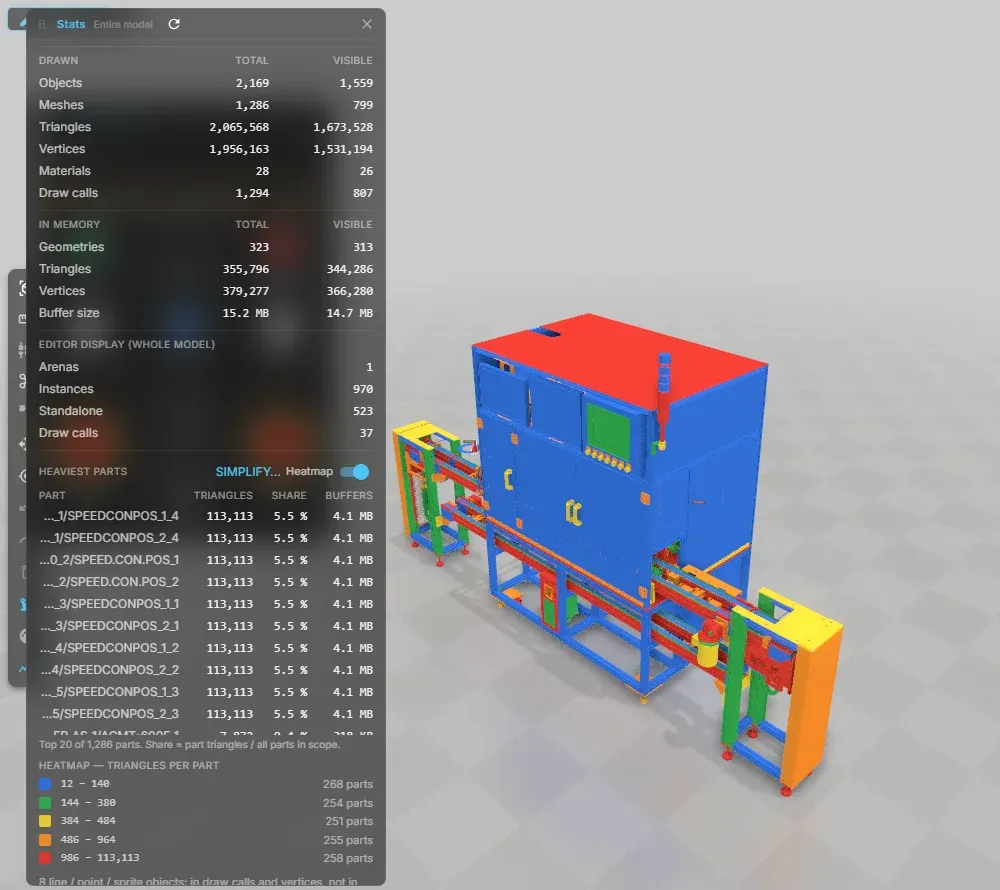
The heatmap is display only: it does not change materials, is never saved and never enters the undo history. It follows moved and hidden parts and is hidden while a group or filter isolate is active. Closing Stats or opening another document or model switches it off.
Simplifying parts
Section titled “Simplifying parts”Opening the dialog
Section titled “Opening the dialog”Simplify… is available in the Editor and opens from two places:
- Stats ▸ Heaviest parts ▸ Simplify… — simplifies the rows you selected in the list, or the visible top-20 rows if you selected none of them.
- Right-click a node in the 3D view or the hierarchy ▸ Simplify… — simplifies all meshes below that node.
Settings
Section titled “Settings”The Simplify dialog has two settings:
- Max deviation (mm) — defaults to 0.5. The simplified surface stays within this distance of the original. The deviation is measured on the result, not estimated; a part that would exceed the limit stays unchanged.
- Target share (%) — optional; empty means Off. The share of triangles to aim for, from 0 to 100. The deviation limit always wins over the target.
The preview recomputes shortly after you change a value; Computing preview and a progress bar show that it is running. Nothing in the model changes until you choose Apply.
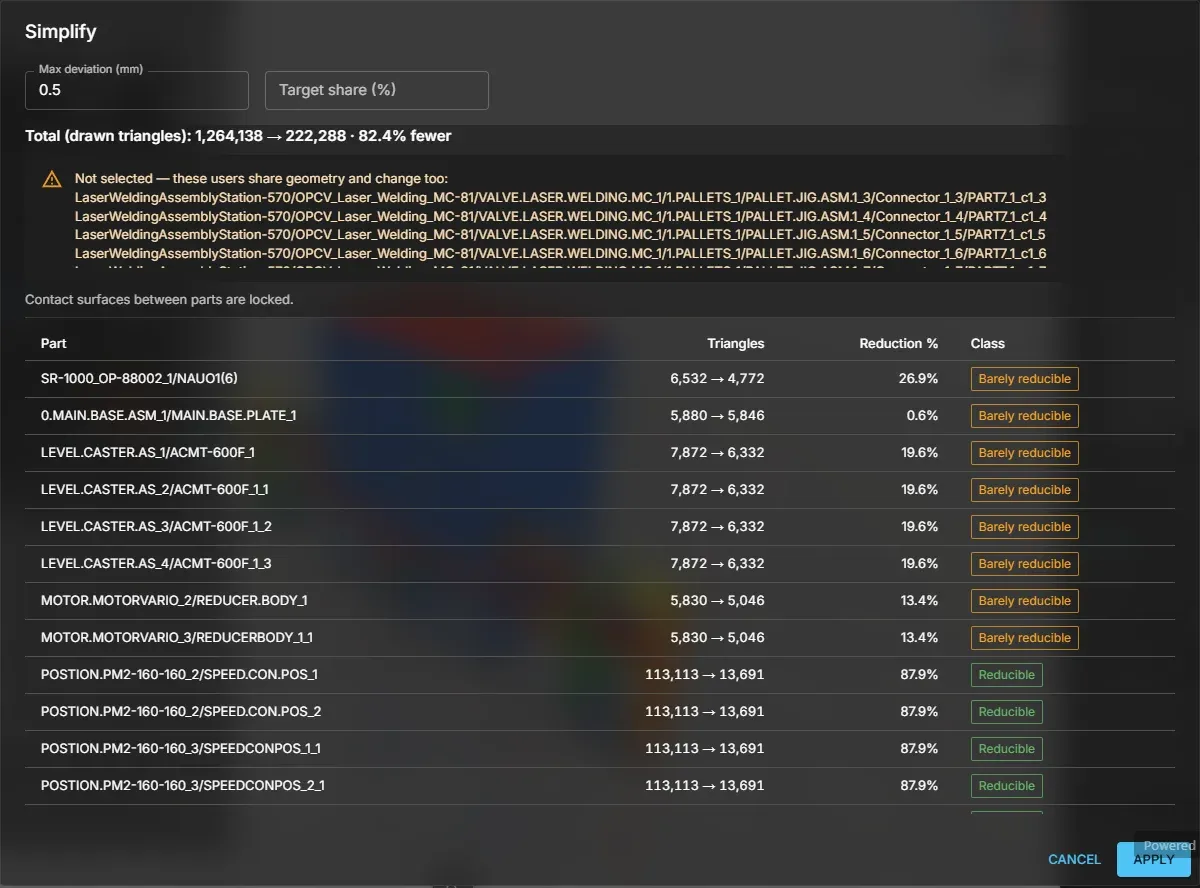
Contact surfaces between parts are locked: where two parts touch, the contact stays exact, so no gaps open between them. CAD edges stay sharp, because seams and normals are respected rather than smoothed away.
Reading the preview
Section titled “Reading the preview”The top line, Total (drawn triangles), shows the count before → after and how many percent fewer. The table lists each part with Triangles (before → after), Reduction % and Class, plus a Reason column when parts are kept or skipped.
| Class | What it means |
|---|---|
| Small | Fewer than 500 triangles; the part stays as it is. |
| Barely reducible | Even at the deviation limit more than half of the triangles remain — typical for CAD that was already tessellated coarsely. |
| Reducible | At least half of the triangles can go. |
If a selected part shares its geometry with parts you did not select, the dialog lists them under Not selected — these users share geometry and change too. Review that list before applying: those parts change with the selected one.
Single-material triangle meshes are supported. Meshes with several materials, vertex colours or a partial draw range are skipped with a reason. When nothing can be gained, the dialog says so instead of offering Apply:
- Nothing to gain: this CAD is already reduced
- No safe reduction at these settings
- No supported meshes to simplify
Simplification runs in background workers in your browser; nothing is uploaded. In our measurements it takes roughly 9 seconds per million triangles on a desktop PC, and a large CAD cell went from about 2.7 to 1.2 million triangles at 0.5 mm. A model whose CAD export is already coarse barely shrinks — the classes tell you that before you apply.
Applying and undoing
Section titled “Applying and undoing”Apply replaces the geometry of the simplified parts in one step, and the Stats window recounts automatically. One Ctrl+Z restores the originals exactly.
The next save writes the simplified geometry into the GLB; no second high-resolution copy is kept in the file.
If parts change while the preview is open, Apply refreshes the preview instead and reports Parts changed — preview refreshed. Review the refreshed result and apply again.
From AI tools and macros
Section titled “From AI tools and macros”The same simplification is the command editor.simplify, reachable through MCP:
web_execute(command="editor.simplify", args={"paths": ["Asset/Part"], "errorMm": 0.5, "ratio": 0, "normalWeight": 1})paths— node paths; omit them to use the current selection.errorMm— maximum deviation in millimetres; defaults to0.5.ratio— target triangle fraction from 0 to 1;0uses the deviation limit only.normalWeight— how strongly normals and edges are preserved; defaults to1.
The command records into macros with explicit paths and is one undo step. Its result reports the simplified, kept and skipped counts with reasons, the drawn triangles before and after, and the co-users of shared geometry. See Build with AI for connecting an AI tool.
- Start with nothing selected to see the load of the entire model, then use Share to find the few parts that dominate it.
- Read the heatmap legend alongside the colours: red marks the heaviest fifth of the parts in this scope, not a fixed triangle count.
- Keep Max deviation at 0.5 mm unless you know the detail you can give up; check the classes before you apply.
- If draw calls rather than triangles are the problem, merge meshes instead.
See also
Section titled “See also”- Editor overview — the workspace and its tools
- Importing CAD — import sources and tessellation settings
- Mesh and structure — splitting, merging and grouping the imported tree
- Materials — cleaning up the materials a CAD import brings with it