
Experiments and Runs
The experiment manager is fully usable in the public demo; for your own installation it is part of realvirtual Commercial. Single runs and their statistics stay free in the open-source core. See Licence.
Compare several simulation runs to answer questions that a single run cannot resolve reliably. For example, compare runs to decide whether a buffer between two stations needs ten places or twenty.
Every run is stored in a tree:
Project└── Experiment └── Run └── CheckpointEach level answers one question:
| Level | What it is |
|---|---|
| Project | The comparison boundary. Runs are only ever compared within one project. |
| Experiment | One scenario under test. A changed model structure starts a new experiment under the same project, so results from two different models are never mixed into one chart. |
| Run | One execution, with its seed, its status (completed or aborted), when it started and ended, the simulated time it reached, and its statistics. |
| Checkpoint | A stored simulation state inside a run, which can be loaded and continued. |
Every experiment of the active project is visible at once. Experiments recorded against a different model version remain visible with an other model version chip. This indicates that you should not compare them.
Opening it
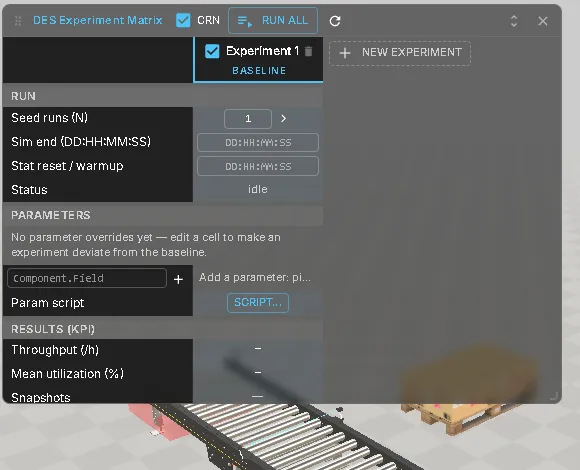
Section titled “Opening it”Two entry points, both toggling the same window: the Experiments button in the DES clock settings, and the DES side-tool button.
Columns are variants
Section titled “Columns are variants”The window is the overview of your variants and the place where you compare them. It is one table:
- Columns are configurations. The first column is always the Base configuration — the model as saved — and is marked Reference. Every further column is a variant: a named set of changed values on top of the base.
- Property rows (section Properties) list the values that differ. A cell holds the variant’s own value; an empty cell shows the inherited base value in grey (
= 1200). - KPI rows (section Results (KPI)) show what each configuration achieved: mean ± 95 % confidence interval over its repeated runs, and below it the difference to the Base configuration.
Repeated runs, the random generator version, matching random seeds and the results belong to the column. A variant you create here is the same variant you switch with the Variant selector in the simulation toolbar and edit in the Inspector — there is only one list of variants.
Creating a variant
Section titled “Creating a variant”Click + New variant, type a name and confirm. The new column starts empty, so it behaves exactly like the base until you change a value. Creating a variant does not change the scene and does not reset the simulation.
The column menu (▾ next to the name) offers Show in scene (resets the simulation to t = 0), Rename, Duplicate, Delete and Include in “Run all”. Deleting a variant also deletes its results; the confirmation tells you how many. The Base configuration cannot be deleted.
Choosing properties
Section titled “Choosing properties”Click + Add property and pick a field from the searchable list — for example a source’s interval or a forklift’s target speed. Each node is its own row. Only fields that a variant can change are offered; others are shown greyed out with the reason. A new row shows the base value in every column until a variant changes it.
Changing values
Section titled “Changing values”Type into a variant’s cell. If that variant is not in the scene, the value is only stored — nothing in the scene changes. If it is the variant in the scene, the value is applied the same way as an Inspector edit; while the simulation is running you confirm first, because applying resets the simulation to t = 0. ⟲ removes the variant’s value so the cell inherits the base again.
Base values are edited in the Inspector while the Base configuration is in the scene; the Base column itself is read-only.
Running the comparison
Section titled “Running the comparison”Set Stop at simulation time and Start measuring after (warm-up) in the toolbar; they apply to all columns, because a difference is only meaningful for runs of the same length. Repeated runs is set per column. Then click Run in the footer.
The run executes each included column in turn: it switches the scene to that column’s configuration, runs its repeated runs in Fast-Forward, and switches back to what you had in the scene before. While it runs, the model is locked — edits, variant switching and simulation controls are refused with Locked — experiment running; only Cancel is available. Cancelling keeps the runs that are already complete.
Models with logic steps, PLC programs or IK paths
Section titled “Models with logic steps, PLC programs or IK paths”Experiments cannot run on models with logic steps, PLC programs or IK paths yet. During a run the simulation is paused for everything except the event-driven part, so this logic would not advance and the results would be wrong. Run and Run all are disabled with this explanation, and the Problems panel names the affected systems and nodes. Remove the logic from the model, or run it live instead. Fast Forward and Hybrid speed still work on such models, but they count the logic cycles incorrectly and show a warning.
Seeds and repeatability
Section titled “Seeds and repeatability”Each repeated run uses its own seed. With Use matching random seeds (on by default) every column uses the same sequence of seeds, so a difference between columns comes from the configuration rather than from chance. Re-running the same seed with the same configuration replaces the earlier result instead of adding a duplicate.
New columns use random generator version 2. Older experiments can still use version 1; their column says so and offers Run again with v2, which keeps the old results under Historical results instead of mixing them in.
Outside the experiment window, a seed lives on the document’s DES manager and travels with the model. Fixed seed repeats the same seed on every reset; Auto seed generates a new seed per reset. This choice is a personal browser preference. Without any seed, the default is 42.
An incompatible run or snapshot is refused with rng-version-conflict. See Randomness and seeds for generator versions and the limits of matching seeds.
Reading the results
Section titled “Reading the results”Each KPI cell shows mean ± 95 % confidence interval and how many runs it is based on, for example 51.3 ± 3.3 (5/5). With fewer than two runs there is no interval (CI n/a).
Under each variant’s value is its difference to the Base configuration. With matching random seeds the difference is computed run by run on the same seeds, which makes it much more precise; otherwise the two columns are compared as independent samples. The window says when no difference can be computed, for example Difference unavailable: random generator versions differ. Run both again with the same version.
Results only count while they still describe the column. If you change a value of a variant, change the base model, or change the run length or warm-up, the earlier results of the affected columns become stale: they stay visible with the reason (values changed, base changed, …) and Run again, but they are no longer averaged or compared.
Choose which KPIs to show with KPIs ▾. Expand a KPI row with ▸ to see it as a chart:
- Bars — one bar per column with its confidence interval.
- Over time — the KPI as a curve over simulation time, one line per column (the mean of its runs), optionally with a band (confidence interval or min/max) or a single run.
Your own KPI
Section titled “Your own KPI”Throughput and utilization are there from the start. Everything else you want to compare, you add with + Add KPI next to KPIs ▾. A KPI is measured after the warm-up only — whatever happens before the warm-up ends never counts.
A property of a component
Section titled “A property of a component”Most KPIs are a value a component already has. + Add KPI lists the same properties as + Add property, plus the counters every simulated component keeps, such as a sink’s TotalProcessed (the parts it has taken). When several components share a name pattern, the list also offers them together, for example All Sink_V* › Sink.TotalProcessed (2, summed).
Then say what kind of value it is:
- Counter — it only counts up (parts out, failures). The KPI is the count at the end of the run minus the count at the end of the warm-up. Tick per hour to divide by the measured hours, for example Pallets out per hour.
- State — it goes up and down (a buffer fill level, a queue length). The KPI is its average over time, or its maximum, or its value at the end of the run.
The window proposes the kind from the name (Count, Total, Processed, Output … are counters); you can switch it.
A value from your script
Section titled “A value from your script”For something only your logic knows, publish it from the script:
self.statValue('Late orders', late, 'pcs');Run the model once so the value is recorded. Then + Add KPI ▸ Script values lists Late orders · <script name>. Pick it, choose counter or state, keep or change the name and set Better is: lower.
In an experiment, scripts run on the simulation clock and start fresh in every run, so their values compare fairly between columns and repeated runs. Publish a starting value in setup() so the KPI appears before the first event. To react to finished parts, subscribe to a sink in setup(), for example:
function setup(self) { const st = self.persist({ last: null, late: 0 }); self.statValue('Late shipments', 0); const sink = self.sink('Sink_V1'); if (sink) sink.on(() => { if (st.last !== null && self.now - st.last > 120) st.late++; st.last = self.now; self.statValue('Late shipments', st.late); }); return {};}The if (sink) check keeps the script quiet when the model is not running as an experiment and there is nothing to count.
Keep values that must survive a checkpoint in self.persist(...); a script that keeps its state elsewhere still runs, but checkpoints are refused for it.
Predefined component metrics
Section titled “Predefined component metrics”+ Add KPI ▸ Predefined metrics offers the component statistics — utilization, output, breakdown share, blocked, idle, driving, traffic stops and more — for one component or a name pattern such as Stapler_*, combined as mean, sum, min or max. AGV breakdown share in the PalletYard demo is the breakdown share of all Stapler_* vehicles, averaged.
Better is
Section titled “Better is”Better is: higher / lower / neither decides the colour of the difference to Base: green when the variant is better, red when it is worse, neutral for neither.
After adding
Section titled “After adding”A property or script KPI needs runs that recorded it: columns that were run before you added it show needs a rerun — run them again. Predefined metrics apply to existing runs right away. Hover a KPI name and click × to remove it. The KPIs are saved with the experiment, so they travel with the project.
With an AI assistant the same works through MCP, for example experiment.kpi.add {label:"Pallets out", component:"Sink", field:"TotalProcessed", match:"Sink_*", kind:"counter", perHour:true, better:"higher"}; experiment.kpi.list shows the definitions and experiment.kpi.remove deletes one.
Time series
Section titled “Time series”Every run records the curves behind the charts — the throughput and utilization KPIs, the numeric rows of the statistics window and the state shares of each station — over simulation time, also in Fast-Forward. Recording never changes the run itself. A run without a finite end time records no curves.
The curves are stored with the results and are part of the export. Very large models keep fewer station curves per run so that one run stays below 1 MB; the window then notes that curves were truncated.
Older experiments
Section titled “Older experiments”Experiments created before variants existed are converted when you open the window: each old column with changed values becomes a variant with those values. Old results are kept and shown as Historical results (configuration not recorded), because their exact configuration cannot be proven; they are not averaged with new runs. Values that cannot become a variant — planning parameters and parameter scripts — are listed in the Problems panel. A column that cannot be converted stays visible as Legacy: … (not migrated).
If variants were only kept for the session (for example in a read-only demo) and are gone after a reload, the window restores them from the experiment and says Restored from the experiment — not saved in the model. Save the model to keep them.
Checkpoints
Section titled “Checkpoints”Checkpoint autosave stores a full simulation state at regular simulated-time boundaries. For example, hourly checkpoints occur exactly at 04:00:00, 05:00:00 and so on, rather than at frame times. Autosave is off by default; set an interval to switch it on.
Simulated-time boundaries occur at the same points in Animated, Fast-Forward and Step mode. A seeded run produces bit-identical results whether autosave is on or off. Changing the interval during a run immediately reschedules the next boundary.
A run keeps its newest checkpoints in a ring buffer of configurable size; older ones are removed. Loading a checkpoint restores the state and random number streams, then switches the simulation to Step mode. You can continue event by event.
Fast-Forward can produce checkpoints faster than they can be written. If storage cannot keep up, an individual save at a boundary is skipped. The schedule continues unchanged, and skipped saves are not retried later.
A snapshot continues only the identical model; see Saving and restoring a run for what is saved and when it is refused.
Snapshots belong to their column. Resume first shows the variant of that column, then restores the checkpoint. If the variant has changed since the snapshot, resume is refused.
Comparing runs
Section titled “Comparing runs”Tick the runs you want to compare anywhere in the tree, including across experiments. The comparison view reports their combined statistical result as mean ± 95 % confidence interval. Comparing replications distinguishes differences between scenarios from variation within one scenario.
You can compare runs only within one project. Runs from different projects are never combined.
Managing the tree
Section titled “Managing the tree”- Project — select, create, rename, or delete with everything below it.
- Experiment — take a snapshot now, export, rename or delete.
- New variant — the last column of the table creates one (see Creating a variant).
- Import and refresh sit in the title bar.
The model an experiment belongs to is shown by name. The internal fingerprint that decides whether two experiments describe the same model never appears in the UI.
Export and import
Section titled “Export and import”An experiment exports as a single compressed file containing its manifest and every snapshot. Import restores the experiment from that file. If its name already exists, the imported experiment is renamed without overwriting anything.
With a writable project folder, experiments are saved in experiments/<docId>.rvexp.ndjson, travel with the project and its export, and are imported when you open the project. Existing browser results take precedence during automatic import. Without a writable project folder, results stay only in this browser. Browser storage can be reclaimed; export experiments you want to keep.
See also
Section titled “See also”- Discrete event simulation — the DES workspace and what it measures
- Layout Planner — where the layout and its transport routes are authored
- Documents — projects and documents in realvirtual