
The Screen & Workspace Modes
realvirtual shows the 3D model in the centre, with tools and panels around it. The workspace selector controls which tools are available.
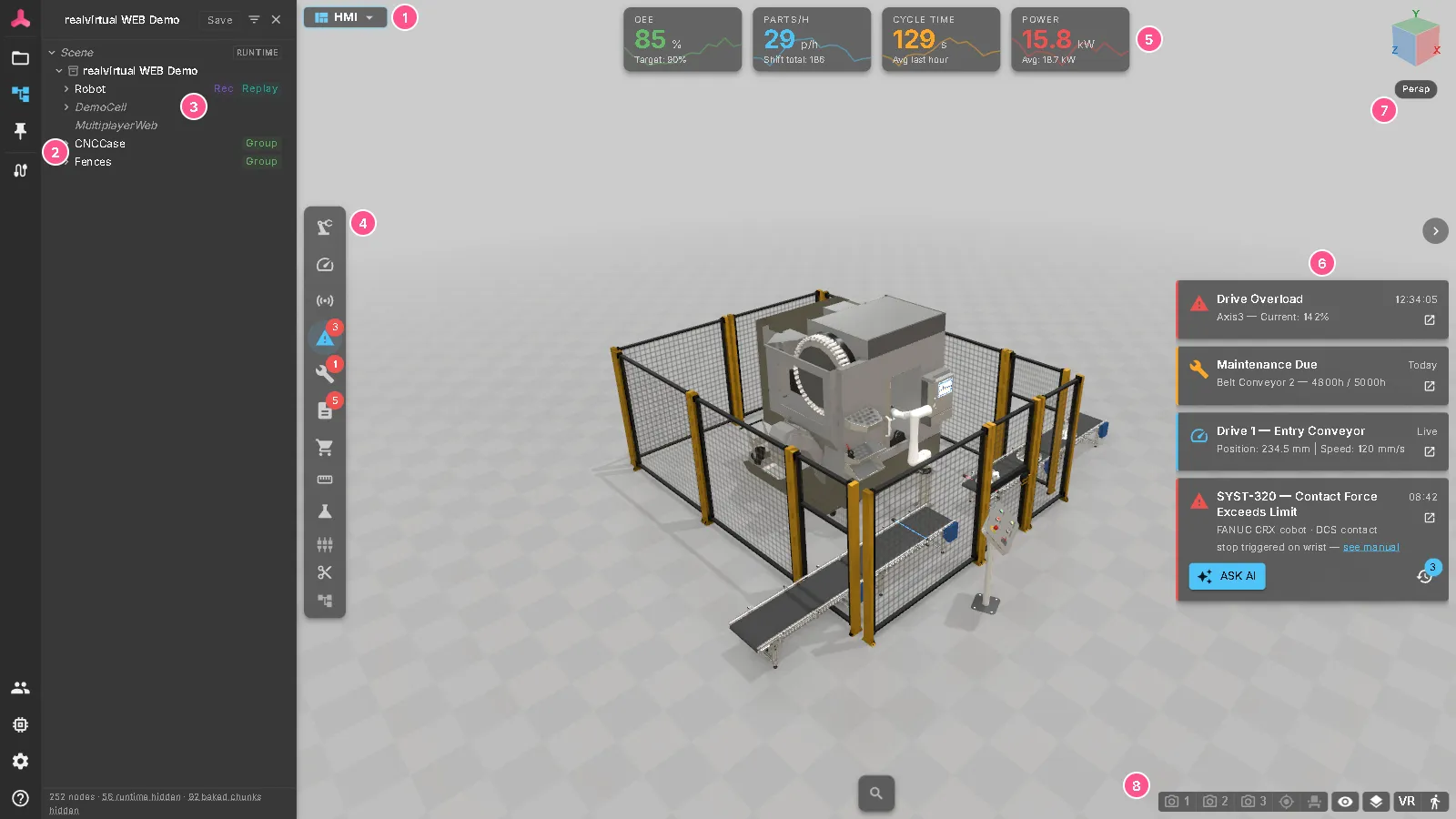
The areas of the screen
Section titled “The areas of the screen”| Area | What it is for | |
|---|---|---|
| 1 | Workspace mode | Switches between the workspaces described below |
| 2 | Left bar | Opens the Projects, Hierarchy, CONNECT and Settings panels, and help |
| 3 | Docked panel | Shows the open panel. Here, the Hierarchy shows the twin as a tree |
| 4 | Tool strip | Tools for the active workspace, such as alarms, maintenance, measuring and section cut |
| 5 | Key figures | Live KPIs of the machine, in an HMI delivery |
| 6 | Machine messages | Alarms, maintenance notices and live drive values, each linked to the part it concerns |
| 7 | Orientation cube | Click a face to look along that axis; below it, switch between perspective and orthographic |
| 8 | View controls | Camera presets, visibility and layers, VR and first-person view |
Not every delivery shows every area. A twin for an operator may show only the 3D view and its messages. The public demo shows all areas. Press H at any time to hide the overlay and see only the model.
Workspace modes
Section titled “Workspace modes”The workspace mode controls which panels, tools and gizmos are available. Switching modes does not change the document.
| Mode | Use it to |
|---|---|
| Viewer | View a twin and watch it run, without changing its configuration |
| HMI | Operate a machine: key figures, messages, alarms, live signals. The usual default |
| Commissioning | Put a machine into operation: inspector, hierarchy, signals, CONNECT and the AI bridge |
| Planner | Build a line from library objects in the Layout Planner |
| DES | Study throughput and material flow with discrete event simulation |
| Editor | Turn CAD into a working asset by editing its structure, axes, drives, materials and signals. See Your First Twin from CAD |
Switching the mode
Section titled “Switching the mode”Click the mode name in the top left corner (1) and select another mode. The model stays loaded while the tools change.
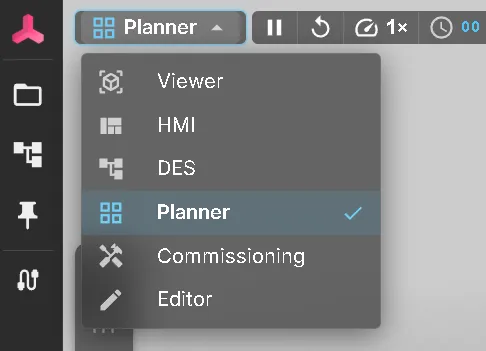
To share a twin in a specific mode, include the mode in the link:
https://web.realvirtual.io/demo/?mode=commissioningThe values are viewer, hmi, commissioning, planner, des and editor. Use ?doc=new&mode=editor to open a new Editor document with the CAD import dialog open.
Available modes depend on:
- The delivery. A twin for an operator is often locked to one mode. In this case, the selector is hidden.
- The document. A document can name the modes it is meant for. While it is open, the selector offers only those, and the document opens in its default mode. A link with another mode, such as
?mode=hmi, opens it in the default mode instead. The Editor stays available so that the document can still be edited. - The licence. The Editor is commercial. It is available in the public demo, but not in an open-source deployment. The DES core is part of the open-source Community edition; the experiment manager is commercial. See Editions.
To restrict a document, add modes to its entry in the project’s project.json. mode sets the mode the document opens in and must be one of the listed modes. Without modes, every mode is available:
{ "id": "doc_walker", "path": "MuJoCoWalker.glb", "mode": "commissioning", "modes": ["commissioning", "viewer"] }Where to go next
Section titled “Where to go next”- Navigation & Controls — move the camera and select parts
- Demo Models — the twins to try each mode on
- The Interface — every area of the screen in detail, including Settings
- Your First Twin from CAD — the Editor in practice