
Workspace Modes
The workspace mode controls which panels, tools and gizmos are available. Switching modes does not change the document.
| Mode | Use it to |
|---|---|
| Viewer | View a twin and watch it run, without changing its configuration. The spectator workspace: the model and its running kinematics, the view controls and the settings. Nothing to author, no panels, no signals |
| HMI | Operate a machine: key figures, messages, alarms, live signals. The usual default, and the default where a delivery says nothing else |
| Commissioning | Put a machine into operation: the Viewer interface without the operator HMI, plus the tools an integrator needs: inspector, hierarchy, signals, CONNECT and the AI bridge |
| Planner | Build a line from library objects in the Layout Planner |
| DES | Study throughput and material flow with discrete event simulation |
| Editor | Turn CAD into a working asset by editing its structure, axes, drives, materials and signals. The simulation does not run here. See Your First Twin from CAD and the Editor |
Switching the mode
Section titled “Switching the mode”Click the mode name in the top left corner (1 in the interface) and select another mode. The model stays loaded while the tools change.
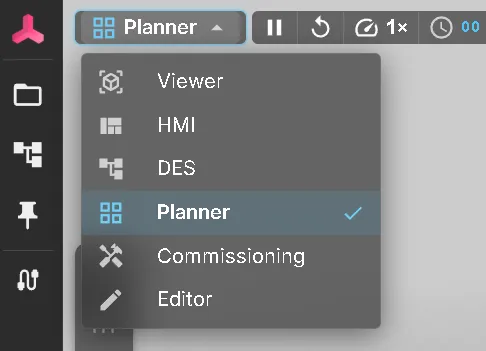
Opening a link in a mode
Section titled “Opening a link in a mode”To share a twin in a specific mode, include the mode in the link:
https://web.realvirtual.io/demo/?mode=commissioningThe values are viewer, hmi, commissioning, planner, des and editor. If a mode is unavailable in this delivery, the viewer ignores it without an error. It uses the document’s mode, then the last session’s mode, or HMI if neither is set.
Use ?doc=new&mode=editor to create a new asset in the open project. It opens in the Editor with the CAD import dialog open.
https://<your-deploy>/?doc=new&mode=editorThe full set of link parameters is under sharing models.
Which modes are available
Section titled “Which modes are available”Available modes depend on:
- The delivery. A twin for an operator is often locked to one mode. In this case, the selector is hidden.
- The document. A document can name the modes it is meant for. While it is open, the selector offers only those, and the document opens in its default mode. A link with another mode, such as
?mode=hmi, opens it in the default mode instead. The Editor stays available so that the document can still be edited. - The licence. The Editor is commercial. It is available in the public demo, but not in an open-source deployment. The DES core is part of the open-source Community edition; the experiment manager is commercial. See Editions.
To restrict a document, add modes to its entry in the project’s project.json. mode sets the mode the document opens in and must be one of the listed modes. Without modes, every mode is available:
{ "id": "doc_walker", "path": "MuJoCoWalker.glb", "mode": "commissioning", "modes": ["commissioning", "viewer"] }Kiosk deliveries
Section titled “Kiosk deliveries”A delivery can lock the workspace, hiding the mode selector and always opening the twin in its configured interface. Examples include a panel PC at the machine, a wall display or a booth. This is set once in the delivery configuration, not by the person at the screen. See server deployment.
See also
Section titled “See also”- The Interface — the screen areas and panels
- Navigation & Controls — move the camera and select parts
- Demo Models — the twins to try each mode on
- Documents — a document remembers the mode you last used it in