
All import sources use one dialog with a strip of tabs. Pick the tab for your source, set its options, and drop the file. There are no separate importers for individual formats.
Local files are read in the browser; nothing is uploaded. Assemblies too large for a browser tab are converted by realvirtual CONNECT on the same machine. The file stays on the machine in both cases.
Open the dialog with Import in the left toolbar or directly from a link. ?doc=new&mode=editor creates a new asset, enters the Editor and shows the dialog automatically. See opening a link in a mode.
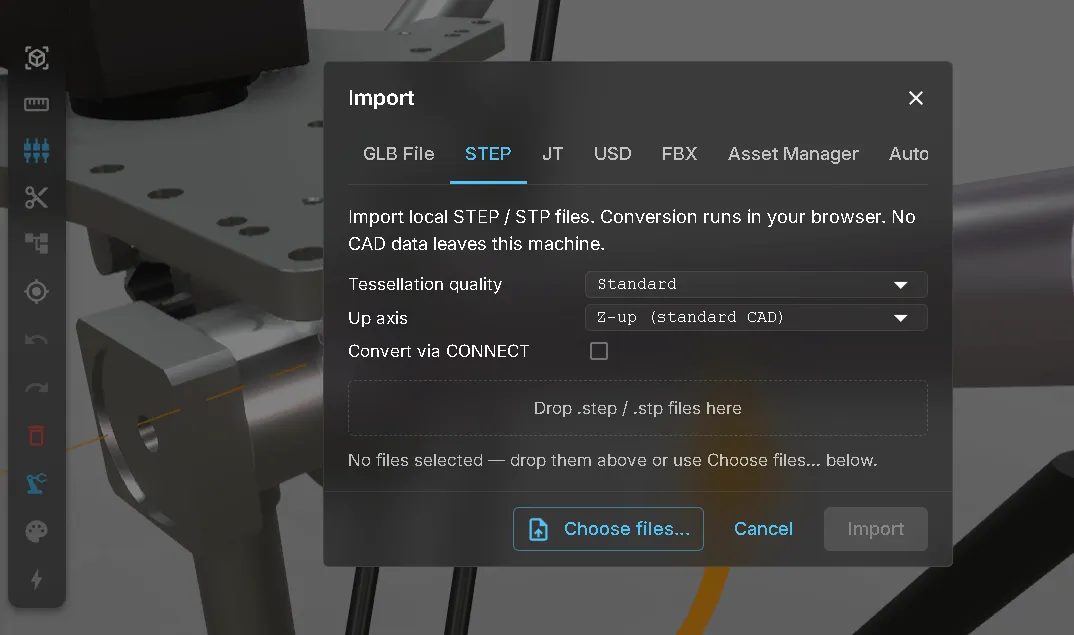
The seven sources
Section titled “The seven sources”| Tab | What it takes | Notes |
|---|---|---|
| GLB | .glb files | The native format. No conversion, no settings beyond placement. |
| STEP | .step, .stp | Tessellated on import — see the settings below. |
| JT | .jt | Choose a level of detail; a .plmxml picked alongside the geometry brings the assembly’s kinematics with it. |
| USD | USD / USDZ | Already a mesh format, so there is nothing to tessellate. |
| FBX | .fbx | Mesh format as well; units, up axis and the material conversion are handled for you. |
| Asset Manager | Assets from a connected Unity Asset Manager | Browse the connection and pick assets instead of files. |
| Onshape | Geometry from an Onshape document | Requires a one-time sign-in; until then the tab shows a login hint rather than failing an import. |
Every source produces GLB bytes, cached under the content hash of the original file. Re-opening a document with imported CAD reads the cached bytes quickly without repeating tessellation.
STEP settings
Section titled “STEP settings”Two settings decide how a STEP assembly arrives:
- Tessellation quality — from Minimal (blocky) through Ultra Low, Very Low, Coarse, Standard (the default) to Fine (detailed). Coarser is faster and lighter; finer keeps small radii round. Quality is recorded with the import, so a later re-import can reuse it.
- Up axis — Z-up (standard CAD) by default, or Y-up. Flip it if the model imports lying on its side.
Convert via CONNECT appears only when a reachable gateway advertises the capability. It converts natively and 64-bit, so the browser’s memory ceiling does not apply.
Auto-align to floor is on by default. Turn it off for multi-part assemblies that must keep their original positions relative to each other.
Whatever quality you choose, a few parts usually carry most of the triangles. The Editor’s Stats window lists them and colours them as a heatmap — see mesh statistics and simplification.
Cancelling an import
Section titled “Cancelling an import”Cancel ends a running import immediately and returns the dialog to its selection state. For conversions running on CONNECT, it also stops the server-side job and its converter process. Esc does the same. Clicking the backdrop does not cancel the import, so a stray click cannot abort a long conversion.
Moving parts after an import
Section titled “Moving parts after an import”Imported CAD is placed as a reference to the converted asset rather than copied into the document. This keeps the document small and lets the same assembly appear more than once. Previously, moving an inner part of a reference could not be saved. The move is now stored as a transform override on the reference node. After importing, moving a part, saving and reloading, the part stays exactly where you placed it.
You still cannot move a part inside a reference that is itself inside another reference. Open the referenced asset and move the part there instead.
Re-importing a newer CAD revision
Section titled “Re-importing a newer CAD revision”A node that came from CAD carries a CADLink, and its Inspector offers Re-import CAD…. Pick the newer revision of the same file to replace the subtree. Your kinematics, drives, sensors, signals and every other component you attached are carried over.
Parts are matched by their position in the CAD structure. Matching uses the persistent JT handle where one exists, so a renamed part still matches. Otherwise, it uses the CAD name path. Duplicate sibling names are distinguished by occurrence.
Afterwards you get a preservation report:
- how many component-bearing parts were matched and carried over,
- which ones had no counterpart in the new revision, with the components that were attached to them,
- which parts in the new revision are new.
The report identifies anything that was not carried over. The whole replacement is a single undo step: one Undo restores the previous subtree completely.
Limits without a commercial licence
Section titled “Limits without a commercial licence”In the public demo and on the free CONNECT tier, CAD import is limited to 25 MB per STEP file and 12 MB per JT file. A commercial licence lifts both.
The limit applies per file, so an assembly delivered as several smaller files imports fine. Details: licensing and activation and what the licences require.
See also
Section titled “See also”- Mesh statistics and simplification — find the heavy parts of an import and reduce them
- Editor overview — what the workspace does with the geometry once it is in
- CAD conversion in CONNECT — converting assemblies too large for a browser tab
- Materials — cleaning up the materials a CAD import brings with it
- Mesh and structure — splitting, merging and grouping the imported tree