
Concept primitives are simple bodies you create in the asset editor without any CAD file: Box, Plate, Cylinder, Tube, Sphere and Cone. Each body has its dimensions in millimetres. You add the normal components to it (Drive, Sensor, Transport Surface, Source, Sink, Grip, Group, Kinematic) and the concept model runs in the continuous simulation and in DES like any other model.
A primitive is a node with the component Primitive. The component holds the recipe (shape and dimensions); the body itself is a real mesh in the child node _Shape, saved in the GLB. Opening, simulating and sharing a model with primitives works in every edition. Creating and changing primitives needs the editor.
Properties
Section titled “Properties”| Property | Meaning |
|---|---|
| Shape | Box, Plate, Cylinder, Tube, Sphere or Cone. A Plate is a box with a default height of 20 mm. |
| Length (mm) | Extent along X. For a Cylinder, Tube or Cone with Axis Length, its length. |
| Width (mm) | Extent along Z. For a Cylinder, Tube or Cone with Axis Width, its length. |
| Height (mm) | Extent along Y (up). For a Cylinder, Tube or Cone with Axis Up, its height. |
| Diameter (mm) | Cylinder and Sphere diameter, Tube outer diameter, Cone bottom diameter. |
| Top Diameter (mm) | Cone only. 0 makes a point, a larger value a truncated cone. |
| Wall Thickness (mm) | Tube only. Must be less than half the diameter. |
| Axis | Cylinder, Tube and Cone: Up stands the body upright, Length lays it along X (a roller), Width along Z. |
| Pivot | Bottom Center (default) puts the node origin at the middle of the underside, so the body stands on the floor. Center puts it in the middle. |
| Segments | Number of facets around a round body (8 to 128). |
| Snaps | None, or Flow X: two snap points at the X end faces, so conveyor blocks chain like library conveyors. |
| Snap Type Id | The snap type for Flow X, default conveyor. |
| Geometry Hash | Read-only fingerprint of the recipe, under Advanced. |
Create a primitive
Section titled “Create a primitive”In the asset editor, open Quick Edit ▸ Create ▸ Primitive and pick Box, Plate, Cylinder, Tube, Sphere, Cone or Conveyor block. The body is created below the selected object (or at the asset root) and selected, so you can move it with the gizmo right away. The Inspector then shows only the dimensions that belong to the shape: a Box shows Length, Width and Height, a Cylinder shows Diameter and its axial length, a Tube adds Wall Thickness. Switching the shape keeps the hidden values.
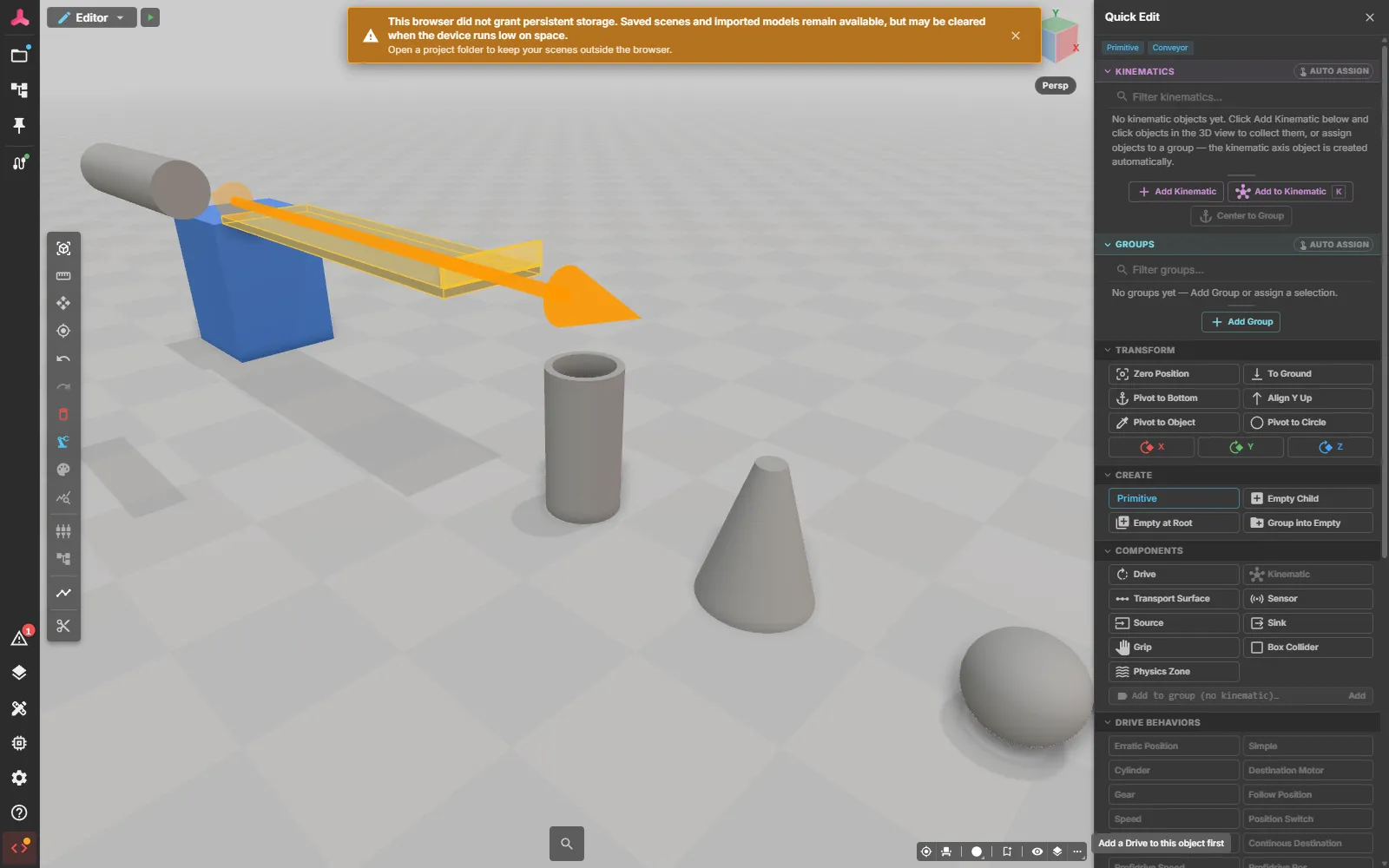
A Conveyor block is a Plate (2000 × 500 × 40 mm) with Flow X snap points that carries a working material-flow conveyor: the Conveyor component, a belt node Transport-X with Transport Surface and Drive, and an exit sensor Sensor-Exit. The exit sensor sits on the output snap point and moves with it when you change the length. The belt’s contact box keeps the size it was created with — adjust it after a large resize.
The AI tools (MCP) and macros use the command editor.createPrimitive through web_execute:
web_execute("editor.createPrimitive", {"shape":"Box","name":"Station1","length":800,"width":800,"height":1200,"position":[2700,0,0]})web_execute("editor.createPrimitive", {"shape":"Plate","name":"ConveyorA","preset":"conveyor","length":2000,"position":[1300,800,0]})web_execute("editor.createPrimitive", {"shape":"Cylinder","name":"Roller","diameter":60,"length":500,"axis":"Length"})- position is in mm and rotation in degrees, both in the node frame of the asset.
- material takes a material preset id (see
editor.materialPresets) or a colour such as#3a7bd5. - parentPath creates the body below another node; without it the body goes to the asset root.
- Creating a primitive is one undo step. A value outside the allowed range is refused with a message before anything changes.
Change the dimensions
Section titled “Change the dimensions”Select the primitive and change a value in the Primitive section of the Inspector, or use editor.setField. The body is rebuilt at once:
- The change of the value and the new body are one undo step.
- The material of the body stays.
- Snap points follow the new end faces. Snap points you moved by hand are reset at the next rebuild.
- References, signals and components point to the primitive node, not to
_Shape, so they stay intact. Do not add components to_Shape— it is replaced at every rebuild, and the editor refuses it.
You cannot change the dimensions while a test run or the simulation is running, and not on primitives inside placed content: open the placed asset and change it there. Outside the asset editor the dimension rows are read-only.
If the stored body no longer matches its recipe (for example after the file was edited by hand), the Problems panel shows The shape is out of date with a Regenerate action (editor.regeneratePrimitive). Opening a file never changes it by itself.
Continuous simulation and DES
Section titled “Continuous simulation and DES”A primitive has no behaviour of its own: the body is fixed when the model is loaded and baked. What moves and decides comes from the components you add.
| Continuous simulation | DES (event-driven) | |
|---|---|---|
| Primitive body | Drawn, picked and used for collision like CAD geometry | Same body; no runtime work |
| Components on a primitive | Run as on any other node | Run as on any other node, with the DES rules of each component |
| Material flow | The Conveyor block carries the material-flow Conveyor; use it with Source and Sink for parity between both modes | Same components; a bare Transport Surface with a Drive does not move parts in DES |
Timed processing stop (logic switching the conveyor’s Flow.Run off when a part arrives) | Holds the part for the processing time | Does not hold the part: the conveyor hands it on in the same event, so throughput differs. Use a DES Station for DES studies |
| Changing dimensions | Only in the asset editor, never while running | Same; dimensions are not experiment parameters |
| Snapshots and fingerprints | A primitive model is a normal model | A changed dimension, saved, gives a different model fingerprint |
Replace a primitive with CAD
Section titled “Replace a primitive with CAD”When the CAD arrives, keep the primitive node and its components and swap only the body:
- Remove the
Primitivecomponent witheditor.removeComponent({"path":"Station1","componentType":"Primitive"}). The_Shapemesh stays as ordinary geometry. - Delete
_Shapeand import or place the CAD part below the node.
Components, references and signals keep pointing to the node, so the simulation keeps working. A single replace command is planned.
See also
Section titled “See also”- Editor overview
- SolidCraft for parts that need exact CAD geometry
- Parametric part families for catalogue parts with sizes
- Material flow