
Document ownership: saving the CONNECT configuration
A model can have its own CONNECT configuration: the interfaces, signal mappings and bridges it runs with. This page explains where that configuration is stored, what happens when you switch models, and why only one browser tab controls the gateway at a time.
Where the configuration is saved
Section titled “Where the configuration is saved”When you add the first interface for a model, realvirtual asks where its configuration belongs:
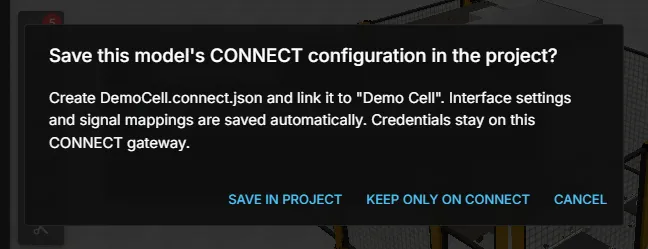
| Choice | Result |
|---|---|
| Save in project | realvirtual creates a .connect.json file in the project and links it to the model. Interface settings and signal mappings are saved there automatically. Credentials stay on the gateway and are not written to the file. |
| Keep only on CONNECT | The configuration exists only on this gateway. The project does not contain it, so it does not travel with the project. |
In a read-only project, such as a demo or a delivered project, the file cannot be written. The dialog then offers only Keep on CONNECT.
The Configuration block in the CONNECT panel shows the current state: the file path, or CONNECT gateway only with the note Not saved in project. A gateway-only configuration offers Save in project… later, if the project is writable. A linked file shows Saving…, Saved or Not saved with the reason.
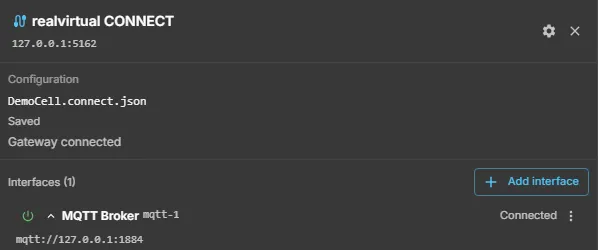
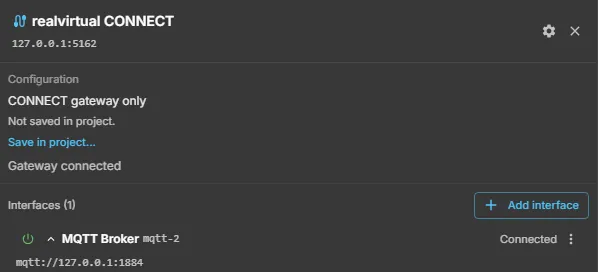
See Binding a profile to a document for linking an existing configuration file to a model.
When the gateway and the file differ
Section titled “When the gateway and the file differ”If the gateway holds a configuration that differs from the model’s file, the Configuration block shows the warning Gateway configuration differs from the model’s file and Resolve…. Resolve… expands the block: it names the interfaces that differ and offers three choices:
- Load from file replaces the gateway configuration with the file’s content.
- Keep gateway and save to file keeps what runs on the gateway and writes it into the file.
- Cancel changes nothing.
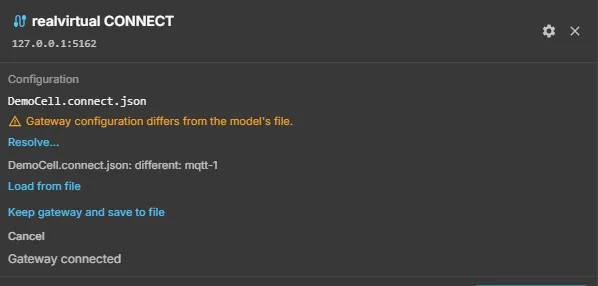
If the gateway holds the gateway-only configuration of another model, the block shows CONNECT gateway and says which model’s configuration CONNECT holds. Loading this model’s file replaces it, and the block says so. Keep gateway and save to file is then disabled, because that configuration belongs to the other model.
One tab controls CONNECT
Section titled “One tab controls CONNECT”CONNECT runs one model’s configuration at a time. The browser tab that opened the model owns the gateway, and the other tabs can see signals but cannot change the configuration or write signal values.
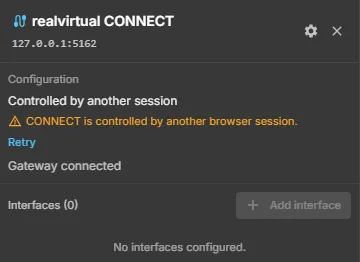
If another tab already owns CONNECT, the Configuration block shows Controlled by another session and the message CONNECT is controlled by another browser session. Add interface is disabled in this tab. To take over:
- Close the other tab, or close its model. This releases CONNECT. Closing the tab also releases it when the connection drops.
- Click Retry in this tab, or reopen the model. This tab then claims the gateway.
If the model has no active configuration, the block shows None active and no interface is started for it.
Switching models
Section titled “Switching models”When the open model changes, the owning tab releases CONNECT and claims it for the new model:
- The interfaces of the previous model’s configuration stop. Their configuration stays in its file, or on the gateway if it is gateway-only.
- The new model’s configuration starts. A model without a configuration starts no interface.
- Changes to a configuration that belongs to another model are refused until that model is open again.
If the previous configuration cannot be stopped, realvirtual reports that the model is not connected instead of running with the wrong interfaces.
Gateway configuration without a project
Section titled “Gateway configuration without a project”A configuration that did not come from a project, for example one created before you opened any model, is a host configuration. The block shows CONNECT gateway with Not from this project. It stays independent of the open document: switching models does not change it, and clicking in the panel, for example the power icon of an interface, does not link it to a model.
It becomes part of a document only through an explicit take-over: when you choose Save in project for a model while the gateway holds such interfaces, the dialog states that the gateway’s current interfaces are saved into the new file.
The CONNECT panel
Section titled “The CONNECT panel”The panel is the place for everything above:
- Gateway header: the connection state of the gateway, for example Gateway connected.
- Power icon: on each interface row, switches the interface on or off. There is no confirmation.
- Import SEW symbol table…: the main action in the empty state of a SEW UDP interface.
- Configuration block: origin and save state of the model’s configuration, with Save in project… and Resolve… where they apply.
See First connection for the full walk-through.
For integrators: the lease
Section titled “For integrators: the lease”The ownership is a lease on the gateway. Scripts that change the configuration while a browser owns CONNECT need to know the rule.
- A viewer tab claims the gateway with the WebSocket message
lease_activate(projectId,documentId,requestId) and releases it withlease_release(leaseId). CONNECT answers withlease_result(requestId,ok,leaseId, andreasonon failure). Failure reasons areheld-by-other,license,invalid,not-ownerandteardown-failed. - While a lease is held, REST writes to the configuration (
/config,/config/ops,/config/interfaces,/config/signals,/config/mirrors,/config/mappings,/config/bridges,/config/profiles,/modeland discoverybind) must send the lease id in the headerX-Connect-Lease. Without it, or with another id, CONNECT answers409with{"error":"lease-required"}. - While a lease is held by one session, signal
datawrites from other sessions are dropped. - Without a lease, no header is needed. This is the case when no viewer tab has claimed the gateway.
The message formats are in the REST and WebSocket API.
See also
Section titled “See also”- Interfaces and signals — creating interfaces and profiles
- Binding references to a document — how a document names its configuration file
- Troubleshooting — when signals do not arrive