
Dev Toolbar
When you run realvirtual from source with the Vite development server (npm run dev), the viewer shows one extra button: the dev toolbar. It tells you which checkout the tab is serving, lets you look at the app the way a delivery shows it, and saves state snapshots for end-to-end tests.
The dev toolbar exists only on the development server. Production builds never contain it — the code is removed at build time, and an automated test builds the viewer with the production settings and checks that nothing of it remains. Delivered apps, hosted links and the demo never show it.
How to use
Section titled “How to use”Find the button
Section titled “Find the button”The button is the last entry of the activity bar on the left, below Settings and Help. On a phone it is the last entry of the pill at the top right. It stays in the same place in the dev view and in the delivered view.
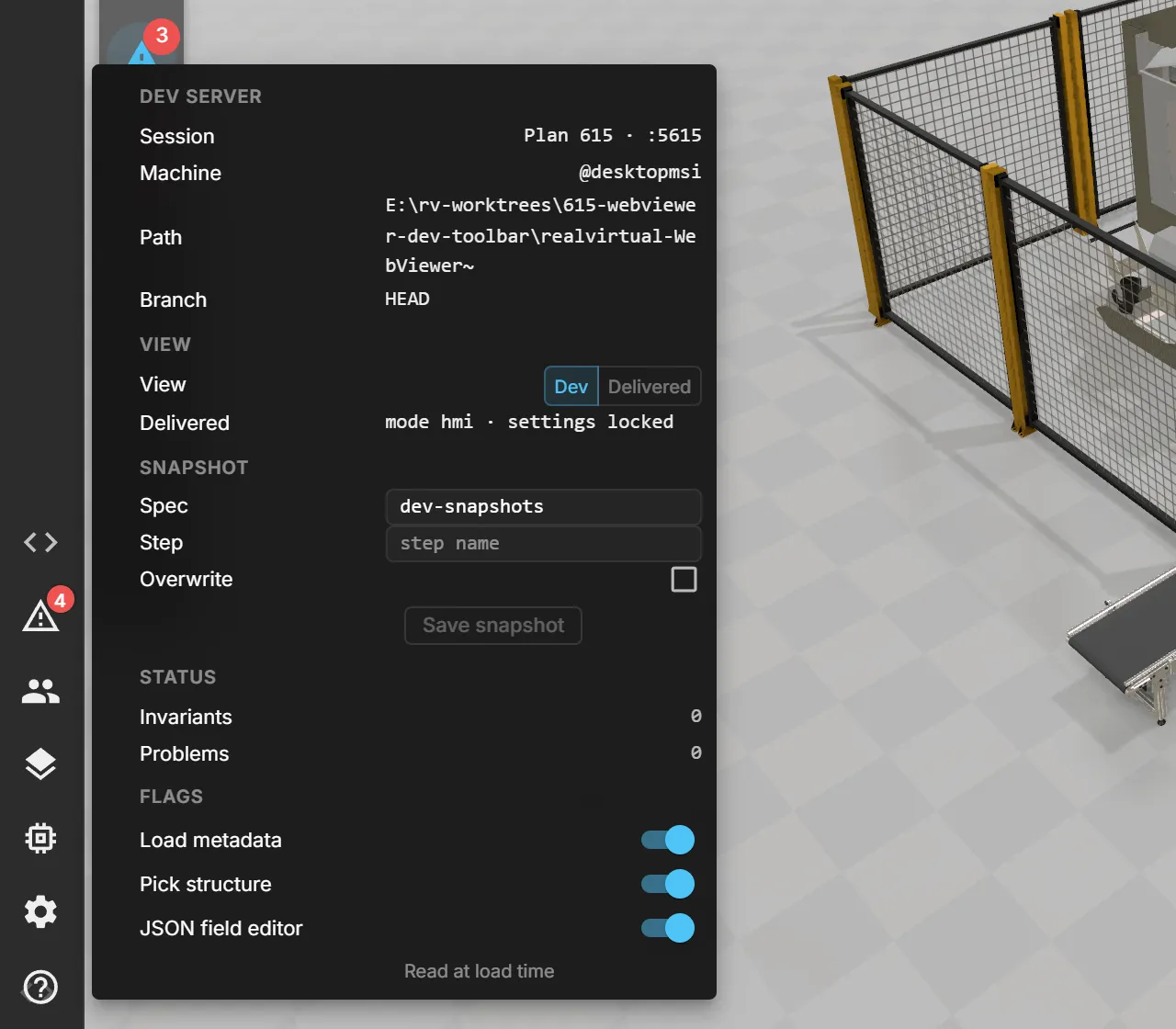
Hover over it to see the session, port, machine, served path and branch. Click it to open the popover.
Read the popover
Section titled “Read the popover”| Section | What it shows |
|---|---|
| Dev server | Session, machine, path and branch of the checkout this tab is served from. Long paths and branch names wrap, so you always see the full value. |
| View | The switch between Dev and Delivered (see below). |
| Snapshot | Spec and step name, an Overwrite option and Save snapshot. |
| Status | Internal consistency reports of this page and error entries from the Problems panel. |
| Flags | Developer load-time switches. Reload applies them. |
Switch between dev view and delivered view
Section titled “Switch between dev view and delivered view”- Dev shows everything: every mode and every panel, regardless of what the project’s app configuration locks.
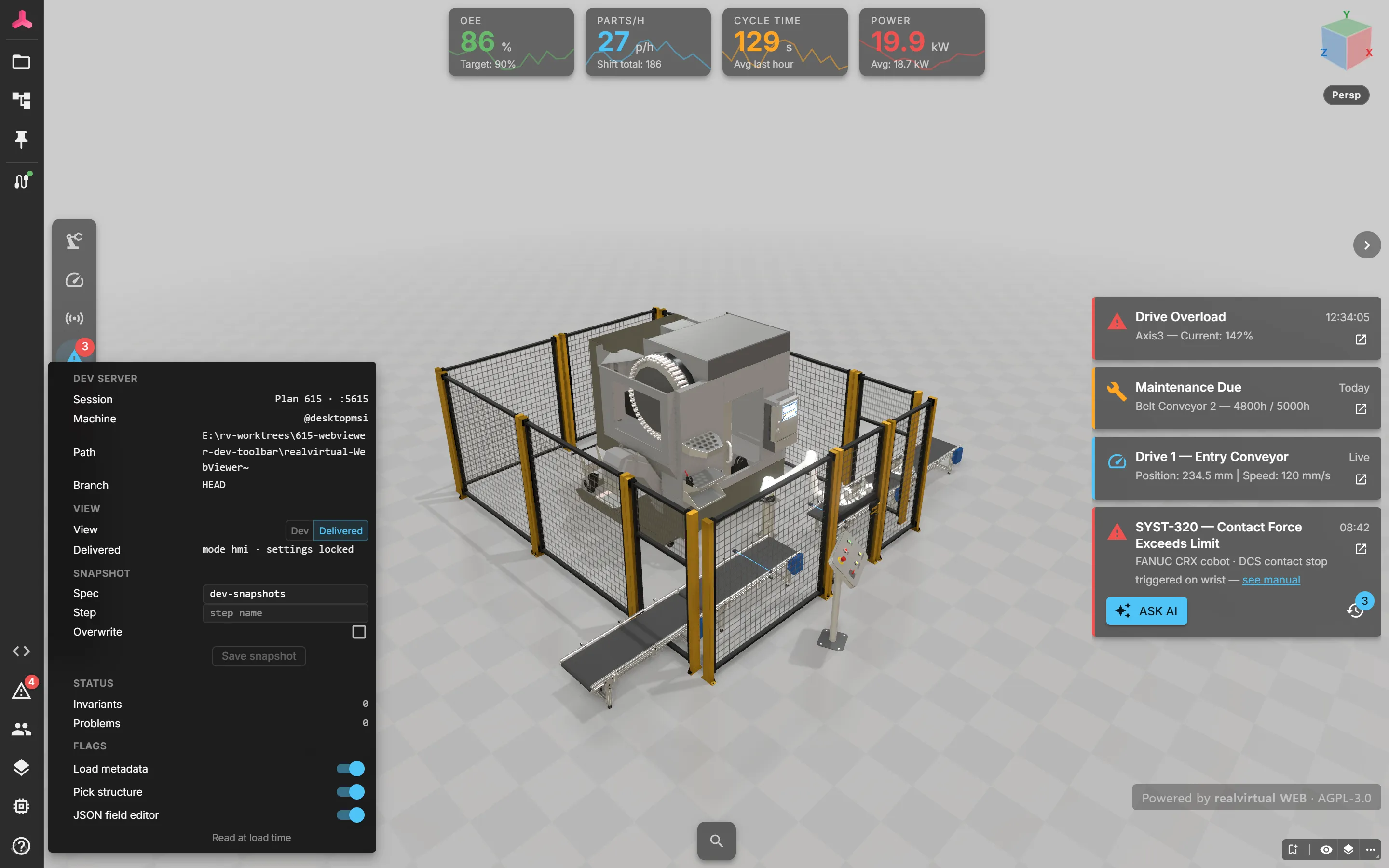
- Delivered shows the app the way the delivery’s app configuration shows it — locked mode, locked settings, locked tabs and hidden panels applied. If the loaded configuration locks nothing, the delivered view falls back to HMI only with locked settings.
Switching reloads the page, because a delivery applies its configuration only at startup. Camera position and signal states are lost. The choice is remembered per browser tab. You can also open a tab directly in one view with ?view=dev or ?view=delivered in the address; that parameter applies to one load and is removed when you switch.
To get back from the delivered view, use the same button — it stays in the activity bar. If the delivered configuration hides the activity bar entirely, a small translucent handle at the bottom-left edge takes its place and opens the same popover.
Save a snapshot
Section titled “Save a snapshot”A snapshot is a reference record of the current state — active mode, open document, drive positions, signal values, active alarms, selection, open panels and error-level problems — that end-to-end tests compare against.
- Enter the Spec and Step name.
- Click Save snapshot. The file is written to
e2e/__goldens__/<spec>/<step>.jsonin the served checkout. - Review the new file in
git diffbefore you commit it.
An existing snapshot is only replaced when you tick Overwrite. Without it, saving is refused, so you cannot overwrite a reference by accident. Names that would leave the e2e/__goldens__/ folder are refused as well.
The red CANONICAL marker
Section titled “The red CANONICAL marker”If the tab is served from the main checkout instead of a worktree, the button turns red with a warning dot and the browser tab title starts with [⚠ CANONICAL]. This warns you before you test or change plan work in the wrong tree.
A checkout counts as a worktree session only when a .rv-session.json file sits one level above the repository — the worktree tooling writes it. A worktree session shows a discreet button and a [Plan N] prefix in the tab title instead.
Options
Section titled “Options”| Option | Where | Effect |
|---|---|---|
?view=dev | Address bar | Opens this load in the dev view |
?view=delivered | Address bar | Opens this load in the delivered view |
| Overwrite | Popover ▸ Snapshot | Allows replacing an existing snapshot file |
| Reload | Popover ▸ Flags | Reloads the page with the changed load-time flags |