
A raw CAD tree rarely has the structure a machine model needs. One mesh may hold five parts that need to move separately. Eighty screws may need to become one mesh so the renderer no longer draws them individually. Parts that move together may be scattered across three branches of the tree.
The tools on this page reshape that tree. Find them in the context menu by right-clicking a node in the 3D view or a row in the hierarchy. Both open the same menu. Each operation is a single undoable step.
Splitting a mesh
Section titled “Splitting a mesh”Separate ▸ appears on any mesh and offers two ways to break it up:
- Into parts… splits the mesh by connectivity: every set of triangles that hangs together becomes its own part. This is what turns a single imported body into the five plates it visibly consists of.
- By material group… splits by the mesh’s material groups instead. Offered only when there are at least two, and the right choice for a multi-material mesh, which the connectivity mode refuses.
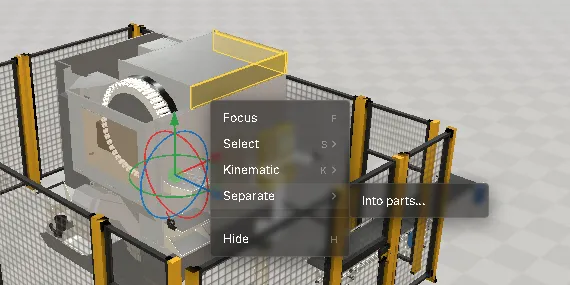
Both options show a preview. Background analysis reports how many parts the split would create before anything changes. Confirm to turn the source node into a group with the parts one level below it, keeping the selection. Cancel to leave everything unchanged.
The split preserves normals, UVs and hard edges. The analysis welds positions only to identify connected triangles, then rebuilds the parts from the original vertices.
You get a reason rather than a silent no-op when a split is not possible: the mesh is a single connected part, multi-material — use By material group instead, or, if two leaves in the tree share a name and the path is ambiguous, a request to rename the duplicate first.
Merging meshes
Section titled “Merging meshes”Merge into one mesh… combines small meshes in a subtree into one mesh. This reduces draw calls in assemblies where fasteners account for most of them.
The preview shows the number of source meshes, resulting meshes and nodes kept out of the merge. It groups the retained nodes by reason:
- kinematic and CAD anchors — nodes something else depends on,
- nodes with components — anything carrying a drive, sensor, signal or similar,
- nodes kept by naming convention.
These exclusions preserve nodes needed for the model’s behaviour or structure. Confirm to replace the subtree with the merged mesh, which stays selected.
Grouping parts
Section titled “Grouping parts”Groups collect parts that move together and mirror the Group component of realvirtual for Unity. A node can belong to several groups, but never twice to the same one.
- Kinematic ▸ (also on the K shortcut) lists every kinematic axis in the model. Pick one and the whole selection joins its group. New kinematic… takes a name and does everything in one step: it creates a top-level axis node, gives it a Kinematic component linked to the new group, assigns the selection, and leaves the axis selected so you can drop a Drive on it straight away.
- A part already assigned to another kinematic group is moved, not duplicated — it cannot end up driven by two axes at once. Non-kinematic groups it belongs to are left alone.
- Ungroup removes the group membership again.
Nested assets and the document stack
Section titled “Nested assets and the document stack”A document can reference another asset instead of embedding it — a cell that contains a gripper, a line that contains a station. Those references are live: the gripper is edited once, in its own document, and every place that references it follows.
Placed assets appear in the editor the way the Layout Planner shows them: baked, so the hierarchy below a reference lists only the nodes that carry components, not every CAD part. Only the document you opened is shown part by part.
Inside a placed asset you can change component values in place — select a drive of the placed arm and change its speed, for example. The change belongs to this document, not to the asset: the field shows an override badge, the value is saved with the reference, and Revert returns it to the asset’s own value. Material, visibility and transform of placed parts cannot be changed here, and mechanism tools (snap, anchor, face pick) refuse placed geometry. To change the asset itself — its geometry, structure, materials or mechanisms — descend into it.
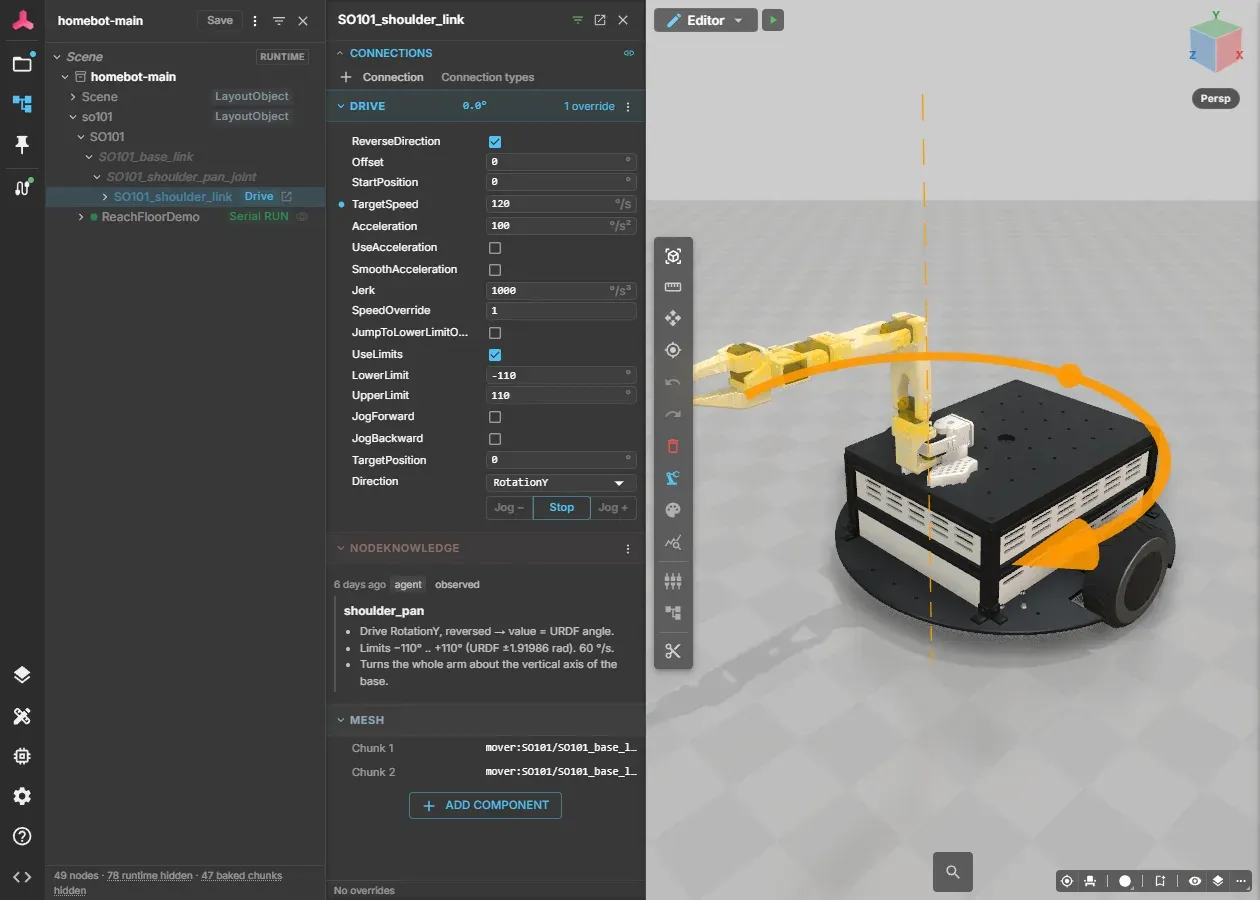
Double-click a reference in the hierarchy or in the 3D view to descend into it. The referenced asset is loaded on its own, and a breadcrumb bar appears at the top of the viewport:
MyPlant.glb › Filler › Gripper [ Back ]editing Gripper.glb — isolated — 3 instance overrides hiddenThe second line identifies the document you are editing and shows that it is isolated from its surroundings. It also shows how many overrides from the parent are hidden in this view.
Back leaves the current frame and rebuilds its parent. The breadcrumbs show your location but are not clickable; you return one level at a time. If the frame you are leaving has unsaved changes, you are asked to confirm first. That prompt does not offer saving, to keep navigation separate from writing files. The bar appears only after you open a nested asset; it is hidden at the top level.
Saving
Section titled “Saving”A document is saved to its original location in the open project, not to a separate editor folder. The save location depends on the document, not the current mode.
- A named document never prompts. Only a document with no name of its own asks for one. Untitled counts as a name.
- One save at a time. A second click while a save is running does nothing rather than starting a second writer.
- Save is refused while a test run holds the document — stop the run first.
- Nothing is declared saved that is not in the file. A failed save leaves no half-written document behind, and the document stays marked as changed.
When somebody else wrote first
Section titled “When somebody else wrote first”Every save includes the file revision last seen by this session, recorded when the document opened rather than first saved. If another tab or person has changed the file since then, saving reports a conflict instead of overwriting their work.
If you switch projects while a save is running, its result is discarded rather than written into the new project.
A saved asset goes into the current project, which is the first library the Layout Planner offers. You can place the asset without publishing or registering it.
See also
Section titled “See also”- Editor overview — the workspace, Quick Edit and the test run
- Importing CAD — where the tree comes from, and re-importing a newer revision
- Materials — the other half of cleaning up an import
- Mesh statistics and simplification — find the heavy parts of an import and reduce them
- Library and catalogs — how a saved asset becomes placeable
- Documents — projects, documents and libraries