
Installation
realvirtual CONNECT is a single Windows executable. A normal installation requires no installer, service registration or admin rights. Starting it places an icon in the system tray and opens one listener on port 5100. This serves the REST API, the WebSocket signal channel and the MCP endpoint. The public download includes no viewer. Open the HMI at web.realvirtual.io and connect it to the gateway there. Builds delivered with an embedded project also serve their HMI on that port.
Video walkthrough
Section titled “Video walkthrough”This 2.5-minute tutorial shows the whole setup, from the download to the free license.
Requirements
Section titled “Requirements”| Operating system | Windows 10 or Windows 11, 64-bit |
| Runtime | None — the published build is self-contained |
| Network | The PC must reach the controller (PLC, robot controller, MQTT broker) |
| Port | 5100, free on the local machine |
Place the gateway on a PC inside the machine network — an IPC, an edge PC or an engineering laptop. The browser that shows the HMI can be the same PC or any other device in the network.
Download and first start
Section titled “Download and first start”- Download the gateway from web.realvirtual.io/download/realvirtual-Connect.exe - or use the Download realvirtual CONNECT button that the CONNECT panel of any realvirtual viewer shows while it has no gateway to talk to. Both deliver the same current build.
- Start it where it is, or move it to a writable folder first. The program directory must be writable for self-update. Accepting the Start-menu entry in step 4 places the executable in a writable folder.
- Windows SmartScreen may ask for a confirmation on first run - the executable is code-signed by realvirtual GmbH, which the dialog shows under More info.
- A window reports that the gateway is running and where its data goes. Close it, or let it add a Start-menu entry first.
- A tray icon appears. Open web.realvirtual.io on the same PC, click realvirtual CONNECT in the left sidebar and connect to
http://localhost:5100. (A build with an embedded project opens its own HMI through Open realvirtual WEB in the tray instead.) - Register once to activate the free tier — the steps are in free registration. Until then the gateway answers every request with
LICENSE_REQUIRED.
The first-start window
Section titled “The first-start window”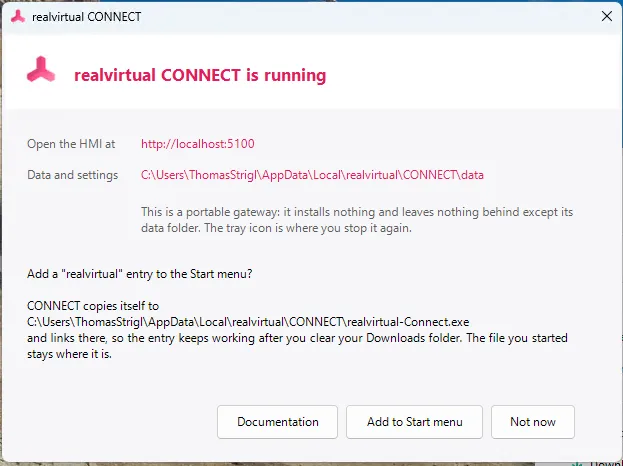
This window appears once on a new installation. It shows what is running, how to reach it, and where its data goes.
CONNECT is portable. It installs nothing, registers no service and leaves nothing behind except its data folder. The tray icon is where you stop it again.
The window asks whether to add a Start-menu entry. Accepting it copies the executable to %LOCALAPPDATA%\realvirtual\CONNECT\realvirtual-Connect.exe and links to that copy. The entry therefore keeps working after you clear your Downloads folder. The file you started stays where it is; nothing is moved. Not now skips the entry entirely and changes nothing on disk.
The tray menu
Section titled “The tray menu”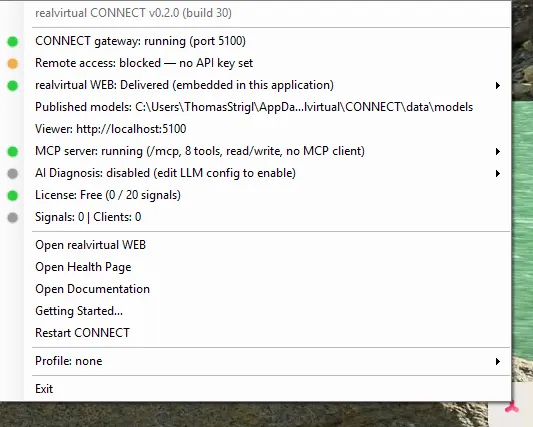
The tray icon displays local status and is the only place with process-level switches. The menu lists status lines first, then actions. Green dots mean running, amber means a state needs attention, and grey means off or idle.
The picture shows a fresh installation on the free tier, with no model, interface or signals configured. Remote access is blocked because no API key is set, and AI diagnosis is off until an LLM is configured.
Status lines
Section titled “Status lines”| Entry | What it shows |
|---|---|
| realvirtual CONNECT v… | Version and build of this executable. Quote it in support requests |
| CONNECT gateway | Port and running state |
| Remote access | Appears only while the gateway is reachable from other machines with no API key configured — those clients are refused. Click it for the full explanation, and see remote access |
| realvirtual WEB | Where the HMI comes from — Gateway only (no viewer) on the public download, where the HMI is web.realvirtual.io; Delivered (embedded in this application) on a build with an embedded project; or a separately running dev server. Its submenu holds the data folder and, in development, the dev-server controls — see viewer delivery |
| Published models | The folder the gateway serves models from. Click to open it |
| Viewer | The address the HMI is reachable at. Click to open it |
| MCP server | Endpoint state, tool count, write access and connected MCP clients — see AI clients |
| AI Diagnosis | Index state, or the reason it is off — see AI diagnosis |
| License | Current tier and, on the free tier, how many of the allowed signals are in use — see licensing |
| Signals / Clients | How many signals the gateway serves and how many browsers are connected. This Clients count means viewers, not MCP clients |
Actions
Section titled “Actions”| Entry | What it does |
|---|---|
| Open realvirtual WEB | Opens the HMI in the default browser |
| Open Health Page | Opens the gateway’s status response for a quick check when something looks wrong |
| Open Documentation | Opens this documentation in the default browser |
| Getting Started. | Reopens the first-start window, including the Start-menu entry |
| Restart CONNECT | Restarts the gateway process, for example after a startup-only setting was changed. It takes everything in this executable with it; to restart only a dev server, use the realvirtual entry |
| Profile | Switches between saved configuration profiles (saved in the viewer’s CONNECT panel). Switching hot-reloads the interfaces - the gateway is not restarted |
| Exit | Closes the gateway. In development mode the caption names what goes with it: a dev server CONNECT started is stopped too, while one that was already running when CONNECT started keeps running |
Where CONNECT stores things
Section titled “Where CONNECT stores things”| What | Location |
|---|---|
| Interfaces, signals and profiles | %PROGRAMDATA%\realvirtual\CONNECT\connect-config.json |
| Models, viewer settings, converted CAD, history state | %LOCALAPPDATA%\realvirtual\CONNECT\data (models/, settings.json) |
| The activated license | %PROGRAMDATA%\realvirtual\CONNECT — machine-global, it never follows a workspace |
| Process settings — port, API key, allowed origins | appsettings.json next to the executable |
The tray menu shows both folders: Published models opens the model folder, and the data root sits in the submenu of the realvirtual WEB line.
Configuration is written atomically with a .bak backup. Changes take effect immediately: the affected interface restarts on its own, the gateway does not.
Process settings
Section titled “Process settings”appsettings.json holds the settings that are read at startup:
{ "Urls": "http://0.0.0.0:5100", "AllowedOrigins": [], "ApiKey": "", "Logging": { "LogLevel": { "Default": "Information" } }}| Key | Purpose |
|---|---|
Urls | Listen address. The default binds all network adapters, so the gateway is reachable from other machines — read remote access before leaving it that way |
AllowedOrigins | Additional browser origins allowed to call the gateway, for example your own dashboard. Pages on localhost and pages the gateway serves itself are always allowed, and so are realvirtual’s own origins (https://web.realvirtual.io, https://realvirtual.io, https://www.realvirtual.io) are always allowed, without an entry — the hosted viewer and the public demo connect out of the box. The AI Bridge of a hosted page still asks for a one-time pairing in the tray |
ApiKey | Required from any caller that is not on the local machine. Empty disables the key |
Running two gateways on one PC
Section titled “Running two gateways on one PC”Port 5100 is part of the client contract: .mcp.json, the HMI, the REST API and the signal channel all name it. CONNECT therefore refuses to start on a taken port instead of silently moving to another one. To run a second gateway deliberately, set the environment variable REALVIRTUAL_CONNECT_PORT for that instance and point its clients at the same port — in the viewer with ?mcpPort=<port> in the address, in .mcp.json with the matching URL. The full list of environment variables is in the configuration file reference.
Autostart
Section titled “Autostart”To start the gateway with Windows, place a shortcut to the executable in the startup folder — press Win+R and enter shell:startup. CONNECT starts into the tray and reconnects its configured interfaces automatically.
Uninstalling
Section titled “Uninstalling”Delete the executable. To remove everything else as well, delete %LOCALAPPDATA%\realvirtual\CONNECT\ (data, and the copy of the executable if you accepted the Start-menu entry), %PROGRAMDATA%\realvirtual\CONNECT\ (configuration and license) and the realvirtual group in the Start menu. Nothing is written to the registry, and no service is left behind.
See also
Section titled “See also”- Licensing — Community registration and commercial licenses
- First connection — from a running gateway to live values in the browser
- Troubleshooting — the gateway does not start, the browser stays empty