
SolidCraft Live Link
Model a machine in the SolidCraft desktop CAD app and watch it appear, part by part, in the realvirtual Editor. Every change in SolidCraft — a longer arm, a new hole, a moved part — shows up within about a second. Revolute and slider joints become Drives. Everything you add in realvirtual (sensors, signals, drive speeds, logic) stays when the CAD changes.
The live link needs realvirtual CONNECT on the same machine as SolidCraft. Nothing flows back from realvirtual to SolidCraft.
Connect
Section titled “Connect”- Install SolidCraft. CONNECT looks for it in
%LOCALAPPDATA%\Programs\SolidCraft\solidcraft.exe; another location goes into the CONNECT settingSolidCraftExePath. - Start CONNECT and open realvirtual from it (
http://localhost:5100). - Switch to the Editor mode with a new or existing asset.
- Click the SolidCraft icon in the lower part of the activity bar on the left. It is there only in the Editor.
- Choose Connect to SolidCraft.
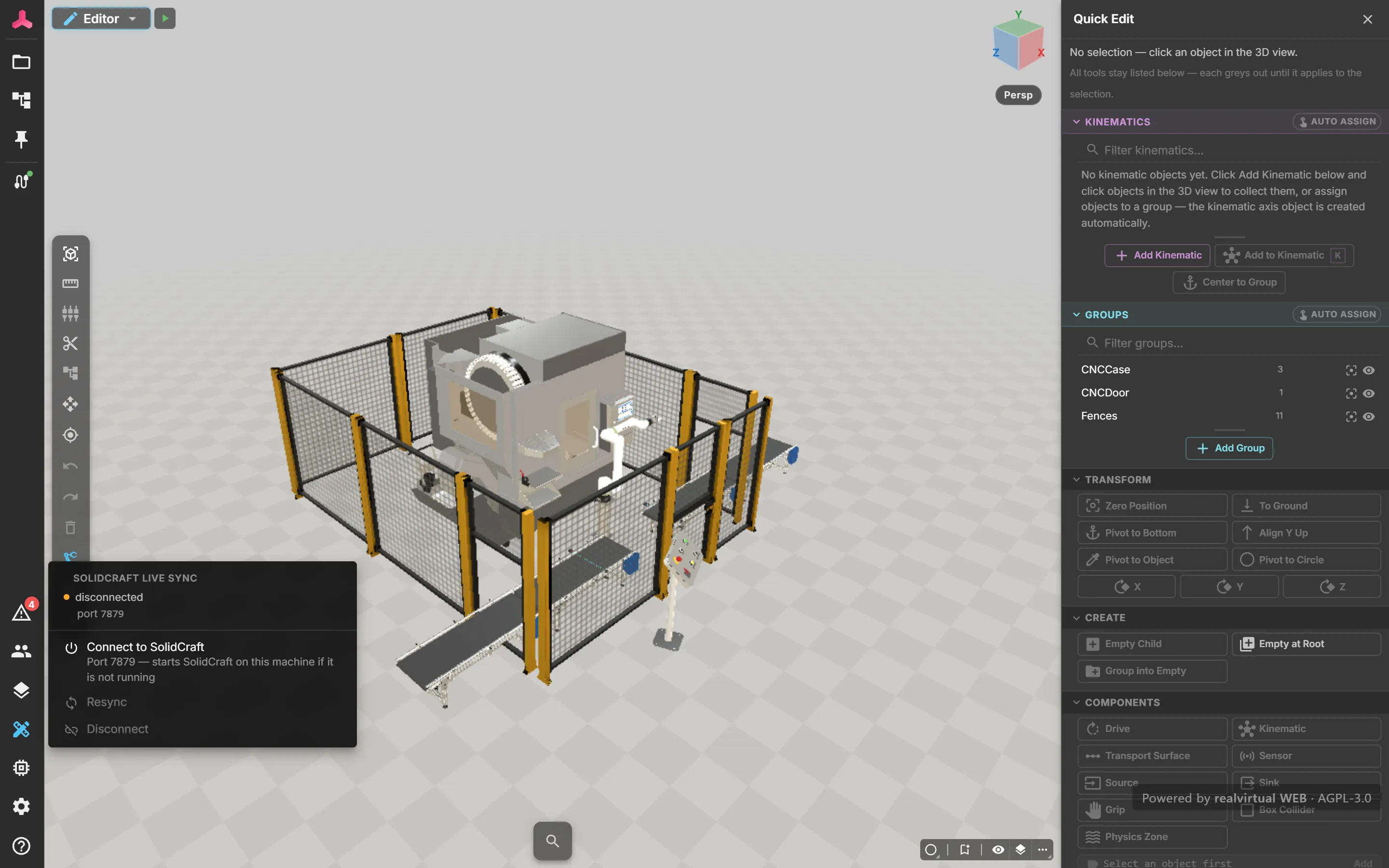
If SolidCraft is not running, CONNECT starts it with its live link open (starting SolidCraft …, about 15 seconds). If the asset was linked to a saved design before, that design is opened again.
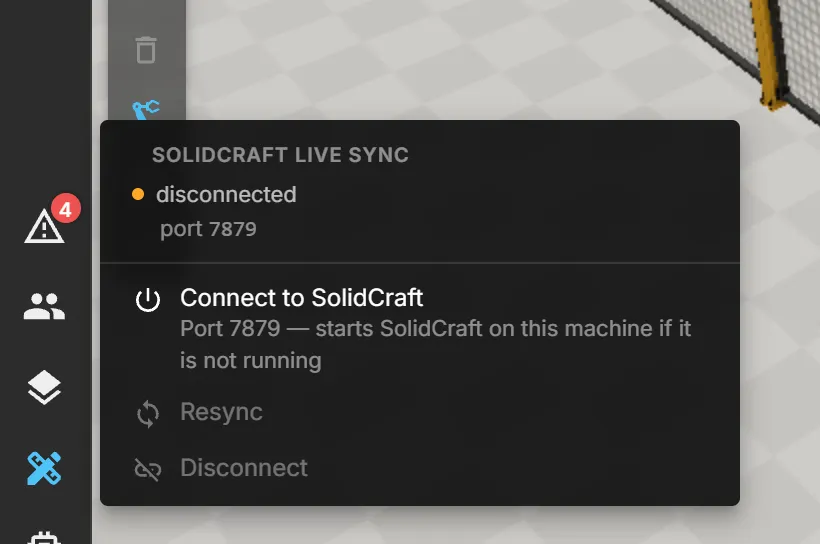
Read the menu
Section titled “Read the menu”| Entry | What it does |
|---|---|
| Status line | connected · <design> · N bodies · last update x s while connected. The dot on the icon is green when connected, amber while starting or waiting, red when something needs a fix. |
| Port | The SolidCraft control port, 7879 by default (CONNECT setting SolidCraftPort). |
| Connect to SolidCraft | Starts the link and, if needed, SolidCraft itself. |
| Resync | Sends a fresh full copy of the design. |
| Disconnect | Ends the link. The mirrored parts stay normal asset content. |
Add realvirtual components as usual and save the asset. Connecting again later maps the parts back to the design.
Save the design in SolidCraft before you rely on a reconnect. After a reload, realvirtual finds the mirrored parts by the design’s file path. An unsaved design is recognised only within the same session; connecting to it after a reload builds a new copy.
What is synchronised
Section titled “What is synchronised”| In SolidCraft | In realvirtual |
|---|---|
| Design | One root node SolidCraft_<design> below the asset root |
| Component occurrence | A node with the occurrence’s position |
| Body | A mesh node; only a changed body is replaced |
| Body colour | The node’s material colour and transparency, on every sync |
| Moving a part | A position change only, no geometry reload |
| Rename | A rename of the node |
| Revolute or slider joint | A pivot node with a Drive (axis, direction, limits, start position) |
What stays yours: every component you add and every Drive field that is not a joint field — for example Target Speed, Acceleration, jog and signal fields. CAD owns geometry, positions, body colours and the joint fields. A position or colour you change in realvirtual on a synced part is set back by the next sync.
Only the root node shows a CADLink in the Inspector. The parts below it carry a hidden SolidCraft id, which is saved with the asset.
Patterns and several bodies
Section titled “Patterns and several bodies”A feature that creates several bodies — a pattern, a mirror, a copy of several bodies — syncs every body. Pattern copies get generic names (Body1, Body2, …) and do not inherit the original’s colour: give the copies a colour in SolidCraft, too.
Colours and materials
Section titled “Colours and materials”A colour you assign in SolidCraft becomes the body’s material colour in realvirtual. For a finished look, assign a material from the Editor’s material presets to the node — a later colour change in SolidCraft overwrites it again for that body. See Materials.
Model on the floor
Section titled “Model on the floor”realvirtual takes SolidCraft’s Z axis as up and keeps the height. Model so the part stands on the floor in SolidCraft: feet or lowest point at z = 0. A design built around its working height floats or sinks in realvirtual.
Switching designs
Section titled “Switching designs”When SolidCraft shows another design — New, Open, or a different design on the next connect — realvirtual mirrors it under its own root and removes the old root in the same step. Undo brings it back. Saving, Save as and renaming are not a switch: the root keeps its parts and takes the new name.
The old root is kept when it carries your work: a component you added, a node you added below it, or a Drive setting you changed. The Problems panel then shows solidcraft-orphan-root with Remove old SolidCraft root. The same holds for single parts deleted in SolidCraft (solidcraft-orphan-node, action Delete).
SolidCraft and an AI agent at the same time
Section titled “SolidCraft and an AI agent at the same time”CONNECT and the SolidCraft MCP server share the app’s control port 7879. An agent can model in SolidCraft while CONNECT keeps realvirtual in sync and you watch both windows. Start the MCP server with solidcraft-cli mcp --connect 127.0.0.1:7879. It connects once, when the agent session starts — if SolidCraft was started later, restart the agent session.
Never start a second SolidCraft while one runs: the second window cannot use the port.
When something goes wrong
Section titled “When something goes wrong”The status line and the Problems panel (codes solidcraft-*) say what happened. Most entries offer Resync.
| Status / problem | What to do |
|---|---|
SolidCraft not found | Install SolidCraft or set SolidCraftExePath in CONNECT. |
SolidCraft is running, but port 7879 is not reachable | It was opened without the live link. Save and close it, then Connect again. |
start SolidCraft on the CONNECT machine … | Your browser tab runs on another machine. Start solidcraft --control 7879 on the CONNECT machine. |
wrong-instance | Another SolidCraft holds the port. Start yours on another port and connect with that port. |
solidcraft-joint-unsupported | Only revolute and slider joints, arranged as a tree, become Drives. |
solidcraft-joint-removed | The joint is gone; the Drive was kept for your settings. Remove drive if you do not need it. |
Limits
Section titled “Limits”- About 40 bodies sync in under a second; more take longer (200 bodies ≈ 4 s).
- One SolidCraft link per asset. A component placed several times mirrors nested parts for its first placement only. Motion links are not mirrored.
- One colour per body: colours on single faces are not shown.