
Opening a Twin
realvirtual opens an industrial digital twin directly in your browser. A twin can arrive as a shared link, a local GLB file, or an example in the public demo. You do not need to install a viewer or create an account to open the public demo or a prepared delivery link.
The preferred delivery format is GLB with rv_extras metadata. It keeps geometry, hierarchy and realvirtual component information together in one self-describing file.
Browser does not mean cloud
Section titled “Browser does not mean cloud”Running in the browser does not require running on somebody else’s server. The browser is the runtime. The same viewer runs in four places, with the same file and behaviour:
| Where | What it needs | Typical use |
|---|---|---|
| On your own computer | Nothing but the browser — drag a GLB in, or run realvirtual CONNECT, which serves the viewer on localhost | Engineering, service calls, a machine on an isolated network |
| Static hosting | Any web server or CDN that can serve files — no application server, no database, no runtime | Intranet, customer portal, your own domain |
| Hosted by realvirtual | An account for the hosted features | Trying things out, sharing a document |
| Air-gapped or frozen | A copied folder | Delivery with a machine, ten-year documentation duty |
This means:
- Rendering and simulation happen on your device. There is no remote render service, no upload of your model, and no round-trip to a server for the animation. A local file never leaves the browser.
- The viewer is open source under AGPL-3.0. You can host it yourself, keep it running after any subscription ends, and inspect what it does. The source is on GitHub. See licensing the viewer for the open licence requirements.
The interactive machine model opens like a document and remains usable after ten years in an archive, without an intermediary service.
Ways to open a model
Section titled “Ways to open a model”- Shared link or URL — Open the address supplied with the twin. The link can select a prepared model and workspace.
- Local GLB file — Drag a
.glbfile from your computer onto the viewer to open it locally. - Public demo — Open the realvirtual demo to explore a prepared twin without supplying a file. Demo Models describes the five models, from a robot cell to a complete laser welding line. The demo runs the full commercial feature set and is free to use (see Editions). Free-tier limits apply: CAD import supports up to 25 MB per STEP file and 12 MB per JT file. Live PLC connectivity through the free realvirtual CONNECT tier serves up to 20 signals.
- Served by the gateway — Start realvirtual CONNECT on the machine PC and open
http://localhost:5100. The viewer comes from the gateway itself, with live signals attached and no internet connection involved.
You always have somewhere to save
Section titled “You always have somewhere to save”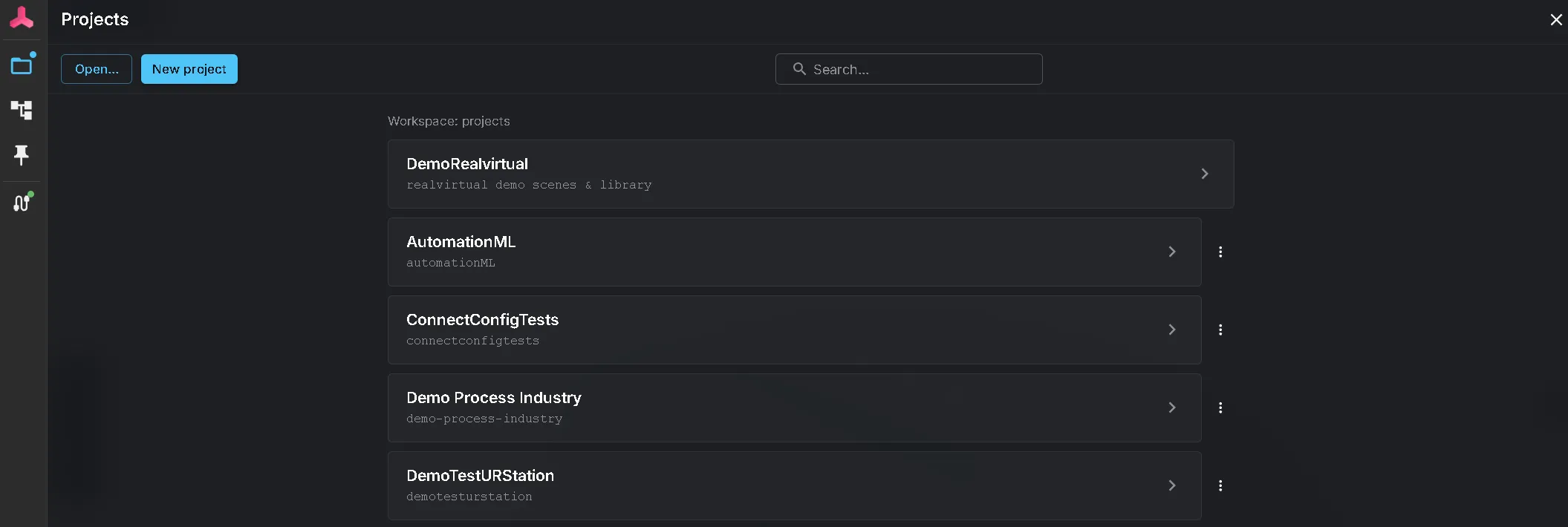
You can start working without creating a project. When no other project applies, realvirtual opens My Workspace, a browser-based project for your documents. Drag a file in to use it without any setup.
In two cases the viewer asks you instead of failing silently:
- Switching to a folder project prompts you for write access first. The browser needs permission to write to a folder on your computer and grants it only in response to a click. This is why the request appears when you switch. If you decline, the project still opens, but is read-only. You can grant access later.
- If the last project cannot be restored, the viewer explains why. Folder permission can lapse between sessions, or the folder can move or become unreadable. The viewer identifies the cause and opens the project list, where you can re-grant access with one click. It does not silently open a different project.
When you reopen a project, it returns to that project’s last open document, not the last document opened across all projects.
System requirements and privacy
Section titled “System requirements and privacy”Use a current browser with JavaScript and WebGL enabled. realvirtual supports desktop and tablet use. Performance depends on the device, model size and graphics card used by the browser, because rendering happens on your device. See Browser & GPU setup to check and correct the browser’s GPU configuration.
Rendering runs on your device rather than on a remote rendering service. A local file stays in the browser while you view it. When you open a hosted link, the browser downloads the twin from the host selected by its provider; a live setup exchanges only the machine data configured for that connection.
Quick Start
Section titled “Quick Start”- Open the URL supplied with your twin, or open the public demo.
- To use your own file, drag the
.glbfile onto the viewer and wait for the model to fit into view. - Confirm that the scene appears, then select a component or open the hierarchy to start exploring.
- If the model does not load, verify that JavaScript and WebGL are enabled and try the file or link again in a current browser.
See also
Section titled “See also”- Demo Models — the five twins in the public demo, each with a one-click link
- The Screen & Workspace Modes — what each area of the screen is for, and how to switch modes
- Your First Twin from CAD — build your own twin from a STEP file
- Build a Twin with AI — let an AI assistant do it through MCP
- Navigation and controls
- Browser & GPU setup
- Documents
- Deployment options