
Guided Maintenance
Included in the public demo Compare editions
Guided maintenance takes you through a procedure while the machine follows along: doors open, housings become transparent, coolant sprays and parts unscrew. Each step combines instructions with a camera view and highlighted parts.
Animated maintenance and procedure authoring in the Web Editor are commercial features. The open-source viewer includes the basic guide with instructions, camera views, highlights and confirmations.
The standard Demo includes Coolant Nozzle Cleaning, a nine-step procedure with an estimated working time of 19 minutes.
Try it in the demo
Section titled “Try it in the demo”- Open the standard Demo and select Maintenance, or open Maintenance Due in the message panel on the right. Its message reads Coolant pressure low at nozzle 3 — cleaning due.
- Choose Start Step-by-Step. The guide replaces the messages on the right and pauses the simulated cell.
- Read the active instruction and any warning. Select its checkbox or confirmation button when finished; this records completion and advances to the next step.
- Use Prev, Next, or select a reachable step in the list to navigate.
- Confirm Main switch locked out before continuing beyond the safety step. Until then, the guide shows Confirm the safety step first.
Ordinary steps can be skipped with Next and remain Open. Next is temporarily disabled while the camera moves.
Choose Overview Flythrough instead for an automatic preview of the procedure. It plays the views and machine actions without recording confirmations. Cancel closes the start screen.
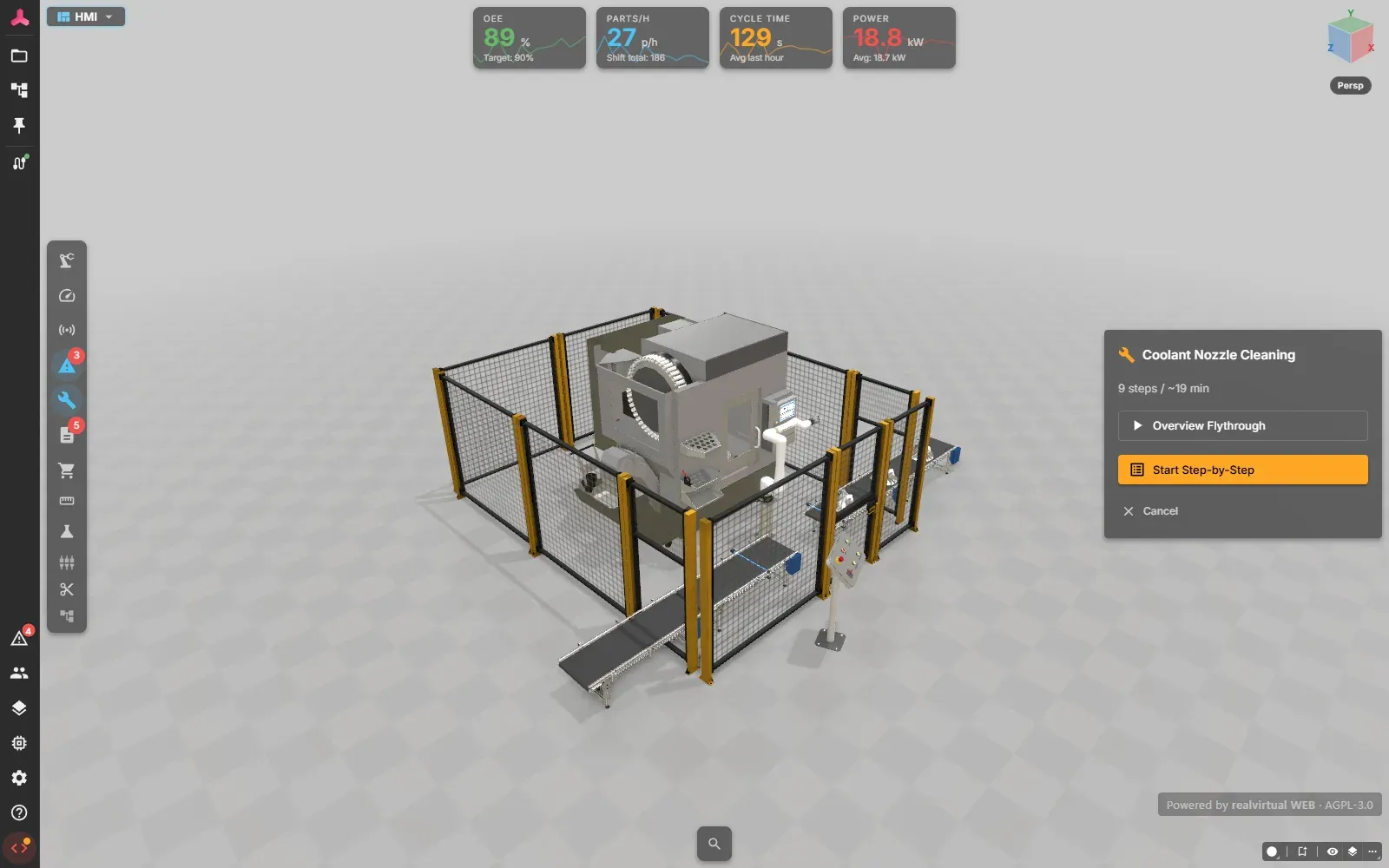
The start screen of the Coolant Nozzle Cleaning procedure.
The nine steps
Section titled “The nine steps”The machine performs each demonstration when you enter the step, before you confirm it.
| Step | What you see and do | Confirmation |
|---|---|---|
| 1. Cell stopped | The simulated cell is paused and the CNC axes move to their maintenance position. The camera shows the cell and highlights the CNC screen. Check that the machine is idle. | Machine is idle |
| 2. Lockout / tagout main switch | The camera approaches and highlights the main switch. The switch lever turns a quarter turn to OFF, and a turning arrow shows the direction. Attaching your personal padlock and tag is not animated. | Main switch locked out |
| 3. Open safety fence and machine door | The fence door swings open and the CNC door slides open. Both animations start together. | Doors open |
| 4. Look inside | The housing becomes transparent so you can see the spindle and its coolant nozzle below the black elbow. | Done button |
| 5. Check spray pattern | The nozzle is highlighted and sprays only weakly: its tip is clogged. | Done button |
| 6. Unscrew nozzle tip | Spray stops. The tip turns two turns and moves out, while a turning arrow and a straight arrow show the motion. | Tip removed |
| 7. Clean tip with compressed air | Read the cleaning and inspection instructions and the eye-protection warning. The tip remains removed; cleaning itself is not animated. | Tip clean |
| 8. Refit tip and test spray | The tip screws back into position, with arrows showing the direction. After about two seconds, the nozzle sprays a full, even jet. | Done button |
| 9. Close doors and release lockout | Spray stops, the housing becomes opaque, both doors close and the main switch lever turns back to ON. Removing the lock and tag is not animated. | Cell ready |
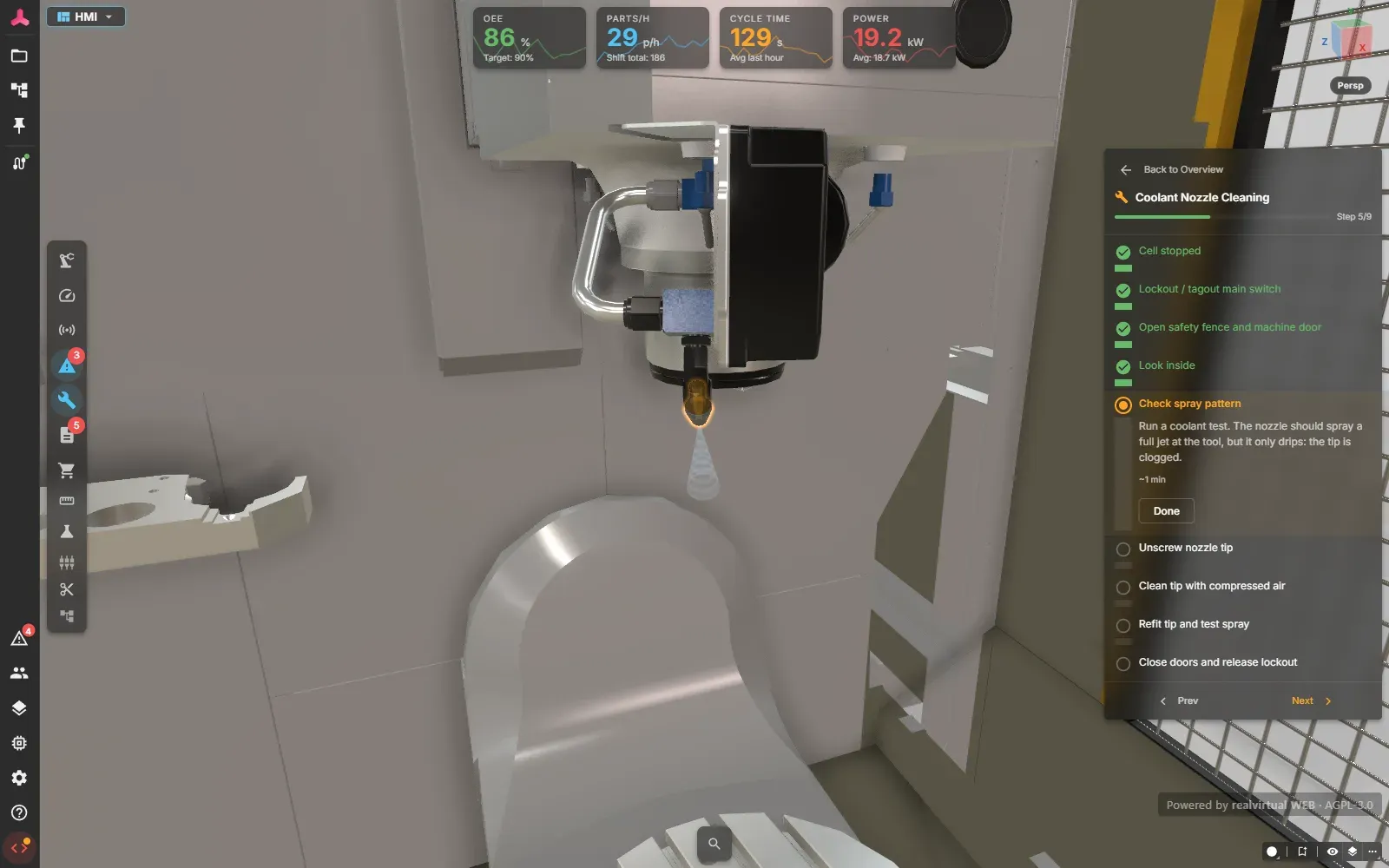
Step 5: the clogged nozzle sprays only weakly.
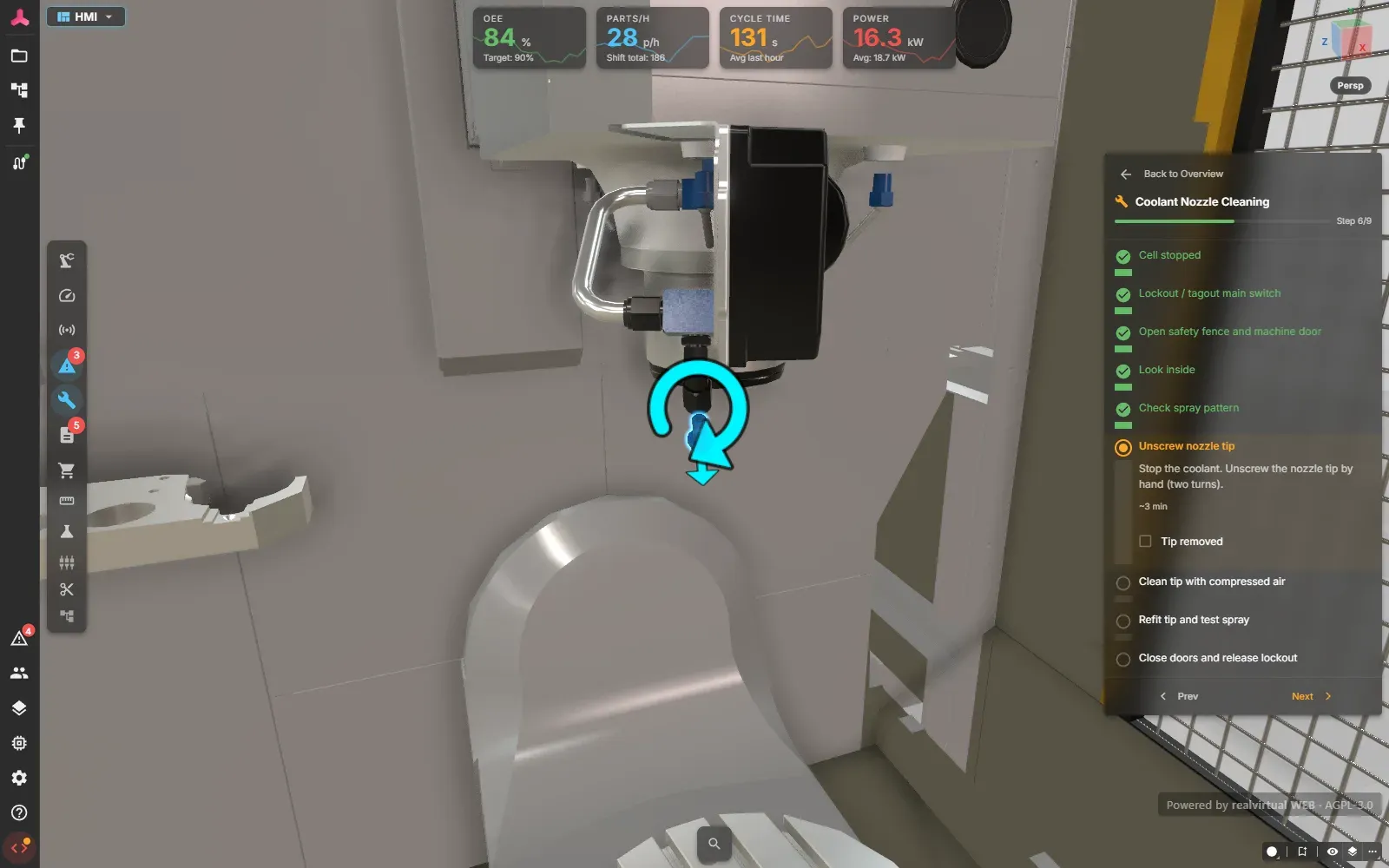
Step 6: arrows show how the tip unscrews.
Going back and leaving
Section titled “Going back and leaving”Prev moves the machine back into the state belonging to the selected step. Returning from nozzle removal to the spray check, for example, refits the tip and restores the weak spray. Confirmations you have already recorded stay completed.
Selecting a step directly also brings the machine into that step’s state. Backward navigation and jumps do not replay the forward start delays.
Use the back-arrow beside Back to Overview to leave the guide. Leaving or completing it immediately restores the machine’s state from before the guide and releases the maintenance pause.
Unfinished step-by-step progress is saved in your browser so you can resume it.
The summary shows Passed and Open, with Failed when applicable. Check these counts: the heading All Steps Completed can also appear when ordinary steps were skipped. A flythrough does not mark steps as passed.
Live connection
Section titled “Live connection”With a live industrial connection, the guide displays Live connection — machine is not moved by the guide.
Instructions, camera views and highlights remain available, but the guide does not pause or move the connected machine. Connecting live during a guide stops its demonstration actions. Disconnecting again does not automatically restart those actions within the same guide.
Confirming a step records your acknowledgement. It does not verify physical lockout or that work on the real machine has been completed.
Build your own procedure
Section titled “Build your own procedure”Create procedures in the commercial Web Editor. Unity is not required.
- Open the asset in Editor mode. On a hierarchy node, choose Add maintenance procedure. This creates a child named Maintenance with a
LogicStep_MaintenanceProcedurecomponent. - Enter ProcedureName and EstimatedMinutes. An empty name uses the node name; zero minutes uses the sum of the step estimates.
- On the procedure node, choose Add maintenance step for each instruction. Each step is a direct child with a
LogicStep_MaintenanceStepcomponent. Reorder these children in the hierarchy to change the procedure order. - Fill in the step’s fields using the table below.
- Position the camera and select Save current view. Select Clear view when the step should leave the camera where it is.
- Use Add component on the step to add the actions listed below. The maintenance component group is Logic ▸ Maintenance. Select the affected parts through the reference picker. For a motion arrow, create an Empty Child on the step and add
LogicStep_Arrowto it. - Save the asset as GLB, then open it in viewer mode to try the procedure.
| Step fields | What to enter |
|---|---|
| Title, Instruction | A short heading and the work to perform. An empty title uses the node name. |
| WarningNote, Severity | Warning text and a severity: Info, Warning, Error or Success. A warning note alone does not block navigation. |
| CompletionType, CheckboxLabel | Choose Checkbox, ConfirmWarning for mandatory acknowledgement, or Observation for a confirmation button. Set the checkbox or button wording. |
| EstimatedMinutes | Estimated working time for the step, in minutes. |
| CameraPosition, CameraTarget, CameraDuration | The saved camera view and its transition time in seconds. Save current view fills in the position and target. |
| HighlightTargets | The parts to highlight while this step is active. |
Actions on different parts start together unless StartDelay staggers them. Their resulting states remain in later steps until another action changes them. Use separate steps for successive actions on the same part.
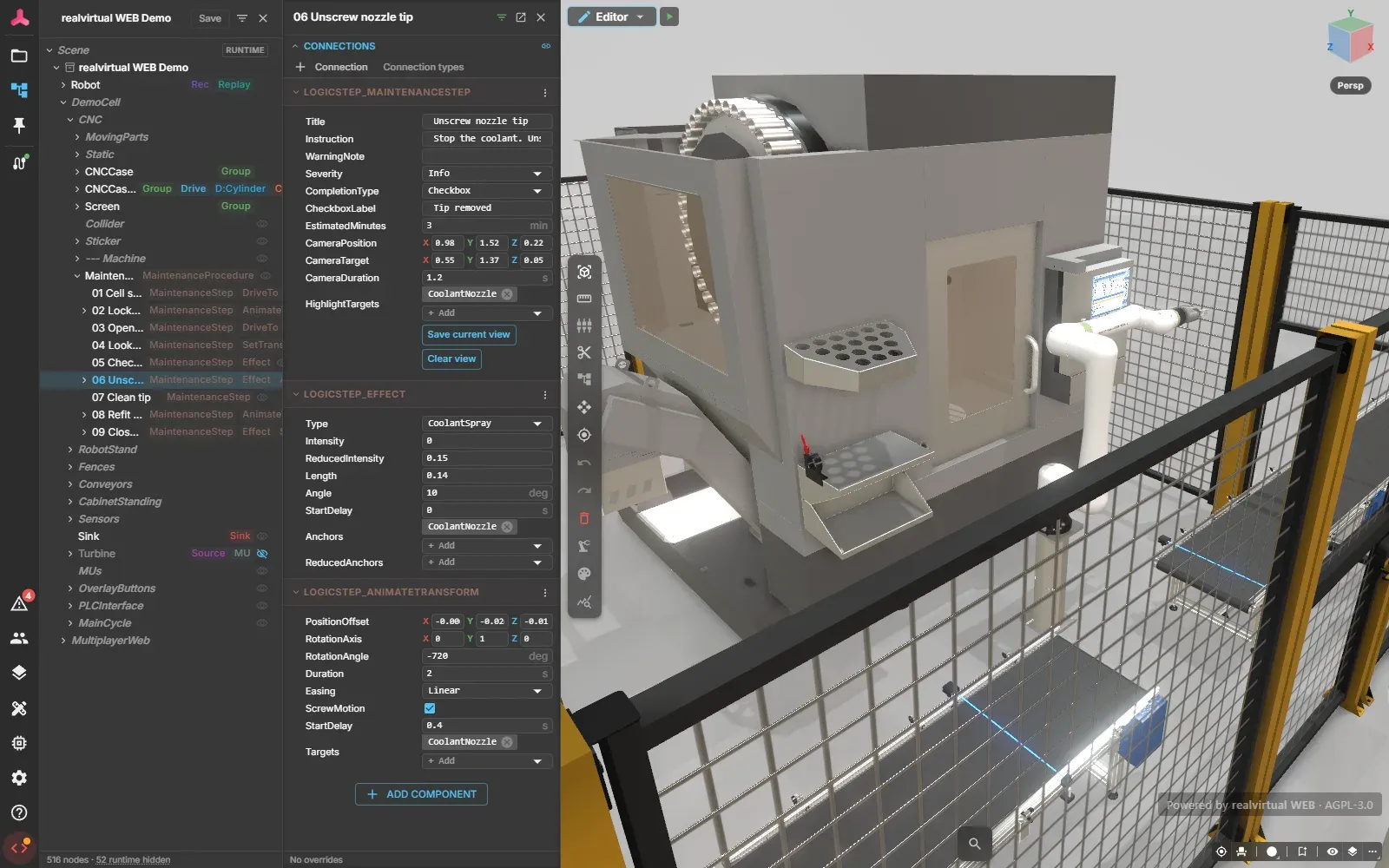
A maintenance step with its actions in the Web Editor.
Actions
Section titled “Actions”| Action | Component to add | Settings |
|---|---|---|
| Open or close a door | LogicStep_DriveTo or LogicStep_AnimateTransform | Use a drive for a driven door, or movement and rotation for a hinged or sliding part. There is no separate door component for maintenance. |
| Make a housing transparent | LogicStep_SetTransparency | Select Targets and set Opacity from 0.05 to 1, Duration and StartDelay. Opacity 1 restores the original appearance. |
| Show coolant spray | LogicStep_Effect | Set Type to CoolantSpray. Choose Anchors, Intensity, ReducedAnchors, ReducedIntensity, Length, Angle and StartDelay. Intensity ranges from 0 to 1; zero switches spray off. |
| Move, rotate or unscrew parts | LogicStep_AnimateTransform | Choose Targets, PositionOffset, RotationAxis, RotationAngle, Duration, Easing, ScrewMotion and StartDelay. Screw motion combines rotation and travel; 720 degrees gives two turns. |
| Move a drive | LogicStep_DriveTo | Select drive, enter Destination and choose Relative if needed. Destination uses the drive’s units: millimetres or degrees. |
| Show a motion arrow | LogicStep_Arrow on a child node of the step | Set Type to Linear, RotateCW or RotateCCW, the Size (edge length in metres) and Animate. The arrow lies in the node’s local XY plane: a linear arrow points along local +X, a turning arrow turns about local +Z as seen from the +Z side. Move and rotate the node to place it. The arrow is shown while its step is active. |
| Set a Boolean signal | LogicStep_SetSignalBool | Select Signal and set SetToTrue. Signals under external control are not changed. |
Durations and start delays use seconds; angles use degrees. Position offsets and spray length use scene units. Position offsets and relative drive destinations refer to the machine state at the start of the guide, rather than adding to the preceding step’s movement.
Limits
Section titled “Limits”- The demo’s maintenance message is predefined; it does not report a measured coolant-pressure fault.
- Coolant spray is a visual illustration, not a fluid simulation. No other effect type is available.
- Procedures support the actions listed above. Waiting for signals and general logic sequences are not supported maintenance actions.
- Authoring and playback use separate modes; there is no procedure preview inside the Editor.
- The standard maintenance entry opens the first procedure found in the model. It has no procedure chooser.
- Render-mode switching is locked while animated maintenance runs.
- A transparent housing can still block selection of parts behind it.
- Without the commercial animation feature, instructions, views and confirmations remain available, but the machine does not perform the actions.
For the surrounding interface, see HMI overview and Operator panel.