
Machine Information System (3D HMI)
The machine information system adds information to the machine’s 3D model. You can identify a valve, check its current state, open its datasheet and investigate why it stopped.
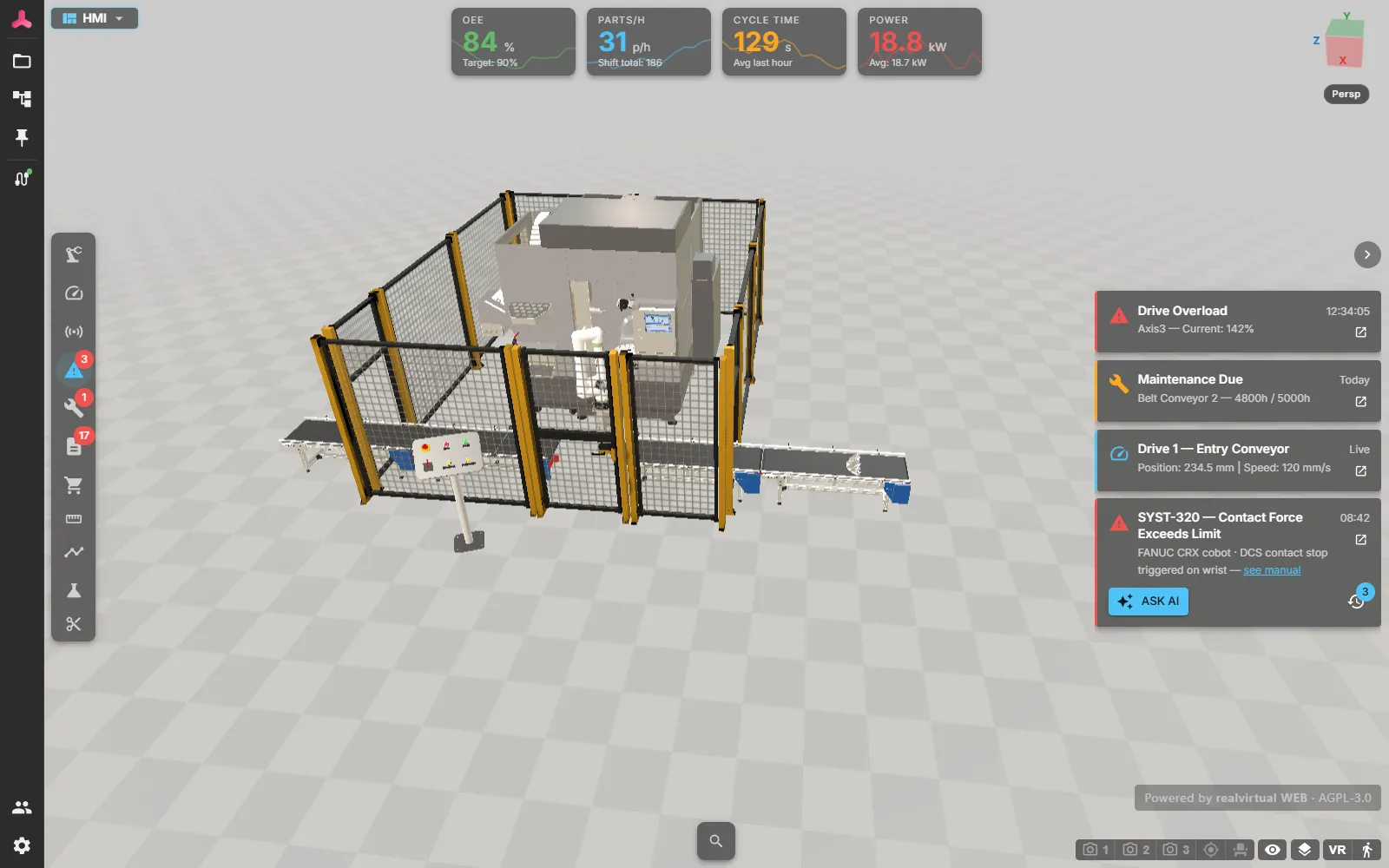
Each part carries its information in the model. Operators find it by pointing at the part, without needing a document number.
The machine information system is one of the use cases of realvirtual. It starts from a twin built in the Editor or exported from Unity.
What it covers
Section titled “What it covers”| Feature | What it gives you |
|---|---|
| Signals and alarms | Live values from the controller shown on the part they belong to, plus alarms and machine states |
| Part information | Type plates, order numbers, spare part numbers and free-form data on any part |
| Documents and links | Datasheets, drawings and manuals attached to a part and opened from the 3D view |
| Visual markers | Sensors, faults and safety doors made visible in the model, so a state is a thing you see rather than a line in a list |
| Asset Administration Shell | Industry 4.0 asset data from the AASX files in your project, shown next to the part |
| AI diagnosis | Answers grounded in your own machine documentation instead of general knowledge |
Where the information comes from
Section titled “Where the information comes from”Machine information is stored inside the GLB. The model carries all its information without a side-car file, separate database or configuration to keep in sync.
Sharing the model also shares its information. A model exported today keeps working with a viewer released later.
Authored in Unity
Section titled “Authored in Unity”If you build the twin in realvirtual for Unity, you author its information there and export it with the model. Unity components provide markers for sensors, faults, safety doors and pivots. They also provide the AAS link and metadata for a part’s information panel.
See the Unity documentation: 3D HMI components.
Authored in the browser
Section titled “Authored in the browser”Unity is not required. The Editor works on a GLB directly in the browser. You can import CAD, organise the parts, define their kinematics and add the same machine information. Use this route for models from CAD rather than an existing Unity project. You can also update information later without returning to the authoring tool.
Both routes write the same data into the same file, so a model can start in one and be refined in the other.
Quick Start
Section titled “Quick Start”- Open a twin and click a part in the 3D view.
- The information panel shows the part’s values, data and documents.
- Add any missing information in Unity or in the Editor and export the model again.
See also
Section titled “See also”- Signals and alarms — the live half of the picture
- Operator Panel — the machine control box on screen; it replaces the real HMI in virtual commissioning
- AI diagnosis — asking the machine what went wrong
- Editor — authoring machine information without Unity
- Documents — how a document gets into the viewer