
Browser & GPU Setup
realvirtual renders on your device, not on a server. Your device’s graphics processor draws the geometry, shadows and moving parts through the browser.
Viewer performance depends on which GPU the browser uses, or whether it uses a GPU at all. Even a modern workstation can render a machine model on the CPU at two frames per second without warning. You can check this in a minute and follow the steps below to fix it.
The most common cause of slow performance is the browser’s graphics configuration rather than the model. The browser may use integrated graphics instead of the dedicated card, or fall back to software rendering entirely.
Supported browsers
Section titled “Supported browsers”| Browser | Status | Notes |
|---|---|---|
| Google Chrome (current) | Recommended | Best-tested combination, full diagnostics, WebGPU available |
| Microsoft Edge (current) | Recommended | Same engine as Chrome; the usual choice on Windows panel PCs |
| Mozilla Firefox (current) | Supported | Works fully; reports the GPU name only in a generic form, so the viewer’s GPU diagnosis stays vague |
| Apple Safari (current, macOS/iPadOS) | Supported | Hardware acceleration is always on; no user setting to get wrong |
| Mobile Chrome / Safari (tablets, phones) | Supported | Automatically uses the reduced quality preset — see Tablets and panel PCs |
| Internet Explorer, legacy Edge | Not supported | No WebGL 2 |
The technical requirement is WebGL 2 with hardware acceleration, plus JavaScript. Every browser in the table above has had that for years — the risk is not the browser version, it is the configuration around it.
Keep the browser reasonably current. The browser’s graphics layer includes workarounds for graphics-driver bugs. An old browser with a new driver, or the reverse, can cause artefacts that are difficult to reproduce elsewhere.
Recommended hardware
Section titled “Recommended hardware”| Runs | Comfortable | |
|---|---|---|
| GPU | Any GPU with hardware-accelerated WebGL 2 — including Intel Iris Xe / UHD and AMD integrated graphics | A dedicated GPU: NVIDIA GTX/RTX, AMD Radeon RX/Pro, Intel Arc, or Apple Silicon |
| Video memory | Shared memory on an integrated chip | 4 GB or more for large plant models |
| Display | Any | A 4K screen requires the GPU to render four times as many pixels as a 1080p screen |
| CPU rendering | — | Not viable. See Remote desktops and virtual machines |
Apple Silicon (M-series) is an integrated GPU by construction but performs in the class of a dedicated card; the viewer treats it as such and never warns about it.
How the viewer tells you
Section titled “How the viewer tells you”realvirtual inspects the active GPU at startup and reports the result.
The startup banner
Section titled “The startup banner”If something is wrong, a banner appears at the top of the screen:
- Orange — “Browser is using integrated graphics.” The viewer is running, but on the weaker of two available GPUs. The banner names the better card when the browser reveals it. You can dismiss it; it returns in a new session.
- Red — “Hardware acceleration is disabled — rendering on the CPU.” The CPU draws the page. You cannot dismiss this banner because quality settings cannot make CPU rendering usable.
No banner appears when the GPU is working correctly. Phones and tablets do not show the banner because the advice does not apply.
Settings → Dev Tools → GPU
Section titled “Settings → Dev Tools → GPU”You can find the details in the GPU section of Settings → Dev Tools:
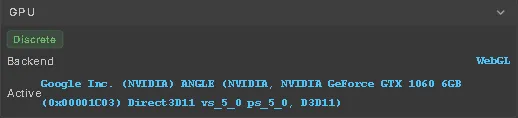
| Row | What it means |
|---|---|
| Active | Vendor and model of the GPU currently drawing the scene |
| Architecture | GPU architecture, when the browser reports one |
| High-perf / Low-power | Other graphics adapters the browser exposes — the proof that a second, faster GPU exists and is not being used |
A coloured pill next to the section header classifies the result: Discrete and Apple Silicon in green, Integrated in orange, Software (CPU) in red. No pill appears when the browser hides the GPU name, as Firefox does by default. This is expected because the viewer has no GPU name to classify.
The benchmark
Section titled “The benchmark”Below it, Run Benchmark (120 frames) renders the current scene as fast as the GPU allows and reports:
- Uncapped FPS — frames per second without the display’s refresh limit
- Avg Frame — milliseconds per frame
- Headroom — that speed as a percentage of 60 fps
Above 200 %, the device has spare rendering capacity. Between 120 % and 200 %, the scene is close to the device’s capacity. Below 120 %, you are at the limit and need more capable hardware or a less demanding model.
Include these numbers, the Active GPU line and the version at the bottom of the settings panel in performance support requests. They answer most initial support questions.
Windows: making the browser use the right GPU
Section titled “Windows: making the browser use the right GPU”On a laptop or workstation with two GPUs, Windows chooses one for each application. The default, “Let Windows decide”, frequently assigns browsers the power-saving chip. Changing this setting has the largest effect on performance.
- Windows Settings → System → Display → Graphics.
- Find your browser in the list. If it is not there, choose Add desktop app and select the browser’s
.exe. - Open Options and set High performance.
- Close every browser window and start the browser again. The setting only applies to a new process.
On NVIDIA systems the same can be set in the NVIDIA Control Panel → Manage 3D settings → Program Settings: add the browser and select High-performance NVIDIA processor. Setting it in both places does no harm.
Two more Windows details worth checking on a laptop:
- Power mode. Under Settings → System → Power & battery, “Best power efficiency” and Battery Saver both use the integrated GPU and reduce clock speeds. Use Balanced or Best performance while working with a twin. Many laptops behave differently on battery than on mains power.
- Hardware-accelerated GPU scheduling (same Graphics page) can help on modern drivers. It is safe to try; if anything looks worse, switch it back.
Check that hardware acceleration is on at all
Section titled “Check that hardware acceleration is on at all”In Chrome: Settings → System → Use graphics acceleration when available. In Edge: Settings → System and performance → Use graphics acceleration when available. In Firefox: Settings → General → Performance — clear “Use recommended performance settings”, then tick “Use hardware acceleration when available”.
Restart the browser after changing it.
Verify it with the browser’s own report
Section titled “Verify it with the browser’s own report”Open chrome://gpu (or edge://gpu; in Firefox, about:support → Graphics). At the top, under Graphics Feature Status, the lines that matter are:
WebGL: Hardware acceleratedWebGL2: Hardware acceleratedOther values, such as “Software only” or “Disabled”, explain the red banner. Further down, Driver Information names the exact GPU and driver version the browser uses. realvirtual shows that string as Active.
If a feature is listed as blocklisted, the usual cause is an outdated graphics driver. Install the current driver from the GPU vendor (NVIDIA, AMD, Intel) rather than relying on Windows Update, which often carries much older versions.
Remote desktops and virtual machines
Section titled “Remote desktops and virtual machines”Remote desktops and virtual machines are the most common source of the red banner. A Windows session without a GPU renders 3D on the CPU.
Typical causes include Remote Desktop, Citrix, VMware Horizon and other VDI setups. Others include virtual machines without graphics passthrough and Windows Server installations. In these cases, the GPU name is Microsoft Basic Render Driver, SwiftShader, or llvmpipe. The viewer classifies all of these as Software (CPU).
What helps, in order of preference:
- Run the browser where the GPU is. Use a service laptop or the machine PC itself, with realvirtual CONNECT serving the viewer locally. This is the simplest option and needs no infrastructure.
- Give the virtual machine a real GPU through GPU passthrough, GPU partitioning (GPU-P), or a vGPU profile. Once the guest has a working driver, the browser behaves like any other desktop.
- On a Remote Desktop Session Host, install the vendor’s GPU driver and enable the policy Use hardware graphics adapters for all Remote Desktop Services sessions (Computer Configuration → Administrative Templates → Windows Components → Remote Desktop Services → Remote Desktop Session Host → Remote Session Environment).
- Citrix HDX 3D Pro or the equivalent from your VDI vendor, where one is licensed.
If none of these is possible, treat the twin as a document rather than a live view: the model still opens and can still be inspected, but interactive simulation on a CPU renderer is not a usable working mode.
macOS and Linux
Section titled “macOS and Linux”macOS needs no configuration. Hardware acceleration is always on and Safari and Chrome both use the system GPU; on Intel Macs with two GPUs, macOS switches automatically and the “Automatic graphics switching” option in Battery settings governs it.
Linux is well supported with current Mesa or proprietary drivers, but Chrome does occasionally blocklist an older driver and fall back to software. chrome://gpu names the reason. Updating Mesa or the vendor driver resolves nearly all of these; forcing the blocklist off is a last resort and tends to trade a performance problem for a stability one.
Tablets and panel PCs
Section titled “Tablets and panel PCs”The viewer detects touch devices before rendering the first frame. It starts on the Fast visual preset, disables antialiasing and stays on the WebGL backend. These settings avoid the low frame rates a mobile GPU produces with a full-quality preset.
A few things specific to shop-floor hardware:
- Panel PCs often carry a low-power integrated GPU. Expect to work from the Fast preset, and reach for UI zoom (Settings → Visual → Display, 125 % or 150 %) rather than the operating system’s scaling to keep the overlay legible at arm’s length.
- Mobile GPUs drop the rendering context under memory pressure or when the tab sits in the background for a long time. The viewer catches this and offers a reload instead of leaving a blank canvas. If it happens repeatedly, the model is too large for the device.
- Kiosk mode does not change any of the above. The GPU rules are the same whether or not the browser has a title bar.
Automatic quality on first start
Section titled “Automatic quality on first start”The very first time realvirtual runs on a device, and only then, it picks a visual preset for you:
- Phones, tablets and devices with an integrated or software GPU start on Fast. This uses unlit rendering, no shadows, no antialiasing and a lower render resolution. A one-time dialog tells you which preset was selected.
- Everything else starts on Default.
After that, the viewer never overrides your choice or automatically lowers quality while you work. Change the preset any time in Settings → Visual → Visual Presets. If the frame rate is too low, reduce these settings in order: shadow quality, shadow map size, resolution, antialiasing, reflections. Each step gains more performance than it costs in appearance.
WebGL and WebGPU
Section titled “WebGL and WebGPU”The viewer ships on WebGL, and that is the right choice for production.
Settings → Visual → Renderer → Backend also offers WebGPU (experimental) on desktop browsers that support it. WebGPU is the newer graphics standard and can be faster on complex scenes. It is not yet supported for production: some features use fallbacks or are unavailable. The option is greyed out on devices without a WebGPU adapter and on touch devices. Use it for evaluation only.
The choice is stored in your browser and switching it reloads the viewer. If you cannot reach the settings after trying WebGPU, append ?renderer=webgl to the URL. This forces the WebGL backend and takes precedence over the stored value.
Troubleshooting
Section titled “Troubleshooting”| Symptom | Likely cause | Fix |
|---|---|---|
| Red banner, everything crawls | Software rendering — no GPU or acceleration off | Enable hardware acceleration; on RDP/VDI see above |
| Orange banner, sluggish on a good laptop | Browser bound to the integrated GPU | Windows Graphics settings → High performance, then restart the browser fully |
| Fast on one PC, slow on an identical one | Different power mode, or one is on battery | Set the power mode to Balanced or better, check the mains connection |
| Was fine, now slow after an update | Graphics driver regression or blocklist | Check chrome://gpu, install the current vendor driver |
| Black or blank 3D area | Rendering context lost, or a driver fault | Reload the page; if it repeats, update the driver and reduce the preset |
| Flickering, missing or wrongly drawn parts | Driver bug | Update the driver; switch the backend to WebGL if you were testing WebGPU |
| Slow only with several twins open | Each tab holds its own 3D context | Keep one viewer tab open at a time |
| No GPU pill in Dev Tools | Firefox hides the GPU name by default | Expected; read the GPU from about:support instead |
| Model loads, then the tab reloads or dies | Out of memory for the model on this device | Use a device with more video memory, or a reduced model |
See also
Section titled “See also”- Opening a Twin — where the viewer runs and what it needs
- Settings — the Visual, Dev Tools and Backup tabs in detail
- realvirtual CONNECT — serving the viewer locally on the machine PC
- Deployment options — hosting the viewer for your own users