
Record USD animation… captures the motion of the running simulation and writes it as an animated .usdz file: moving axes, and parts (MUs) that appear, travel and disappear. Play it back in Isaac Sim, Omniverse, usdview or Blender, or use it for renderings and presentations.
A recording is a file. The live sync, in contrast, streams to Isaac Sim while the simulation runs. Recording belongs to the Commercial edition, like the other USD file functions; a Community build shows the entry as Not in this build.
Record an animation
Section titled “Record an animation”- Open the USD menu in the left main menu and choose Record USD animation… in the Animation group.
- Set the options (below) and click Start recording.
- In live mode, run the simulation as you like; in deterministic mode, the recording runs by itself.
- Click Stop, or press Esc in live mode. The panel then offers Export as USD (animated), and the browser downloads the
.usdz. Discard drops the recording.
While a recording is not possible, for example because one already runs, the entry is disabled and says why.
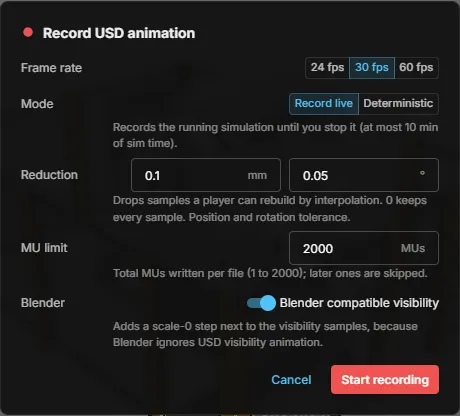
Options
Section titled “Options”- Frame rate — 24, 30 or 60 fps. The simulation is sampled at this rate.
- Mode — Record live records the running simulation until you stop it, at most 10 minutes of simulation time. Deterministic steps the simulation without rendering, faster than real time, for a fixed Duration of 1 to 600 seconds. It needs the continuous simulation.
- Reduction — drops samples that a player can rebuild by interpolation, which keeps the file small. Set a position tolerance in mm and a rotation tolerance in degrees; the defaults are 0.1 mm and 0.05°.
0keeps every sample. - MU limit — how many MUs are written per file, 1 to 2000. Later MUs are skipped.
- Blender compatible visibility — on by default; see Blender.
Start recording stays disabled, with the reason, until all values are valid.
The recording panel
Section titled “The recording panel”While a recording runs, a panel at the top of the viewer shows REC with the simulation time, the frames, the moving prims, the MUs and the estimated file size. A deterministic recording also shows its progress. If the estimate passes about 200 MB, the panel warns; the recording continues, and you can stop it or record again with larger tolerances or fewer MUs. If the simulation is not running yet, the panel reads Waiting for the simulation and starts when it runs.

After Stop, the panel shows the length of the recording with Export as USD (animated) and Discard. When the export is done, it reports the file name and size.
What the file contains
Section titled “What the file contains”- The scene as in a complete scene export, including the realvirtual data as
customData. - Time samples for the pose of every moving object. A part is visible only while it exists in the simulation.
- The frame rate and time range of the recording.
Discrete event simulation runs cannot be recorded.
Blender
Section titled “Blender”- Scene frame rate — Blender does not read the frame rate stored in the file and keeps its scene at 24 fps. Set the scene frame rate to the rate you recorded with.
- Import option — switch Merge parent Xform off when importing. Otherwise objects are named
Geometry.00xinstead of their original names. - Visibility — Blender ignores animated USD visibility. With Blender compatible visibility on, every visibility sample gets a scale-0 step next to it, so parts that are not there are scaled to zero.
Use from an AI assistant
Section titled “Use from an AI assistant”The commands usd.record.start (fps, mode, durationSec, the tolerances and maxMus match the dialog), usd.record.stop, usd.record.cancel and usd.record.status control a recording; usd.export.animated writes the file, as a download or into the exports folder of the project.
The MCP tool web_export_usd with mode: "animated" does both in one call: it records the given number of seconds deterministically and exports afterwards. The call returns a job ID; follow it with web_macro_status or cancel it with web_macro_cancel. See AI bridge.
Common use cases
Section titled “Common use cases”- Isaac Sim rendering – Render a cycle with RTX without a running connection.
- Blender presentation – Turn a simulated cycle into a video.
- Sharing a cycle – Send a self-contained motion file instead of a running model.
- Documentation – Show the motion of a station in Omniverse or usdview.
See also
Section titled “See also”- USD export, import and apply — the scene as a static file.
- Isaac Sim live link — stream the running simulation to Isaac Sim.