
Parametric Part Families (Preview)
A parametric part family is one asset that can take many sizes. Instead of one GLB per length, width or roller pitch, the family carries:
- the base parts, each exactly once (for a roller conveyor: profile, roller, guide, strip),
- a short list of parameters with units and allowed values (for example width 420 / 620 / 840 mm, length 500–4320 mm),
- a small rule part that turns the parameter values into a variant: it duplicates, stretches, bends and positions the base parts and adds snap points, drives and transport surfaces.
When you change a value, realvirtual builds the new variant in a fraction of a second. You do not need SolidCraft, CONNECT or any CAD program for that — the family is a normal GLB file you can hand on.
Change parameters in the Editor
Section titled “Change parameters in the Editor”Open the family asset in the Editor and select the family node. The Inspector shows the ParametricComponent section with one row per parameter: number fields respect their unit and range, fixed sizes appear as a drop-down list, switches as a checkbox.
- Change a value and confirm it (Enter or leave the field).
- The variant below the family is rebuilt. This is one undo step — Ctrl+Z brings the previous variant back.
- Reset returns all values to the defaults of the family.
- Save the asset. The values you saved are the variant every layout gets by default, without running any rules.
Change parameters per placement
Section titled “Change parameters per placement”In the Layout Planner, every placement of a family has its own values. Select a placed family and open the Inspector: the same parameter rows appear.
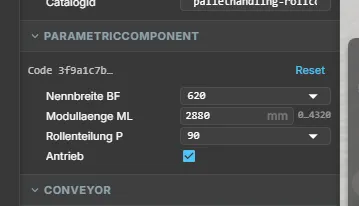
- A change rebuilds only this placement. The other placements of the same family keep their values.
- Placements with equal values share one variant, so ten identical conveyors cost as much as one.
- Every change is one undo step in the layout.
- While the simulation runs, parameters cannot change. A change you make then is shown as Applied when the simulation stops and takes effect at the next stop.
Create a family (preview)
Section titled “Create a family (preview)”Creating a family is done through the realvirtual MCP tools, typically by an AI agent in Claude Code or another MCP client connected through CONNECT. The agent guide web_help("parametric") describes the whole workflow; in short:
- Model the base parts once in SolidCraft and bring them into the Editor with the SolidCraft live link — or import any CAD whose parts follow the same rules.
- Create an empty node for the family and move the base parts below it.
- Define the family with the tool
web_editor_parametric_define(node path, parameter list, rule code). This builds the first variant. - Try the extreme values with
web_editor_parametric_setand check every variant, then reset to the default and save.
In a layout, an agent changes the values of a placement with the command layout.setParams, run through web_execute, for example {"id": "<placement>", "values": "{\"BF\":620,\"ML\":3240}"}.
Hand a family on
Section titled “Hand a family on”A family is one GLB file: base parts, parameters, rules and the default variant. Share it like any other asset. A family that places other families inside it (for example a line that is built from conveyor modules) takes those along when you export it with Share; importing that file puts the inner families into your project library automatically.
Limits
Section titled “Limits”- Preview: no menu entry yet; families are created through the MCP tools.
- The base parts are not editable from the variant. To change a base part you need the original CAD design; keep the
.solidcraftfile next to the project. - A part can only be stretched across a plain section. Holes, chamfers or threads across the stretch plane cause the error stretch-plane-invalid; the previous variant stays.
- Every variant is checked against fixed budgets (number of parts, vertices, computing time). If a value combination exceeds one, you see an error and the previous variant stays.
- Snap points point along the main axes. On a curve of 30°, 45° or 60° the exit snap can only be approximated; 90° is exact.
- A shared link opened directly in the browser (without importing it) cannot show inner families yet; the outer family appears, the inner ones are reported as missing.
See also
Section titled “See also”- SolidCraft Live Link — model the base parts live in CAD
- Library and Catalogs — place assets in a layout
- Snap Points — connect modules