
The multiuser client is part of the AGPL open-source core: its source is published and it ships with the viewer. The delivery determines whether the button and settings tab are available. An operator HMI is usually delivered without them.
A multiuser session connects several browsers to the same running twin. One authority supplies drive positions, moving parts and signal values. Everyone sees the same machine state at the same moment, avoiding differences between separate local simulations.
The host is the authority: a Unity session running the twin, reached directly on the network or through a relay server. The browsers are participants. Each participant’s role determines what they can do.
Every participant joins as one of two roles. Enforcement is on the host, not in the browser.
| Observer | Operator | |
|---|---|---|
| See the scene, the machine state and the other participants | yes | yes |
| Show an avatar and a pointing ray to the others | yes | yes |
| Write signal values | no | yes |
| Jog and stop drives | no | yes |
Observer is the default and suits most participants in reviews, remote acceptance and training sessions. Give Operator to the one person responsible for driving the machine. The twin does not resolve conflicts when two people jog the same axis.
The role is set in Settings ▸ Multiuser, together with your display name and the server or relay to use.
Joining a session
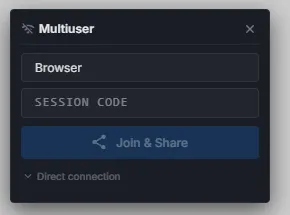
Section titled “Joining a session”Open the Multiuser panel from the left bar. Disconnected, it asks for two things:
- Your name — what the others see next to your avatar.
- A session code — the room, shared by whoever set the session up.
Join & Share connects and copies a join link to the clipboard in one step, ready to share with other participants.
Under Direct connection you can instead enter a ws://… address to reach a host directly on the local network, without a relay.
Once connected, the panel lists everyone in the room with their colour and role, and Share Session Link copies the join link again at any time.
Join links
Section titled “Join links”A join link carries the server or relay, the session code, a default name for the recipient and the model. Opening it joins the same session directly, without typing anything.
Values in the link win over the settings stored in the recipient’s browser, so a link always lands in the session it names.
Seeing each other
Section titled “Seeing each other”Each participant is drawn in the 3D scene as a small avatar with their name and colour at their camera position, so you can tell where somebody is looking. A pointing ray shows what they are pointing at and fades out shortly after they stop. A participant wearing a headset also shows their controllers.
Current signal values and drive positions are sent once when a participant joins. Late arrivals see the current machine state without waiting for the next change.
If a connection drops, the client says so and reconnects on its own; on reconnect the same catch-up runs again.
Direct or relay
Section titled “Direct or relay”| Mode | When to use it |
|---|---|
| Direct | Everyone is on the same network as the host. Lowest latency, nothing in between |
| Relay | Participants are outside the host’s network — home office, a customer site, a firewall, a Teams meeting. Host and browsers all connect out to the relay, so no inbound port has to be opened |
A relay is a small server that forwards messages between the host and the participants of a room. A default relay is preconfigured, and you can run your own for a private network or an on-premises deployment; set the same relay address on the host and in the browser settings rather than relying on either default.
In Microsoft Teams
Section titled “In Microsoft Teams”You can add the viewer to a Teams channel as a tab. Configure it once with the model and tab name. For a shared session, also enter the relay address and session code. Everyone who opens the tab joins the same session automatically, with their Teams name as their display name.
Use the tab for design reviews or remote acceptance in a Teams meeting, without pasting links or opening another application.
Quick Start
Section titled “Quick Start”- Open Settings ▸ Multiuser, enter your display name and choose Observer unless you are the one operating.
- Open the Multiuser panel and enter the session code you were given.
- Press Join & Share and confirm that you appear in the participant list.
- Watch the machine move — the state comes from the host, not from your browser.
- Paste the copied link to whoever should join next.
See also
Section titled “See also”- Signals and alarms — the live values that are synchronised
- Settings — the Multiuser tab
- Sharing models — handing over a file instead of a live session
- Deployment options — where the viewer and the host run