
Configuring Interfaces
An interface is one configured connection to one endpoint: an OPC UA server, an S7 PLC, an MQTT broker, a robot controller. Each enabled interface runs independently, reconnects on its own and can be changed while the gateway keeps running.
A signal maps a protocol address to a name, a direction and a type. The viewer binds signals to the 3D model by name. For example, Conveyor1_Running in the gateway connects to the component that expects Conveyor1_Running in the model.
Everything on this page is configured in the CONNECT panel of realvirtual. The same operations exist as a REST API if you prefer to script them.
Creating an interface
Section titled “Creating an interface”- Open the CONNECT panel and add an interface.
- Pick the type. The dialog asks only for the parameters that type needs. See supported protocols.
- Save.
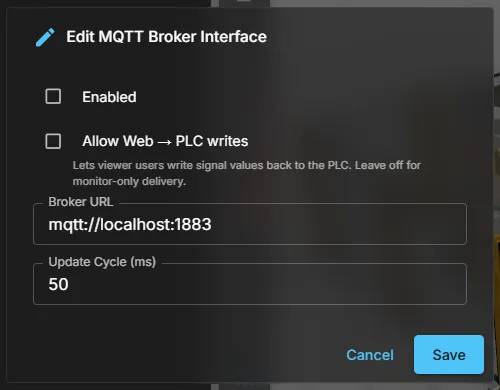
The gateway starts the interface immediately. There is no restart, and other interfaces are not touched.
| State | Meaning |
|---|---|
| Connected | The connection is up and signals are being exchanged |
| Connecting | A connection attempt is running |
| Error | The last attempt failed; the reason is on the card. Reconnect waits the interface’s reconnect delay (default 10 s), growing to twice and then three times that delay during a longer outage. A configuration error — for example a port that is already in use — is not retried until the interface is saved again |
For listener-style interfaces (Modbus server, shared memory), Connected means the gateway is published and accepting attachments. It does not mean a particular remote client is currently attached.
Update cycle
Section titled “Update cycle”Update cycle sets how often a polling interface reads its signals, in milliseconds. Event-driven protocols — MQTT, ctrlX, Keba, and TwinCAT in notification mode — deliver changes when they happen and use the cycle only as a keep-alive.
Values reach the browser on a fixed 10 ms tick, and only what changed is sent.
Adding signals
Section titled “Adding signals”You can add signals in three ways, depending on what the controller offers. When the model already has its PLC signals and only the addresses are missing, the two bulk address sources below — Fill addresses from controller and Import address table — are the faster way.
Browse
Section titled “Browse”For protocols that can be browsed — OPC UA, MQTT, ctrlX, TwinCAT, EtherNet/IP, Keba, Festo, PLCSIM Advanced, B&R PVI, Wandelbots NOVA, WebSocket Realtime — the Browse button runs a discovery on the live connection and lists what it finds. Select the signals you want, assign the direction, and bind. The bound signals are registered immediately and persisted to the interface.
Discovery always runs on a separate short-lived connection, so browsing never disturbs the running exchange.
S7, Mitsubishi, UDP and WINMOD browse a symbol file instead — a TIA .sdf export, a GX Works3 CSV, a CSV symbol table or a WINMOD signal list — named in the interface settings.
Import a tag table
Section titled “Import a tag table”A tag table exported from the engineering tool is imported in the browser and pushed to the gateway. This is the usual path for a Siemens process image and for controllers with hundreds of tags.
Fill addresses from controller
Section titled “Fill addresses from controller”When the model already contains its PLC signals, Fill addresses from controller on the interface card fills in the addresses for you. It browses the controller, takes every model signal whose name is exactly a controller symbol, and writes the controller’s address into the CONNECT configuration — the OPC UA NodeId, the TwinCAT symbol, the S7 address. The model itself is not changed.
The action is offered for every interface whose controller can be browsed. A preview lists one row per model signal before anything is written:
- Fill — the signal exists on the interface without an address; the address is filled in.
- Create — the signal does not exist on the interface yet; it is created with the model’s direction and the controller’s address.
- Already set — the interface already carries exactly this address.
- Kept — the interface carries a different address. It stays; an address that is already configured is never overwritten.
- Name variant — the controller spells the name differently (quotes, upper/lower case). Shown as a suggestion only; rename one side to couple them.
- Direction conflict — the controller symbol, or the signal already configured on the interface, has the other direction than the model signal.
- Ambiguous, On another interface, No address, Not on controller — nothing is written for these rows; the note says why.
Fill N addresses writes all Fill and Create rows in one step, on exactly the configuration the preview was computed on. If the configuration was changed elsewhere in the meantime (another browser tab, the tray, an AI tool), nothing is written; the panel reloads and the preview has to be computed again (Browse again) before you can write.
Import an address table
Section titled “Import an address table”Import address table on the interface card takes a CSV or TSV file — or text pasted into the dialog — with one row per signal:
name;address;dataType;topicConveyor.Start;%Q0.1;BoolConveyor.Speed;%QD4;RealLamp.Green;%Q2.3;Bool;plant/line1/piColumns are separated by semicolon, comma or tab; the data type and topic columns are optional, and an optional header row may name the columns in any order. The name is the signal name exactly as the model uses it. A field in double quotes may contain the separator — Motor,"ns=2;s=Motor",Bool is a comma table.
In the dialog you choose:
- Separator — Auto detects it from the first row (separators inside quoted fields do not count); Semicolon, Comma or Tab sets it explicitly.
- Columns — which column holds the name, the address, the data type and the topic.
- Container — Interface signals, one MQTT topic for the whole import, or Per row from the topic column.
- Existing addresses — Keep fills only empty addresses (default); Overwrite replaces them.
- Direction of new signals — for a signal the model does not know and whose address does not imply a direction.
Every row is checked before anything is written: an unknown topic, a name that lives in a topic the row does not name, a name in more than one topic, a missing or not-allowed address, an address the protocol does not accept, a data type the interface does not support, or an unknown direction rejects that row with a reason in the preview. Every change to the text or a choice computes the preview again; Import N rows is available only once the preview matches what you see, and writes all valid rows in one step.
One import is one change of the CONNECT configuration, so it has CONNECT’s limits: at most 10,000 changes in the batch the import produces, at most 20,000 signals in one topic, and at most 4 MiB of data. Rows that change nothing (unchanged or kept) do not count towards the batch, so a large table with few changes is fine; only an absurdly large file (over 200,000 rows) is refused up front. A batch over a limit is refused with a message before anything is sent — split the file and import the parts one after the other.
Enter manually
Section titled “Enter manually”For protocols without a browse mechanism — Modbus client and server, FANUC, Denso, KUKA, Universal Robots, igus, RoboDK, ABB RobotStudio, shared memory — and for S7 without a symbol file, signals are entered by hand. The dialog knows what each protocol expects: it shows the right address label, examples and data types, and it validates the address with the same parser the interface itself uses at connect time.
Where the address already implies a direction — an S7 area letter, a FANUC signal prefix — the dialog prefills it.
Signal direction
Section titled “Signal direction”Direction follows the PLC convention, exactly as in Unity. It is expressed from the controller’s point of view, not the browser’s:
| Type | Who writes | Who reads | Typical use |
|---|---|---|---|
| PLCInputBool / Int / Float | realvirtual (viewer, simulation) | the PLC | Sensor state, part present, axis feedback |
| PLCOutputBool / Int / Float | the PLC | realvirtual (viewer) | Motor on, valve command, setpoint, lamp |
The digital twin supplies PLC inputs, just as field devices supply inputs at the PLC’s terminal strip. The PLC drives outputs, which the twin shows.
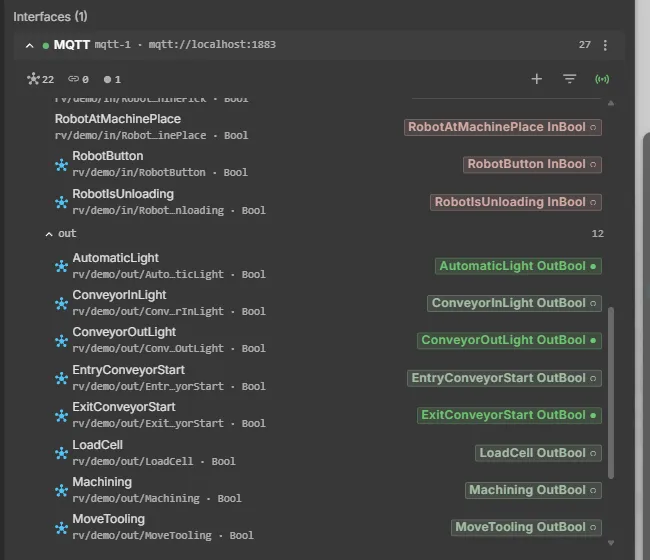
The value chip carries the direction and the current value, so a frozen signal is visible without opening anything.
Write access to the controller
Section titled “Write access to the controller”Every interface has an Allow web to PLC switch, and it is off by default.
While it is off, the gateway accepts values written from the browser and shows them in the HMI. It does not pass them to the real controller. Operators can therefore click controls in a monitoring HMI without sending commands to the machine.
Turn it on deliberately, per interface, when the HMI is supposed to command the machine.
Changing and removing signals
Section titled “Changing and removing signals”Configuration changes are applied by hot-reload: the affected interface restarts with the new configuration while everything else keeps running.
Renamed or deleted signals disappear from the signal list and browser stream immediately, without waiting for a gateway restart. A removal triggers one full resynchronisation so every connected browser uses the new set.
Signal issues
Section titled “Signal issues”Signals the gateway knows it can never decode are reported per interface and shown as a badge on the interface card:
| Issue | Meaning |
|---|---|
| Address parse error | The address could not be understood. The signal stays registered but never updates |
| Out of bounds | The address points outside the received data — typically a process image that is shorter than the tag table expects. It clears by itself once the payload fits |
Profiles
Section titled “Profiles”A profile is a named snapshot of all interfaces and bridges, including per-signal historian recording. Profiles live in the viewer’s CONNECT settings: until the live configuration is saved there, the selector shows unsaved live configuration; Save turns it into a named profile. Switching — in the settings or from the tray menu — hot-reloads the interfaces without restarting the gateway.
Use profiles for a gateway that serves more than one machine, or that alternates between a real controller and a simulation.
Binding a profile to a document
Section titled “Binding a profile to a document”A profile can be bound to a document so that opening it loads its configuration. The binding is stored on the document’s own row in the project as a path to the configuration file. Both files are in the same project, so copying the project also copies the binding. Renaming either file does not break it.
To bind one, drag the configuration onto the open document’s card in the dashboard. To see where a bound configuration lives, click it on the card: the file is revealed in the project tree. Where the gateway runs on the same machine as the viewer, Show in Explorer on that file opens it in the operating system’s file manager.
Switching to a profile that would cut a live connection requires confirmation. If the gateway serves a different project from the one you are working in, the card reports this. It does not create a binding that could not take effect.
The full reference model — including the knowledge file and project code bound the same way — is described under document references.
Moving signals between interfaces
Section titled “Moving signals between interfaces”Two mechanisms move values without a PLC in the loop:
- Mirroring copies all signals of a source interface into an output interface — MQTT or shared memory — keeping the names. Use it to republish a PLC’s signals to an MQTT broker.
- Mapping connects one signal to one signal of any other interface, with an explicit rule for type conversion. Feedback loops are detected and broken.
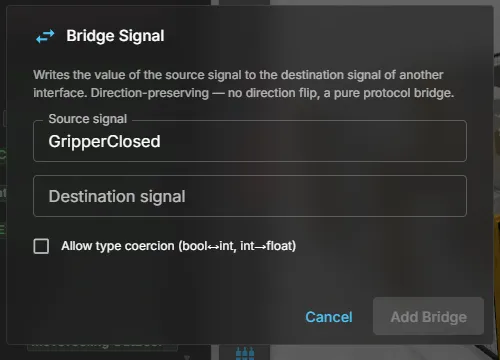
See also
Section titled “See also”- Supported protocols — parameters and address formats per protocol
- First connection — the shortest path to live values
- REST and WebSocket API — the same operations for scripts