
Discrete Event Simulation
Discrete event simulation (DES) analyzes material flow through a layout directly in the browser. Instead of updating every visual frame, it advances between relevant events, which makes it suitable for faster throughput and utilization studies.
In DES mode, you can run a prepared material-flow model, accelerate the study, review statistics and organize repeated runs as experiments.
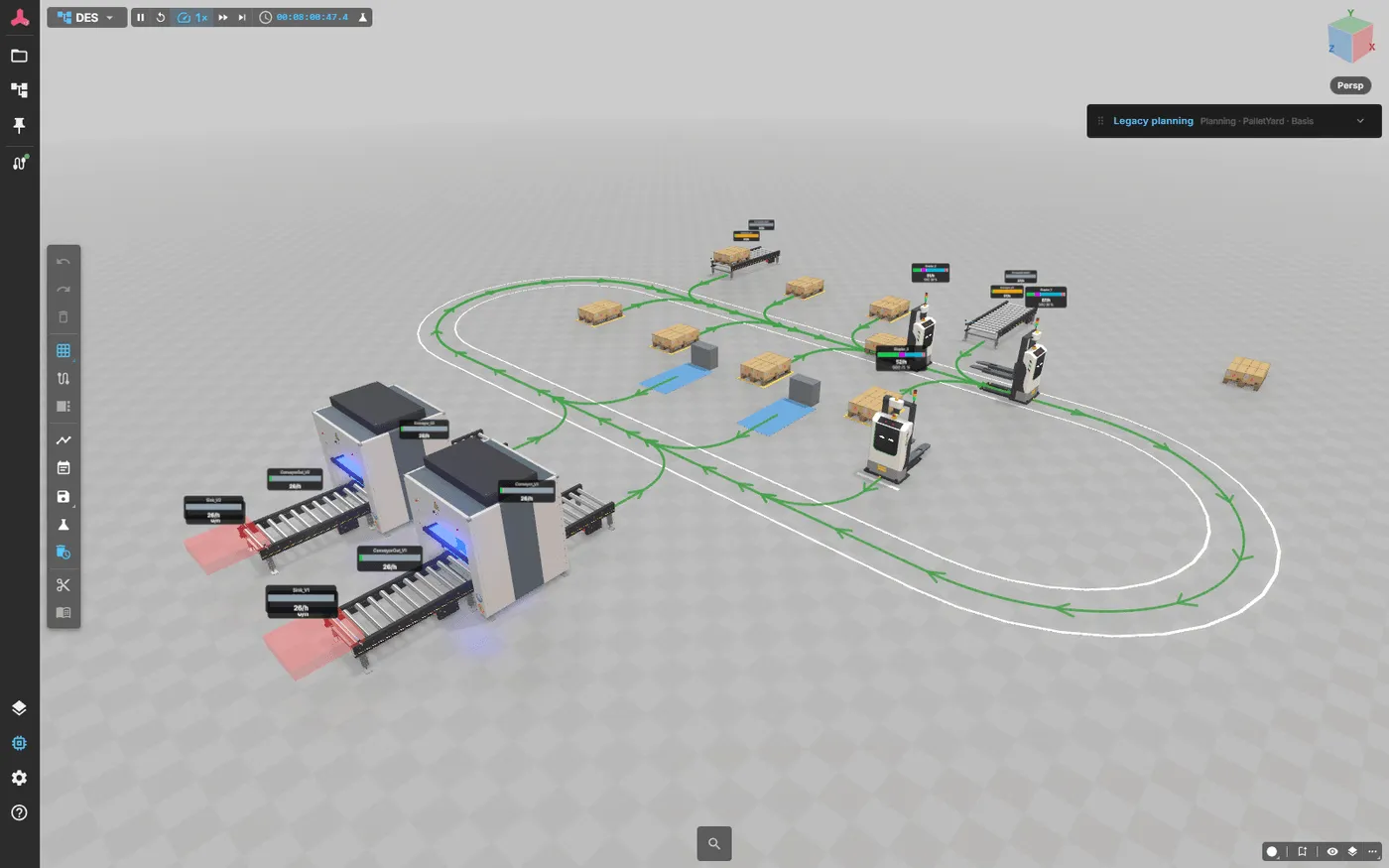
Discrete event simulation is one of the use cases of realvirtual. It starts from a twin built in the Editor or exported from Unity.
Core functions
Section titled “Core functions”- Material-flow statistics summarize throughput and utilization for the simulated layout. Hover a material-flow component, or a part inside it, to see its state, load, utilization and output per hour. Vehicles appear in the statistics as kind vehicle, and clicking a bar in the statistics window selects that component. See The Statistics window.
- Fast-forward advances an event-driven run faster than real-time when you do not need to watch every movement.
- Projects and experiments group related scenarios and repeated runs for comparison. The experiment manager is part of realvirtual Commercial for your own installation and fully usable in the public demo; see Licence.
- Runs and checkpoints retain a simulation state so a stored point can be loaded and continued.
- Run comparison combines selected runs from the same project and reports their statistical result (experiment manager, Commercial).
- Saving and restoring a run explains what a snapshot contains, when it is refused and how scripts keep their state. See Saving and Restoring a Run.
- Reproducible and reliable runs explains blockage diagnostics, seeded randomness, fast-forward behaviour, AGV failures and known limits. See Reproducible and Reliable Runs.
Where the routes come from
Section titled “Where the routes come from”The paths vehicles travel along are not a separate DES model. They are ordinary objects in the Layout Planner, where you draw and edit them with drag handles and snap points. You can undo and save these edits like any other layout change. Changing a route is a planning action, and the run uses the new geometry without a rebuild.
Material-flow behaviour belongs to the component, regardless of where you place it. An object authored in the Editor and dropped into a layout therefore takes part in the simulation immediately.
Organising repeated runs
Section titled “Organising repeated runs”See experiments and runs for projects, experiments, runs, checkpoints and seed modes that make runs repeatable. The page also covers comparison across runs as mean ± 95 % confidence interval and exporting experiments as portable files.
Quick Start
Section titled “Quick Start”- Open a layout that contains a prepared material-flow simulation.
- Switch the workspace to DES.
- Start a run and observe the material-flow statistics rather than relying only on visual motion.
- Use fast-forward when you want to reach a later simulation time more quickly.
- Open the experiments area to identify the active project, experiment and run.
- Repeat the scenario with the intended settings, then select the relevant runs for comparison.
The Statistics window
Section titled “The Statistics window”All statistics open from one Statistics button in the analysis group of the side toolbar. It shows one tab per available source; in DES mode the Material flow tab holds the utilization chart: one stacked bar per component, a filter by component kind, and hover to highlight the component in the scene.
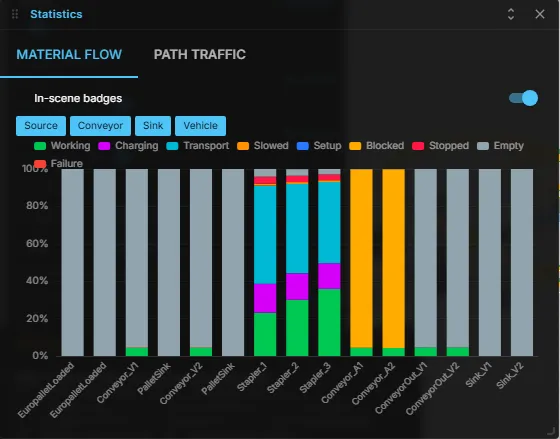
- In-scene badges — the switch at the top of the Material flow tab shows a small utilization bar and the output per hour above every material-flow component in the 3D view. The setting is remembered in your browser; it applies again whenever a DES run is available.
- Clicking a badge, or the Run finished / No more events chip, opens the window directly on the Material flow tab.
- When the layout carries a path network, a second tab Path traffic shows where vehicles are blocked or the paths are busy — see path traffic statistics.
- Script components can add their own values; they appear in a Scripts tab.
The window remembers the last tab and its size. It loads only when you first open it.
Run controls and completion
Section titled “Run controls and completion”See Simulation modes for playback and stepping.
Use FastForward to advance quickly to the end of a run. If the scene has no DESManager settings, the end time defaults to 24:00:00 (86400 s).
The green Run finished chip beside the simulation clock means the configured end time was reached, or an unlimited run exhausted its model events. A finished run is not a blocked model; events scheduled after the end time may still be pending.
The warning No more events chip means the run stalled: there are no more model events before its finite end time. Check for exhausted sources or blocked material flow. Checkpoint events do not count as model events.
Click either chip to open statistics. A brief notification announces a new finish or stall; the chip remains visible while that state applies. Use Reset to start another run.
If a model action fails during a run, the run stops instead of hanging: Fast-Forward ends, Animated and Step pause, and the Problems panel names the component and the action.
How the material-flow components behave
Section titled “How the material-flow components behave”- Storage — with Auto Release off, the storage hands a part on as soon as its successor can accept it. With Auto Release on, Auto Release Delay is a minimum dwell time for each part, and the strategy (FIFO, LIFO, Priority) only chooses among parts whose dwell time has passed. A successor that refuses keeps the part in the storage until the successor is ready.
- Source — with Limit Number on, a source creates exactly Max Number MUs parts in every mode, and each of them is visible in Animated mode.
- Closed conveyor loops — a source feeding a conveyor loop without a sink pauses while that loop is about 70 % full, so parts keep circulating. Open lines and loops with a branch to a sink are never throttled.
- Warm-up — statistics reset exactly at the warm-up time (Statistics Reset Time), with the same result in Animated, Step and Fast-Forward. Checkpoints remember whether the warm-up has already happened.
Older files may still contain the retired DES component types (DESSource, DESSink,
DESStation, DESStorage, DESConveyor, DESDowntime). They load, but the Problems panel lists
each such node with its replacement: Source, Sink, Station, Storage, Conveyor or Downtime.
Model size and limits
Section titled “Model size and limits”The following yard models were measured in FastForward with rendering disabled. Sim-h/wall-h means simulated hours completed per hour of real elapsed computation time; Events/s measures simulation events, not vehicle deliveries.
| n | Sim-h | Vehicles | Stations | Events | Events/s | Sim-h/wall-h | Heap peak / after GC MB | Snapshot ms | Snapshot size | Restore ms |
|---|---|---|---|---|---|---|---|---|---|---|
| 1 | 8 | 2 | 6 | 23,240 | 86,298 | 106,944 | 175.4 / 67.2 | 4.4 | 32 KB | 6.0 |
| 2 | 8 | 3 | 12 | 44,606 | 102,519 | 66,192 | 176.8 / 68.6 | 6.0 | 54 KB | 8.8 |
| 4 | 8 | 6 | 24 | 96,353 | 117,218 | 35,036 | 199.2 / 71.3 | 11.1 | 101 KB | 16.8 |
| 8 | 8 | 12 | 48 | 210,301 | 114,294 | 15,652 | 258.6 / 75.7 | 19.1 | 205 KB | 41.7 |
| 16 | 8 | 24 | 96 | 290,864 | 116,146 | 11,500 | 295.2 / 83.0 | 40.2 | 396 KB | 102.5 |
| 8 | 80 | 12 | 48 | 2,077,838 | 163,428 | 22,652 | 465.8 / 76.1 | 17.4 | 209 KB | 39.1 |
Reference conditions for this table: CODER, AMD Ryzen 9 9950X (16C/32T), 64 GB RAM, Windows 11, High performance power plan, Node v26.13.0, headless Chromium (Playwright) in the vitest browser harness; WebViewer origin/main 25167f83; 2026-11-02; machine near idle (CPU 0 to 30%, mean about 10%, no test suite or render running). This machine is the reference hardware; other computers will differ. Values are rounded medians; 8 Sim-h = 28,800 Sim-s (3 repeats), 80 Sim-h = 288,000 Sim-s (2 repeats). MB is decimal. Heap peak is sampled; after GC is retained heap.
The acceptance criterion is FastForward >= 100 Sim-h per wall-clock hour, snapshot < 1 s and < 50 MB, and heap < 1 GB. No measured value breaches these thresholds, including the repeat maxima for heap and snapshot and minima for speed. Snapshot thresholds are met by the vehicle-free warehouse and by PalletYard (see below). Measurements reach n=16 (24 vehicles, 96 stations), the maximum of the measured yard generator; no performance limit was found within that range. This does not establish support for larger models. These are pure headless DES computation measurements without rendering. Browser rendering and Animated mode were not measured.
Events/s rises from 86,298 at n=1 to about 117,000 at n=4 and then stays flat (114,294 at n=8, 116,146 at n=16). The short 8-hour runs take less than 3 wall-clock seconds and are affected by JIT warm-up; the longer n=8 run reaches a steadier 163,428 Events/s versus 114,294 for 8 hours. At n=8 the sampled heap peak grows from 258.6 MB (8 hours) to 465.8 MB (80 hours), while heap after GC stays flat (75.7 versus 76.1 MB). These runs show garbage peaks without evidence of a retained-heap leak; they do not prove absence of leaks in all workloads.
Vehicle installations can be snapshotted and restored, including the AGVs and forklift lifts of the yard models. Saving takes 4 ms (n=1) to 40 ms (n=16, 24 vehicles) and restoring 6 to 103 ms; the file grows from 32 KB to 396 KB and is roughly proportional to the number of vehicles and stations. This meets the snapshot criterion. The separate vehicle-free warehouse contained 300 Storage components, 3,000 MUs and 2,000 open events. In the reference run with 3 repeats, median snapshot time was 115 ms (110 to 116 ms), size 2,428,427 bytes, and restore time 149 ms (149 to 158 ms). The two models differ in size and kind, so compare them only loosely.
Time series recording
Section titled “Time series recording”Each run can record a time series for the experiment comparison. On the PalletYard model (137 series) a run stores 280,576 raw bytes (about 274 KiB), independent of the run length: 8 Sim-h and 1 Sim-h produce the same size. The exported JSON is about 402 KB and about 61 to 65 KB gzipped. The recorder is capped at 1 MiB raw per run.
Licence
Section titled “Licence”In short: simulation is free, studies are Commercial. The discrete event simulation core is part of the open-source Community edition: building a model, running it, fast-forward, the statistics of a run, snapshots and scripts. Its source, including the PalletYard example, is published under AGPL-3.0 with the rest of the core on GitHub. The experiment manager — variants, replications with confidence intervals, batch series, run comparison, experiment export, optimisation and study reports — is part of realvirtual Commercial for your own installation. In the public demo it is fully usable, without a run limit.
The licence covers the software, not the results it produces: statistics, exports and the decisions you base on them are yours.
| What you do | What you need |
|---|---|
| Run DES models in the public demo, on the examples or your own models, also for paid projects | Nothing. The demo is free to use, also commercially, and provided as is, without support or warranty. The experiment manager is fully usable there |
| Compare variants with replications, confidence intervals and batch series in your own installation | A commercial licence (experiment manager) |
| Run the open-source build yourself, on your computer or your own server, and use the results | Nothing |
| Hand the GLB file of a study to a customer, who opens it in the public demo or their own installation | Usually nothing. Your model data stays yours |
| Deliver realvirtual together with your DES model, for example as your own hosted link for customers or as an offline package | AGPL: the recipients must be able to get the source of the delivered software under AGPL, including your changes, tightly coupled plugins and scripts that take over core code. Your layout and model data may stay confidential. The “Powered by realvirtual WEB · AGPL-3.0” notice stays reasonably visible |
| The same, but your plugins or extensions must stay confidential, or you want your own brand instead of the notice | A commercial licence, with one deployment licence per handed-over project |
| Build the DES model from raw CAD with the Editor in your own deployment | A commercial licence, or build the model in the public demo |
Where exactly a script or plugin counts as tightly coupled is a borderline question; the full rules and our reading are in Licensing the viewer, and the feature-by-feature comparison is on Editions.
See also
Section titled “See also”- Simulation modes
- Randomness and seeds
- Scripting
- Experiments and runs — organising, comparing and exporting simulation runs
- Layout Planner
- Documents
- Deployment options
- Licensing the viewer — what AGPL requires when you deliver a model to others
- Multi-Model Simulation
PalletYard example
Section titled “PalletYard example”PalletYard is a public example of a DES material-flow scene. It is part of the public demo project and opens directly in DES mode, so you can run the pallet flow, watch the statistics and plan variants without building a model first. Use it as a starting point for your own studies.
The public source repository includes the PalletYard example.