
Navigation & Controls
You can inspect a twin from the 3D viewport or use its hierarchy and search tools to locate a component. Camera movement keeps the model in the center while selection connects the visible geometry to its machine information.
The controls available around the viewport can vary with the active workspace and the delivered twin. For example, an HMI delivery can provide camera presets, while engineering-oriented views can expose additional hierarchy filters.
Mouse controls
Section titled “Mouse controls”| Action | Control |
|---|---|
| Orbit around the model | Drag with the right mouse button |
| Pan across the scene | Drag with the middle mouse button |
| Zoom | Scroll the mouse wheel |
| Select a component | Click the component |
The camera uses damped movement and fits the complete model into view after loading.
Framing with the F key
Section titled “Framing with the F key”Press F to frame the current selection. Blender, Unity and Maya use the same shortcut. With nothing selected, and always with Shift+F, the camera fits the whole model instead.
Framing a kinematic axis brings all parts that move with it into view, rather than only the selected empty node. F is the fastest way to inspect an axis found through the hierarchy filter.
The key is ignored while you are typing in a field, and Ctrl+F and Cmd+F are left to the browser’s own search.
Touch controls
Section titled “Touch controls”Use one finger to orbit. Use two fingers to pan and pinch-zoom.
Selection, hierarchy and search
Section titled “Selection, hierarchy and search”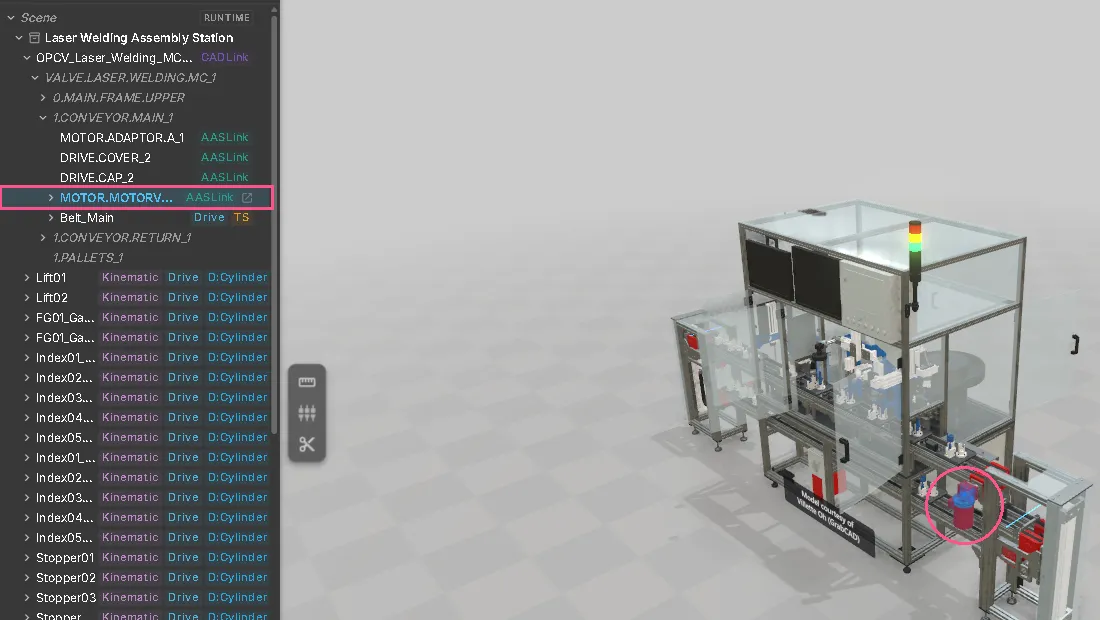
- Select visible geometry in the viewport to highlight the related component.
- Use the Hierarchy panel to expand the twin structure and select components that are difficult to reach in 3D.
- Switch the hierarchy between All, Drives, Sensors, Signals and Logic when you need to focus on one component family.
- Use the available search or signal-search control to narrow a long list. Search availability depends on the active workspace.
- Choose camera viewpoint 1, 2 or 3 for a repeatable inspection position without changing the model.
Simulation controls
Section titled “Simulation controls”- Play / Pause starts or pauses drive, transport, source, sink and logic updates while the scene remains available for camera movement and selection.
- Reset removes movable units and returns logic sequences to their initial state. It does not reset every drive or signal value.
- Press Space to toggle Play / Pause or Shift+R to reset when the cursor is not inside a text field.
Quick Start
Section titled “Quick Start”- Open a twin and wait until the camera fits the complete model into view.
- Orbit with a right-button drag, pan with a middle-button drag and use the wheel to zoom.
- Click a visible component and confirm that its selection is reflected in the surrounding information panels.
- Press F to frame the selected component, then Shift+F to return to the whole model.
- Open Hierarchy and select the same component from the tree.
- If the twin provides camera presets, select one and verify that it frames the intended area.
- Use Play / Pause to observe the simulation, then pause it before inspecting a precise state; use Reset to start a new material-flow run from a clean transport state.
See also
Section titled “See also”- Opening a twin
- Demo Models — twins to practise on
- Documents
- Signals and alarms