
USD and Isaac Sim Live Link
The USD button in the left main menu groups everything OpenUSD in one place: file export, import and apply, recording an animation and the live sync to Isaac Sim described on this page. The live link mirrors the running simulation into NVIDIA Isaac Sim or any other Omniverse Kit app. Axes move, and parts appear, travel and disappear in Isaac Sim exactly as they do in the browser.
The live link runs in one direction: realvirtual WEB simulates, and Isaac Sim displays the results. No data flows back, and no video is streamed. Isaac Sim renders the scene itself with RTX. Live sync creates no file; to hand a scene or a motion to another tool as a file, use export or record an animation.
The USD menu
Section titled “The USD menu”The button sits in the lower group of the left main menu, next to Problems and Multiuser. Its dot shows the sync state: green while live, amber while waiting, red on an error, no dot while sync is off. The menu has three groups:
- USD files — Export USD scene…, Import USD scene… and Apply realvirtual data from USD…. See USD export, import and apply.
- Animation — Record USD animation… (Commercial). See Record a USD animation.
- Isaac Sim live sync — the Sync to Isaac Sim switch with its status and settings, and the extension download. The rest of this page covers it.
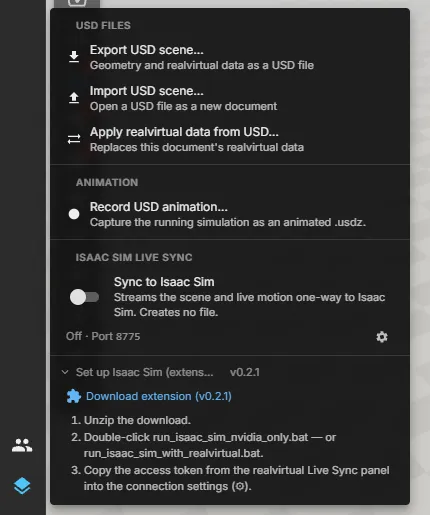
The live link to Isaac Sim, including the Kit extension, is part of the Community edition and works in every build. The file functions and the animation recording belong to the Commercial edition; the public demo includes them, and a Community build shows them as Not in this build. See Editions.
What the live link does
Section titled “What the live link does”- When you switch sync on, the viewer sends a snapshot of the running scene to the extension. The extension opens it in Isaac Sim under
/World/realvirtual. This takes a few seconds for a demo cell; large plants take longer. - The viewer then sends only movement updates: poses of moving objects (drives, kinematics), plus the creation, movement and removal of parts (MUs). The default rate is 30 updates per second.
- After a reset, a model change or a lost connection, the viewer sends the full scene again. This keeps Isaac Sim synchronised with the browser.
Not part of the live link: lights, signal values, lamp colours and the realvirtual component data. Textures that cannot be written to USD (compressed textures) are left out; the menu says how many.
Requirements
Section titled “Requirements”- NVIDIA Isaac Sim 4.5 or newer (verified with 4.5.0) on a Windows PC with an RTX graphics card. Other Kit apps such as USD Composer work the same way.
- The viewer runs in Chrome or Edge on the same PC as Isaac Sim. The extension only accepts connections from this PC.
- An NVIDIA driver that Isaac Sim supports — for Isaac Sim 4.5 the 580 series (e.g. 580.88); see Troubleshooting.
Set up the extension
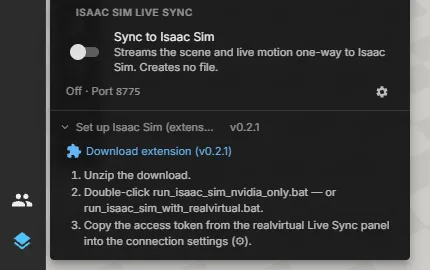
Section titled “Set up the extension”- In the USD menu, open the Set up Isaac Sim (extension) section and click Download extension. Unzip the file anywhere.
- Double-click
run_isaac_sim_nvidia_only.bat. It looks for Isaac Sim inC:\isaacsim,%USERPROFILE%\isaacsimor the folder in the environment variableISAACSIM_PATH, and starts it with the extension loaded — nothing is installed into Isaac Sim.run_isaac_sim_with_realvirtual.batdoes the same without restricting Isaac Sim to the NVIDIA card. - In Isaac Sim, the panel realvirtual Live Sync shows the port and an access token. Copy the token.
- In the viewer, open the USD menu, click the gear next to the status and paste the token.
- Switch Sync to Isaac Sim on.
The access token is created once and kept in %USERPROFILE%\.realvirtual\livesync-token.txt; New in the panel replaces it.
Reading the status
Section titled “Reading the status”The status line under the switch and the pill next to the play controls show the link’s current state.
| Status | Meaning |
|---|---|
| Off | Sync is switched off. |
| Token needed | Sync is on, but no access token is set. The settings open and the token field has the focus — paste the token and press Enter. |
| Connecting… | The first attempt to reach the extension. |
| Retrying | Isaac Sim is not reachable. The viewer keeps trying; start Isaac Sim with the .bat and it connects on its own. |
| Transferring | The scene snapshot is on its way to Isaac Sim. |
| Live (pill: Isaac Sim · 30 Hz) | Isaac Sim follows the simulation; the number is the effective update rate. |
| Error | The extension refused the connection, for example because the token is wrong. The message says what to do. |
If the extension is older than the viewer expects, the menu says Isaac Sim extension outdated and links the current download. Sync keeps running meanwhile.
Click the pill to stop syncing at any time.
Settings
Section titled “Settings”The gear opens three settings, stored per browser:
- Access token — from the realvirtual Live Sync panel in Isaac Sim.
- Port —
8765by default. Change it if another program on the PC already uses that port, and start Isaac Sim with the same port:run_isaac_sim_nvidia_only.bat --/exts/realvirtual.livesync/port=8766. - Rate — updates per second, 10 to 60. Lower it for very large plants.
Lighting in Isaac Sim
Section titled “Lighting in Isaac Sim”The snapshot carries geometry and materials but no lights, so the scene can look flat or dark at first. In Isaac Sim:
- For a quick look, pick a lighting rig such as Grey Studio or Sunny Sky from the light-bulb menu at the top of the viewport.
- For a lasting setup, add a Dome Light (intensity around 1000, optionally with a sky texture) and a Distant Light (around 2000–3000, tilted about 45°) via Create → Light.
- In the render settings of RTX – Real-Time, ambient occlusion adds depth to profiles and corners.
Troubleshooting
Section titled “Troubleshooting”| Symptom | Fix |
|---|---|
| Isaac Sim reports “Multiple Installable Client Drivers (ICDs) are found for the same GPU” and “Failed to create any GPU devices” | Typical for laptops. Disable virtual display adapters such as the Meta Virtual Monitor (Quest Link) in the Device Manager, and start Isaac Sim with run_isaac_sim_nvidia_only.bat, which hides the integrated graphics from Isaac Sim. |
Isaac Sim crashes right after start in rtx.scenedb.plugin.dll | The NVIDIA driver is too new for this Isaac Sim version. Install the driver series Isaac Sim lists as validated — for 4.5 the 580 series. |
| Isaac Sim freezes for many minutes after a driver change; the log shows “Waiting for RtPso async group async compilation” | Isaac Sim compiles its ray-tracing shaders once per driver version. It can take up to about 25 minutes on a laptop. Do not close it: an interrupted run starts again from zero. Later starts take seconds. |
| The status stays on Retrying | Isaac Sim is not running, is still compiling shaders, or listens on a different port. Check the port in the panel and in the viewer settings. |
| The status shows an error about the port or the protocol | Another program uses the port. Pick a free port on both sides. |
| Isaac Sim does not find a GPU when started over remote desktop or SSH | Start it in a session signed in at the PC itself. |
To use the viewer on another computer than Isaac Sim, forward the port over SSH on the viewer’s computer, for example ssh -L 8765:127.0.0.1:8765 user@isaac-pc, and sync against localhost.
See also
Section titled “See also”- USD export, import and apply — USD as a file.
- Record a USD animation — capture the motion as an animated
.usdz. - Importing CAD — the import dialog and its USD tab.
- Scenes and Models — what a document contains.
- Settings — viewer settings.