
Documents
Everything you open, save or reuse in realvirtual is a document. This self-describing GLB file contains geometry, hierarchy, component configuration, kinematics information and signal references. There is no separate “model” file type. The file describes the twin without a separate schema or server-side scene configuration.
- Open it, and it becomes what the viewer is showing — the content currently loaded, representing a machine, a production area or a planning layout.
- Reference it, and it becomes an asset — a part or assembly reused inside another document, for example in the Layout Planner or the Editor.
A delivery can contain one prepared document or several examples that you choose from the document selector.
Document contents
Section titled “Document contents”A document can contain:
- The visible machine geometry and hierarchy
- Drives, sensors and transport behavior
- Signal names and component references
- Logic and simulation configuration
- Saved information used by HMI, Planner or DES workspaces
The exact functions available in the viewer depend on the metadata included in that document.
Classification: level and tags
Section titled “Classification: level and tags”Every document can carry a classification: a fixed level — Part, Assembly, Plant or Scene — plus any number of free tags. The level says how far up the structure a document sits; tags are yours to use for anything else, for example a project name or a machine family.
The classification is stored inside the file and stays with it when you share, export or copy the document. Classification is optional. A document that has never been classified appears as Unclassified.
To classify or reclassify a document, select it in the dashboard. Use the level selector and tag chips in the detail pane. Tag entry suggests tags already used elsewhere in the project to help keep terminology consistent. Examples and other read-only documents show their classification for reference, without an editor.
The dashboard
Section titled “The dashboard”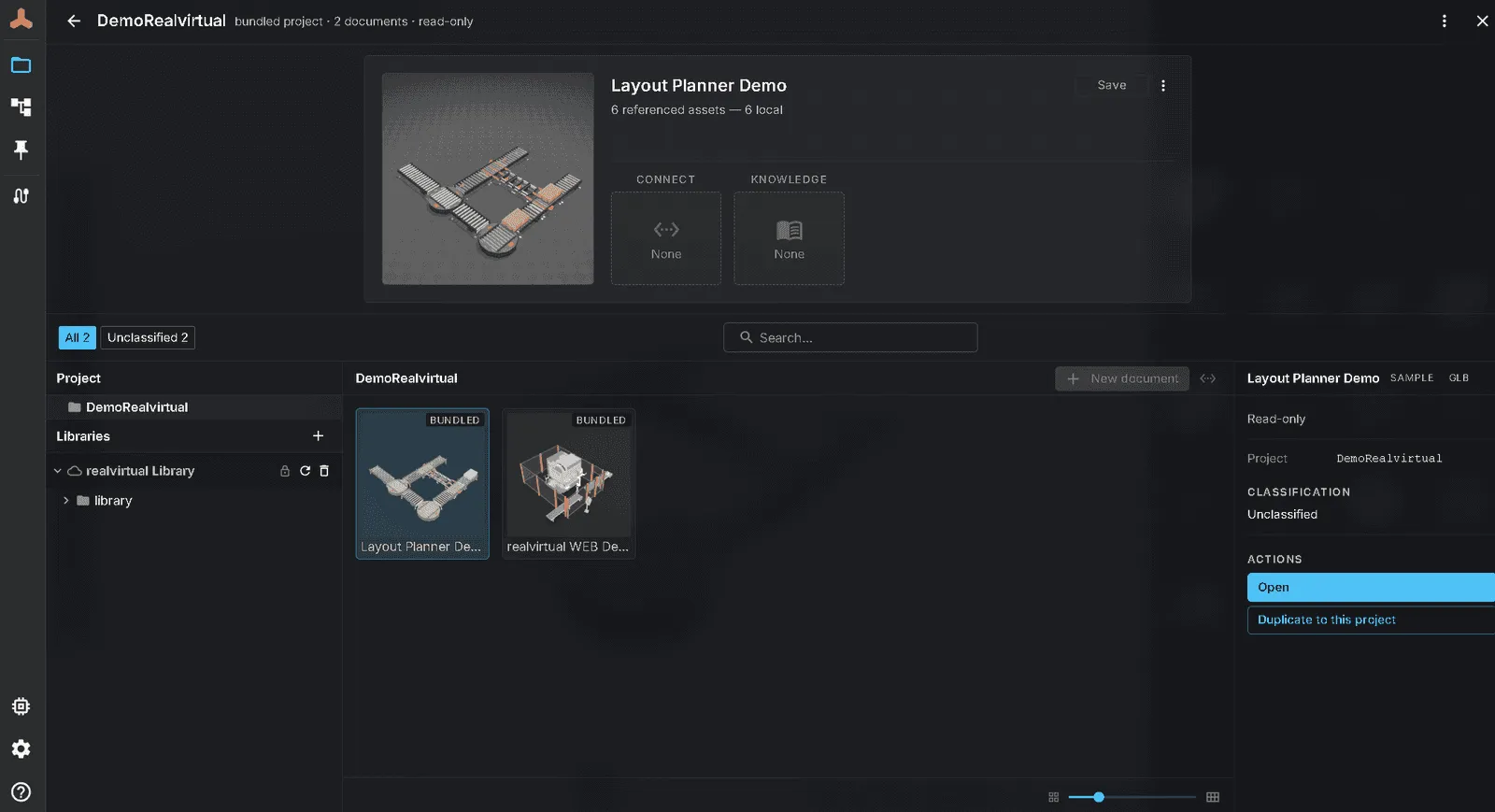
What is open
Section titled “What is open”A band across the top of the dashboard shows the open document above the list of other documents. It stays in place when nothing is open, so the open document always appears in the same location.
The card carries two reference slots beside the document’s name:
| Slot | What it binds |
|---|---|
| CONNECT configuration | The gateway configuration this document runs with — see interfaces and profiles |
| Knowledge file | The written knowledge that belongs to this machine |
Fill either slot by dragging a file from the list below onto the card. The card highlights the target slot. Empty slots are labelled, including on read-only documents; only dropping a file requires write access. Click a bound reference to jump to its file in the tree, or clear it with its own control. A reference to a deleted file is shown as missing.
The same card shows messages from the running gateway about a binding you just made. These include a profile switch awaiting confirmation because it would cut live connections, a gateway serving a different project, or a binding that could not be saved.
Finding a document
Section titled “Finding a document”Below the band, the dashboard has two views:
- Documents — your own documents together with the read-only examples that ship with a delivery. Filter chips let you narrow the list to one level, to Unclassified, or to a tag; the search box filters on top of that.
- Libraries — the sources attached to the current setup. A library must be explicitly attached through the project’s manifest, a link parameter or a user action. Inclusion in the bundle alone does not load it.
Your project appears as a tree. You can create folders and move documents between them. Folders determine a document’s location; the classification above describes its type.
Searching across all projects
Section titled “Searching across all projects”The Projects screen has its own search field (Search documents…, or press / or Ctrl/Cmd+K). It searches the documents of every project on the list at once — the bundled demo project and all your linked project folders — by name and by tag. You do not have to open a project first.
While you type, the project cards give way to a list of matches, grouped by project in the same order as the list. Each row shows the document name with the matching part highlighted and the folders it sits in. A project whose folder needs access again shows a lock next to its name; its documents are still listed.
- Use the arrow keys to move through the matches and Enter (or a double-click) to open one. realvirtual opens the project first — asking for folder access if the browser needs it — and then the document.
- Press Escape once to clear the search and bring the project cards back; press it again to close the dashboard.
Opening a document in its last mode
Section titled “Opening a document in its last mode”realvirtual remembers, per browser, the working mode (HMI, Editor, Planner or DES) last used for each document. A small chip shows this mode beside the document on project cards, in the Projects search and in Quick Open. Opening the document from any of these places uses that mode.
- A document you have not used yet opens in the mode its project declares for it; if there is none, you stay in your current mode.
- Demo projects always open in their declared mode; nothing is remembered for them.
- If the current mode asks before you leave (for example about unsaved changes) and you cancel, both the document and the mode stay as they were.
- A reload without
?doc=reopens the last document in the mode you last used it in. A?mode=in the link always wins, and links, MCP tools and CONNECT embeds keep their own mode rules. - The memory stays in your browser and is never written into the project. Removing a project from the list clears it.
The search works from a list realvirtual keeps of each project’s documents, updated whenever that project is open. A linked project therefore shows up in the search only after you have opened it once, and changes made to its folder outside realvirtual appear after the next time you open it. If a document you open from the search no longer belongs to its project, realvirtual tells you, keeps the project open and drops the entry from the search.
Acting on a document
Section titled “Acting on a document”Select a document to open it. Use its context menu to duplicate, copy, move or delete it. The menu shows only actions available for that row; unavailable actions are hidden rather than greyed out. The project tree offers these actions where available:
| Action | What it does |
|---|---|
| New Folder | Creates a folder inside the selected folder or project |
| Rename… | Renames the document or folder in place, keeping its identity and every reference to it |
| Show in Explorer | Opens the file in the operating system’s file manager |
Show in Explorer appears only when realvirtual CONNECT is running and the viewer is open on the gateway’s machine. It is hidden when you open the viewer from another computer, because the file-manager window would open on the gateway’s machine.
Editing a document saves it back to its current location. There is no separate publishing step and no second copy to keep in sync.
Copying and moving between projects
Section titled “Copying and moving between projects”Use a document’s context menu to Copy to… or Move to… another project. Only projects you can write to appear as targets.
- Copy creates a new, independent document in the target project.
- Move keeps the document’s identity. Anything that already references it — a placement in a layout, for example — keeps working after the move.
- Deleting a document, or moving it away from its original project, does not erase it immediately: it goes into that project’s trash, where it can be restored.
Old scenes saved as JSON
Section titled “Old scenes saved as JSON”Quick Start
Section titled “Quick Start”- Open a delivery link, local GLB or the public demo.
- If a document selector is available, choose the example or document you want to inspect.
- Open the hierarchy and select a drive, sensor or transport component to confirm that component information is present.
- Open the dashboard to see how a document is classified, or set its level and tags in the detail pane.
- Use Copy to… or Move to… from a document’s context menu when you need it in another project.