
StatDisplay (Pro)
The StatDisplay system provides comprehensive real-time performance monitoring and production statistics for realvirtual simulations, enabling detailed analysis of automation system performance.
Requirements
Section titled “Requirements”TextMeshPro Required: StatDisplay requires Unity’s TextMeshPro for text rendering. TextMeshPro is included with Unity and accessible through the Window menu.
Setting up TextMeshPro
Section titled “Setting up TextMeshPro”TextMeshPro is already included with Unity. To access TextMeshPro resources:
- Access TextMeshPro Menu: Window → TextMeshPro
- Import Essential Resources: Select “Import TMP Essential Resources” if prompted
- Import Examples (Optional): Select “Import TMP Examples and Extras” for additional resources
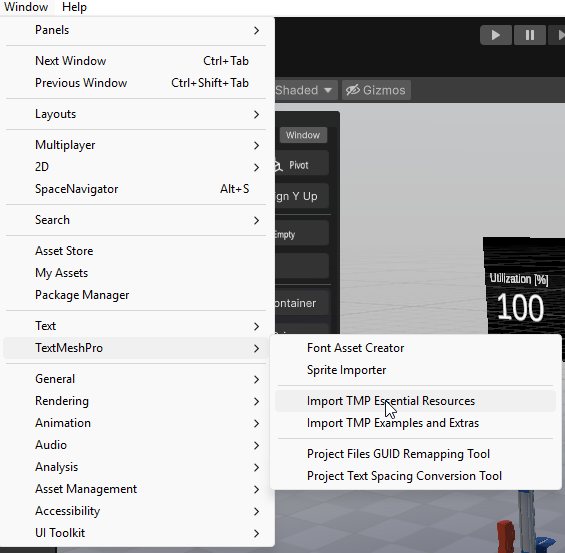
Accessing TextMeshPro resources through Unity's Window menu
Overview
Section titled “Overview”StatDisplay consists of multiple specialized components that work together to provide complete visibility into simulation performance and production metrics. The system tracks output rates, cycle times, state utilization, and operational efficiency to help optimize automation systems during virtual commissioning.
Key benefits include:
- Real-time production monitoring during simulation
- Cycle time analysis for performance optimization
- State utilization tracking for efficiency analysis
- Automated statistics collection with minimal setup
- Integration with realvirtual’s LogicStep system
💡 Hint StatDisplay components work best when integrated early in the simulation development process, allowing for continuous monitoring during system development and optimization.
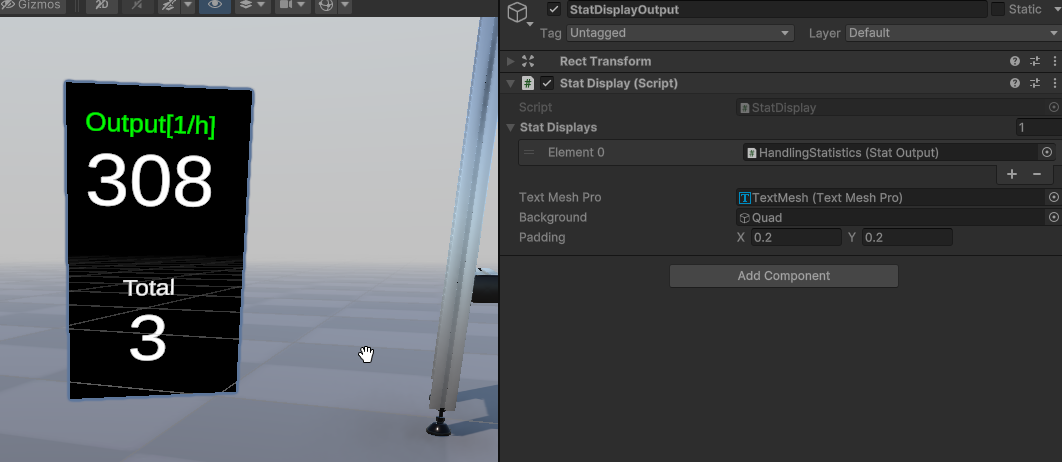
StatDisplay system with StatDisplayOutput component in Unity Inspector
Component Architecture
Section titled “Component Architecture”The StatDisplay system consists of five specialized components that work together:
StatController (Central coordinator)├── StatDisplayOutput (Visual display)├── StatCycleTime (Timing analysis)├── StatStates (Utilization tracking)└── StatOutput (Production counting)Component Roles
Section titled “Component Roles”StatController: Central coordinator for statistics management and reset timing
StatDisplayOutput: Renders real-time statistics to on-screen display using TextMeshPro
StatCycleTime: Tracks production cycle timing with min/max/average analysis
StatStates: Monitors operational states and calculates utilization percentages
StatOutput: Counts production output and calculates rates (parts per hour/day)
Runtime Display
Section titled “Runtime Display”The system provides comprehensive runtime visualization of all statistical data:
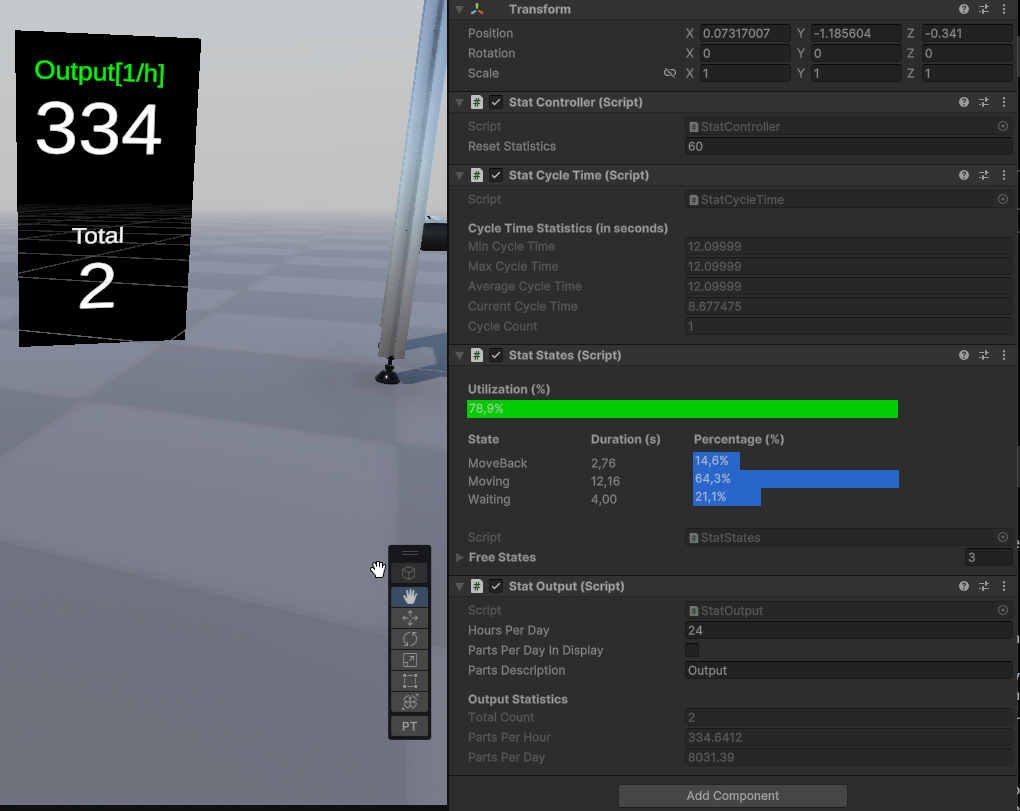
Complete StatDisplay system runtime view showing output stats, cycle times, and state utilization
Quick Start
Section titled “Quick Start”Basic Setup (5 minutes)
Section titled “Basic Setup (5 minutes)”-
Create Statistics GameObject:
- Right-click in Hierarchy → Create Empty
- Name it “ProductionStats”
-
Add Core Components:
- Add StatController component
- Add StatOutput component for production counting
- Add StatDisplayOutput component for visual display
-
Configure Display:
- Create UI Canvas if not present
- Assign TextMeshPro components to StatDisplayOutput
- Set reset interval in StatController (default: 60 seconds)
-
Connect to Production:
- Use LogicStep components or direct API calls to trigger statistics
- Call
StatOutput.IncrementCount()when parts are produced
StatDisplayOutput Component
Section titled “StatDisplayOutput Component”Properties
Section titled “Properties”Display Configuration
Section titled “Display Configuration”Stat Displays (Array) Collection of display elements for showing different statistics.
- Type: StatDisplayElement array
- Default: Empty array
- Use case: Define which statistics to show and their formatting
Text Mesh Pro Settings
Section titled “Text Mesh Pro Settings”Background Visual background component for the statistics display.
- Type: UI Image component reference
- Default: None
- Use case: Provide visual background for better text readability
Padding Display padding settings for text layout.
- Type: Vector2 (X and Y values)
- Default: (10, 10)
- Range: 0 to 100 pixels
- Use case: Adjust text spacing within the display background
Runtime Display Features
Section titled “Runtime Display Features”The on-screen display shows:
- Output Rate: Current parts per hour (e.g., “308”, “334”)
- Total Count: Cumulative production count
- Real-time Updates: Live statistics that update during simulation
StatController Component
Section titled “StatController Component”Properties
Section titled “Properties”Core Settings
Section titled “Core Settings”Reset Statistics Time interval for automatic statistics reset across all components.
- Type: Float
- Default: 60 seconds
- Range: 1 to 3600 seconds (1 second to 1 hour)
- Use case: Define how often statistics are cleared for fresh measurements
Component Management
Section titled “Component Management”Stat Components Automatically detected statistical components in the scene.
- Type: Component array (read-only)
- Default: Auto-populated
- Use case: Shows which components are managed by this controller
Functionality
Section titled “Functionality”The StatController coordinates all statistical components by:
- Synchronizing reset timing across all statistics
- Providing centralized management interface
- Automatically detecting compatible components in the scene
StatCycleTime Component
Section titled “StatCycleTime Component”Properties
Section titled “Properties”Cycle Tracking
Section titled “Cycle Tracking”Auto Start Detection Automatically detect cycle start events from connected components.
- Type: Boolean
- Default: true
- Use case: Enable for automatic cycle detection, disable for manual control
Cycle Timeout Maximum time before considering a cycle incomplete.
- Type: Float
- Default: 300 seconds (5 minutes)
- Range: 10 to 3600 seconds
- Use case: Prevent incomplete cycles from affecting statistics
Runtime Statistics
Section titled “Runtime Statistics”The component tracks and displays:
- Min Cycle Time: Shortest recorded cycle (seconds)
- Max Cycle Time: Longest recorded cycle (seconds)
- Average Cycle Time: Mean cycle time over monitoring period
- Current Cycle Time: Most recent completed cycle
- Cycle Count: Total completed cycles since last reset
💡 Hint Use
StartCycle()andEndCycle()methods in your LogicStep components to precisely control timing measurement.
StatStates Component
Section titled “StatStates Component”Properties
Section titled “Properties”State Configuration
Section titled “State Configuration”Default States Predefined operational states for tracking.
- Type: String array
- Default: [“Moving”, “Waiting”, “MoveBack”, “Error”]
- Use case: Customize states to match your automation system
Show Utilization Display overall utilization percentage in runtime statistics.
- Type: Boolean
- Default: true
- Use case: Toggle overall utilization display
Runtime Analysis
Section titled “Runtime Analysis”The component provides detailed operational analysis:
Overall Utilization: System efficiency percentage based on productive vs idle time
State Breakdown: Time and percentage spent in each operational state:
- Moving: Active production operations
- Waiting: Idle time between operations
- MoveBack: Return or positioning movements
- Error: Error or maintenance states
💡 Hint Call
State("StateName")method to track state changes. States are case-sensitive and must match configured state names.
StatOutput Component
Section titled “StatOutput Component”Properties
Section titled “Properties”Production Settings
Section titled “Production Settings”Hours Per Day Operating hours for daily production rate calculations.
- Type: Float
- Default: 24 hours
- Range: 1 to 24 hours
- Use case: Set actual operating schedule (e.g., 8 hours for single shift)
Parts Description Custom label for the type of items being counted.
- Type: String
- Default: “Parts”
- Use case: Specify product type (“Bottles”, “Assemblies”, “Packages”)
Display Options
Section titled “Display Options”Show Parts Per Day Include daily production projection in the display.
- Type: Boolean
- Default: true
- Use case: Toggle daily rate calculations for short-term analysis
Runtime Statistics
Section titled “Runtime Statistics”Displays real-time production metrics:
- Total Count: Cumulative items produced since last reset
- Parts Per Hour: Current production rate based on recent activity
- Parts Per Day: Projected daily output based on current rate and operating hours
💡 Hint Use
IncrementCount()orIncrementCount(int amount)to track production. The system automatically calculates rates based on timing.
Editor Tools
Section titled “Editor Tools”Inspector Features
Section titled “Inspector Features”Component Auto-Detection: StatController automatically finds and manages compatible statistical components in the scene.
Real-time Preview: Statistics display updates in real-time during Play mode for immediate feedback.
Reset Button: Manual reset button in StatController inspector for clearing statistics during testing.
Gizmos and Visual Aids
Section titled “Gizmos and Visual Aids”State Visualization: StatStates component shows current state in Scene view when selected.
Connection Indicators: Visual lines show relationships between StatController and managed components.
Advanced Configuration
Section titled “Advanced Configuration”Multi-Station Setup
Section titled “Multi-Station Setup”- Separate Controllers: Use individual StatController components for each production station
- Component Grouping: Group related statistical components under station-specific GameObjects
- Display Coordination: Configure multiple StatDisplayOutput components for different viewing areas
- Synchronized Reset: Use global reset timing or independent station resets based on requirements
Usage Examples
Section titled “Usage Examples”Basic Production Monitoring
Section titled “Basic Production Monitoring”Simple Output Counting
Section titled “Simple Output Counting”// In your production logicpublic class ProductionStation : MonoBehaviour{ public StatOutput outputCounter;
public void OnPartCompleted() { outputCounter.IncrementCount(); Debug.Log($"Total parts: {outputCounter.TotalCount}"); }}Cycle Time Measurement
Section titled “Cycle Time Measurement”// Track complete production cyclespublic class CycleController : MonoBehaviour{ public StatCycleTime cycleTimer; public StatStates stateTracker;
public void StartProduction() { cycleTimer.StartCycle(); stateTracker.State("Moving"); }
public void CompleteProduction() { cycleTimer.EndCycle(); stateTracker.State("Waiting"); }}Integration with LogicStep System
Section titled “Integration with LogicStep System”StatDisplay components integrate seamlessly with realvirtual’s LogicStep system:
Starting Cycle Time Tracking
Section titled “Starting Cycle Time Tracking”public class LogicStep_StatStartCycle : LogicStep{ public StatCycleTime StatCycleTimeComponent;
#pragma warning disable 0414 // Suppress "field assigned but never used" warning private bool signalnotnull = false; #pragma warning restore 0414
protected new bool NonBlocking() { return true; }
protected override void OnStarted() { State = 50; if (StatCycleTimeComponent != null) StatCycleTimeComponent.StartCycle(); NextStep(); }
protected new void Start() { base.Start(); }}Setting State for Utilization Tracking
Section titled “Setting State for Utilization Tracking”public class LogicStep_StatSetState : LogicStep{ public StatStates StatStatesComponent; public string SetState = "Moving";
protected override void OnStarted() { if (StatStatesComponent != null) { StatStatesComponent.State(SetState); } NextStep(); }
protected new void Start() { base.Start(); }}Advanced LogicStep Integration
Section titled “Advanced LogicStep Integration”// Complete production workflow with comprehensive statisticspublic class ProductionSequence : LogicStep{ [Header("Statistics Components")] public StatCycleTime cycleTimer; public StatStates stateTracker; public StatOutput outputCounter;
protected override void OnStarted() { // Initialize production cycle cycleTimer?.StartCycle(); stateTracker?.State("Moving");
// Execute production steps ExecuteProductionSequence(); }
private void ExecuteProductionSequence() { // Production logic here
// Complete cycle OnProductionComplete(); }
private void OnProductionComplete() { cycleTimer?.EndCycle(); outputCounter?.IncrementCount(); stateTracker?.State("Waiting");
NextStep(); }}Custom Statistics Manager
Section titled “Custom Statistics Manager”// Centralized statistics managementpublic class ProductionStatsManager : MonoBehaviour{ [Header("Statistics References")] public StatController controller; public StatCycleTime[] stationTimers; public StatOutput[] stationOutputs;
public void ResetAllStatistics() { controller.ResetStatistics(); }
public void GetProductionSummary() { float totalOutput = 0; foreach (var output in stationOutputs) { totalOutput += output.TotalCount; }
Debug.Log($"Total Production: {totalOutput} parts"); }}Display Customization
Section titled “Display Customization”Custom Display Layout
Section titled “Custom Display Layout”// Programmatic display configurationpublic class CustomStatDisplay : MonoBehaviour{ public StatDisplayOutput display;
void Start() { ConfigureDisplay(); }
void ConfigureDisplay() { // Customize display appearance display.Background.color = Color.black; display.Padding = new Vector2(15, 15);
// Add custom formatting display.ShowDecimalPlaces = 1; }}Troubleshooting
Section titled “Troubleshooting”Statistics Not Updating
Section titled “Statistics Not Updating”Symptoms: Display shows static values, zeros, or outdated information
Common Causes & Solutions:
Missing Component References
- Check that all StatDisplay components have their script references properly assigned
- Verify StatController can find and manage statistical components in the scene
- Ensure GameObjects containing statistics components are active
Timing Configuration Issues
- Verify StatController reset interval matches your analysis needs
- Check if automatic reset is clearing data too frequently
- Ensure production events are actually triggering statistical updates
Integration Problems
- Confirm LogicStep components are calling statistical methods correctly
- Verify API calls like
IncrementCount()andStartCycle()are executed - Check Unity Console for any statistical component error messages
Inaccurate Cycle Times
Section titled “Inaccurate Cycle Times”Symptoms: Cycle time measurements don’t reflect actual production timing
Diagnosis Steps:
-
Verify Cycle Boundaries:
// Ensure StartCycle() and EndCycle() are called at correct timesDebug.Log($"Starting cycle at: {Time.time}");cycleTimer.StartCycle();// ... production logic ...Debug.Log($"Ending cycle at: {Time.time}");cycleTimer.EndCycle(); -
Check for Timing Conflicts:
- Multiple components calling cycle methods simultaneously
- Reset operations interrupting active cycle measurements
- LogicStep timing conflicts with manual cycle control
-
Review Reset Settings:
- StatController reset interval too short for complete cycle measurement
- Manual resets during active production cycles
Display Formatting Issues
Section titled “Display Formatting Issues”Symptoms: Statistics appear incorrectly formatted, positioned, or illegible
Visual Display Problems:
- Text Overlap: Increase padding values in StatDisplayOutput
- Background Issues: Verify UI Image component is assigned and properly configured
- Layout Problems: Check Canvas scaling and StatDisplayOutput positioning
- Missing Statistics: Ensure StatDisplayOutput array includes all desired display elements
UI Integration Issues:
- Canvas Setup: Verify UI Canvas is configured correctly for your display method
- TextMeshPro Configuration: Check font, size, and color settings
- Z-Ordering: Ensure statistics display appears above other UI elements
Performance Issues
Section titled “Performance Issues”Symptoms: Frame rate drops or stuttering when statistics are active
Optimization Solutions:
Reduce Update Frequency:
- Increase StatController reset interval for less frequent calculations
- Use fewer concurrent statistical components in large scenes
- Consider separate StatControllers for different production areas
Display Optimization:
- Limit number of decimal places shown in display
- Use object pooling for dynamic statistical displays
- Disable statistics visualization when not needed
Integration Debugging
Section titled “Integration Debugging”Symptoms: Statistics work in isolation but fail in complete simulation
System Integration Checks:
-
Component Dependencies:
// Verify all required components are presentif (cycleTimer == null) Debug.LogError("Missing StatCycleTime component");if (stateTracker == null) Debug.LogError("Missing StatStates component"); -
Event Timing:
- Ensure statistical events occur in correct sequence
- Check for race conditions in complex automation sequences
- Verify LogicStep execution order doesn’t conflict with statistics
-
Multi-Scene Issues:
- StatDisplay components may not persist across scene loads
- Statistics references may break when reloading scenes
- Consider using
DontDestroyOnLoad()for persistent statistics
See Also
Section titled “See Also”- LogicStep - Core system for statistical event integration
- Runtime Debugger - Additional debugging and monitoring tools
- MU, Source and Sink - Production components that generate statistics
- Performance Tools - Framework performance optimization components
© 2025 realvirtual GmbH https://realvirtual.io - All rights reserved. No part of this publication may be reproduced, distributed, or transmitted in any form or by any means, including printing, saving, photocopying, recording, or other electronic or mechanical methods, without the prior written permission of the publisher.