
Project Settings
Unity project configuration optimized for industrial automation with realvirtual framework.
Overview
Section titled “Overview”The Apply Standard Settings feature configures Unity projects with optimal settings for industrial automation development. These settings ensure the best performance, stability, and user experience when working with realvirtual components.
When to Apply Settings Manually
Section titled “When to Apply Settings Manually”After Resolving Compile Errors
Section titled “After Resolving Compile Errors”If you encounter compile errors in the console window, it may be due to conflicts between your existing project assets and realvirtual.io:
- Address compile errors first to ensure there are none remaining
- Once errors are resolved, apply the standard settings by selecting “realvirtual” > “Apply Standard Settings” from the main menu
Manual Application
Section titled “Manual Application”You can manually apply these settings at any time through the realvirtual menu:
- Go to realvirtual menu in Unity’s main menu bar
- Select “Apply Standard Settings”
- Confirm the application when prompted
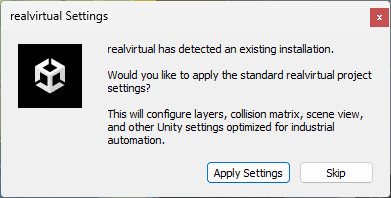
Dialog asking to apply standard realvirtual project settings for optimal automation configuration
Settings Applied
Section titled “Settings Applied”Applying standard settings will configure:
- Standard layer naming (for physics)
- Standard physics collision matrix
- Standard light settings
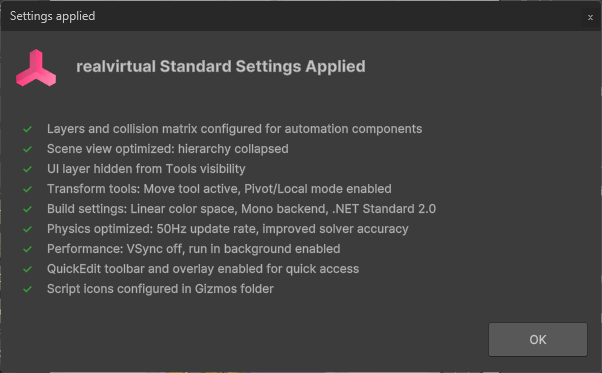
Summary of successfully applied settings showing layers, scene view, build settings, physics, and performance optimizations
Additional Optimizations
Section titled “Additional Optimizations”The system also configures additional Unity settings for optimal industrial automation performance:
Project Structure
Section titled “Project Structure”- Layers & Collision Matrix: Configured for automation components
- Scene View Optimization: Hierarchy collapsed, shaded mode enabled
- UI Layer Management: Hidden from Tools visibility for cleaner interface
Development Tools
Section titled “Development Tools”- Transform Tools: Move tool active with Pivot/Local mode enabled
- realvirtual Tools: QuickEdit toolbar and overlay enabled
- Script Icons: Configured in Gizmos folder for better visual identification
Build & Runtime Settings
Section titled “Build & Runtime Settings”- Build Settings: Linear color space, Mono backend, .NET Standard 2.0
- Physics Optimization: 50Hz update rate with improved solver accuracy
- Performance Settings: VSync disabled, background execution enabled
Detailed Logging
Section titled “Detailed Logging”The Console provides detailed information about each change made during the configuration process:
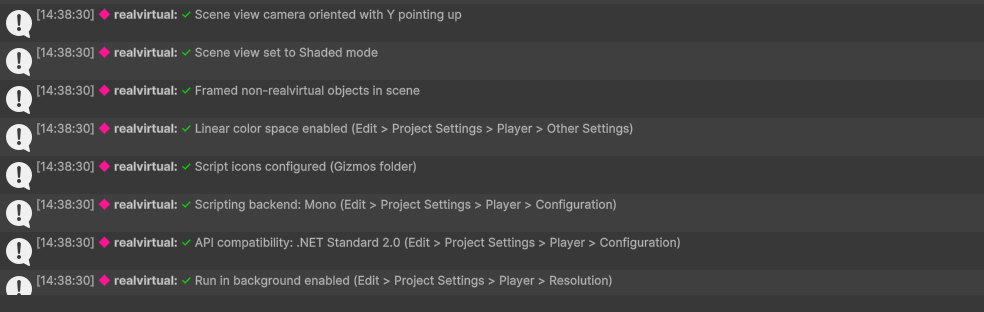
Console log showing detailed information about each setting applied, including specific Unity menu paths
The console log shows:
- Timestamped entries for each change
- Specific Unity menu paths for verification
- Confirmation of successful application
- Reference information for troubleshooting
Benefits
Section titled “Benefits”Performance Optimization
Section titled “Performance Optimization”- Physics Settings: Optimized for industrial simulation accuracy
- Rendering: Linear color space for better visual quality
- Background Execution: Continuous operation when Unity loses focus
Development Experience
Section titled “Development Experience”- Clean Interface: Optimized tool visibility and organization
- Efficient Workflow: Pre-configured tools and shortcuts
- Visual Clarity: Better scene organization and component identification
Industrial Automation Focus
Section titled “Industrial Automation Focus”- Collision Management: Proper layer setup for automation components
- Precision: Enhanced physics solver for accurate movement
- Compatibility: .NET Standard 2.0 for broader platform support
See Also
Section titled “See Also”- Installation Guide - Complete installation process
- Project Path Display - Toolbar project path feature
- Quick Edit - Quick edit overlay menu