
Importing and exporting
Overview
Section titled “Overview”realvirtual provides specialized import and export workflows for industrial automation applications:
Importing:
- CAD Files - STEP, IGES, JT formats via Unity Pixyz or realvirtual CADLink
- GLB Assets - Industry-standard 3D format with full metadata preservation (Professional)
Exporting:
- GLB Assets - Export models with realvirtual components and properties preserved (Professional, Beta)
- Unity Packages - Export projects, scenes, or selected assets with all dependencies
All realvirtual-specific properties (drives, sensors, IK configurations) are fully preserved when exporting and importing GLB files in Professional version.
Importing Assets
Section titled “Importing Assets”CAD Import
Section titled “CAD Import”For importing CAD files (STEP, IGES, JT, etc.) into Unity, realvirtual supports two primary methods:
Unity Pixyz Plugin (Recommended)
Unity Industry includes the Pixyz Plugin, which provides native CAD import capabilities directly within Unity. Pixyz supports a wide range of CAD formats and offers advanced features like tessellation control, hierarchy preservation, and optimization tools.
realvirtual CADLink
The realvirtual CADLink feature provides automated CAD import workflows with additional automation-specific optimizations for virtual commissioning scenarios.
Importing GLB Assets
Section titled “Importing GLB Assets”Prerequisites
For GLB import functionality, the UnityGLTF package is required. To install it:
- Open Unity’s Package Manager (Window → Package Manager)
- Click the + button in the top-left corner
- Select Add package from git URL
- Enter:
https://github.com/KhronosGroup/UnityGLTF.git - Click Add
How to Import:
Unity automatically imports GLB files placed in the Assets folder. The imported GLB files appear as prefabs in the Project window and can be used like any other Unity prefab.
- Place the GLB file in your Assets folder (Unity will automatically import it)
- The GLB file will appear as a prefab in the Project window
- Drag and drop the prefab into your scene like a normal Unity prefab
Exporting Assets
Section titled “Exporting Assets”Export Menu Overview
Section titled “Export Menu Overview”The realvirtual.io menu includes several functions for exporting assets located under realvirtual → Export:
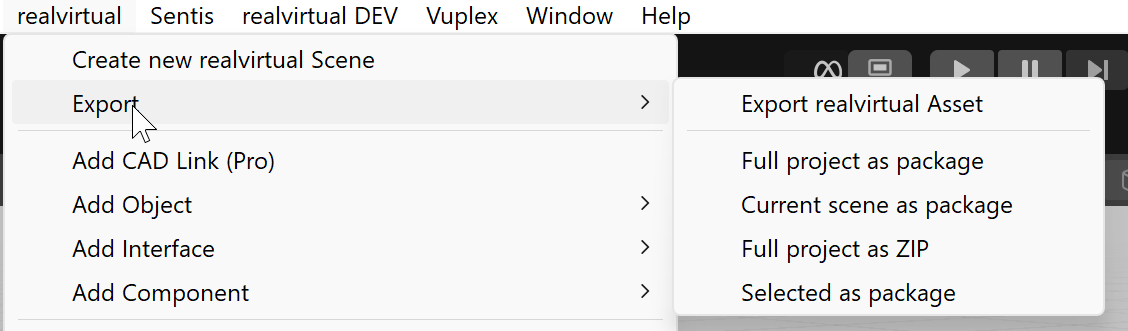
realvirtual Export Menu
- Export realvirtual GLB Asset - Export selected GameObject as GLB file with realvirtual metadata (Beta)
- Full project as package - Export entire project as Unity package
- Current scene as package - Export active scene with dependencies as Unity package
- Selected as package - Export selected asset with dependencies as Unity package
- Full project as ZIP - Export entire project as ZIP file
Exporting Unity Packages
Section titled “Exporting Unity Packages”For Unity packages, all references are automatically included in the export. To import exported packages, drag them into another project or select Assets → Import Package in the Unity Menu.
Exporting GLB Assets (Beta)
Section titled “Exporting GLB Assets (Beta)”Prerequisites
For GLB export and import functionality, the UnityGLTF package is required. To install it:
- Open Unity’s Package Manager (Window → Package Manager)
- Click the + button in the top-left corner
- Select Add package from git URL
- Enter:
https://github.com/KhronosGroup/UnityGLTF.git - Click Add
About glTF and GLB
glTF (GL Transmission Format) is an open-standard 3D file format developed by the Khronos Group (the same organization behind OpenGL and Vulkan). It is designed as an efficient, interoperable format for transmitting and loading 3D content across applications, often referred to as the “JPEG of 3D” due to its widespread adoption and efficiency.
GLB is the binary variant of glTF that packages all assets (geometry, textures, materials, animations) into a single binary file, making it easier to share and distribute 3D content.
Key characteristics:
- Industry Standard: Widely supported across 3D applications, web browsers, game engines, and AR/VR platforms
- Compact and Efficient: Optimized for fast transmission and loading
- Complete Asset Storage: Includes geometry, materials, textures, animations, and scene hierarchy in one file
- Extensible: Supports custom extensions for application-specific data
Common Use Cases:
- Web-based 3D viewers and configurators
- AR/VR applications and experiences
- Asset exchange between different 3D software tools
- 3D model libraries and marketplaces
- Digital twin visualization in external applications
realvirtual GLB Export
realvirtual extends the standard GLB format by serializing automation-specific properties (drives, sensors, inverse kinematics configurations, etc.) into the GLB file. This allows you to export complete automation assets that can be:
- Viewed in any standard glTF/GLB viewer (geometry and materials)
- Re-imported into realvirtual.io Professional with full functionality preserved
How to Export:
- Select the GameObject you want to export in the Hierarchy
- Go to realvirtual → Export → Export realvirtual GLB Asset
- A dialog will appear showing the default export path
- Click OK to export to the default location, or Browse to choose a different folder
- The export supports both internal (Assets/) and external folders
Viewing GLB Files
To preview and inspect exported GLB files, you can use free online viewers such as the Babylon.js Sandbox. Simply drag and drop your GLB file into the browser window to view the 3D model with its geometry, materials, and textures.
Exporting as ZIP File
Section titled “Exporting as ZIP File”Manual ZIP Export
Section titled “Manual ZIP Export”To share or save the entire project, you can save the entire project folder as a ZIP file. The advantage is that in this case everything, including all settings, will be saved and you can be sure that the recipient will receive exactly the same project.
You can do this manually with your prefered ZIP file tool.
Before creating the ZIP file, it is best to delete the Library folder, this will significantly reduce the size and no information will be lost. The Library folder will be created automatically if it is missing.
Automated ZIP Export
Section titled “Automated ZIP Export”You find within the realvirtual.io main menu (realvirtual → Export → Full project as ZIP) a fully automated solution for exporting the project as a ZIP file without the Library and Temp folders.
Publishing Applications
Section titled “Publishing Applications”© 2025 realvirtual GmbH https://realvirtual.io - All rights reserved. No part of this publication may be reproduced, distributed, or transmitted in any form or by any means, including printing, saving, photocopying, recording, or other electronic or mechanical methods, without the prior written permission of the publisher.