
HMI Tab (Deprecated)
An HMI tab is a user interface overlay that includes multiple elements. We recommend that you start your own tabs based on the existing Tabs within the HMI Demoscene
Activation of the tabs can be done either through a button a dropdown menu or a PLC-signal.
Tab properties
Section titled “Tab properties”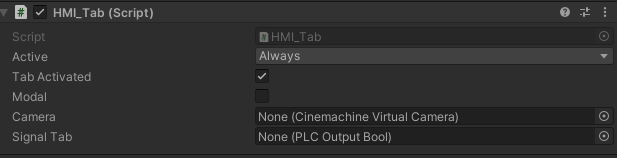
HMI Tab properties
Tab Activated:Boolean if the tab is active.Modal: true, if this Tab can’t be opened with other Tabs in same time. If it is modal other tabs will be closed automatically.Camera:Cinemachine camera which is activated when the tab is activatedSignalTab: PLC Output bool signal which activates / deactivate the tab
Custom Tabs
Section titled “Custom Tabs”
To create a custom tab pull the prefab “HMI_Tab” in your scene and unpack the prefab. (Right-click on the game object and choose Prefab/unpack completely).
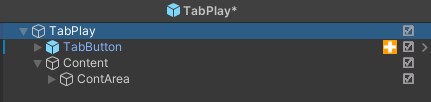
HMI Tab structure
Do not rename the GameObjects within the HMI-prefab. The tab’s content consists of two areas: OverlayContent for HMI-elements displayed as a screen overlay, and WorldspaceContent without a Canvas where elements automatically receive a canvas in “WorldSpace” render mode. These elements will be placed in the 3D scene.”
If you use HMI-messages in one of the areas the HMI-tab will detect this and manage them.
HMI TabButton
Section titled “HMI TabButton”The HMI TabButton is a button which can be placed on the UI for enabling and disabling Tabs.
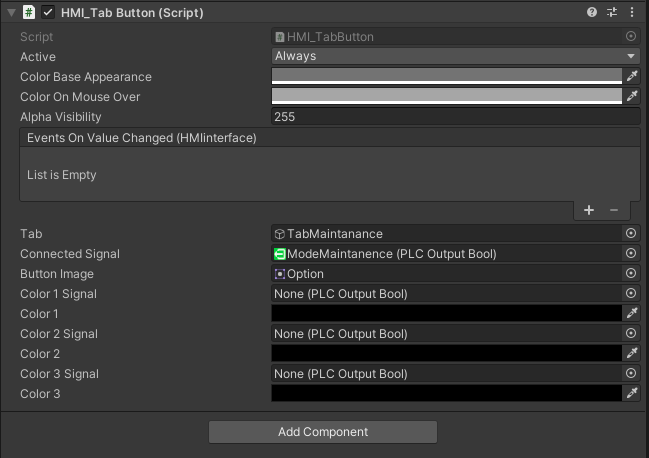
- Tab: HMI tab which is controlled by the button
- Connected Tab Active: Background color of the button when the tab is active.
- SignalButtonOn: signal to turn the Button on.
- Button Image: sprite image of the button
- Color 1 Signal to Color 3 Signal and Colors: the button can change the color depending on which signal is currently true.
- Image1 to Image3: can be used to change the image of the button depenting on the PLC state