
realvirtual.io WEB (Pro)
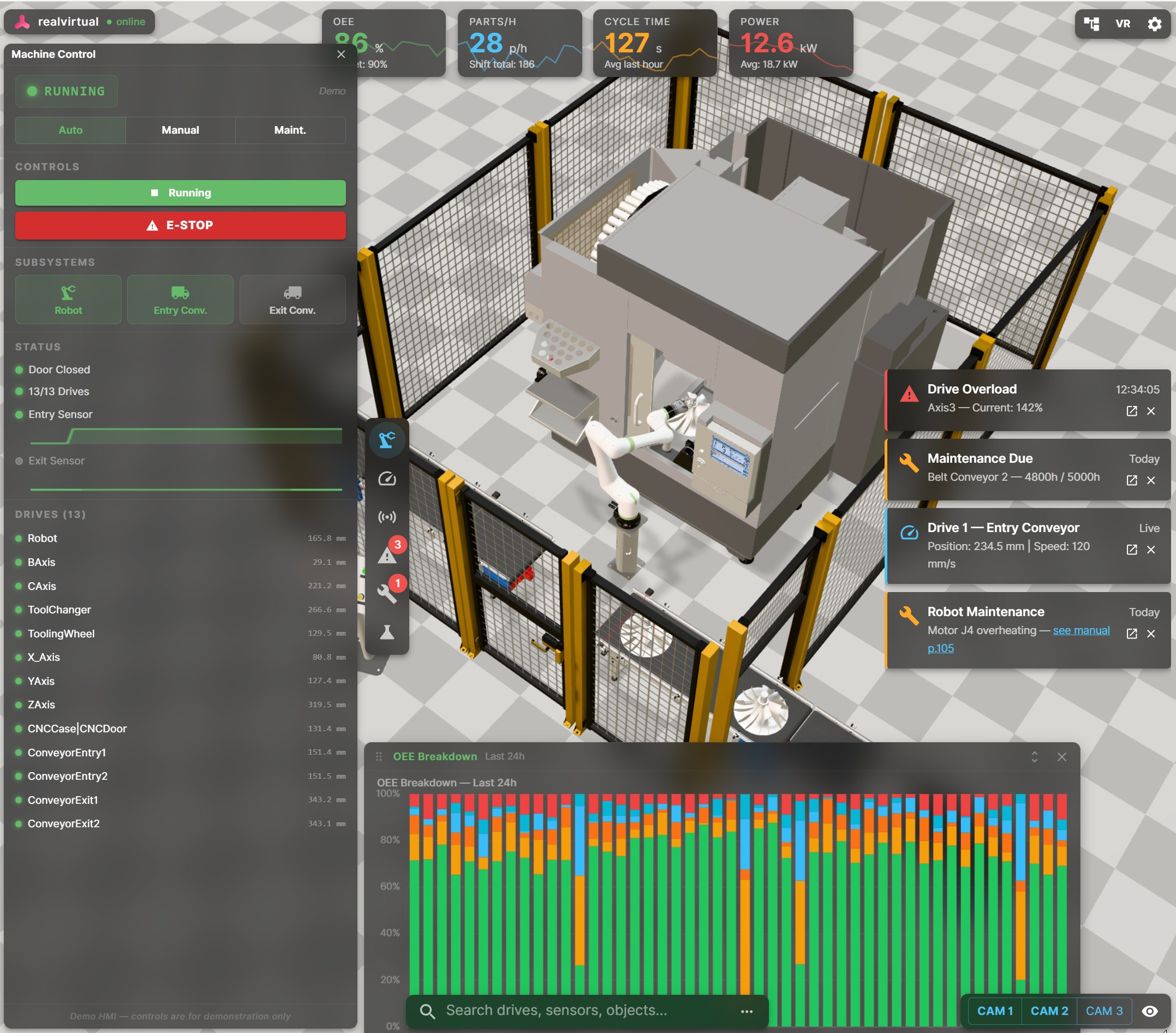
realvirtual WEB — browser-based 3D HMI with KPI dashboards, drive monitoring, and alarm messages
Overview
Section titled “Overview”realvirtual.io WEB is a browser-based 3D HMI and digital twin viewer. It loads GLB files exported from Unity and runs interactive transport simulation, drive animation, sensor collision, and LogicStep sequencing directly in the browser — no installation required.
One link. Any device. Live Digital Twin.
The Unity Editor provides the authoring tools to export your digital twin as a single GLB file containing all 3D geometry, component metadata, signal bindings, kinematic definitions, and drive parameters. The browser viewer reads this metadata and recreates the full interactive simulation.
The Two-Platform Strategy
Section titled “The Two-Platform Strategy”| Unity (Engineering Platform) | realvirtual WEB (Delivery Platform) | |
|---|---|---|
| Purpose | CAD import, behavior modeling, virtual commissioning | Browser-based 3D HMI, monitoring, collaboration |
| Technology | Unity Engine, C#, Unity Industry | Three.js, TypeScript, React |
| Deployment | Desktop application, XR headsets, mobile devices | Any modern browser |
| PLC connection | Native protocol drivers | WebSocket / MQTT gateway |
| Target user | Automation engineer, simulation expert | Operator, service tech, sales, customer |
The GLB file is the bridge between the two platforms.
Quick Start
Section titled “Quick Start”1. Open WebViewer Tools
Section titled “1. Open WebViewer Tools”Open via Tools > realvirtual > Export > WebViewer Tools. The window has five tabs for the complete export-to-publish workflow.
2. Export Your Scene
Section titled “2. Export Your Scene”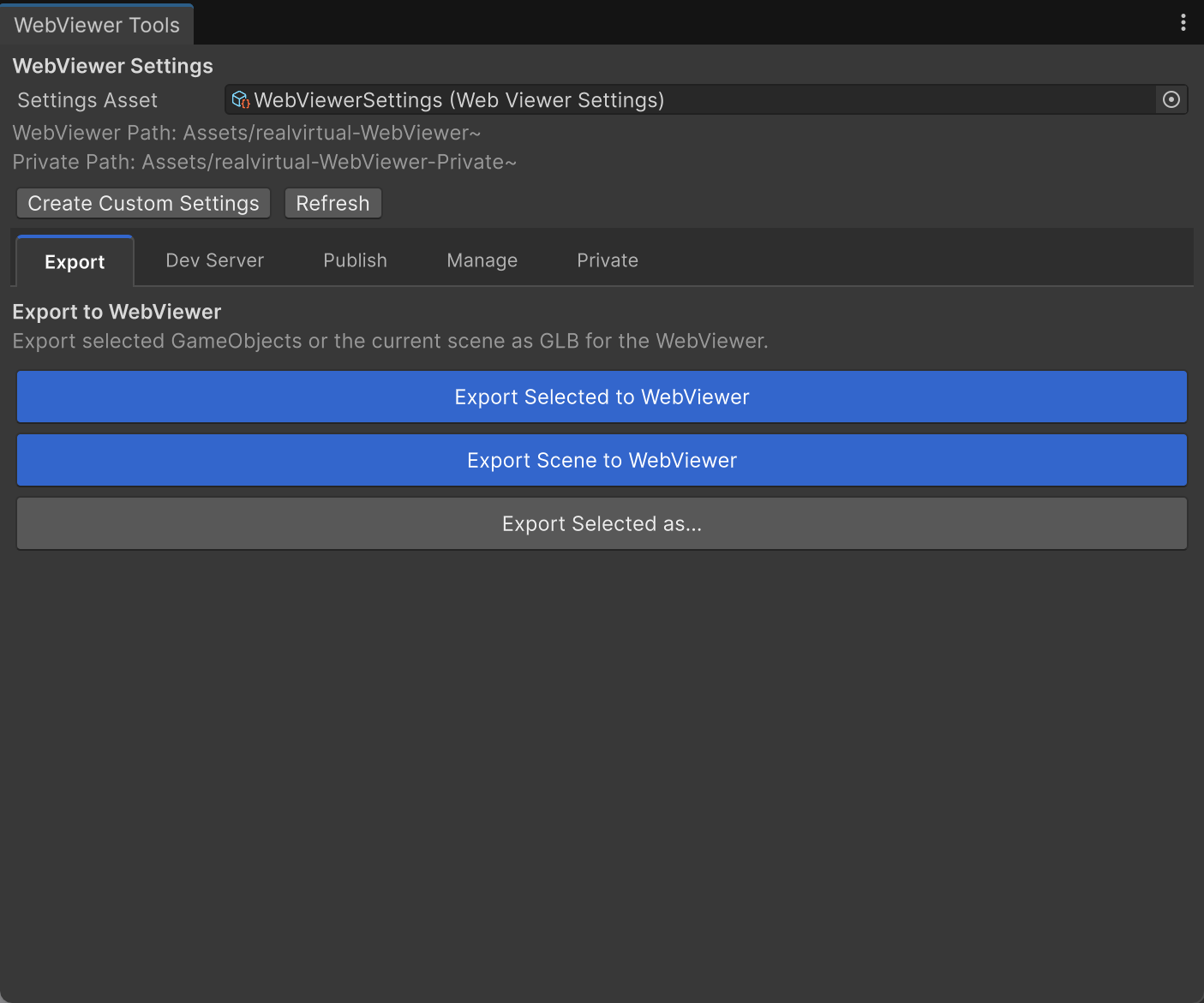
Export tab — export selected GameObjects or the entire scene as GLB
In the Export tab, you have three options:
- Export Selected to WebViewer — Exports the currently selected GameObject and its children
- Export Scene to WebViewer — Exports all root GameObjects in the current scene
- Export Selected as… — Opens a file save dialog to choose any output path
The exported GLB is placed in the WebViewer’s public/models/ folder and contains:
- All 3D geometry (meshes, materials, textures)
- All realvirtual component data (drives, sensors, transport surfaces, sources, sinks, grippers, logic steps)
- Signal bindings (PLCInput/PLCOutput connections)
- Kinematic hierarchies and axis configurations
- Group definitions for visibility control
- Camera presets
3. Preview in Browser
Section titled “3. Preview in Browser”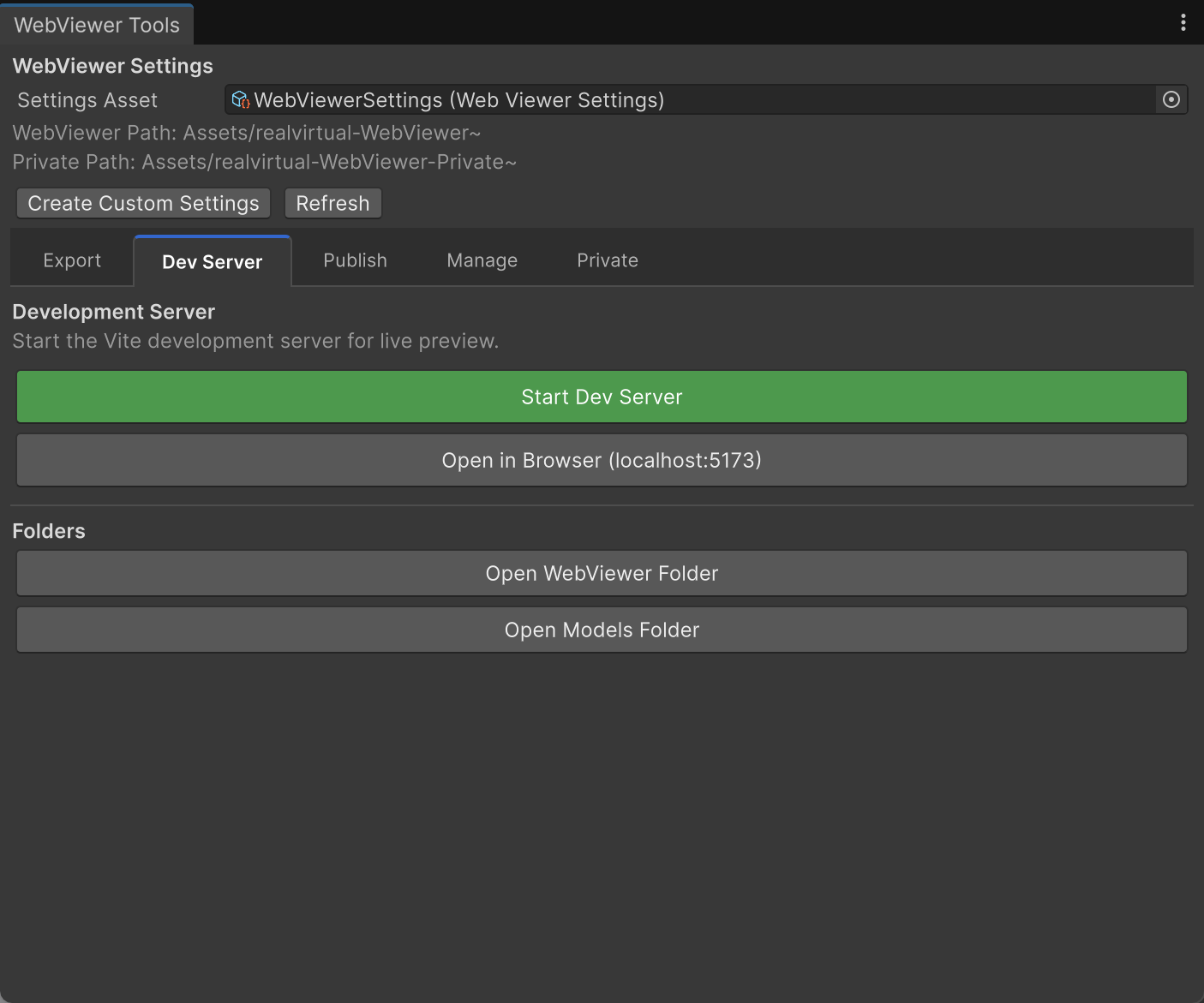
Dev Server tab — start the local preview server and open the browser
Start the local development server by clicking Start Dev Server. The browser opens automatically at http://localhost:5173. Select your exported model from the model selector.
You can also open the WebViewer and Models folders directly from this tab.
4. Publish
Section titled “4. Publish”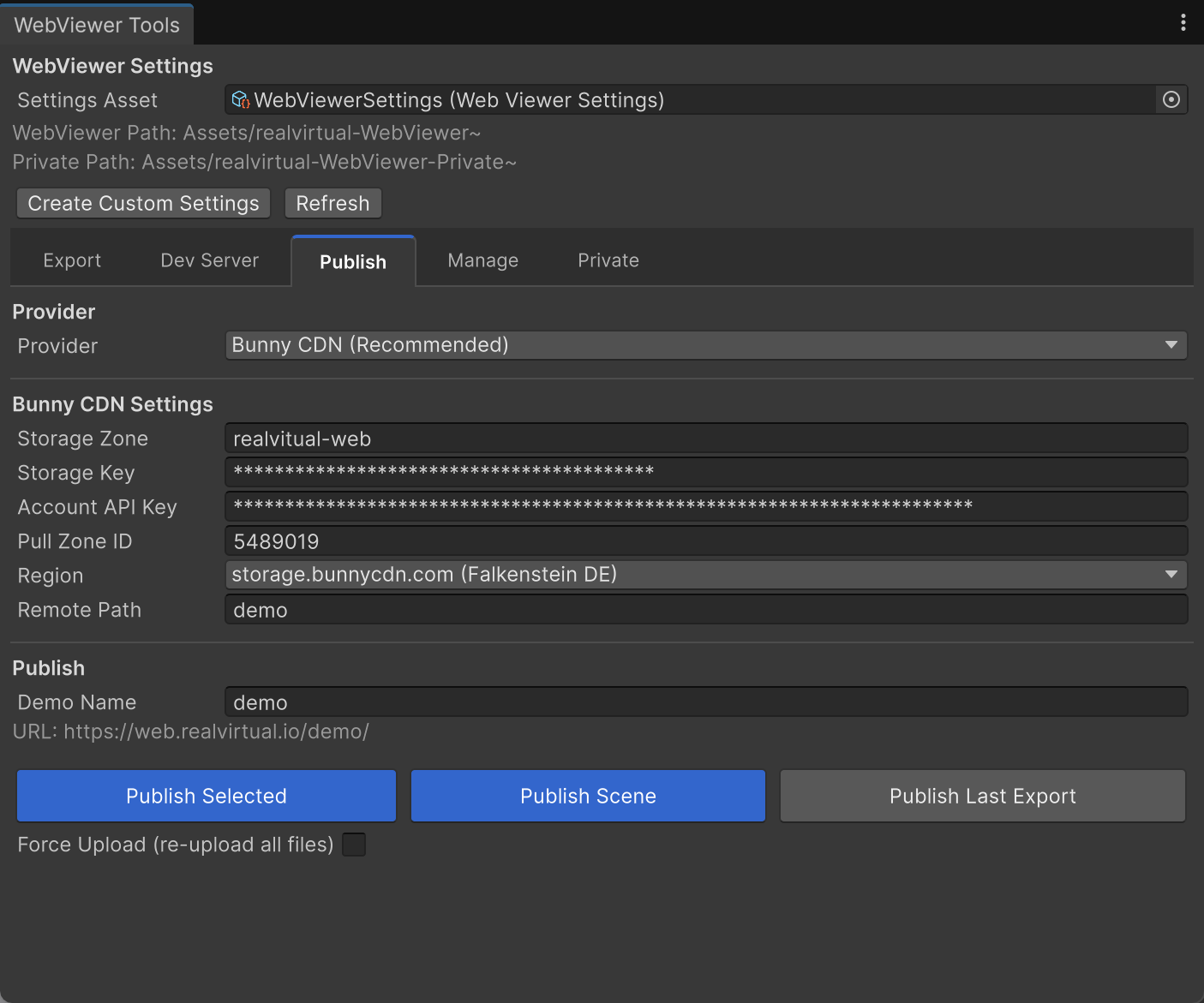
Publish tab — one-click deployment to Bunny CDN
The Publish tab provides integrated deployment to Bunny CDN at web.realvirtual.io. Configure your Bunny CDN credentials (Storage Key, Account API Key, Pull Zone ID), set a demo name, and click Publish Scene or Publish Selected.
Publishing options:
- Publish Selected — Exports and uploads the selected GameObject
- Publish Scene — Exports and uploads the entire scene
- Publish Last Export — Uploads a previously exported GLB without re-exporting
5. Private Projects
Section titled “5. Private Projects”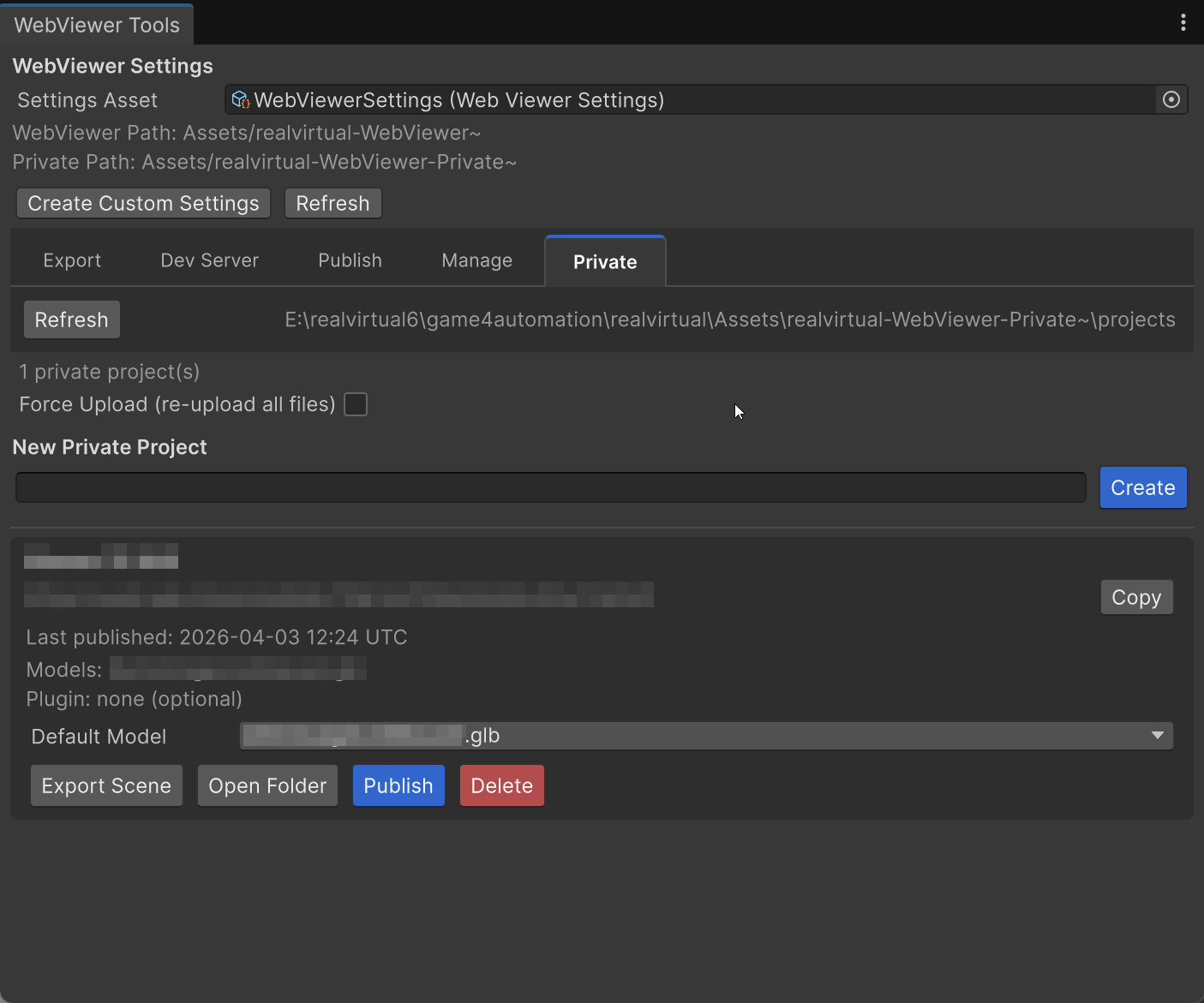
Private tab — create and manage private customer deployments with secure URLs
The Private tab manages customer-specific deployments:
- Create new private projects with auto-generated secure URLs (128-bit entropy)
- Each project has its own GLB models, settings, and optional plugins
- Export Scene directly into the project’s models folder
- Publish to an unguessable URL at
web.realvirtual.io/{code}/ - Copy the secure link to share with customers
Private projects are ideal for customer-specific digital twins that should not be publicly accessible.
6. Manage Deployments
Section titled “6. Manage Deployments”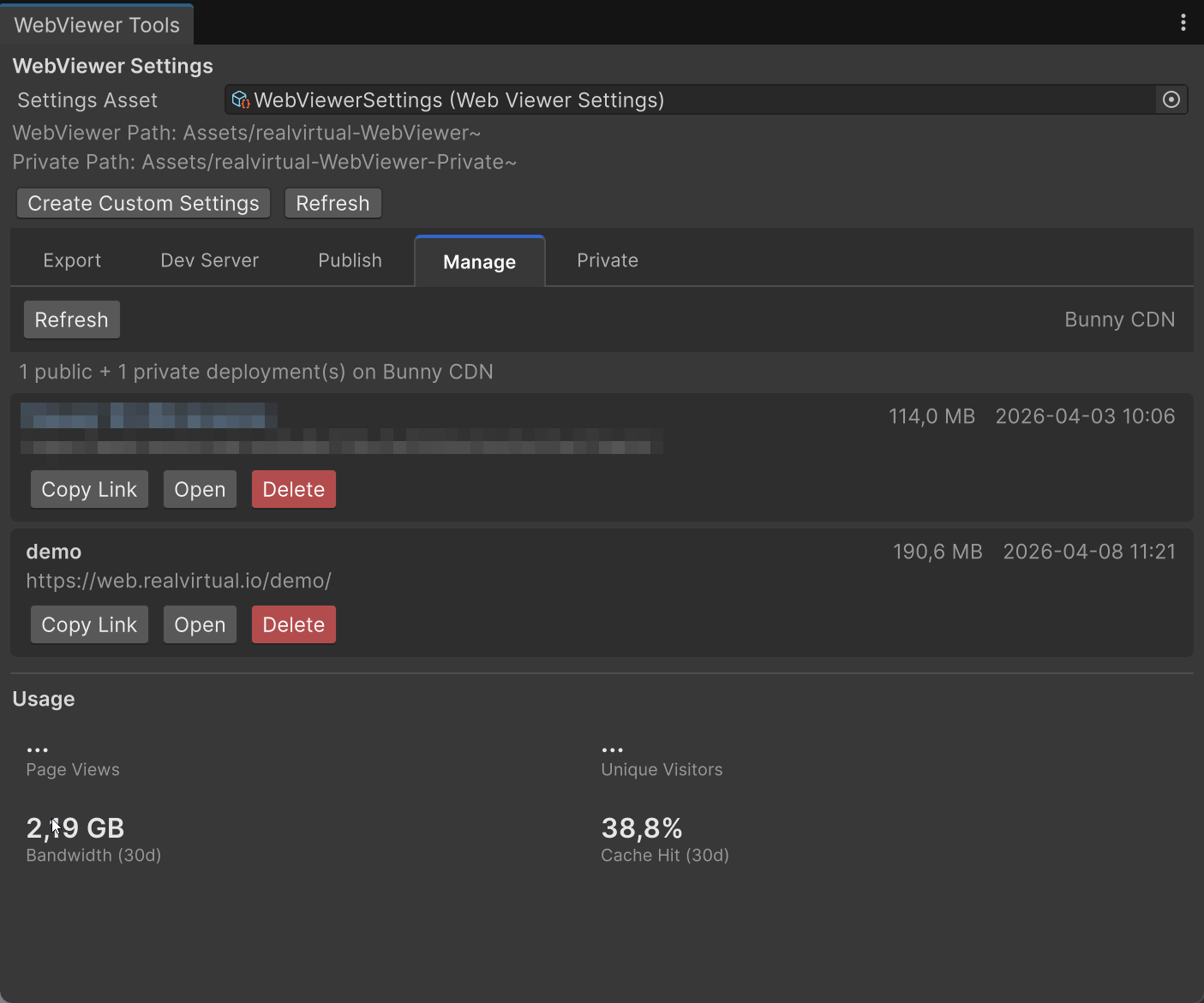
Manage tab — overview of all published deployments with usage statistics
The Manage tab shows all published deployments (public and private) on Bunny CDN:
- File sizes and last update timestamps
- Copy Link to share deployment URLs
- Open in browser to preview
- Delete to remove deployments
- Usage statistics: page views, unique visitors, bandwidth, and cache hit rate
WebViewer Settings
Section titled “WebViewer Settings”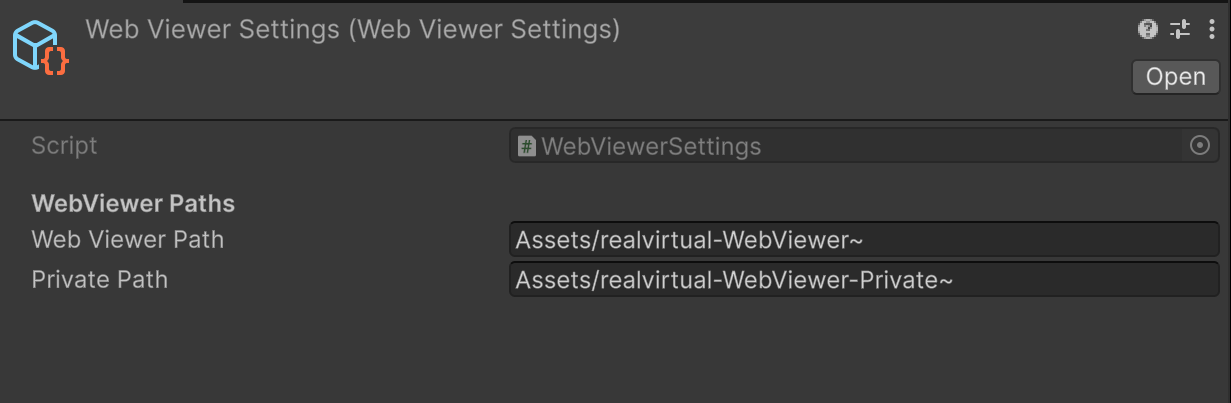
WebViewerSettings asset — configure paths for the WebViewer installation
The WebViewerSettings asset controls paths for the WebViewer installation:
| Setting | Default | Description |
|---|---|---|
| Web Viewer Path | Assets/realvirtual-WebViewer~ | Path to the WebViewer source |
| Private Path | Assets/realvirtual-WebViewer-Private~ | Path to private projects folder |
These paths determine where exported GLB files are placed and where the dev server runs.
What Gets Exported
Section titled “What Gets Exported”The export pipeline embeds all realvirtual component data into the GLB file using the rv_extras extension. The browser viewer reads this metadata to reconstruct the simulation.
Supported Components
Section titled “Supported Components”A selection of the most common components:
| Component | Exported Data |
|---|---|
| Drive | Direction, speed, acceleration, limits, current position |
| Sensor | AABB dimensions, signal connections |
| TransportSurface | Speed, direction, dimensions |
| Source | Spawn interval, MU template reference |
| Sink | Signal connections |
| Grip / GripTarget | Grip positions, pick/place configuration |
| LogicStep | Step type, parameters, signal conditions, hierarchy |
| Group | Visibility group assignments |
| Kinematic | Joint hierarchy, axis definitions |
| Signals | PLCInput/PLCOutput bindings with names and types |
For the complete list — including drive behaviors, robotics / IK, the 3D-HMI markers (WebSensor, WebError, …) and digital-twin links (AAS, CAD) — see Supported Components. To author the browser 3D-HMI in Unity, see Building a 3D-HMI.
Export Settings
Section titled “Export Settings”Export behavior is configured via the AssetManagerSettings asset (Packages/io.realvirtual.professional/Runtime/AssetManager/Resources/AssetManagerSettings.asset):
| Setting | Default | Description |
|---|---|---|
| Export Material Properties | Off | Embeds full shader property values (textures, colors). Increases file size. |
| Enable Mesh Deduplication | On | Removes duplicate meshes to reduce GLB file size |
| Export Thumbnails | On | Generates and embeds a PNG preview thumbnail |
| Export Decal Projectors | On | Includes URP DecalProjector data |
| ScriptableObject Export | On | Serializes ScriptableObject fields into the GLB |
Browser Viewer
Section titled “Browser Viewer”The exported GLB files are loaded by the browser-based viewer. For full documentation on the viewer itself, see the realvirtual WEB GitHub repository.
Key viewer capabilities:
- Live 3D HMI with PLC connectivity via WebSocket or MQTT
- In-browser transport simulation at 60 Hz
- KPI dashboards with Apache ECharts
- WebXR support (VR/AR)
- Plugin system for custom extensions
- AI-enabled via MCP Server
MultiplayerWEB (Beta)
Section titled “MultiplayerWEB (Beta)”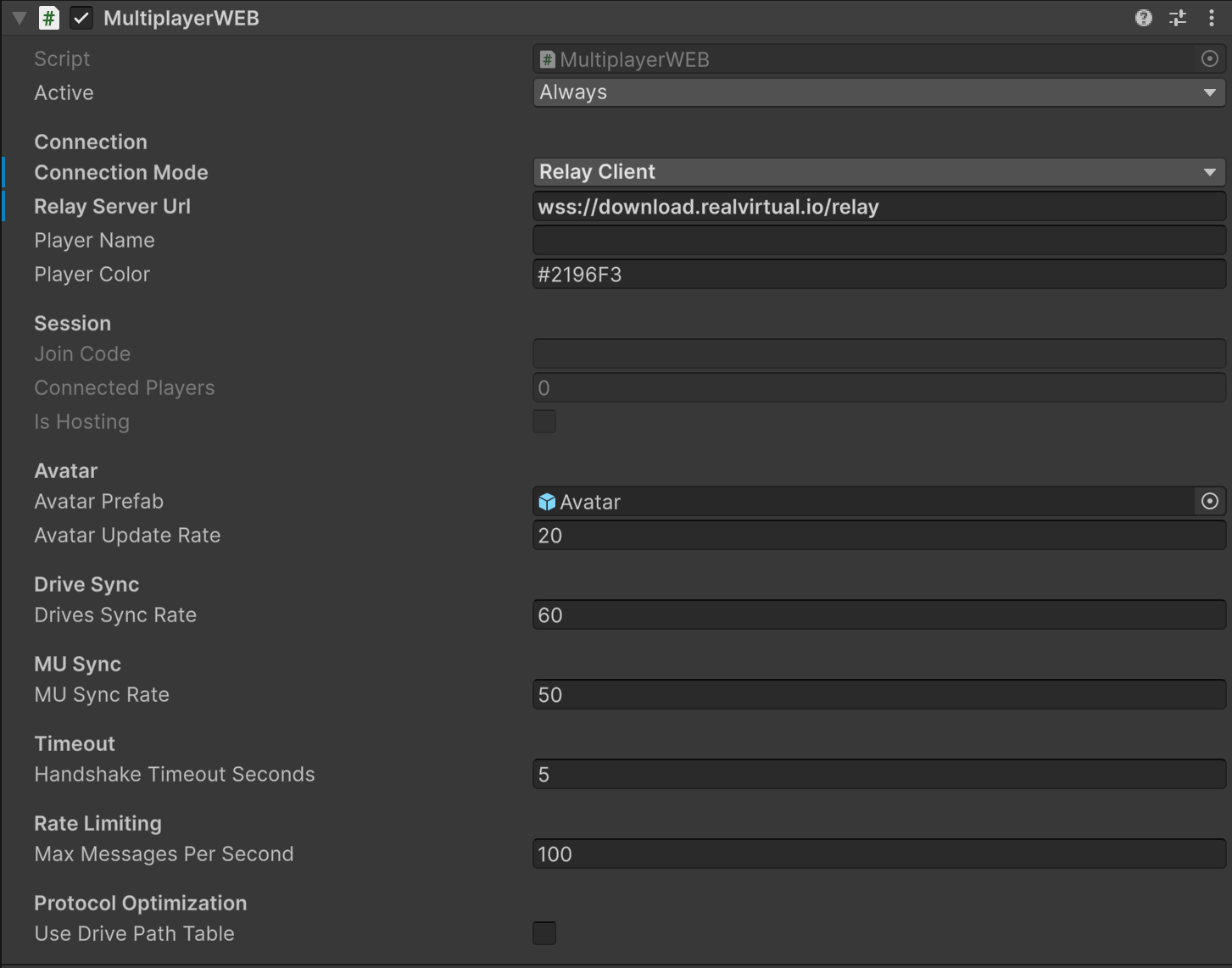
MultiplayerWEB component — relay client mode with session and sync settings
The MultiplayerWEB component (Pro) enables real-time multiuser sessions between Unity and browser clients. It runs a WebSocket server inside Unity on port 7000, streaming drive positions, MU states, and signal values to all connected browser viewers.
Browser clients connect via the Multiuser panel in the WebViewer and see shared avatars, camera positions, and live machine state. Roles (Operator/Observer) control who can interact with the simulation.
MultiplayerWEB supports two connection modes:
- Direct — Browser clients connect directly to Unity’s WebSocket server (local network)
- Relay — Browser clients connect via a hosted relay server (internet access, no port forwarding needed)
See Also
Section titled “See Also”- realvirtual WEB on GitHub — Open-source browser viewer (AGPL-3.0)
- realvirtual MCP Server — AI agent bridge for Unity and WebViewer
- Publishing the Digital Twin — Other deployment options (Windows, WebGL, VR)