
CAM
A CAM (Camshaft) is a connection mechanism between a master Drive and a slave Drive, often used in packaging machinery and other automation systems. CAMs allow the slave drive to move in relation to the master drive according to a predefined CAM profile. This is particularly useful for controlling complex motion profiles in automated systems.
You can watch this tutorial video to learn more about CAMs:
https://youtu.be/nPNgIWcwDAM
Defining CAMs
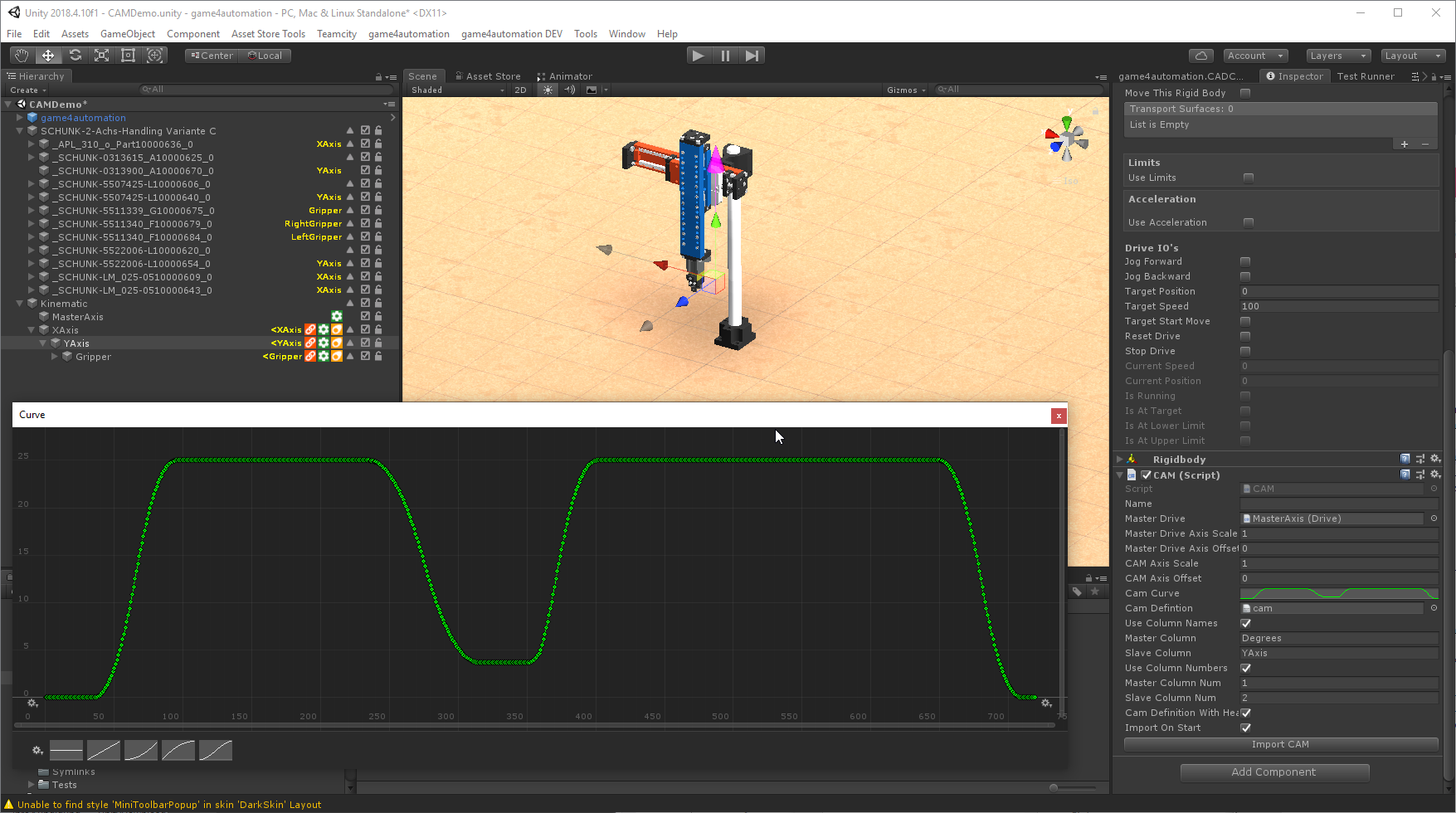
Section titled “Defining CAMs ”CAM profiles can be defined and imported into Unity through various file types. The CAM component supports both Excel and CSV formats for defining these profiles.
File Types Supported:
Section titled “File Types Supported:”- Excel:
.xlsxfiles. - CSV:
.csvfiles.
Public Properties
Section titled “Public Properties”MasterDrive
The master drive to which the slave drive is attached. The slave drive’s position will be determined by the master drive’s position according to the CAM profile.
MasterDriveAxisScale
A scale factor applied to the master drive position to get the value used in the CAM curve.
MasterDriveAxisOffset
An offset added to the master drive position to determine the value used in the CAM curve.
CAMAxisScale
The scale factor for the CAM axis. It scales the values of the CAM curve.
CAMAxisOffset
An offset added to the values of the CAM curve to determine the position applied to the CAM (slave) axis.
ExcelSheet
Name of the Excel sheet used when importing CAM data from an Excel file.
ExcelFile
Path to the Excel file used for importing CAM data.
CamDefintion
A text asset containing the CAM definition. This asset is a table with optional headers and columns describing the master axis position and the slave axis position.
UseColumnNames
Indicates whether column names are used to define the data to import.
MasterColumn
The name of the column in the text asset that contains the master axis position.
SlaveColumn
The name of the column in the text asset that contains the slave axis position.
UseColumnNumbers
Indicates whether column numbers are used to define the data to import.
MasterColumnNum
The column number (starting with 1) that contains the master axis position in the text asset.
SlaveColumnNum
The column number (starting with 1) that contains the slave axis position in the text asset.
CamDefinitionWithHeader
Indicates whether the first line of the text asset is a header.
ImportOnStart
Indicates whether the CAM data should be imported automatically when the simulation starts.
IsContinous
Indicates whether the CAM should continue as an offset based on the last CAM position, useful for continuous movements like transport chains.
Usage Instructions
- Select CAM File: Choose the CAM profile file using the
ExcelFileorCamDefintionproperty, depending on whether you are using Excel or CSV. - Set Scaling and Offsets: Adjust the
MasterDriveAxisScale,MasterDriveAxisOffset,CAMAxisScale, andCAMAxisOffsetproperties to fit your application’s requirements. - Import CAM Profile: Use the
ImportOnStartproperty to automatically import the CAM profile when the simulation starts. - Configure Continuous Mode: Enable
IsContinousif the CAM profile should operate continuously. AdjustContinousOffsetas needed.
Please check the Realvirtual.io Class Reference for more information about the properties and methods of this component.
© 2025 realvirtual GmbH https://realvirtual.io - All rights reserved. No part of this publication may be reproduced, distributed, or transmitted in any form or by any means, including printing, saving, photocopying, recording, or other electronic or mechanical methods, without the prior written permission of the publisher.