
Installation & Setup
Requirements
Section titled “Requirements”- Unity 6000.0+ (Unity 6)
- Newtonsoft JSON (
com.unity.nuget.newtonsoft-json) — installed automatically as dependency - git must be installed and available in PATH — git-scm.com
Installation
Section titled “Installation”Via Unity Asset Store (Recommended)
Section titled “Via Unity Asset Store (Recommended)”Install directly from the Unity Asset Store:
realvirtual MCP Server on Unity Asset Store
Via Unity Package Manager (Git URL)
Section titled “Via Unity Package Manager (Git URL)”- Open Unity Window > Package Manager
- Click + > Add package from git URL
- Enter:
https://github.com/game4automation/io.realvirtual.mcp.git
Both methods install the package with all dependencies automatically.
Automated Setup (Recommended)
Section titled “Automated Setup (Recommended)”After installing the package:
- A brain icon appears in the Unity Scene View toolbar — this is the MCP status indicator
- Click the gear icon next to it to open the setup popup
- Click Download Python Server — this runs
git cloneto download the Python server intoAssets/StreamingAssets/realvirtual-MCP/ - Click Configure Claude Code & Desktop — this writes the MCP configuration to Claude Desktop and/or Claude Code
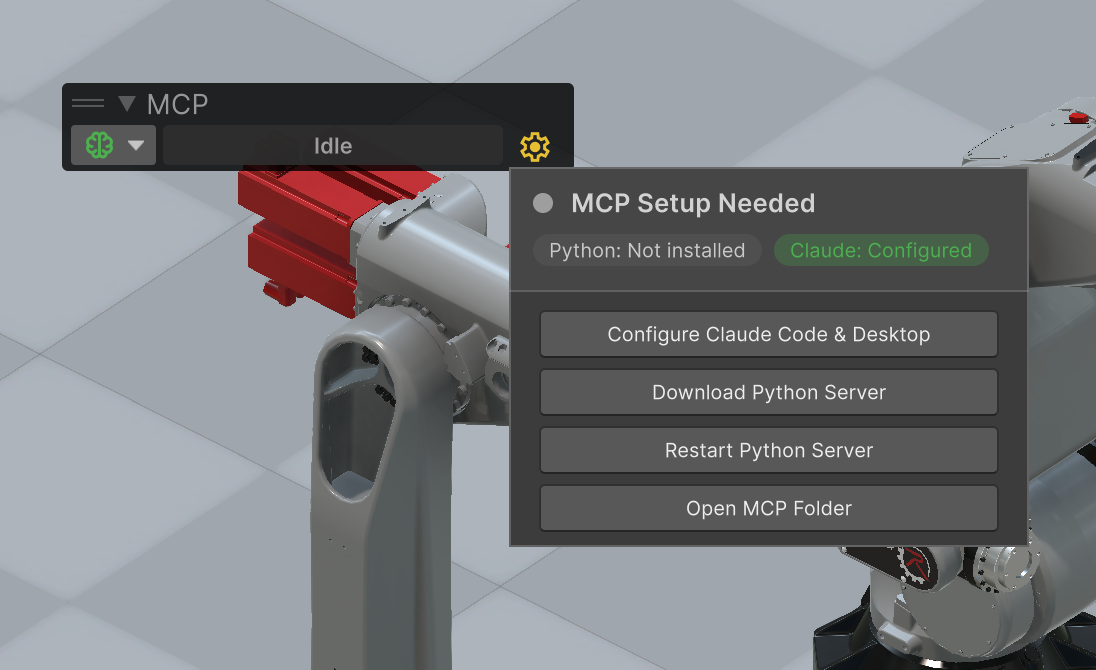
Setup popup showing initial state with Python server not yet installed
Once configured, the popup shows green status indicators:
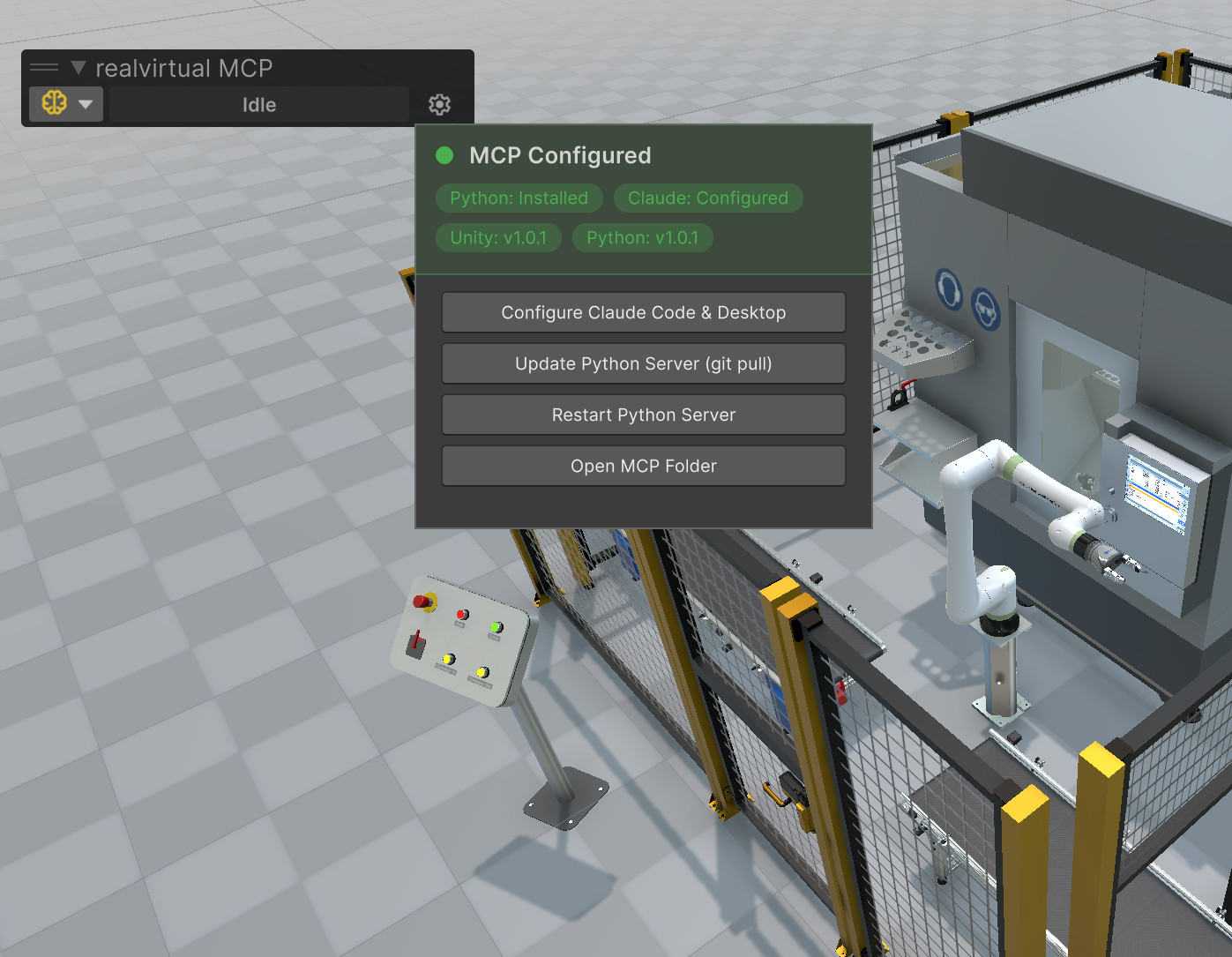
Setup popup after successful configuration
You can also access setup via the Unity menu: Tools > realvirtual > MCP
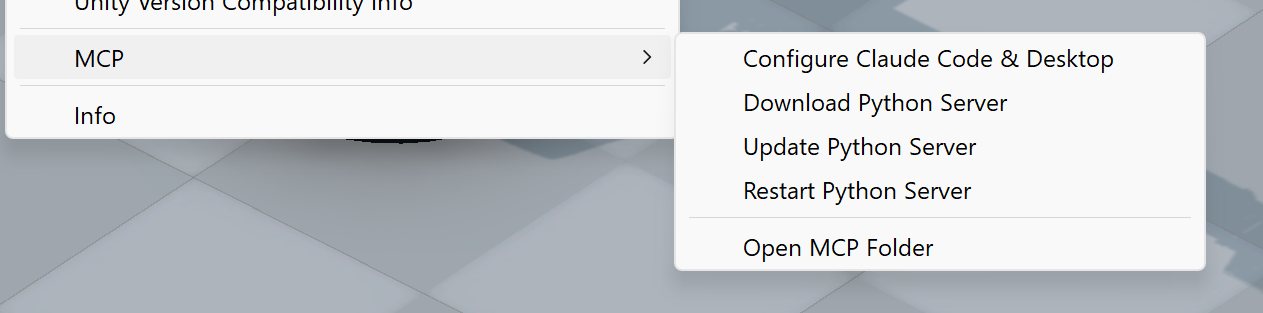
MCP menu in Unity Editor
Manual Setup
Section titled “Manual Setup”If you prefer to set up manually:
-
Clone the Python server repository:
Terminal window cd <your-project>/Assets/StreamingAssetsgit clone https://github.com/game4automation/realvirtual-MCP.git -
Configure your MCP client manually. For Claude Code, add to your MCP settings:
{"mcpServers": {"realvirtual-unity": {"command": "<project-path>/Assets/StreamingAssets/realvirtual-MCP/python/python.exe","args": ["<project-path>/Assets/StreamingAssets/realvirtual-MCP/unity_mcp_server.py"]}}}
Command Line Options
Section titled “Command Line Options”The Python server takes a few optional flags. The one worth knowing about:
| Flag | Effect |
|---|---|
--webviewer | Starts the historic web_* WebSocket proxy on port 18712. Off by default since MCP server 1.1.2. |
--no-webviewer | Accepted and ignored — it was the way to switch the proxy off while it was still on by default. |
The web_* browser tools of realvirtual WEB belong to realvirtual CONNECT
(http://localhost:5100/mcp), which serves them behind its community registration. The proxy in
this server offered the same tool names without any registration check, so it no longer starts on
its own. The Unity Editor tools of this server are unaffected and need no registration.
Updating
Section titled “Updating”Python Server
Section titled “Python Server”Click Update Python Server (git pull) in the toolbar popup, or run manually:
cd <your-project>/Assets/StreamingAssets/realvirtual-MCPgit pullUnity Package
Section titled “Unity Package”- Open Window > Package Manager
- Select realvirtual MCP Server
- Click Update (if available)
If no update button appears, remove the lock entry for io.realvirtual.mcp from Packages/packages-lock.json and reopen Unity.