
TwinCAT HMI
This interface is beside TwinCAT ADS another interface for Beckhoff PLCs. It requires HMI licenses on the TwinCAT PLC. The advantage of this interface is that it does not depend on an installation on the device on which the simulation model is running. Communication takes place exclusively via WebSockets. This interface works on any type of target platform and also works within WebGL builds.
In contrary TwinCAT ADS requires ADS installed on the machine and is by this limited to Windows System.
The interface can be added to a realvirtual.io scene by selecting Tools > realvirtual > Add Object > Interface > TwinCATHMI.
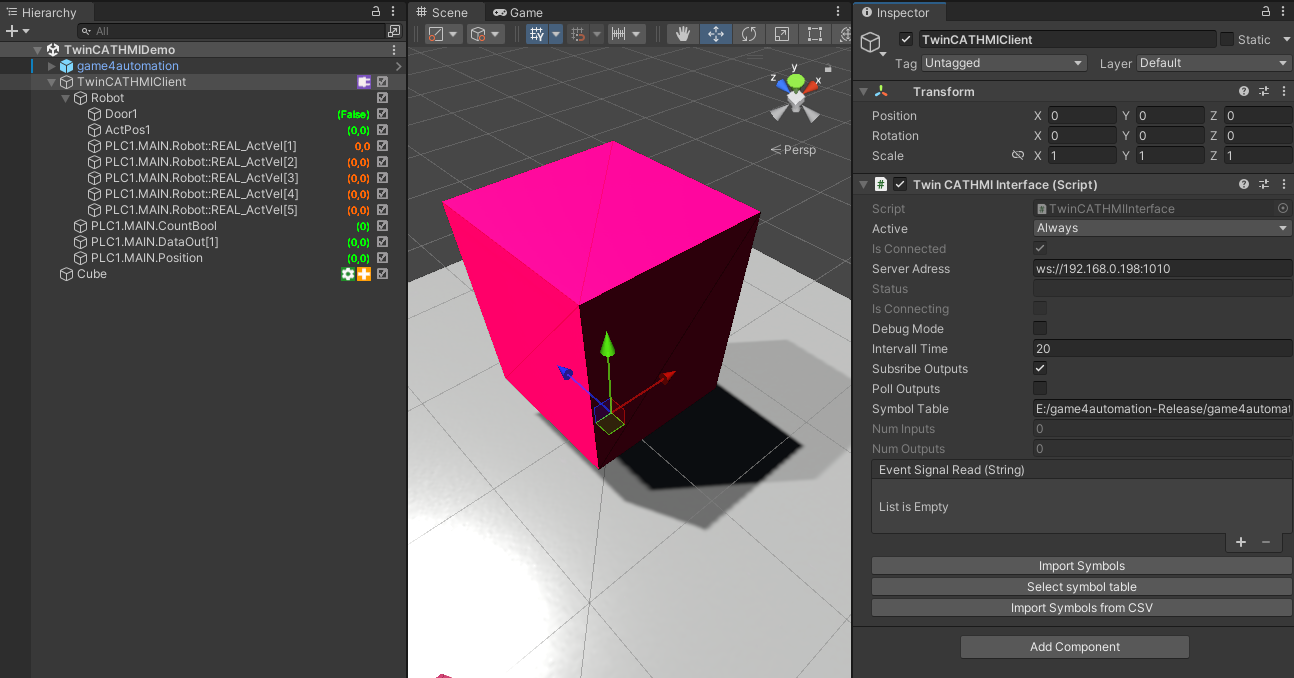
TwinCAT HMI interface (based on Websockets) for realvirtual.io
Prerequisites
Section titled “Prerequisites”- TE2000 license is needed for properties (HMI) configuration.
- TE2000 Version 1.12.758.8 and above
- You need on your PLC TF2000 licenses
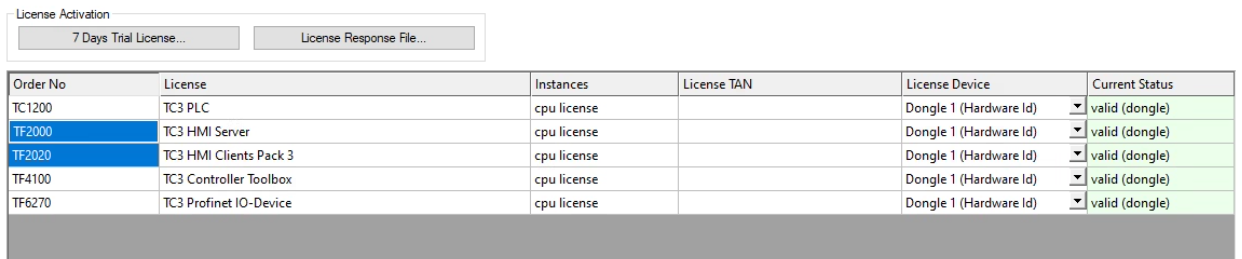
TF2000 license within TwinCAT
REALVIRTUAL_BESTHTTP3needs to be added to your Unity ProjectProject Settings > Player > Script Compilation- Newtonsoft.Json needs to be available and installed. In latest standard Unity releases Newtonsoft is already included. For enabling Newtonsoft please also add
REALVIRTUAL_JSONto your Scripting Define SymbolsProject Settings > Player > Script Compilation. For more infomation about how to install and get please check section Newtonsoft JSON
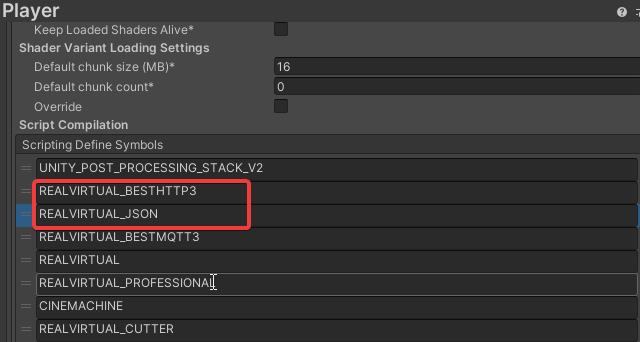
BestHTTP and JSON in Scripting Define Symbols
Annotations in the PLC code
Section titled “Annotations in the PLC code”Within the TwinCAT PLC source all symbols needs to be annotated with { attribute ‘TcHmiSymbol.AddSymbol’ }, if they should be available for the TwinCATHMI interface.

Interface Properties
Section titled “Interface Properties”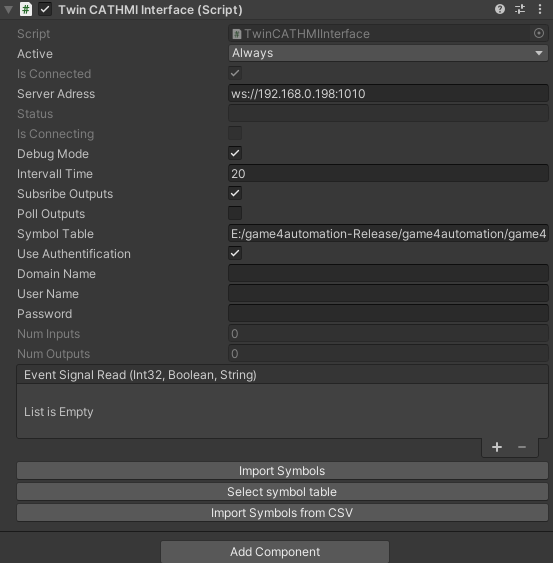
TwinCAT HMI inspector properties
IsConnected (Readonly)
Section titled “IsConnected (Readonly)”True, if the interface is successfully connected to the PLC.
Server Adress
Section titled “Server Adress”The adress of the Server (Notation must be ws://IP:Port
Status (Readonly)
Section titled “Status (Readonly)”The current Status of the Websocket, “Open” if connection is active.
IsConnecting (Readonly)
Section titled “IsConnecting (Readonly)”True during reconnection to Server.
DebugMode
Section titled “DebugMode”If set to true additional messages are printed out to the Unity console
Intervall Time
Section titled “Intervall Time”The Intervaltime in Milliseconds. All update messages are collected to one message inside the PLC within the intervall time.
Subscribe Outputs
Section titled “Subscribe Outputs”If set to true, the outputs are subscribed and only changed outputs are send within the intervall time.
Poll Outputs
Section titled “Poll Outputs”If set to true all outputs are send wthin the intervall time.
Symbol Table
Section titled “Symbol Table”It is possible to import all symbold from an external CSV file. The table must look like this:
Security
If you want to use security features and login into the PLC with domain, user and password you need to set this to true and define the user and the password.
EventSignalRead
An Event which is fired when a Signal is read from the interface.
Complex data types
Section titled “Complex data types”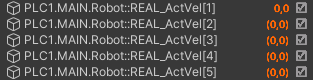
Only primitive datatypes like floats, ints, bools are transformed automatically to the realvirtual.io PLCInput and PLCOutput Variables.
Reading primitives within complex data
For reading complex datatypes you can access the primitive data within the complex datatype by adressing them like this:
Reading complex data with C# scripts
For subscribing a complex datatype you should create a variable of Type PLCOutputText. Within this text you will get the complex data as a Json. You can now use within a C# script JSON deserialization to transfer this JSON to a C# data type.
Writing complex data with C# scripts
For writing complex data you can call the public Method WriteSymbol
public void WriteSymbol (string symbol, object signal)This will serialize the given object into a JSON and send it to the PLC. It is important that the C# data structure is identical to the data structure within the PLC.
Writing complex data with write acknowledgement
Usually, when using WriteSymbol for direct writing symbols into the PLC, the function is non blocking. You don’t get any value back and you won’t be automatically informed if the symbol is not written. In very complex and big data structures writing can take some time.
If you want to be sure that the data is written there is another write command:
public int WriteSymbolControlled (string symbol, object signal)This function is giving back an id as an INT
Before calling WriteSymbolControlled you should subscribe to this event, which will be called as soon as a reply is send from the PLC.
EventSignalRead.AddListener(OnSymbolWritten);The code for your event should look somehow like this. You need now to check if the method was exactly called for your WriteSymbolControlled id (which was given back in the call) and if there was no error (error == false). You can also look in detail into the reply which is given you as a full JSON string in reply.
private void OnSymbolWritten(int id, bool error, string reply) { // Here check if error is false and the id is the same as given back in WriteSymbolControlled }
© 2025 realvirtual GmbH https://realvirtual.io - All rights reserved. No part of this publication may be reproduced, distributed, or transmitted in any form or by any means, including printing, saving, photocopying, recording, or other electronic or mechanical methods, without the prior written permission of the publisher.