
WebSocket Realtime Interface
Overview
Section titled “Overview”The WebSocket Realtime Interface provides high-performance, bidirectional signal exchange over WebSocket connections. It operates as both server and client, enabling connectivity between two Unity instances, external applications, PLCs, or any system that supports WebSocket communication.
Built on the FastInterface framework, it offers thread-safe background communication, automatic reconnection, change detection, and low-latency signal transport.
Key capabilities:
- Server and Client mode in a single component
- Flat JSON wire protocol (v2) for easy integration from any language
- Signal import from remote side with automatic direction inversion
- SSL/TLS support (wss://) for secure connections through reverse proxies
- Pattern-based signal direction detection for external systems without PLC-style type prefixes
- Subscribe filtering so clients only receive the signals they need
Adding the Interface
Section titled “Adding the Interface”- Drag the WebsocketRealtimeInterface prefab into your scene, or add the component to an existing GameObject
- The interface appears as a child of your realvirtual root object
- Create PLC signal objects (PLCInputBool, PLCOutputFloat, etc.) as children of the interface
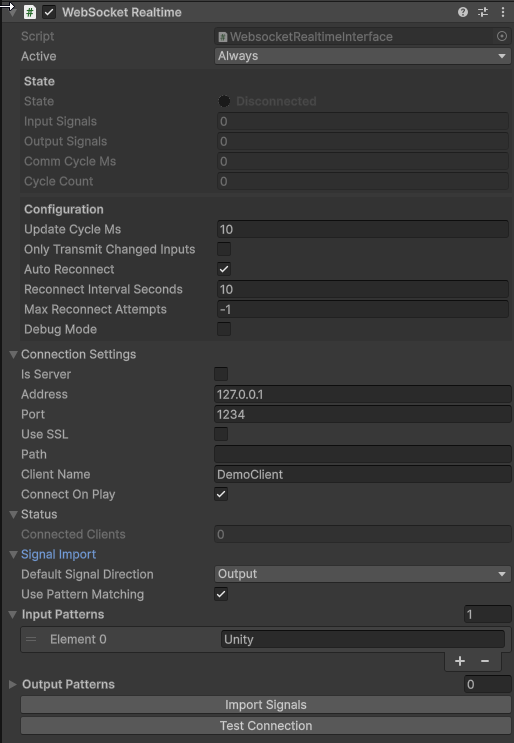
WebSocket Realtime Interface Inspector
Server Mode
Section titled “Server Mode”Set Is Server to true (in the Connection Settings foldout). The server listens on the configured address and port and broadcasts signal data to all connected clients.
- Address: IP to bind to (
127.0.0.1for localhost,0.0.0.0for all interfaces) - Port: TCP port (default: 1234)
Client Mode
Section titled “Client Mode”Set Is Server to false. The client connects to a remote WebSocket server.
- Address: IP address of the server
- Port: TCP port of the server
- Use SSL: Enable for
wss://connections (e.g. through a reverse proxy) - Path: Optional URL path (e.g.
/my-bridge/wsfor reverse proxy routing) - Client Name: Identification sent during handshake
Signal Import
Section titled “Signal Import”Client Mode Import (Edit Mode)
Section titled “Client Mode Import (Edit Mode)”In client mode, you can import signals from the remote server without manually creating them:
- Make sure the remote server is running
- Click Import Signals in the Inspector (works in edit mode — no play mode required)
- The interface connects, requests the signal catalog, creates local mirror signals with inverted directions, and disconnects
You can also use Test Connection to verify connectivity without importing.
Server Mode Import (Play Mode)
Section titled “Server Mode Import (Play Mode)”In server mode, you can import signals from connected clients during play mode:
- Start the simulation so the server is running and clients are connected
- Click Import Signals from Clients in the Inspector
- The server broadcasts an import request to all connected clients and creates local mirror signals with inverted directions
This is useful for discovering which signals a remote client provides without manually defining them.
Properties
Section titled “Properties”Configuration
Section titled “Configuration”| Property | Description |
|---|---|
| Update Cycle Ms | Communication loop interval in milliseconds (default: 10) |
| Only Transmit Changed Inputs | Only send signals whose values changed since last cycle |
| Auto Reconnect | Automatically reconnect on connection loss |
| Reconnect Interval Seconds | Seconds between reconnection attempts |
| Max Reconnect Attempts | Maximum number of reconnection attempts before giving up (-1 = unlimited) |
| Debug Mode | Enable detailed logging for troubleshooting |
Connection Settings
Section titled “Connection Settings”| Property | Description |
|---|---|
| Is Server | true = WebSocket server, false = WebSocket client |
| Address | IP address to bind (server) or connect to (client) |
| Port | TCP port for communication (default: 1234) |
| Use SSL | (Client only) Use wss:// for encrypted connections |
| Path | (Client only) Optional URL path appended after host:port |
| Client Name | (Client only) Name sent during init handshake |
| Connect On Play | Automatically connect when entering play mode |
Status
Section titled “Status”| Property | Description |
|---|---|
| Connected Clients | (Server only) Number of currently connected clients |
Signal Import
Section titled “Signal Import”| Property | Description |
|---|---|
| Default Signal Direction | Direction for imported signals when no pattern matches (Input or Output) |
| Use Pattern Matching | Enable name-based direction detection |
| Input Patterns | Name substrings that identify signals Unity writes (e.g. "Unity") |
| Output Patterns | Name substrings that identify signals the PLC writes |
Use Cases
Section titled “Use Cases”- Unity-to-Unity distributed simulation with signal mirroring
- External application integration (web dashboards, custom HMIs, test frameworks)
- PLC bridge connections (e.g. via a bridge application running on ctrlX CORE or other edge devices)
- WebGL builds where TCP-based protocols are not available
Wire Protocol v2 Reference
Section titled “Wire Protocol v2 Reference”The WebSocket Realtime Interface uses a flat JSON protocol. All messages are UTF-8 encoded JSON objects sent as WebSocket text frames. There is no double-encoding - all fields are native JSON types.
The examples on this page use port 1234, the default of this interface. realvirtual CONNECT serves the same protocol on port 5100 at the path /ws, but behaves differently as a server in a few points: it sends import_answer and a full data message right after connect without a request, ignores subscribe (every client receives every change), never sends snapshot, does not apply config_set, needs an API key for clients on other machines, and closes connections that send nothing for 90 seconds. See the CONNECT REST and WebSocket API.
Message Envelope
Section titled “Message Envelope”Every message has a type field that determines its purpose:
{ "type": "<message_type>", "version": 2, ...}Message Types
Section titled “Message Types”init - Client Identification
Section titled “init - Client Identification”Sent by the client immediately after the WebSocket connection is established.
{ "type": "init", "version": 2, "name": "MyClient"}| Field | Type | Description |
|---|---|---|
type | string | Always "init" |
version | int | Protocol version (2) |
name | string | Client identification name |
data - Cyclic Signal Exchange
Section titled “data - Cyclic Signal Exchange”Sent cyclically in both directions. Contains signal names and their current values.
{ "type": "data", "signals": { "Sensor1": true, "DriveSpeed": 150.5, "MotorOn": false, "Counter": 42, "Status": "Running" }}| Field | Type | Description |
|---|---|---|
type | string | Always "data" |
signals | object | Map of signal name to current value. Values are native JSON types: true/false for bool, numbers for int/float, strings for text. |
import_request - Signal Discovery Request
Section titled “import_request - Signal Discovery Request”Sent from one side to request the full signal catalog from the other side.
{ "type": "import_request", "version": 2}import_answer - Signal Catalog Response
Section titled “import_answer - Signal Catalog Response”Response to import_request. Contains all signal names, their current values, and their PLC type strings.
{ "type": "import_answer", "version": 2, "signals": { "Sensor1": true, "DriveSpeed": 0.0, "Counter": 0 }, "signalTypes": { "Sensor1": "PLCInputBool", "DriveSpeed": "PLCInputFloat", "Counter": "PLCOutputInt" }}| Field | Type | Description |
|---|---|---|
signals | object | Signal name to current value |
signalTypes | object | Signal name to type string. Recognized types: PLCInputBool, PLCOutputBool, PLCInputInt, PLCOutputInt, PLCInputFloat, PLCOutputFloat, PLCInputText, PLCOutputText. Neutral types without prefix (e.g. Bool, Float) are also accepted. |
Direction inversion on import: When the receiving side imports signals, the direction is inverted:
- Remote
PLCInputBool(remote reads from PLC) becomes localPLCOutputBool(local writes to Unity) - Remote
PLCOutputBool(remote writes from PLC) becomes localPLCInputBool(local reads from Unity)
subscribe - Filter Server Output
Section titled “subscribe - Filter Server Output”Sent by the client to tell the server which signals it wants to receive. The server then only sends matching signals in data messages. If no subscribe message is sent, the server sends all signals.
{ "type": "subscribe", "version": 2, "subscribe": ["Sensor1", "DriveSpeed", "Counter"]}snapshot - Immediate Full State
Section titled “snapshot - Immediate Full State”Sent by the server after receiving a subscribe message. Contains the current values of all subscribed signals.
{ "type": "snapshot", "signals": { "Sensor1": true, "DriveSpeed": 0.0, "Counter": 0 }}config_get - Read Server Configuration
Section titled “config_get - Read Server Configuration”Sent by the client to request the current configuration from the server (e.g. a bridge application).
{ "type": "config_get", "version": 2}config_answer - Configuration Response
Section titled “config_answer - Configuration Response”Sent by the server in response to config_get. Contains the current configuration as a key-value map.
{ "type": "config_answer", "version": 2, "config": { "publishIntervalMs": 5, "loggingLevel": "Information", "browsePaths": [ { "prefix": "plc/app/Application/sym", "direction": "input", "recursive": true } ] }}| Field | Type | Description |
|---|---|---|
config | object | Application-specific key-value configuration map. The structure depends on the server implementation. |
config_set - Write Server Configuration
Section titled “config_set - Write Server Configuration”Sent by the client to update configuration values on the server. The server should persist and apply the new configuration.
{ "type": "config_set", "version": 2, "config": { "publishIntervalMs": 10, "loggingLevel": "Debug", "browsePaths": [ { "prefix": "plc/app/Application/sym", "direction": "input", "recursive": true } ] }}config_result - Configuration Update Result
Section titled “config_result - Configuration Update Result”Sent by the server in response to config_set. Reports whether the configuration was applied successfully.
{ "type": "config_result", "version": 2, "success": true, "message": "Configuration saved and applied"}| Field | Type | Description |
|---|---|---|
success | boolean | true if the configuration was applied, false on error |
message | string | Human-readable result message |
Signal Value Types
Section titled “Signal Value Types”| realvirtual Type | JSON Type | Example |
|---|---|---|
PLCInputBool / PLCOutputBool | boolean | true, false |
PLCInputInt / PLCOutputInt | integer | 42, -1, 0 |
PLCInputFloat / PLCOutputFloat | number | 3.14, 0.0, -100.5 |
PLCInputText / PLCOutputText | string | "Running", "" |
Implementing the Other Side
Section titled “Implementing the Other Side”This section describes how to build your own WebSocket application that communicates with the realvirtual WebSocket Realtime Interface. You can use any programming language that supports WebSocket connections.
Connection Sequence
Section titled “Connection Sequence”When connecting to a realvirtual server:
1. Open WebSocket connection to ws://address:port2. Send "init" message with your client name3. (Optional) Send "import_request" to discover available signals4. (Optional) Send "subscribe" to filter which signals you receive5. Start cyclic exchange of "data" messagesWhen running your own server that realvirtual connects to as client:
1. Start WebSocket server on your address:port2. Receive "init" message from realvirtual (client identifies itself)3. (Optional) Receive "subscribe" message listing signals the client wants4. (Optional) Send "snapshot" with current values of subscribed signals5. Start cyclic exchange of "data" messagesExample: Python Client
Section titled “Example: Python Client”A minimal Python client that connects to a realvirtual server, imports signals, and exchanges data:
import asyncioimport jsonimport websockets
async def main():    uri = "ws://127.0.0.1:1234"
    async with websockets.connect(uri) as ws:        # 1. Send init        await ws.send(json.dumps({            "type": "init",            "version": 2,            "name": "PythonClient"        }))        print("Connected and init sent")
        # 2. Request signal catalog        await ws.send(json.dumps({            "type": "import_request",            "version": 2        }))
        # 3. Wait for import_answer        while True:            raw = await ws.recv()            msg = json.loads(raw)            if msg.get("type") == "import_answer":                print(f"Available signals: {list(msg['signalTypes'].keys())}")                break
        # 4. Subscribe to specific signals (optional)        await ws.send(json.dumps({            "type": "subscribe",            "version": 2,            "subscribe": ["Sensor1", "DriveSpeed"]        }))
        # 5. Cyclic data exchange        while True:            # Receive data from realvirtual            raw = await asyncio.wait_for(ws.recv(), timeout=5.0)            msg = json.loads(raw)
            if msg.get("type") in ("data", "snapshot"):                signals = msg.get("signals", {})                print(f"Received: {signals}")
                # Send data back to realvirtual                await ws.send(json.dumps({                    "type": "data",                    "signals": {                        "MyOutput": True,                        "SetSpeed": 100.5                    }                }))
asyncio.run(main())
Example: Python Server
Section titled “Example: Python Server”A server that realvirtual connects to as a client. This is useful when your application is the “host” and realvirtual is a connected client:
import asyncioimport jsonimport websockets
# Signal statesignals = {    "PLC_Running": True,    "PLC_Speed": 0.0,    "PLC_Counter": 0}
signal_types = {    "PLC_Running": "PLCOutputBool",    "PLC_Speed": "PLCOutputFloat",    "PLC_Counter": "PLCOutputInt"}
async def handle_client(ws):    client_name = "unknown"    subscribed_signals = None  # None = send all
    async for raw in ws:        msg = json.loads(raw)        msg_type = msg.get("type")
        if msg_type == "init":            client_name = msg.get("name", "unknown")            print(f"Client connected: {client_name}")
        elif msg_type == "import_request":            # Send signal catalog            await ws.send(json.dumps({                "type": "import_answer",                "version": 2,                "signals": signals,                "signalTypes": signal_types            }))
        elif msg_type == "subscribe":            subscribed_signals = msg.get("subscribe", [])            # Send snapshot of subscribed signals            snapshot = {k: v for k, v in signals.items()                       if k in subscribed_signals}            await ws.send(json.dumps({                "type": "snapshot",                "signals": snapshot            }))
        elif msg_type == "data":            # Receive values from realvirtual            received = msg.get("signals", {})            print(f"From {client_name}: {received}")            # Process received values in your application...
            # Send updated values back            to_send = signals            if subscribed_signals is not None:                to_send = {k: v for k, v in signals.items()                          if k in subscribed_signals}            await ws.send(json.dumps({                "type": "data",                "signals": to_send            }))
async def main():    async with websockets.serve(handle_client, "0.0.0.0", 1234):        print("WebSocket server running on ws://0.0.0.0:1234")        await asyncio.Future()  # run forever
asyncio.run(main())
Example: C# Client (.NET)
Section titled “Example: C# Client (.NET)”For .NET applications (e.g. a bridge application on a PLC or edge device):
using System;using System.Collections.Generic;using System.Net.WebSockets;using System.Text;using System.Text.Json;using System.Threading;using System.Threading.Tasks;
public class RealvirtualWebSocketClient{    private ClientWebSocket ws;    private readonly string uri;    private readonly string clientName;
    public RealvirtualWebSocketClient(string uri, string clientName = "DotNetClient")    {        this.uri = uri;        this.clientName = clientName;    }
    public async Task ConnectAsync(CancellationToken ct = default)    {        ws = new ClientWebSocket();        await ws.ConnectAsync(new Uri(uri), ct);
        // Send init        await SendAsync(new        {            type = "init",            version = 2,            name = clientName        }, ct);    }
    public async Task<Dictionary<string, JsonElement>> ReceiveDataAsync(        CancellationToken ct = default)    {        var buffer = new byte[8192];        var result = await ws.ReceiveAsync(buffer, ct);        var json = Encoding.UTF8.GetString(buffer, 0, result.Count);        var msg = JsonSerializer.Deserialize<JsonElement>(json);
        var msgType = msg.GetProperty("type").GetString();        if (msgType == "data" || msgType == "snapshot")        {            var signals = new Dictionary<string, JsonElement>();            foreach (var prop in msg.GetProperty("signals").EnumerateObject())                signals[prop.Name] = prop.Value;            return signals;        }        return null;    }
    public async Task SendDataAsync(Dictionary<string, object> signals,        CancellationToken ct = default)    {        await SendAsync(new { type = "data", signals }, ct);    }
    public async Task RequestImportAsync(CancellationToken ct = default)    {        await SendAsync(new { type = "import_request", version = 2 }, ct);    }
    private async Task SendAsync(object message, CancellationToken ct)    {        var json = JsonSerializer.Serialize(message);        var bytes = Encoding.UTF8.GetBytes(json);        await ws.SendAsync(bytes, WebSocketMessageType.Text, true, ct);    }}
Example: JavaScript / TypeScript (Browser or Node.js)
Section titled “Example: JavaScript / TypeScript (Browser or Node.js)”const ws = new WebSocket("ws://127.0.0.1:1234");
ws.onopen = () => { // Send init ws.send(JSON.stringify({ type: "init", version: 2, name: "WebClient" }));
// Request signal catalog ws.send(JSON.stringify({ type: "import_request", version: 2 }));};
ws.onmessage = (event) => { const msg = JSON.parse(event.data);
switch (msg.type) { case "import_answer": console.log("Available signals:", Object.keys(msg.signalTypes)); // Subscribe to specific signals ws.send(JSON.stringify({ type: "subscribe", version: 2, subscribe: ["Sensor1", "DriveSpeed"] })); break;
case "data": case "snapshot": console.log("Received signals:", msg.signals);
// Send data back ws.send(JSON.stringify({ type: "data", signals: { "MyOutput": true, "SetSpeed": 100.5 } })); break; }};Direction Mapping Guide
Section titled “Direction Mapping Guide”When implementing the other side, understanding signal direction is critical:
| Your application sends… | realvirtual creates… | Meaning |
|---|---|---|
signalTypes: {"Speed": "PLCOutputFloat"} | Local PLCInputFloat named “Speed” | Your app writes Speed, Unity reads it |
signalTypes: {"Enable": "PLCInputBool"} | Local PLCOutputBool named “Enable” | Your app reads Enable, Unity writes it |
signalTypes: {"Value": "Float"} | Direction from pattern matching or default | Neutral type - no direction prefix |
Rule of thumb: If your application writes a value, declare it as PLCOutput. If your application reads a value from Unity, declare it as PLCInput. realvirtual inverts the direction on import.
Tips for Implementers
Section titled “Tips for Implementers”- JSON only - All messages are JSON text frames. Binary frames are not used.
- No heartbeat required - The cyclic
datamessages serve as implicit heartbeat. If you stop sending data, the connection to a Unity server remains open. realvirtual CONNECT is stricter: it closes a connection after 90 seconds without an incoming message, so sendinitevery 25 seconds when talking to CONNECT. - Partial updates -
datamessages do not need to contain all signals. You can send only the signals that changed. - Type coercion - realvirtual will attempt to convert JSON number types. Sending
1for a float signal or1.0for an int signal works. - Signal names - Use consistent names between both sides. Names are case-sensitive and matched exactly.
- SSL/TLS - For production deployments through reverse proxies (nginx, traefik), configure
useSSL=trueand set thepathto match your proxy route.
Troubleshooting
Section titled “Troubleshooting”Interface does not connect:
- Check that the server is running and reachable on the configured address and port
- For client mode, verify the address, port, SSL, and path settings
- Use the Test Connection button to verify connectivity
- Enable Debug Mode for detailed logging
Signals not updating:
- Ensure signals are child GameObjects of the interface
- Check signal directions (Input = Unity writes, Output = Unity reads)
- Verify that signal names match exactly between both sides
- Check the data messages being sent contain the expected signal names
Import creates wrong directions:
- Review your
signalTypesin theimport_answer-PLCInputandPLCOutputare inverted on import - For neutral types, configure Input Patterns and Output Patterns or set the Default Signal Direction
See Also
Section titled “See Also”- Custom Interfaces (FastInterface) - How to build your own interfaces
- Signal Manager - Managing PLC signals
- Interfaces Overview - All available interfaces
- realvirtual CONNECT REST and WebSocket API - The same protocol served by CONNECT on port 5100