
Debug Console
The Debug Console in realvirtual.io is based on the Unity Ingame Debug Console, which is licensed under the MIT License (Copyright © Süleyman Yasir KULA).
This tool provides full access to Unity’s console log in a build and allows the execution of custom commands. It is particularly useful for debugging and for modifying specific player application properties during runtime.
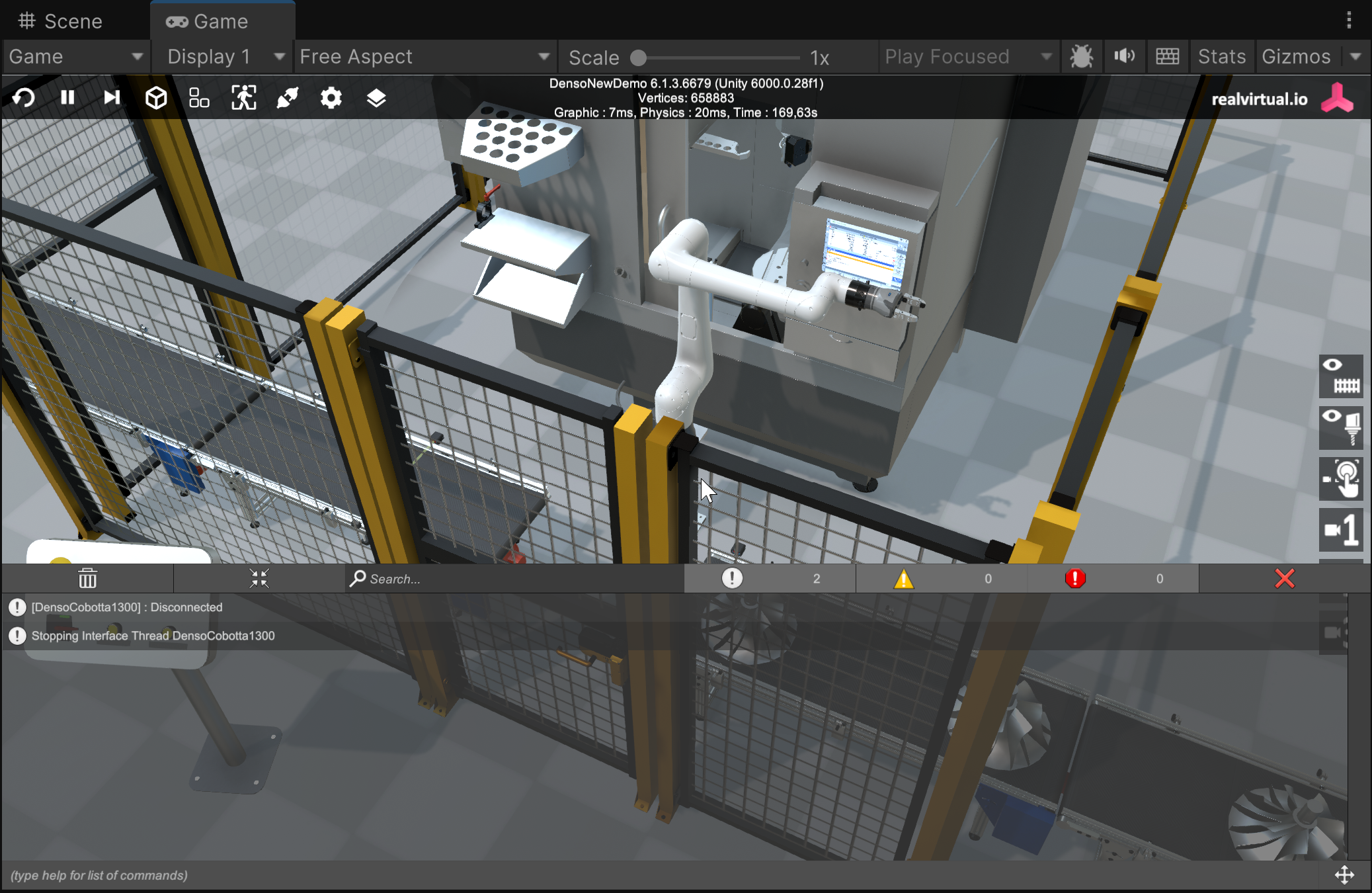
Debug Console
How to Use the Debug Console
Section titled “How to Use the Debug Console”-
Add the Debug Console Prefab
To enable the Debug Console in your project, add the prefab located at:Assets/realvirtual/UIPrefabs/DebugConsole.prefabinto your scene hierarchy.
-
Opening the Debug Console
While running the simulation, you can open the Debug Console by clicking in the bottom-left corner of the screen. -
Console Log Indicators
- If there are any console log entries, small icons and a log count will appear to notify you.
- You can review warnings, errors, and other logs in real time.
-
Executing Commands
The Debug Console also supports custom commands, allowing you to trigger specific functions or modify application settings directly.
Console Commands
Section titled “Console Commands”To see a full list of available commands, type the following in the Debug Console’s input field:
bashKopierenBearbeitenhelpAvailable Commands
| Command | Description |
|---|---|
| ConnectOff | Disables Connect Mode. This setting is saved for the next start. |
| ConnectOn | Enables Connect Mode. This setting is saved for the next start. |
| DebugOff | Turns off Debug Mode. The player must be restarted for this change to take effect. Please note: Not all components take care about Global Debug Mode. |
| DebugOn | Turns on Global Debug Mode in realvirtualController. The player must be restarted for this change to take effect. Please note: Not all components take care about Global Debug Mode. |
| DeletePrefs | Deletes all PlayerPrefs (everything what is saved with RuntimePersistence or saved manually via script). The model returns to the standard settings. |
| help | Prints all available commands. |
| help [commandName] | Prints detailed information about the specified command. |
| InspectorOff | Disables the Runtime Inspector. The player must be restarted for this change to take effect. |
| InspectorOn | Enables the Runtime Inspector. The player must be restarted for this change to take effect. |
For more information about implementing your own commands please check https://github.com/yasirkula/UnityIngameDebugConsole?tab=MIT-1-ov-file