
Customer Portal
The realvirtual Customer Portal at download.realvirtual.io is the central web platform for managing your realvirtual licenses, downloading packages, generating temporary access codes for your team, and viewing invoices.
Getting Started
Section titled “Getting Started”Open download.realvirtual.io in your browser. You will see two options:
- Downloads — Download realvirtual Unity packages
- Customer Portal — Manage licenses, codes, and invoices
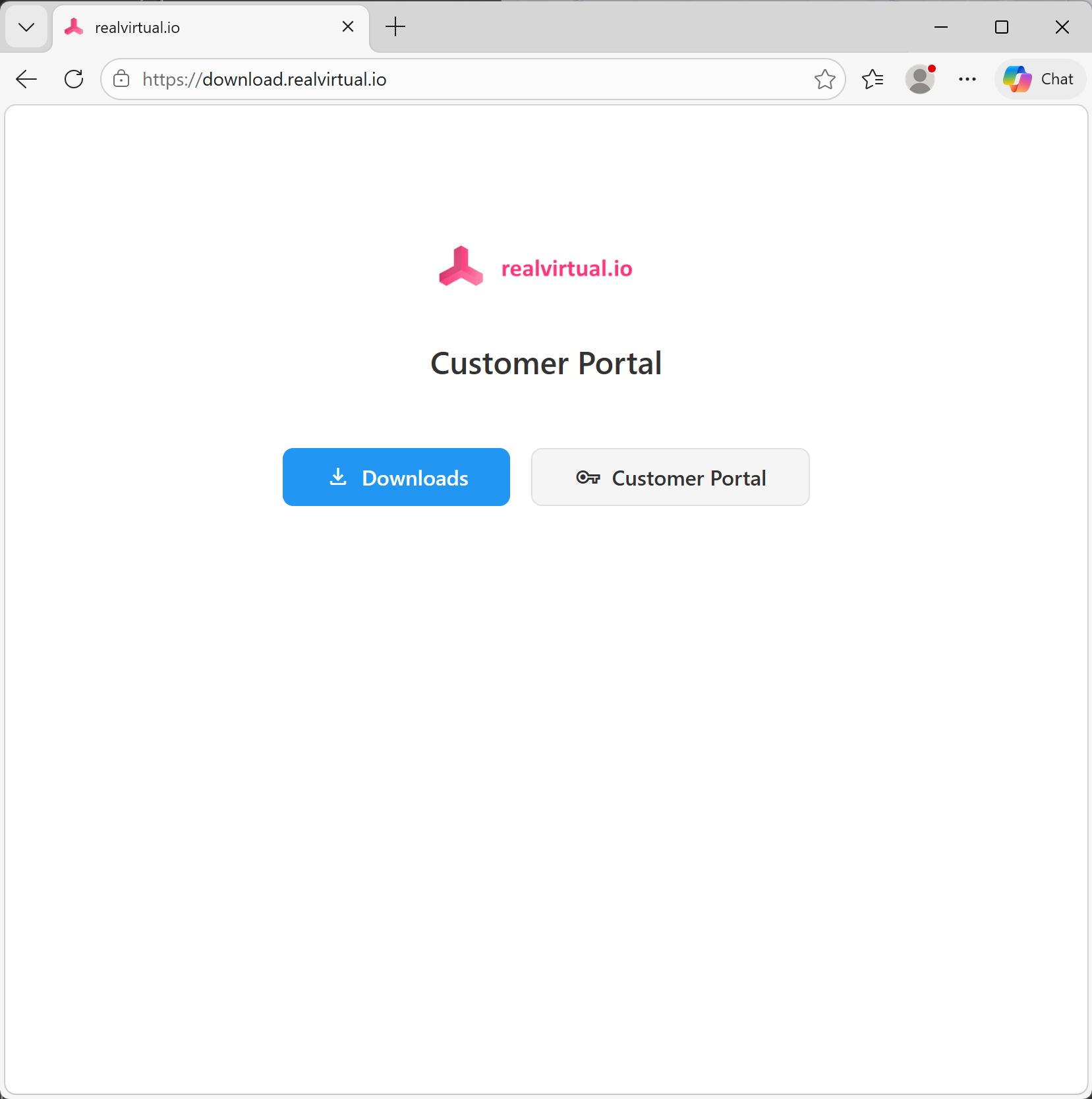
Customer Portal landing page at download.realvirtual.io
Downloads
Section titled “Downloads”Click Downloads to access your available realvirtual packages. You need to log in with your invoice credentials first (Invoice Number, Billing ZIP Code, Email).
After login, you see all packages available for your license:
- UPM packages (
.tgz) — For Unity 6.3+ projects using the Package Manager - Legacy packages (
.unitypackage) — For older Unity versions
Each file shows its size and upload date. Click the download icon to download.
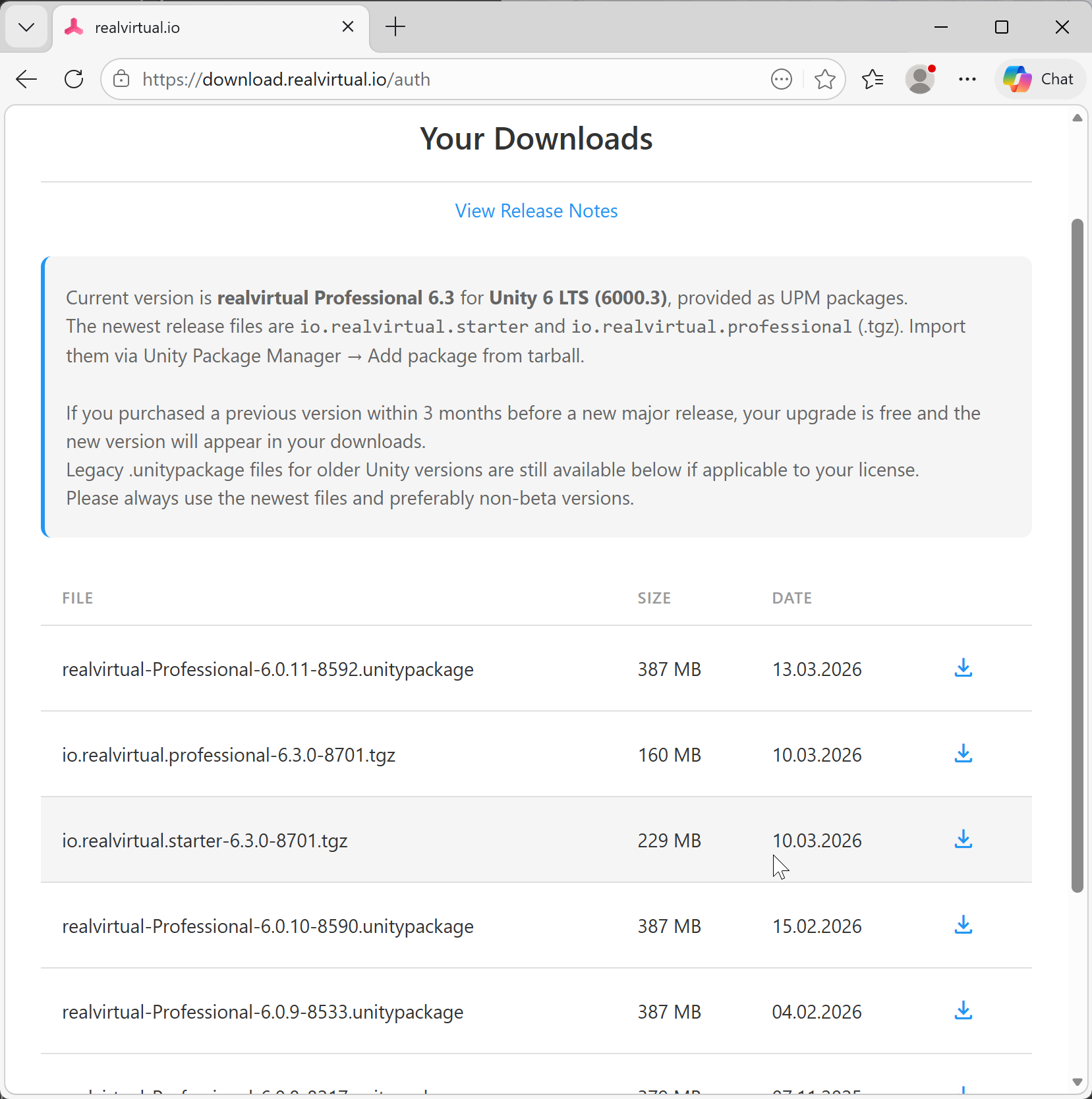
Downloads page showing available packages
Customer Portal Login
Section titled “Customer Portal Login”Click Customer Portal to access license management. The portal uses passwordless magic link authentication:
- Enter the email address from your invoice
- Click Request Login Link
- Check your email for the login link
- Click the link to access your portal
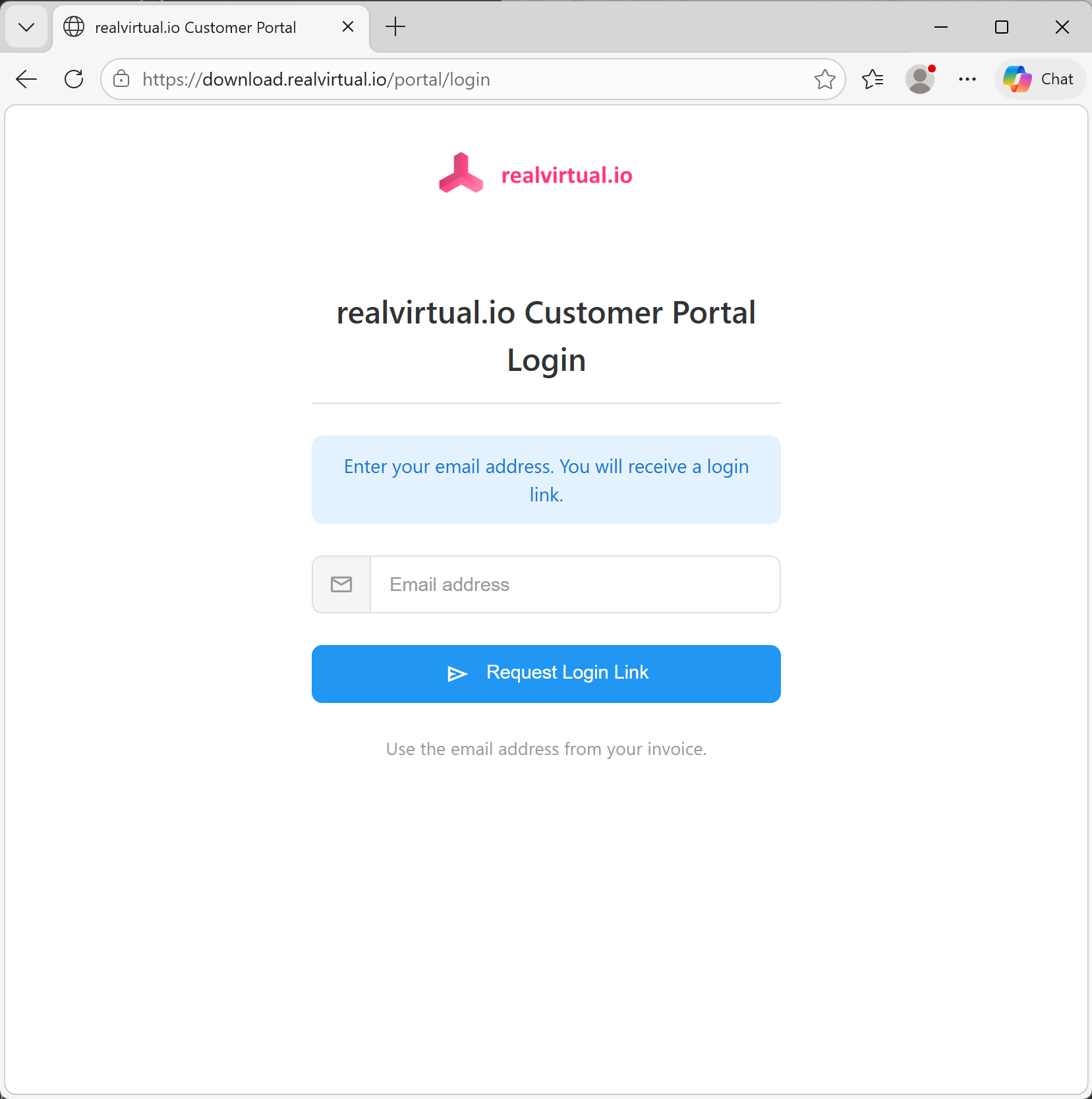
Customer Portal login with magic link
Portal Dashboard
Section titled “Portal Dashboard”After logging in, the portal dashboard shows your complete account overview:
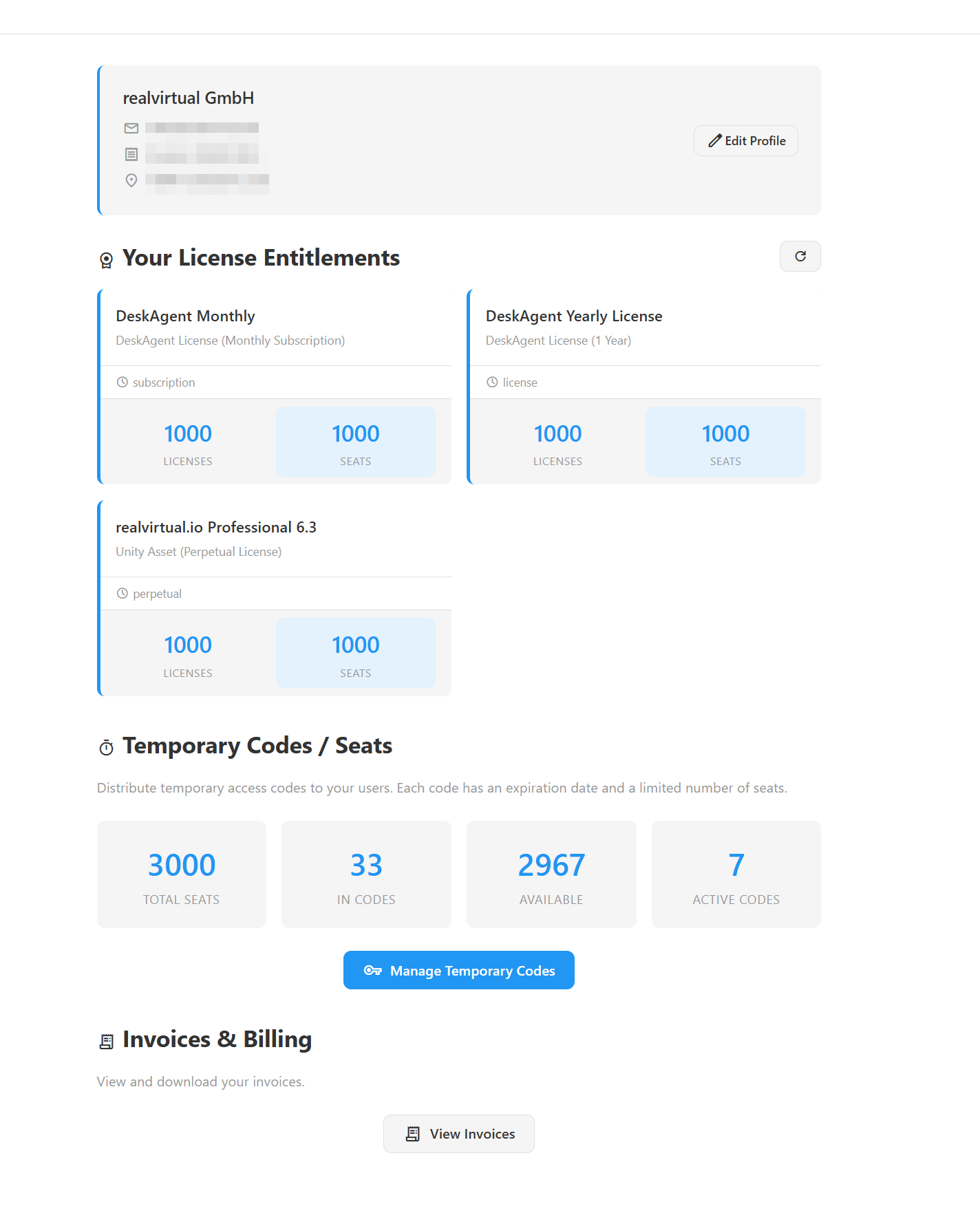
Customer Portal dashboard with license entitlements and code management
Your License Entitlements
Section titled “Your License Entitlements”The License Entitlements section shows all products associated with your account:
- Product name and edition (e.g., realvirtual.io Professional 6.3)
- License type — perpetual, subscription, or monthly
- Total licenses and seats available
CONNECT license limits
Section titled “CONNECT license limits”realvirtual CONNECT licenses issued by the portal carry their usage limits inside the signed license token. CONNECT reads them locally — nothing about your signals or CAD files is ever sent back to the portal.
| Limit | Community (free registration) | Annual / Lifetime |
|---|---|---|
| PLC signals | 20 | Unlimited |
| CAD import (STEP) per file | 25 MB | Unlimited |
| CAD import (JT) per file | 12 MB | Unlimited |
The CAD limits apply per file, so importing several files in one session is fine as long as each one is under the limit. An oversize import is rejected by CONNECT before conversion starts, not after — you never wait through a long conversion just to be turned away at the end.
The JT limit is issued today but not yet applied — JT import is not available in CONNECT yet.
Temporary Codes / Seats
Section titled “Temporary Codes / Seats”Temporary codes let you distribute access to your team members. The overview shows:
- Total Seats — Your total seat pool across all products
- In Codes — Seats currently allocated to generated codes
- Available — Seats still available for new codes
- Active Codes — Number of currently active codes
Click Manage Temporary Codes to create and manage codes.
Invoices & Billing
Section titled “Invoices & Billing”Click View Invoices to see and download your invoices as PDF.
Temporary Code Management
Section titled “Temporary Code Management”The code management page lets you generate, track, and revoke temporary access codes for your team.
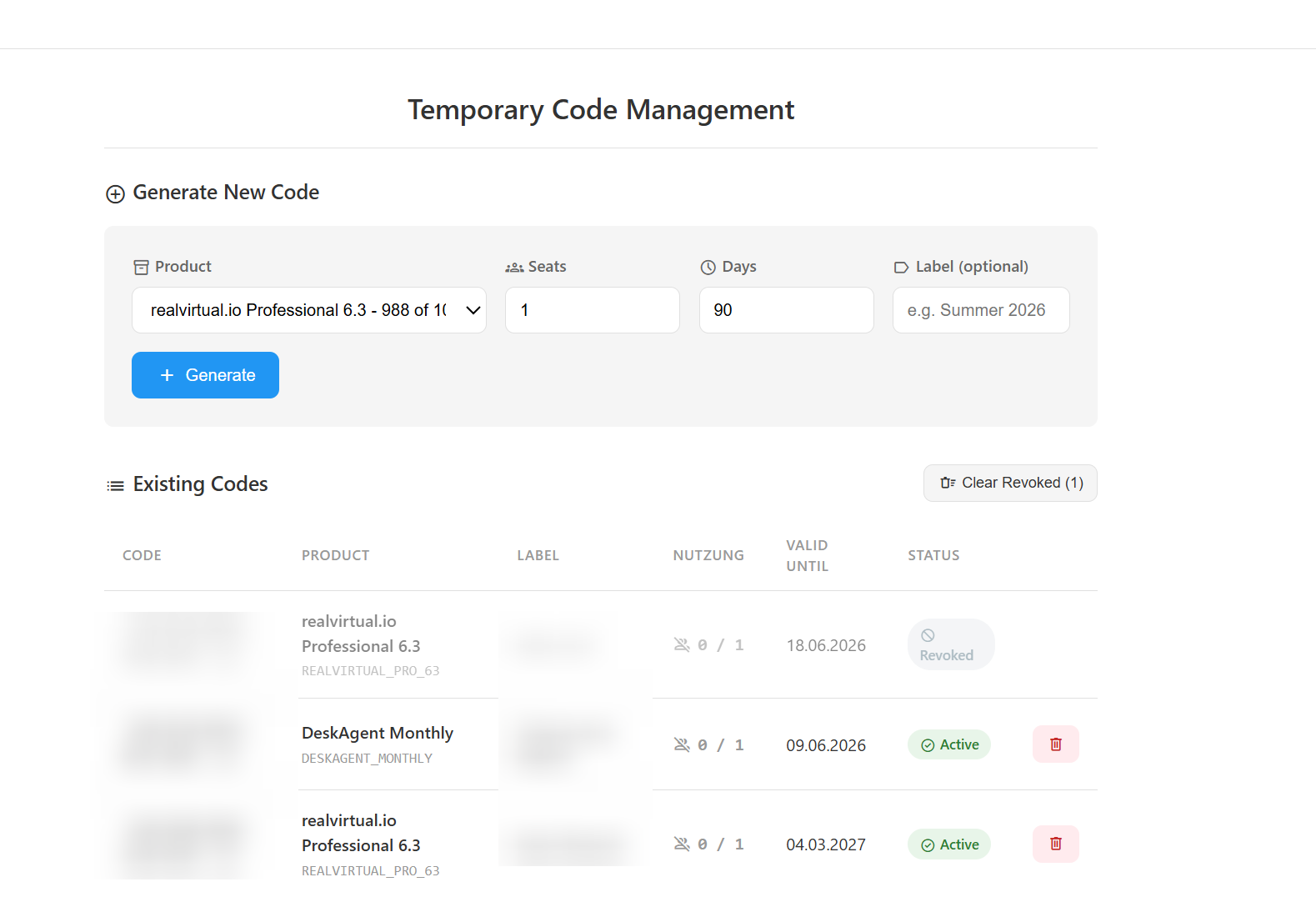
Temporary Code Management with code generation and status overview
Generating a New Code
Section titled “Generating a New Code”- Select the Product from the dropdown
- Set the number of Seats (how many users can use this code simultaneously)
- Set the Days until expiration (max 365)
- Optionally add a Label for identification (e.g., “Summer 2026” or “Team Berlin”)
- Click Generate
The generated code will appear in the Existing Codes list below.
Managing Existing Codes
Section titled “Managing Existing Codes”Each code shows:
| Column | Description |
|---|---|
| Code | The access code to share with users |
| Product | Which product the code grants access to |
| Label | Your custom label for identification |
| Nutzung | Current usage: active sessions / total seats |
| Valid Until | Expiration date |
| Status | Active, Expired, or Revoked |
You can revoke active codes by clicking the delete button. Unused seats are returned to your pool immediately.
Using a Temporary Code
Section titled “Using a Temporary Code”Share the generated code with your team member. They enter the code in the Unity User Hub (Tools > realvirtual > User Hub) to activate their seat. See Login & Download Updates (Pro) for details on the Unity-side setup.
Partner Keys
Section titled “Partner Keys”If you received a Partner Key (in the format PK-XXXX-XXXX-XXXX) from your sales partner, you can use it to activate your realvirtual license directly in Unity.
Activating a Partner Key in Unity
Section titled “Activating a Partner Key in Unity”- Open the Unity User Hub via
Tools > realvirtual > User Hub - Enter the Partner Key (
PK-XXXX-XXXX-XXXX) in the Code field - Enter your Email address
- Click Login
Your license activates immediately. You can start using realvirtual Professional right away.
See Also
Section titled “See Also”- Login & Download Updates (Pro) — Managing licenses from within Unity
- Installation — Installing realvirtual packages