
Siemens Simit Interface (Pro)
Overview
Section titled “Overview”The Siemens Simit Unity Coupling Interface provides time-synchronized communication between realvirtual and Siemens SIMIT simulation platform. This interface enables precise coupling of Unity-based virtual commissioning with SIMIT plant models and PLC simulation environments including PLCSIMAdvanced.
Key Features:
- Time-synchronized communication with SIMIT
- Automatic signal mapping between realvirtual and SIMIT
- Support for Binary, Analog, and Integer signal types
- One-click compiler define setup (New in 6.0.4)
- Enhanced SignalType enum handling (New in 6.0.4)
- Compatible with PLCSIMAdvanced integration
- Real-time bidirectional data exchange
When to Use This Interface
Section titled “When to Use This Interface”Use the Siemens SIMIT Interface when you need:
- Precise timing synchronization between Unity and SIMIT simulations
- Coupled simulation where Unity waits for SIMIT calculation steps
- PLCSIMAdvanced integration through SIMIT coupling
- Advanced co-simulation scenarios requiring deterministic timing
For standard applications without timing requirements, consider the SIMIT Shared Memory Interface as a lighter alternative.
Additional information on the Siemens Simit Interface can be found at this page:
🔗 Siemens Simit Coupling - Documentation
Requirements
Section titled “Requirements”Software Requirements:
- Unity 2022.3 LTS or later (Unity 6 recommended)
- Siemens SIMIT V11.2 or later
- SIMIT Unity Coupling Package V4.0.2 or later
- realvirtual Professional license
Hardware Requirements:
- Windows 10/11 (64-bit)
- Minimum 8GB RAM (16GB recommended)
- DirectX 11 compatible graphics card
Installation
Section titled “Installation”Step 1: Obtain SIMIT Unity Coupling Package
Section titled “Step 1: Obtain SIMIT Unity Coupling Package”Download the SIMIT Unity Coupling package from Siemens:
- Visit: https://support.industry.siemens.com/cs/document/109769816
- Download the latest SIMIT Unity Coupling package
- Follow Siemens installation instructions in the manual
Step 2: Install SIMIT Unity Package
Section titled “Step 2: Install SIMIT Unity Package”- Extract the SIMIT Unity package to a local directory
- In Unity, open Window → Package Manager
- Click + → Add package from disk
- Navigate to the extracted SIMIT package and select
package.json - Wait for Unity to import the package
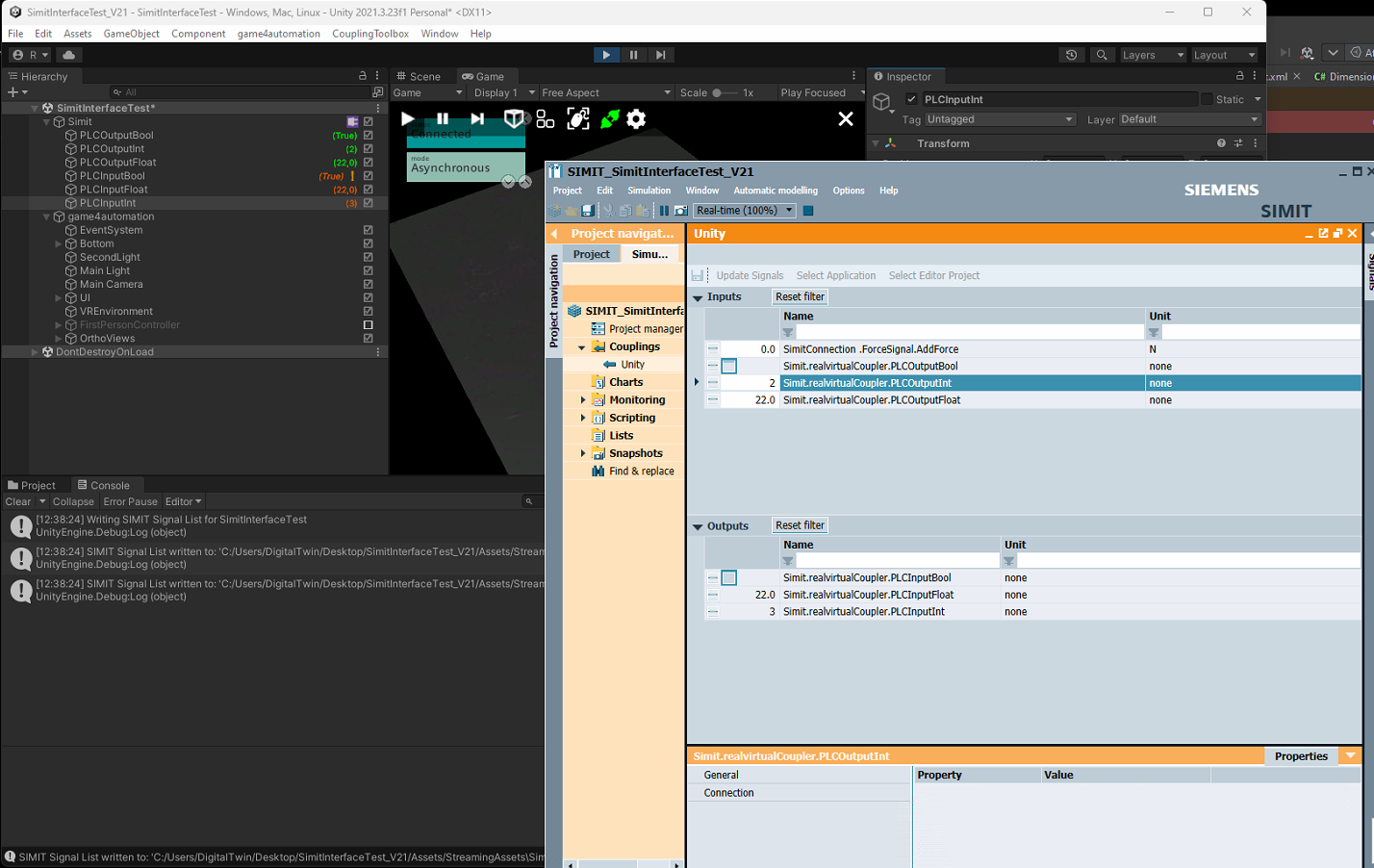
Siemens Simit Interface
Step 3: Setup Compiler Define Symbol
Section titled “Step 3: Setup Compiler Define Symbol”The interface requires the compiler define REALVIRTUAL_SIEMENSSIMIT to be set. realvirtual 6.0.4 provides an automated setup:
- Add a SiemensSimitInterface component to a GameObject in your scene
- In the Inspector, click “Add REALVIRTUAL_SIEMENSSIMIT Define” button
- Unity will automatically add the define and recompile scripts
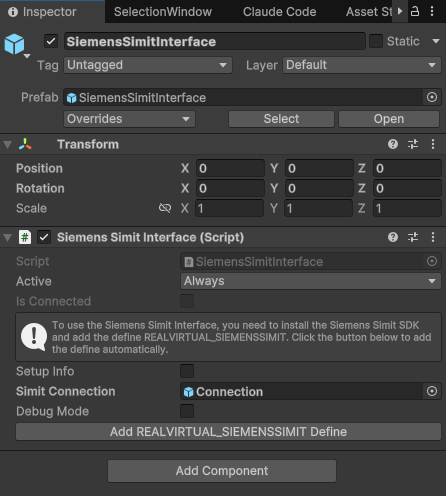
One-click compiler define setup
Alternative Manual Setup: If needed, you can manually add the define in Project Settings → Player → Scripting Define Symbols:
- Add:
REALVIRTUAL_SIEMENSSIMIT
Configuration
Section titled “Configuration”Adding the Interface to Your Scene
Section titled “Adding the Interface to Your Scene”-
Create Interface GameObject:
- Add an empty GameObject to your scene
- Add SiemensSimitInterface component
- The realvirtualCoupler component is added automatically
-
Add SIMIT Connection:
- Drag the SimitConnection prefab from the SIMIT Unity package into your scene
- Reference it in the Simit Connection field of the SiemensSimitInterface
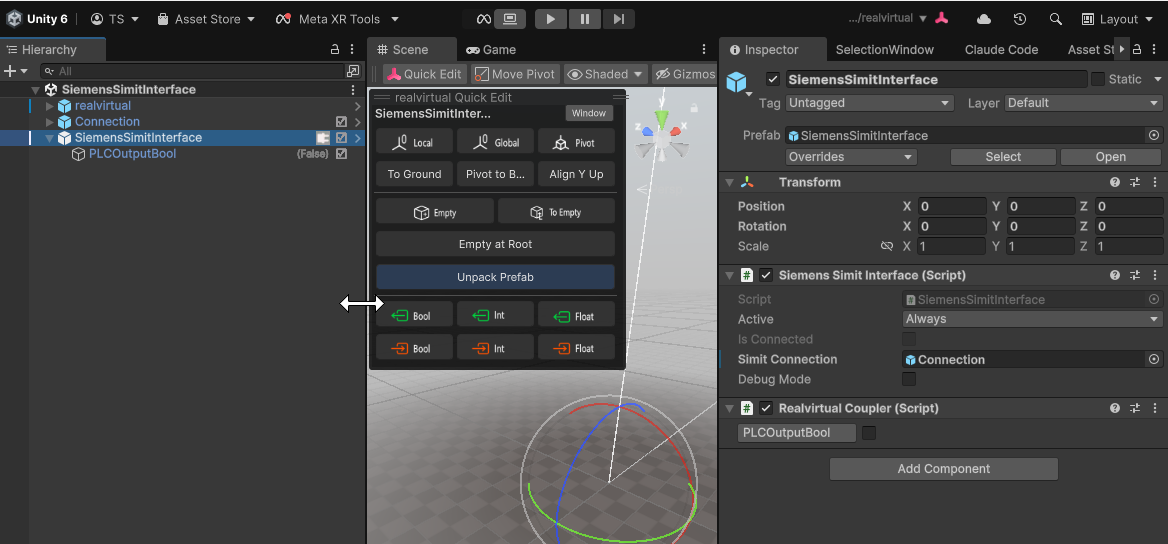
Complete SIMIT interface setup in Unity
Signal Configuration
Section titled “Signal Configuration”Step 1: Add realvirtual Signals
- Add all realvirtual signal components as children of the SiemensSimitInterface GameObject
- Supported signal types:
- PLCInputBool/PLCOutputBool → SIMIT Binary signals
- PLCInputFloat/PLCOutputFloat → SIMIT Analog signals
- PLCInputInt/PLCOutputInt → SIMIT Integer signals
Step 2: Update Signal Mapping
With Auto Update Signals enabled (the default), the signal mapping is exported automatically whenever you add, remove, rename or retype a child signal in edit mode. You no longer have to trigger it by hand - the interface re-exports the Simit signal list debounced on hierarchy changes and on scene save.
To refresh the mapping manually (or when Auto Update Signals is turned off), click the “Refresh Simit Signals” button in the SiemensSimitInterface component. Either way the interface maps all child signals for SIMIT coupling and handles signal type conversion automatically.
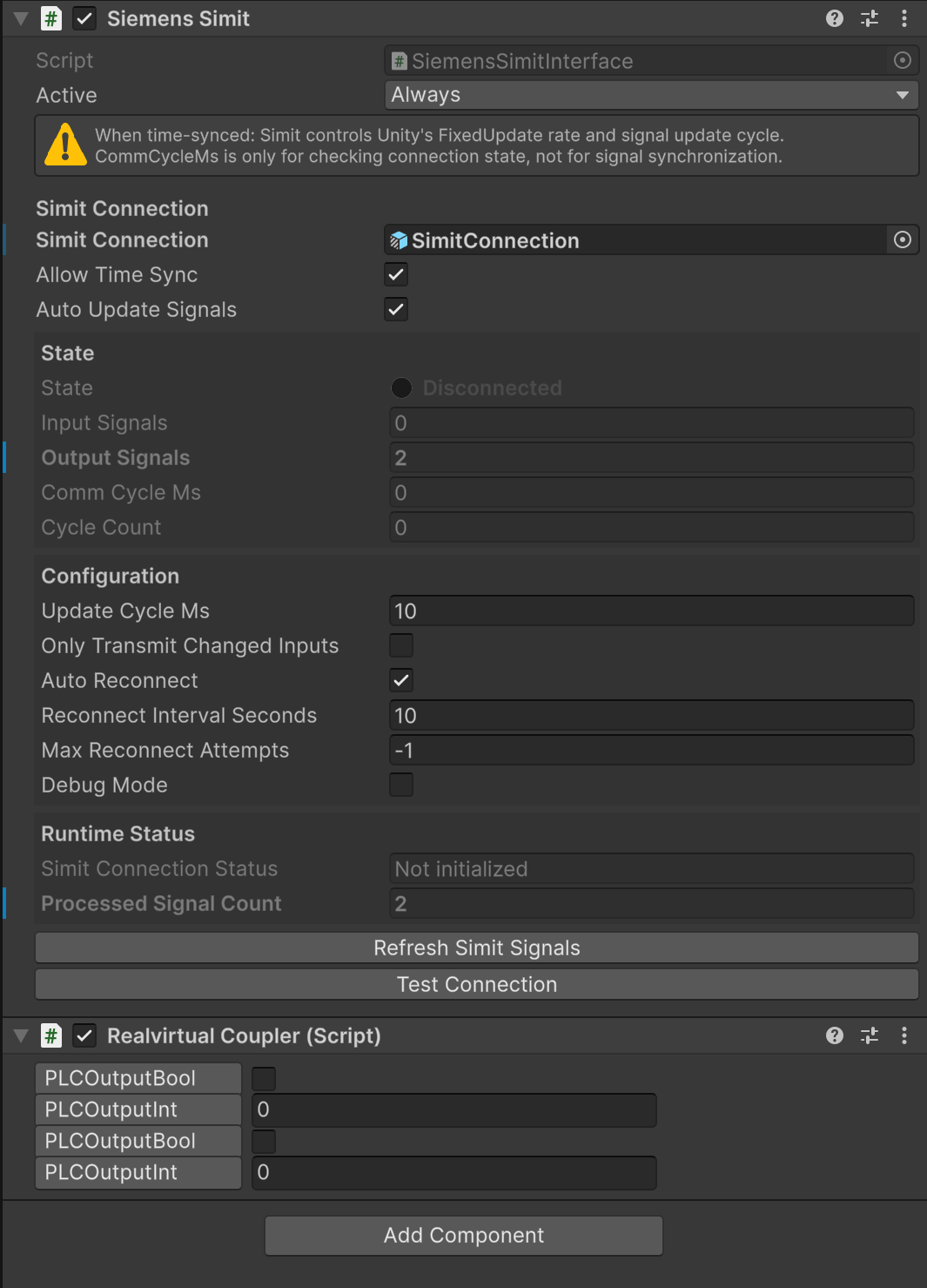
SiemensSimitInterface with Auto Update Signals and the Refresh Simit Signals button
Step 3: Import Signals in SIMIT
- In your SIMIT project, use Unity Coupling → Update Signals
- All signals appear in SIMIT with the naming convention:
[SimitInterfaceName].realvirtualCoupler.[SignalName]
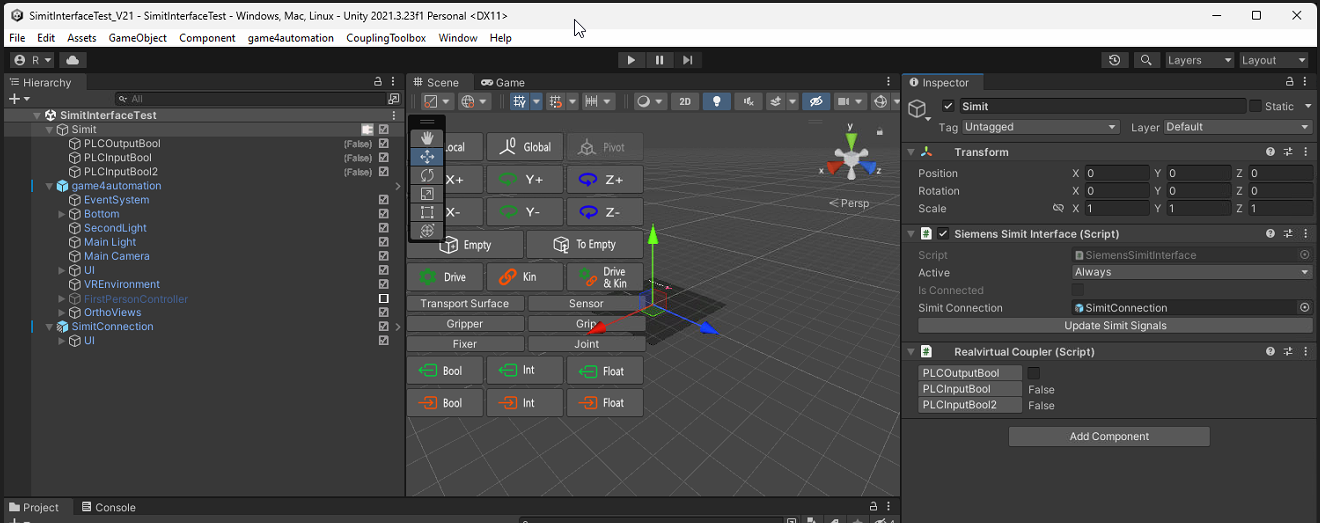
Scene with SIMIT interface and signals
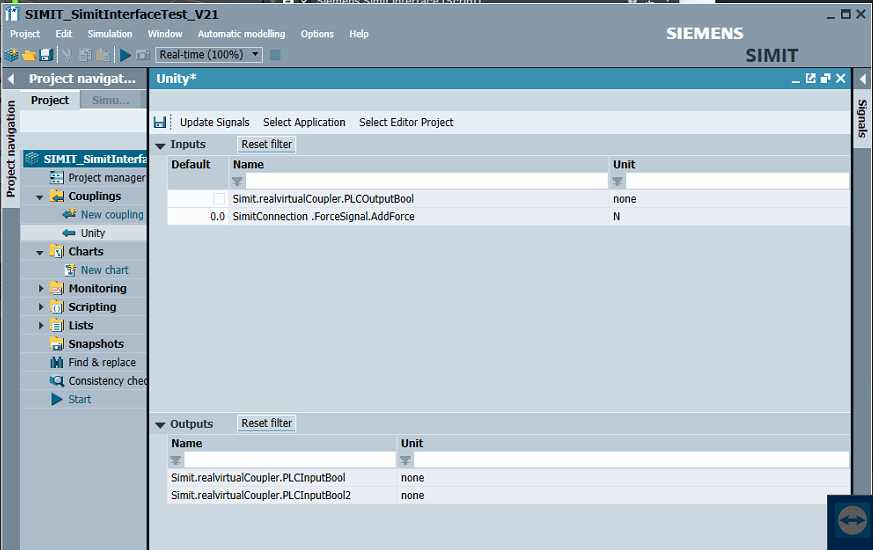
Signals imported in SIMIT
Properties
Section titled “Properties”Siemens Simit Interface (Script)
- Active (Always/Never) - Interface activation mode
- Simit Connection (GameObject) - Reference to SimitConnection prefab
- Allow Time Sync (boolean) - Let SIMIT drive Unity’s FixedUpdate rate and the signal update cycle
- Auto Update Signals (boolean) - Automatically re-export the Simit signal list in edit mode when child signals are added, removed, renamed or change type, so you do not have to click “Refresh Simit Signals” manually
- Debug Mode (boolean) - Enable debug logging
Realvirtual Coupler (Script)
- Signals (Signal[]) - Auto-populated array of mapped signals (read-only)
Troubleshooting
Section titled “Troubleshooting”Common Issues:
-
“SIMIT types not found” compilation errors
- Ensure SIMIT Unity package is properly installed
- Verify
REALVIRTUAL_SIEMENSSIMITdefine is set - Use the automated setup button in the interface
-
No signals appear in SIMIT
- Check that signals are children of SiemensSimitInterface
- Make sure Auto Update Signals is enabled, or click the “Refresh Simit Signals” button
- Verify SimitConnection is referenced and active
-
Interface not connecting
- Ensure SimitConnection prefab is in the scene
- Check SIMIT Unity Coupling settings in SIMIT
- Verify network connectivity if using remote SIMIT