
Mouse Sensitivity
Control 3D navigation sensitivity during runtime with persistent settings.
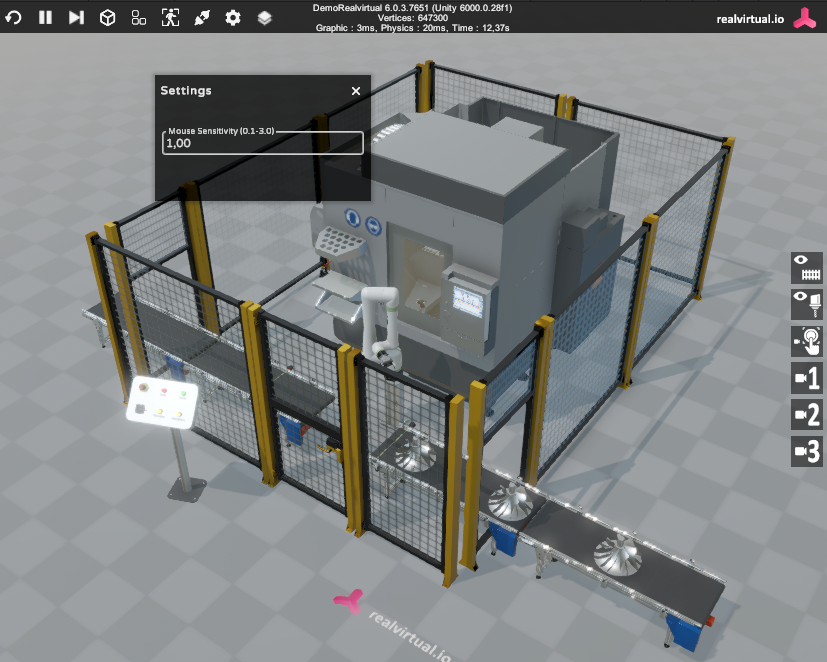
Settings window showing Mouse Sensitivity slider (0.1-3.0 range) during Play Mode
Overview
Section titled “Overview”The Mouse Sensitivity feature allows users to adjust 3D navigation speed in real-time during Play Mode. Settings are automatically saved and restored across Unity sessions.
Settings
Section titled “Settings”- Range: 0.1 (very slow) to 3.0 (very fast)
- Default: 1.0 (normal sensitivity)
- Access: Settings window during Play Mode
- Persistence: Automatically saved using Unity PlayerPrefs
Navigation Types Affected
Section titled “Navigation Types Affected”- Camera rotation and orbiting
- Zoom controls (scroll wheel)
- Panning operations
- Touch navigation on mobile devices
How to Use
Section titled “How to Use”- Enter Play Mode in Unity
- Open the Settings window from the runtime UI
- Adjust the Mouse Sensitivity slider to your preference
- Changes apply immediately
- Settings persist automatically when exiting Play Mode
Use Cases
Section titled “Use Cases”- Accessibility: Accommodate different user preferences
- Hardware Compatibility: Adjust for different mouse types and DPI settings
- Training Environments: Provide comfortable navigation for new users
- Demonstrations: Quick sensitivity adjustment for different presentation scenarios