
Setup Guide (Deprecated)
XR Setup
Section titled “XR Setup”This guide will help you through the basic setup process for your XR (Extended Reality) system, including Virtual Reality (VR) and Augmented Reality (AR) components. Follow the steps below to ensure a successful installation.
Requirements for VR Modules
Ensure that you have a Meta Quest 2 or 3 headset. These are currently among the most popular and widely supported VR headsets for both gaming and professional applications.
Requirements for AR Modules
Ensure that you have a Meta Quest 3 headset. It is currently among the most popular and widely supported VR headsets for both gaming and professional applications.
Prepare Meta Quest Account and Meta Quest Device settings
Section titled “Prepare Meta Quest Account and Meta Quest Device settings”1. Meta Developer Account Setup
Section titled “1. Meta Developer Account Setup”To deploy applications to your Meta Quest 3, it is essential to have a Meta Developer Account. Follow these steps to set up your account and ensure proper permissions for deploying Unity applications.
- Account Creation or Login:
- Visit Meta Auth Portal to create a new account or log in to an existing one.
- Account Configuration on Meta Quest 3:
- Add your developer account to the Meta Quest 3 device.
- Ensure that the account possesses admin privileges, particularly for Unity app uploads.
2. Developer Mode Activation
Section titled “2. Developer Mode Activation”Developer Mode needs to be activated on your Meta Quest 3 to enable development features and app deployment. The Meta Quest mobile app is required for this process.
- Meta Quest App Installation:
- Install the Meta Quest App on your mobile phone from the respective app store.
- Activate Developer Mode:
- Follow the detailed instructions provided here to activate Developer Mode on your Meta Quest 3 via the Meta Quest App.
3. Meta Quest Developer Hub Installation - optional
Section titled “3. Meta Quest Developer Hub Installation - optional”The Meta Quest Developer Hub is a crucial tool for managing your development workflow, including app deployment and performance monitoring.
- Device Connection:
- Connect your Meta Quest 3 to your PC using a compatible USB cable.
- Software Installation:
- Download and install the Meta Quest Developer Hub from Meta Quest Developer Hub.
4. USB Driver for Debugging (Windows) - optional
Section titled “4. USB Driver for Debugging (Windows) - optional”For adb (Android Debug Bridge) debugging on Windows, the Google USB Driver is required. This driver facilitates the connection and communication between your Meta Quest 3 and the PC.
- Driver Download and Installation:
- Download the Google USB Driver from Google USB Driver.
- Follow the installation instructions provided on the website.
5. Add Android Build Support
Section titled “5. Add Android Build Support ”Unity Hub: Use UnityHub to add Android build support to your specific Unity version.
6. Switch to Android Platform
Section titled “6. Switch to Android Platform ”Make sure your project is configuredto build for android. Navigate to File > Build Settings and switch to the android platform.
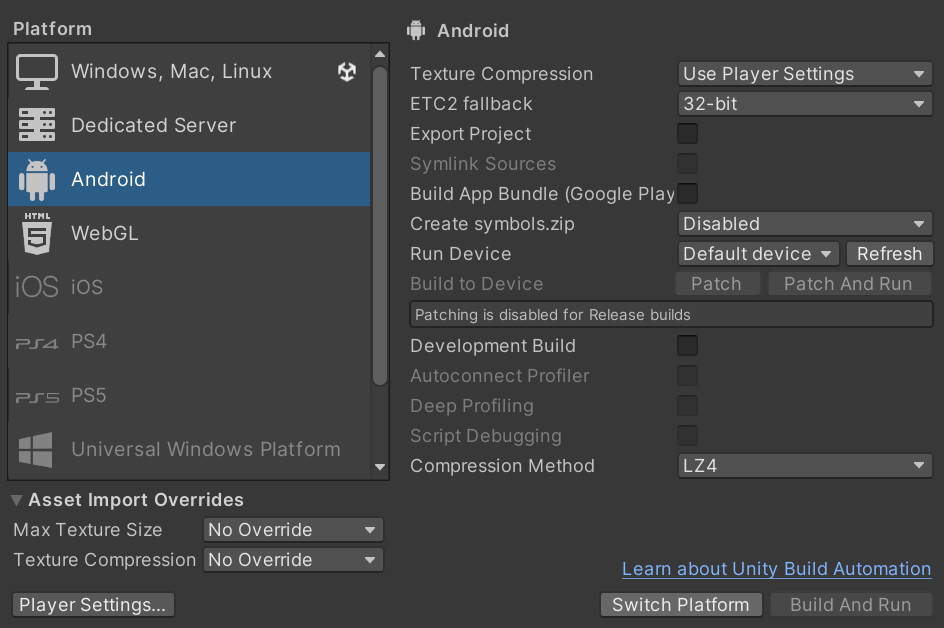
Setting the Renderpipeline to Universal Render Pipeline
Section titled “Setting the Renderpipeline to Universal Render Pipeline”
For Meta Quest XR and AR, use the URP. Our XR and AR examples are URP-based. Switch to URP via Tools > realvirtual > RenderPipeline > Switch to Universal Render Pipeline (URP) in the main menu. Find more on render pipelines in the Render Pipelines documentation.
Once your Setup is complete your projectis ready to use the VR Modules and the AR Modules.
Import the realvirtual.io Industrial Metaverse package
Section titled “Import the realvirtual.io Industrial Metaverse package”-
Import the .unitypackage file to your Assets folder and make sure to select all the required content. You will be asked to install package dependencies. Press Install/Upgrade and in the importer window make sure to select all the required content.
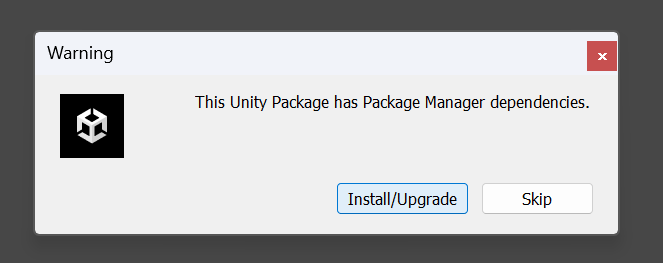
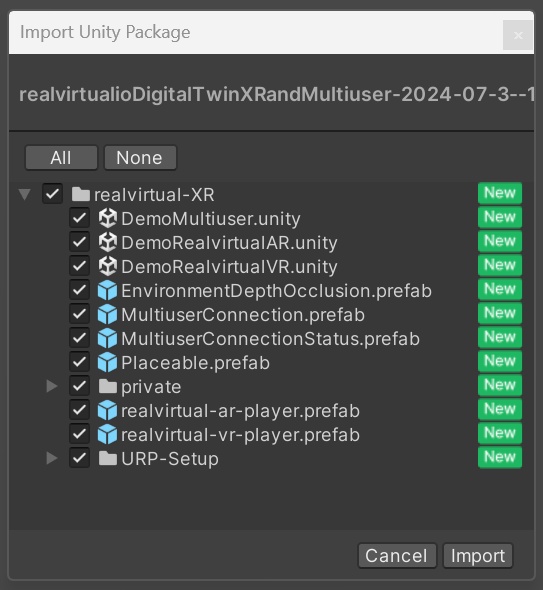 \
-
Once all the Assets are imported, restart the editor. The editor should prompt you to restart a second time in order to initialize the Meta XR SDK.
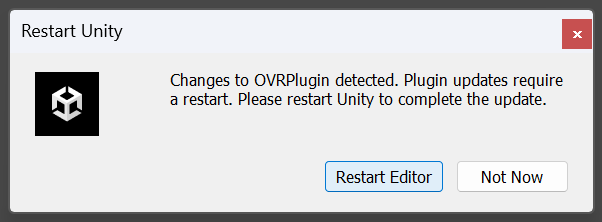 \