
TransportSurface
The TransportSurface component simulates conveyor belts and transport systems for moving objects through industrial automation processes. It provides physics-based movement of objects along defined transport paths, supporting both linear conveyors and rotational systems like turntables.
For modeling conveyor systems with MU (Movable Units), TransportSurface provides the essential physics foundation.
⚠️ Note:
For standard speed-controlled accumulation conveyor systems, you should use the purely physics-based approach withTransportSurface.
However, if this approach becomes unstable or imprecise—especially in position-controlled systems (e.g., driven by PLCs)—consider switching to a guided transport setup:
- Use
GuidedTransportfor force-based control.- Use
KinematicMUfor fully position-controlled, kinematic movement without violating physics constraints.
A Transport Surface is always connected to a Drive which controls the speed and position. The TransportSurface automatically detects and connects to Drive components in the parent hierarchy.
Basic Configuration
Section titled “Basic Configuration”- Add your conveyor GameObject with geometry (mesh or simple box)
- Add a
Drivecomponent to control movement direction and speed - Add
TransportSurfacecomponent - it automatically connects to the Drive
The TransportSurface automatically detects and connects to Drive components in parent objects.
Properties
Section titled “Properties”Core Properties
Section titled “Core Properties”Drive Reference (Drive): Optional override for automatic drive detection. Leave empty (null) for standard usage - the system automatically finds parent Drive components. Use for special cases requiring specific drive connections.
Layer (string): Physics layer assignment (default: “rvTransport”) for transport simulation physics calculations.
Use Mesh Collider (boolean): Controls collision precision vs performance. BoxCollider (default) provides better performance. MeshCollider enables precise collision for complex geometry. Changes apply immediately in Unity Inspector.
Visual Properties
Section titled “Visual Properties”Advanced Surface (boolean): Enables belt visualization with animated textures. Works with all geometry configurations including kinematic groups.
Animate Surface (boolean): Enables texture animation synchronized with transport speed.
Texture Scale (float): Texture animation speed multiplier in texture units per meter.
Constraint Management
Section titled “Constraint Management”Change Constraints On Enter/Exit (boolean): Modifies rigidbody constraints when objects enter/leave the transport surface.
Hierarchical Systems
Section titled “Hierarchical Systems”Parent Drive (Drive): For multi-axis systems where the transport surface moves relative to a parent drive (turntables, lifting conveyors).
Collider Handling
Section titled “Collider Handling”TransportSurface handles collision detection automatically - it uses existing colliders when available, or creates them automatically when needed.
Collider Management
Section titled “Collider Management”Existing Colliders: If the TransportSurface GameObject already has colliders (BoxCollider or MeshCollider), they are used directly.
Kinematic Group Integration: If the TransportSurface has a Kinematic component with group integration enabled:
- First searches for existing colliders within the kinematic group
- If existing group colliders are found, they are reused for optimal performance
- If no group colliders exist, creates a combined MeshCollider based on all meshes in the entire kinematic group
Automatic Creation: If no colliders exist and no kinematic groups are configured, TransportSurface automatically creates them at runtime using this system:
-
Standard Collision
- BoxCollider (Default): Fast, reliable collision for most conveyors
- MeshCollider (Precise): Accurate collision matching for complex shapes
- Automatically calculates the right size from your geometry
-
Fallback
- Creates basic collision even when geometry is missing
- Keeps your simulation running with warnings
- Prevents common “objects fall through” issues
Editor-Time Collider Switching
Section titled “Editor-Time Collider Switching”When you toggle the Use Mesh Collider property in the Unity Inspector, the collider type switches immediately:
- Provides visual feedback during development
- Only affects the TransportSurface GameObject
- Automatically handles component cleanup and creation
Layer Management
Section titled “Layer Management”All transport surface colliders are automatically assigned to the rvTransport layer for physics calculations. The system validates layer assignments and warns about configuration issues that could affect performance.
Advanced Surface
Section titled “Advanced Surface”The Advanced Surface option enables enhanced visual representation that now works with all geometry configurations:
Universal Geometry Support:
- Simple Objects: Uses direct MeshRenderer/MeshFilter components
- Kinematic Groups: Automatically handles distributed geometry across grouped objects using
Kinematiccomponents - Complex Hierarchies: Works with any renderer configuration in child objects
When Advanced Surface is enabled, a child GameObject named Belt is created under the TransportSurface. This includes the ConveyorBelt component with animated texture effects that accurately follow surface geometry—including curves.
The system automatically:
- Calculates bounds from any geometry configuration (direct mesh, kinematic groups, or child renderers)
- Hides original renderers appropriately based on the geometry setup
- Provides error recovery if the ConveyorBelt prefab is missing
- Handles both editor and runtime scenarios safely
Advanced Surface with enhanced geometry support
Advanced Surface texture animation
Connecting Drives to Transport Surfaces
Section titled “Connecting Drives to Transport Surfaces”TransportSurface features automatic Drive detection that makes setup effortless and intuitive:
Automatic Drive Connection
Section titled “Automatic Drive Connection”When you add a TransportSurface component:
- Flexible Drive Placement:
Drivecomponent can be on the same GameObject as TransportSurface or on any parent GameObject in the hierarchy - Automatic Discovery: The system automatically searches the current GameObject and then up the hierarchy for
Drivecomponents - Connection: Found
Drivecomponents are linked to the TransportSurface - Visual Feedback: The connection is visible in the Unity Inspector
- Automatic Setup: Works for standard conveyor configurations

Automatic Drive connection shown in Unity Inspector
Drives above the TransportSurface Drive - using parent Drives
Section titled “Drives above the TransportSurface Drive - using parent Drives ”Sometimes Unity Physics is very difficult and the solution to master it is a little bit weird. As described in Physics normal movements of a linear or rotational axis are not done based IsKinematic Rigidbodies. The transformation is done based on the Unity hierarchy and the position of Unity’s Transform because this is usually much more stable.
This causes one problem. If it is for example necessary to combine a linear or rotational movement with the Transport Surface itself this will cause problems. Unity will not move the Transport Surface Collider as expected.
To prevent this the option ParentDrive is available on the Transport Surface:
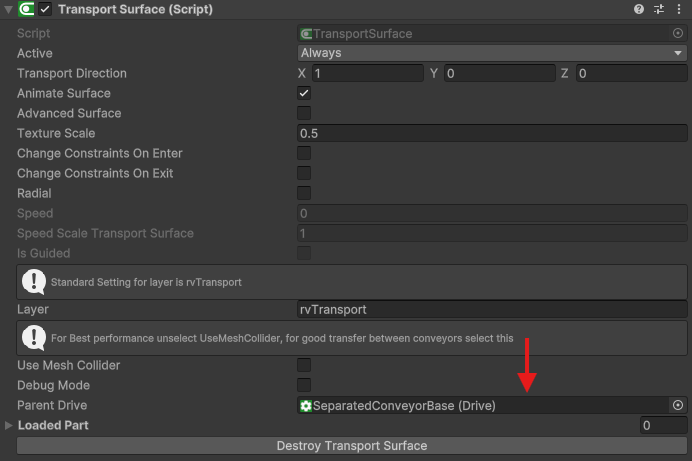
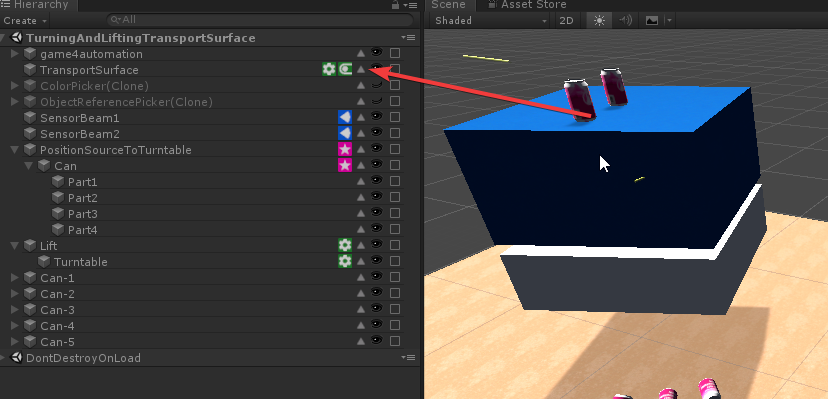
This option will automatically decouple the Transport Surface upon simulation start and will make a function as expected possible. During simulation, the Transportsurface will be without a parent in the top level of the hierarchy. You can see an example in the Demo model TurningAndLiftingTransportSurface which can be found under realvirtual.io > Scenes:
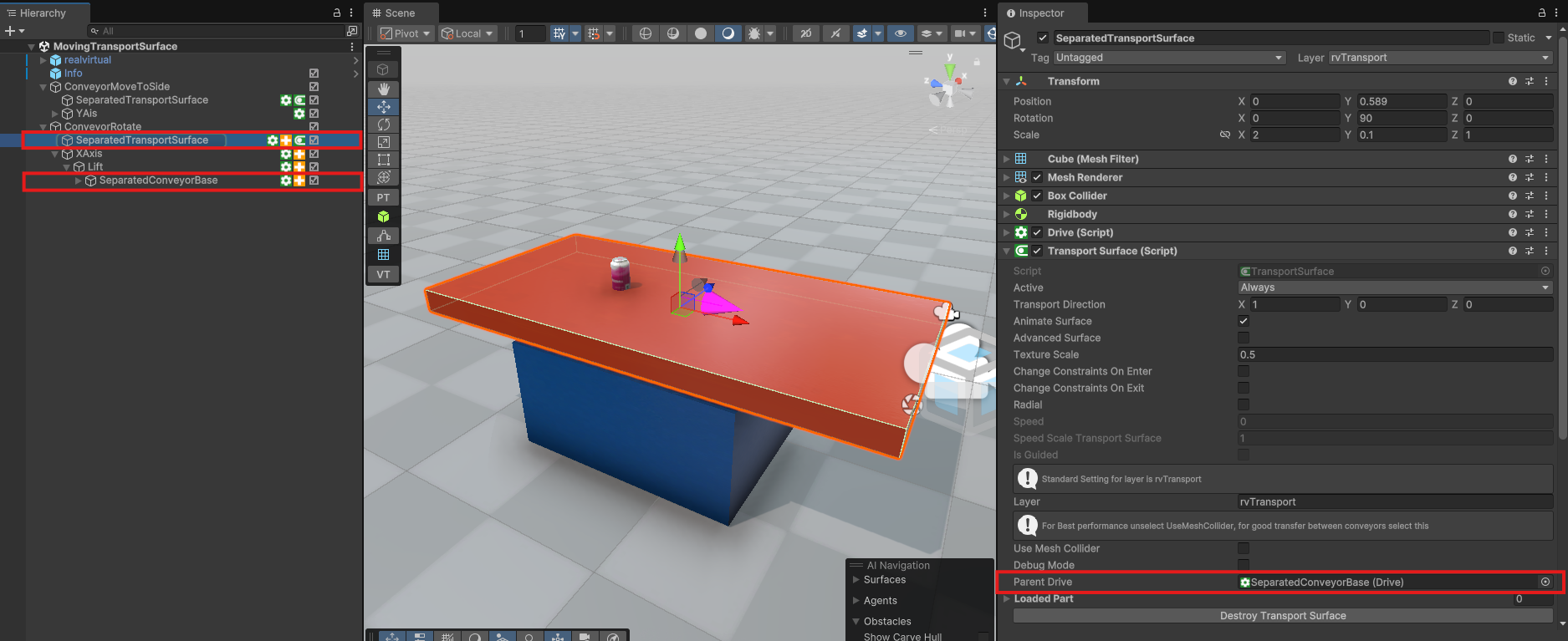
When you build up more complex kinematic structures, make sure to always keep the gameobject with the component transport surface parallel to the kinematic structure of the other drive belonging to the surface. An further expample model is MovingTransportSurface which can also be found under realvirtual.io > Scenes. The picture below shows how to define such a structure. The parent drive of the transport surface is the one which is the lowest in the kinematic structure.
Constraints of transported Objects
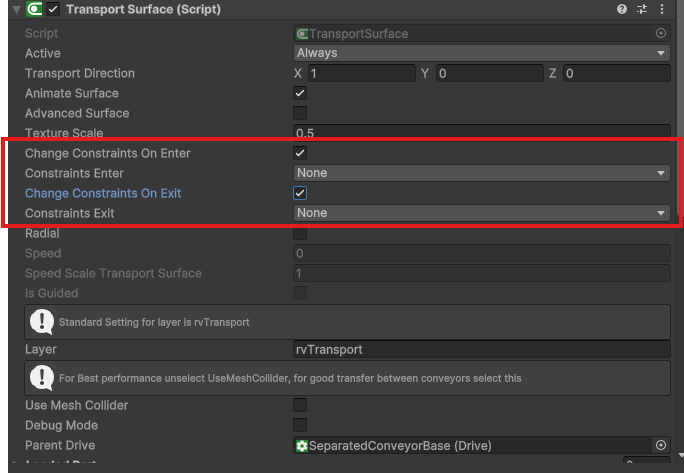
Section titled “Constraints of transported Objects”You can choose if the constraints of objects which enter the transportsurface have to be changed or not. Setting the boolean ChangeConstraintsOnEnter or ChangeConstraintsOnExit to true will give the possibility to that.
Troubleshooting
Section titled “Troubleshooting”Objects Fall Through Transport Surface
Section titled “Objects Fall Through Transport Surface”Symptoms: MUs pass through the conveyor instead of being transported
Solution: Check the layer assignment in the Inspector - should be “rvTransport”
Causes and Solutions:
- Layer Mismatch: Click on the TransportSurface GameObject, check Layer dropdown in Inspector
- Missing Collider: Enable “Use Mesh Collider” for complex geometry, or verify BoxCollider exists
- Kinematic Group Issues: Ensure all CAD parts use the same
GroupNamein theirGroupcomponents
Note: Use automatic setup to avoid manual collider creation which can cause layer issues
Poor Performance with Complex CAD Models
Section titled “Poor Performance with Complex CAD Models”Symptoms: Frame drops, sluggish physics, or slow conveyor response
Solution: Add Kinematic component and enable IntegrateGroupEnable
Performance Optimization Steps:
- Add
Kinematiccomponent to the TransportSurface GameObject - Set
IntegrateGroupEnable = true - Assign the same
GroupNameto all related CAD objects - Switch to BoxCollider if MeshCollider isn’t essential
Performance Impact: Can improve simulation speed by 10x for complex CAD assemblies
AdvancedSurface Not Working
Section titled “AdvancedSurface Not Working”Symptoms: Enhanced belt visuals don’t appear or have wrong dimensions
Diagnosis: Check Console for “ConveyorBelt prefab not found” errors
Solutions by Cause:
- Missing Prefab: ConveyorBelt prefab must exist in Resources folder
- No Geometry Bounds: Add Renderer components or verify kinematic group setup
- Kinematic Group Issues: Check that group names match across all
Groupcomponents
Note: Test AdvancedSurface with simple geometry first, then apply to complex models
Drive Connection Issues
Section titled “Drive Connection Issues”Symptoms: Conveyor doesn’t move, speed not synchronized, or no movement response
Solution: Check that Drive component exists on the same GameObject or parent GameObjects
Connection Troubleshooting:
- Drive Placement:
Drivemust be on the same GameObject as TransportSurface OR on a parent GameObject (not sibling objects) - Multiple Drives: Set Drive Reference property to specify which
Driveto use - Drive Configuration: Verify
Drivecomponent is enabled and properly configured - Hierarchy Check: Ensure TransportSurface can “see” the
Drivein its hierarchy path
Note: Use supported hierarchy structures:
- Simple:
Drive+ TransportSurface on same GameObject - Hierarchical:
Drive(parent) → TransportSurface (child or descendant)
© 2025 realvirtual https://realvirtual.io - All rights reserved. No part of this publication may be reproduced, distributed, or transmitted in any form or by any means, including printing, saving, photocopying, recording, or other electronic or mechanical methods, without the prior written permission of the publisher.