
Custom Interfaces
This guide shows you how to build your own industrial communication interfaces in realvirtual using the FastInterface framework. FastInterface provides thread-safe, high-performance communication with automatic signal management and connection handling.
Overview
Section titled “Overview”realvirtual’s FastInterface framework makes it easy to connect your simulation to external systems like PLCs, robots, IoT devices, or any system with a network API. You implement just three core methods, and FastInterface handles threading, reconnection, signal management, and UI integration automatically.
What you’ll learn:
- Setting up the FastInterface class structure
- Implementing connection and communication logic
- Handling signal exchange with thread safety
- Using metadata for protocol mapping
- Debugging and troubleshooting your interface
FastInterface Architecture
Section titled “FastInterface Architecture”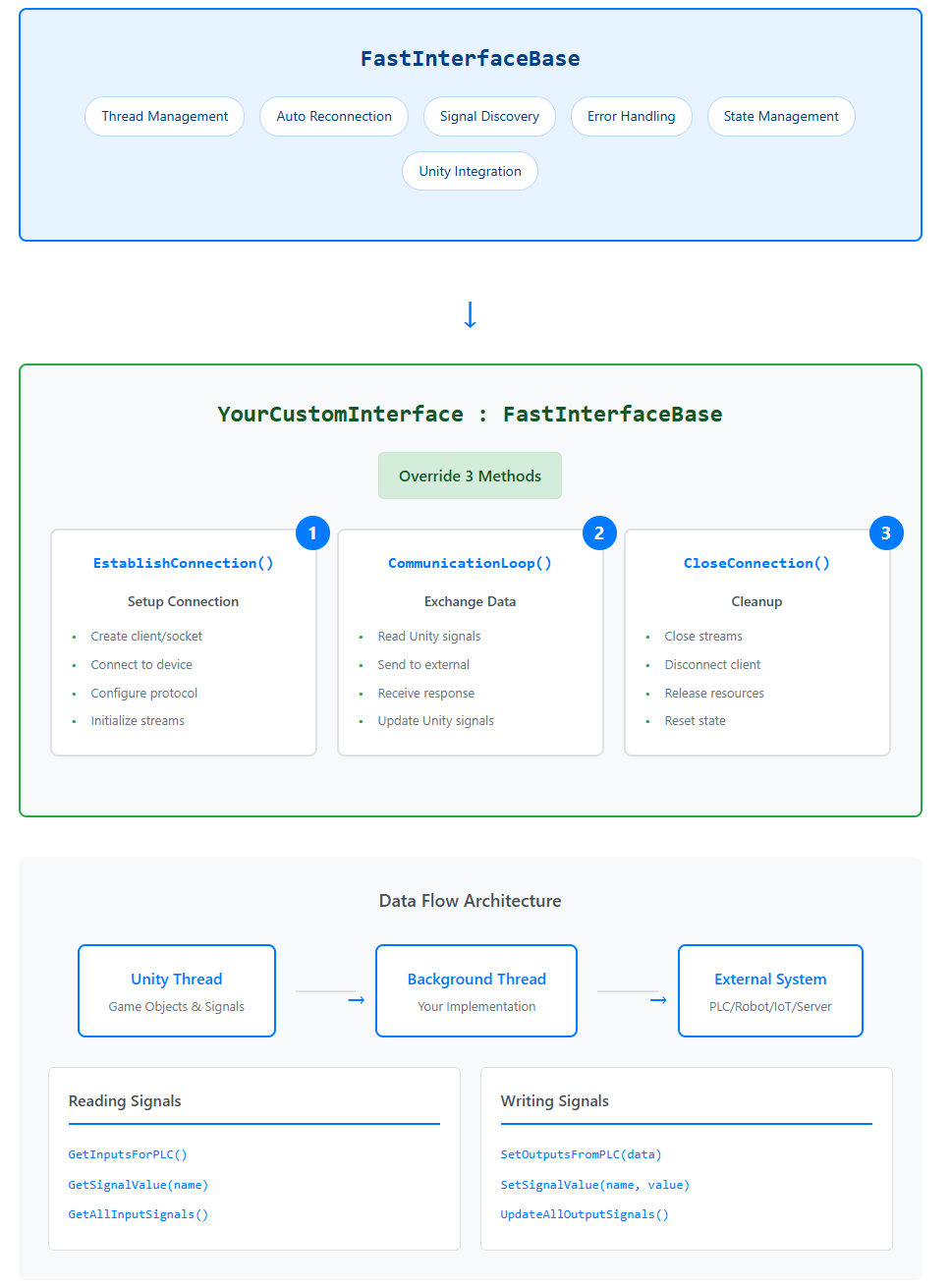
This diagram illustrates the streamlined FastInterface development approach:
FastInterface Foundation
Section titled “FastInterface Foundation”The FastInterfaceBase class provides six core services automatically:
- Thread Management: Handles background thread lifecycle
- Auto Reconnection: Automatic connection recovery on failure
- Signal Discovery: Finds and manages all child signal components
- Error Handling: Comprehensive error recovery and logging
- State Management: Connection status tracking and monitoring
- Unity Integration: Seamless Inspector UI and Unity compatibility
Simple 3-Method Implementation
Section titled “Simple 3-Method Implementation”You only need to implement 3 methods to create a complete interface:
- EstablishConnection() - Set up your protocol connection (TCP, serial, etc.)
- CommunicationLoop() - Exchange data continuously with external system
- CloseConnection() - Clean up resources and close connections
Data Flow Architecture
Section titled “Data Flow Architecture”The bottom section shows the thread-safe data flow:
- Unity Thread: Manages GameObjects and signal components
- Background Thread: Runs your protocol implementation safely
- External System: Your target device (PLC, Robot, IoT, Server)
Signal exchange uses built-in methods:
- Reading Signals:
GetInputsForPLC()- Unity → External System - Writing Signals:
SetOutputsFromPLC(data)- External System → Unity
Core Components:
- FastInterfaceBase Class - The foundation that provides thread management, reconnection logic, and signal management infrastructure
- Background Thread - All protocol communication runs on a dedicated background thread, keeping Unity’s main thread responsive
- Connection State Management - Automatic connection monitoring with visual status indicators and error reporting
- Signal Manager - Handles automatic discovery of child signal objects and manages thread-safe signal data exchange
- Thread-Safe Communication - Built-in mechanisms for safely passing data between Unity’s main thread and the background communication thread
- Precise Timing Control - Automatic integration with realvirtual’s PrePost FixedUpdate system for deterministic signal processing (Available in realvirtual 6.0.5+)
Standard Workflow:
The architecture ensures a consistent pattern across all FastInterface implementations:
- Initialize → Copy Inspector properties to thread-safe variables
- Connect → Establish connection on background thread with automatic retry logic
- Communicate → Continuous loop reading Unity signals, sending to external system, receiving responses, and updating Unity signals
- Monitor → Real-time connection state tracking with performance metrics
- Cleanup → Proper resource cleanup with graceful shutdown
Key Benefits:
- Consistency - All custom interfaces follow the same proven architecture pattern
- Reliability - Built-in connection recovery and error handling
- Performance - Non-blocking communication with optimized signal change detection
- Visibility - Inspector integration shows connection status, cycle counts, and timing metrics
- Safety - Thread-safe design prevents Unity threading issues
This standardized approach means you can focus on implementing your specific protocol logic while FastInterface handles all the complex threading, connection management, and Unity integration automatically.
Precise Timing Control (realvirtual 6.0.5+)
Section titled “Precise Timing Control (realvirtual 6.0.5+)”FastInterface automatically integrates with realvirtual’s PrePost FixedUpdate system to provide deterministic timing for industrial automation applications. This system ensures that all FastInterface components process signals at precisely the same moments relative to Unity’s physics calculations.
Timing Architecture
Section titled “Timing Architecture”PreFixedUpdate → Unity FixedUpdate → PostFixedUpdate ↓ ↓ ↓ PLC→Unity Physics/Logic Unity→PLCSignal Processing Flow:
- PreFixedUpdate Phase: All FastInterface instances synchronously process PLC outputs (data FROM PLC TO Unity objects)
- FixedUpdate Phase: Unity runs physics calculations, component logic, and movement updates
- PostFixedUpdate Phase: All FastInterface instances synchronously process PLC inputs (data FROM Unity objects TO PLC)
No Configuration Required: FastInterface automatically participates in the timing system - no additional setup or configuration needed.
FastInterface Inspector
Section titled “FastInterface Inspector”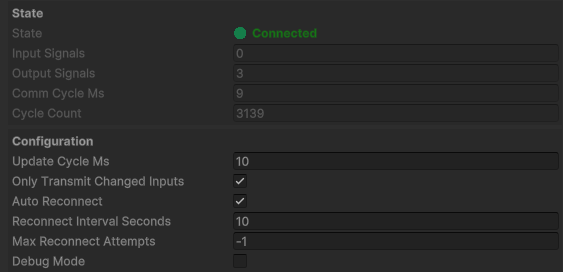
The FastInterface Inspector provides comprehensive monitoring and configuration for your custom interfaces. Understanding these fields is essential for effective interface development and troubleshooting:
State Section
Section titled “State Section”- State: Shows the current connection status with visual indicators:
- 🟢 Connected (green) - Interface is connected and communicating successfully
- 🔴 Disconnected (red) - Interface is not connected
- 🟡 Connecting (yellow) - Interface is attempting to establish connection
- 🟠 Error (orange) - Interface encountered an error and will attempt reconnection
- Input Signals: Number of input signals (Unity → External System) discovered automatically
- Output Signals: Number of output signals (External System → Unity) discovered automatically
- Comm Cycle Ms: Actual communication cycle time in milliseconds (performance indicator)
- Cycle Count: Total number of communication cycles completed since connection
Configuration Section
Section titled “Configuration Section”- Update Cycle Ms: Target cycle time in milliseconds for communication loop
- Only Transmit Changed Inputs: ✅ Performance optimization - only sends changed input values
- Auto Reconnect: ✅ Automatically attempts reconnection on connection loss
- Reconnect Interval Seconds: Wait time between reconnection attempts
- Max Reconnect Attempts: Maximum number of consecutive reconnection attempts (-1 = infinite)
- Debug Mode: ✅ Enables detailed logging for troubleshooting
Key Benefits of the Inspector:
- Real-time Monitoring - Watch connection state and performance metrics live during runtime
- Performance Optimization - “Only Transmit Changed Inputs” reduces network traffic significantly
- Automatic Recovery - Built-in reconnection logic handles temporary connection losses
- Development Support - Debug mode provides detailed logging for troubleshooting
- Signal Discovery - Automatically counts and manages all child signal objects
Why use FastInterface:
- Thread-safe background communication without blocking Unity
- Automatic reconnection with customizable retry logic
- Zero-configuration signal discovery - automatically finds all child signals
- High performance with optimized signal exchange and change detection
- Built-in debugging with comprehensive logging and state visualization
Quick Start with Template
Section titled “Quick Start with Template”The fastest way to create a custom interface is using the blueprint template. Copy one of these working templates from the realvirtual codebase:
BlueprintFastInterfaceSimple.cs- Minimal template for basic protocolsBlueprintFastInterface.cs- Full template with advanced features
Copy /Assets/realvirtual/Interfaces/Common/Fast/BlueprintFastInterfaceSimple.cs and replace the TODO sections with your protocol logic:
using System.Threading;using System.Threading.Tasks;
namespace realvirtual{    public class MyCustomInterface : FastInterfaceBase    {        [Header("Connection Settings")]        public string IPAddress = "192.168.1.100";        public int Port = 502;
        private TcpClient tcpClient;        private NetworkStream stream;
        protected override async Task EstablishConnection(CancellationToken cancellationToken)        {            // Connect to your system            tcpClient = new TcpClient();            await tcpClient.ConnectAsync(IPAddress, Port);            stream = tcpClient.GetStream();        }
        protected override async Task CommunicationLoop(CancellationToken cancellationToken)        {            // Read Unity signals to send to external system            var inputs = GetInputsForPLC();
            // Send data using your protocol            await SendData(inputs);
            // Receive data from external system            var receivedData = await ReceiveData();
            // Update Unity signals with received data            SetOutputsFromPLC(receivedData);        }
        protected override void CloseConnection()        {            stream?.Close();            tcpClient?.Close();        }    }}
Step-by-Step Implementation
Section titled “Step-by-Step Implementation”Step 1: Create Your Interface Class
Section titled “Step 1: Create Your Interface Class”Start by creating a new C# script that inherits from FastInterfaceBase:
using UnityEngine;using System;using System.Text;using System.Threading;using System.Threading.Tasks;using System.Collections.Generic;using System.Net.Sockets;
namespace realvirtual{    public class CustomNetworkInterface : FastInterfaceBase    {        [Header("Network Connection")]        public string ServerIP = "192.168.1.100";        public int Port = 8080;
        [Header("Protocol Settings")]        public string RequestCommand = "GET_DATA";        public int TimeoutMs = 1000;
        // Connection objects        private TcpClient tcpClient;        private NetworkStream stream;
        // Thread-safe copies for background thread access        private string threadSafeServerIP;        private int threadSafePort;    }}
Key points:
- Always inherit from
FastInterfaceBase - Add Inspector properties for connection settings
- Declare connection objects as private fields
- Use
[Header]attributes to organize Inspector settings
Step 2: Implement Connection Logic
Section titled “Step 2: Implement Connection Logic”The EstablishConnection method runs once on the background thread when starting communication:
protected override async Task EstablishConnection(CancellationToken cancellationToken){    ThreadSafeLogger.LogInfo($"Connecting to server {threadSafeServerIP}:{threadSafePort}", GetType().Name);
    try    {        tcpClient = new TcpClient();        await tcpClient.ConnectAsync(threadSafeServerIP, threadSafePort);        stream = tcpClient.GetStream();
        // Set socket options for reliable communication        tcpClient.ReceiveTimeout = 2000;        tcpClient.SendTimeout = 2000;
        ThreadSafeLogger.LogInfo("Network connection established", GetType().Name);    }    catch (Exception ex)    {        ThreadSafeLogger.LogError($"Failed to connect: {ex.Message}", GetType().Name);        throw; // Re-throw to trigger reconnection logic    }}
protected override void CopyPropertiesToThreadSafe(){    threadSafeServerIP = ServerIP;    threadSafePort = Port;}
Important:
- Use
ThreadSafeLoggerinstead ofDebug.Login background threads - Throw exceptions on connection failure - FastInterface handles reconnection automatically
- Copy Inspector properties to thread-safe fields using
CopyPropertiesToThreadSafe() - Use
CancellationTokenfor responsive shutdown during connection attempts
Step 3: Build the Communication Loop
Section titled “Step 3: Build the Communication Loop”The CommunicationLoop method runs repeatedly on the background thread after connection is established:
protected override async Task CommunicationLoop(CancellationToken cancellationToken){    try    {        // Step 1: Read input signals from Unity (data to send to external system)        var inputs = GetInputsForPLC();
        // Step 2: Send data to external system if we have inputs        if (inputs.Count > 0)        {            await SendDataToServer(inputs);        }
        // Step 3: Request data from external system        var receivedData = await RequestDataFromServer();
        // Step 4: Update Unity output signals with received data        if (receivedData.Count > 0)        {            SetOutputsFromPLC(receivedData);        }    }    catch (Exception ex)    {        ThreadSafeLogger.LogError($"Communication error: {ex.Message}", GetType().Name);        throw; // Re-throw to trigger reconnection    }}
private async Task SendDataToServer(Dictionary<string, object> inputs){    // Convert Unity signals to your protocol format    var pairs = new List<string>();    foreach (var kv in inputs)    {        pairs.Add($"{kv.Key}={kv.Value}");    }    var message = $"SET:{string.Join(",", pairs)}\r\n";    var messageBytes = Encoding.UTF8.GetBytes(message);
    await stream.WriteAsync(messageBytes, 0, messageBytes.Length);}
private async Task<Dictionary<string, object>> RequestDataFromServer(){    // Send request    var request = Encoding.UTF8.GetBytes("GET:ALL\r\n");    await stream.WriteAsync(request, 0, request.Length);
    // Read response    var buffer = new byte[1024];    int bytesRead = await stream.ReadAsync(buffer, 0, buffer.Length);    var response = Encoding.UTF8.GetString(buffer, 0, bytesRead);
    // Parse response into Unity signal format    return ParseServerResponse(response);}
Key concepts:
- GetInputsForPLC(): Returns all input signal values as
Dictionary<string, object> - SetOutputsFromPLC(): Updates output signals with received data
- Signal metadata: Use
TryGetSignalMetadataSafe<T>()to access signal configuration safely from background thread - Error handling: Use try/catch and ThreadSafeLogger for robust error reporting
Step 4: Handle Signal Exchange
Section titled “Step 4: Handle Signal Exchange”FastInterface provides two main methods for signal data exchange:
// In CommunicationLoop - read signals to send to external systemvar allInputs = GetInputsForPLC(); // Gets all input signalsvar changedOnly = GetChangedInputsForPLC(); // Performance optimization - only changed signals
// Update output signals with data received from external systemvar outputData = new Dictionary<string, object>{    ["Motor1_Running"] = true,    ["Motor1_Speed"] = 1500,    ["Temperature"] = 23.5f,    ["Status"] = "Running"};SetOutputsFromPLC(outputData);
Performance optimization:
- Use
OnlyTransmitChangedInputs = truein Inspector to only send changed input signals - Access this setting thread-safely with
threadSafeOnlyTransmitChangedInputs - Use appropriate data types - FastInterface handles conversion automatically
Step 5: Implement Connection Cleanup
Section titled “Step 5: Implement Connection Cleanup”The CloseConnection method runs on the background thread when stopping communication:
protected override void CloseConnection(){    try    {        ThreadSafeLogger.LogInfo("Closing network connection", GetType().Name);
        stream?.Close();        stream?.Dispose();        tcpClient?.Close();        tcpClient?.Dispose();
        stream = null;        tcpClient = null;    }    catch (Exception ex)    {        ThreadSafeLogger.LogError($"Error during cleanup: {ex.Message}", GetType().Name);    }}
Advanced Features
Section titled “Advanced Features”Using Signal Metadata for Protocol Mapping
Section titled “Using Signal Metadata for Protocol Mapping”Signal metadata allows you to store protocol-specific configuration with each signal:
// Set metadata when importing signals (main thread only)protected virtual void OnInterfaceStarting(){    // Find all signals and add Modbus metadata    foreach (var signal in this.GetAllSignals())    {        if (signal.name.Contains("Motor"))        {            signal.SetMetadata("RegisterAddress", 100);            signal.SetMetadata("DataType", "INT16");        }        else if (signal.name.Contains("Temperature"))        {            signal.SetMetadata("RegisterAddress", 200);            signal.SetMetadata("DataType", "FLOAT32");        }    }}
// Access metadata safely from background threadprotected override async Task CommunicationLoop(CancellationToken cancellationToken){    foreach (var input in GetInputsForPLC())    {        // Thread-safe metadata access        if (TryGetSignalMetadataSafe<int>(input.Key, "RegisterAddress", out int address))        {            var dataType = GetSignalMetadataSafe<string>(input.Key, "DataType", "INT16");            await WriteRegister(address, ConvertValue(input.Value, dataType));        }    }}
Dynamic Signal Import
Section titled “Dynamic Signal Import”You can create and update signals dynamically using the signal management API:
[Button("Import Modbus Signals")]private void ImportSignalsFromModbus(){    // Example: Import from a Modbus configuration    var signalConfigs = new[]    {        new { Name = "Motor1_Running", Type = SignalType.Bool, Direction = SignalDirection.Output, Address = 100 },        new { Name = "Motor1_Speed", Type = SignalType.Int, Direction = SignalDirection.Input, Address = 101 },        new { Name = "Temperature", Type = SignalType.Float, Direction = SignalDirection.Output, Address = 200 }    };
    foreach (var config in signalConfigs)    {        var metadata = new Dictionary<string, object>        {            ["RegisterAddress"] = config.Address,            ["DataType"] = config.Type.ToString()        };
        // Create or update signal with metadata        var signal = this.CreateOrUpdateSignal(config.Name, config.Type, config.Direction, metadata);        Debug.Log($"Created/Updated signal: {signal.name}");    }
    // Refresh signal manager to update internal caches    this.RefreshSignalManager();}
Thread-Safe Property Access
Section titled “Thread-Safe Property Access”For Inspector properties that need background thread access, copy them to thread-safe fields:
public class MyInterface : FastInterfaceBase{    [Header("Settings")]    public string ServerAddress = "192.168.1.100";    public int Timeout = 1000;    public bool EnableExtendedLogging = false;
    // Thread-safe copies    private string threadSafeServerAddress;    private int threadSafeTimeout;    private bool threadSafeLogging;
    // Called automatically before background thread starts    protected override void CopyPropertiesToThreadSafe()    {        threadSafeServerAddress = ServerAddress;        threadSafeTimeout = Timeout;        threadSafeLogging = EnableExtendedLogging;    }
    protected override async Task EstablishConnection(CancellationToken cancellationToken)    {        // Use thread-safe copies in background thread        client.ConnectTimeout = threadSafeTimeout;        await client.ConnectAsync(threadSafeServerAddress, 502);
if (threadSafeLogging) { ThreadSafeLogger.LogInfo("Extended logging enabled", GetType().Name); } }}Best Practices
Section titled “Best Practices”Performance Optimization
Section titled “Performance Optimization”-
Use change detection for input signals:
// Enable in Inspector or codeOnlyTransmitChangedInputs = true;// Or manually check for changesvar changedInputs = GetChangedInputsForPLC(); -
Cache signal metadata for better performance:
private Dictionary<string, int> signalToRegisterMap = new Dictionary<string, int>();protected virtual void OnInterfaceStarting(){foreach (var signal in this.GetAllSignals()){if (signal.GetMetadata<int>("RegisterAddress", out int address)){signalToRegisterMap[signal.GetSignalName()] = address;}}} -
Batch operations when possible:
// Instead of writing registers one by oneforeach (var input in inputs)await WriteSingleRegister(address, value);// Write multiple registers at onceawait WriteMultipleRegisters(startAddress, allValues);
Thread Safety Guidelines
Section titled “Thread Safety Guidelines”-
Never access Unity GameObjects from background thread methods (
EstablishConnection,CommunicationLoop,CloseConnection) -
Use ThreadSafeLogger instead of Debug.Log in background threads:
// Background thread - CORRECTThreadSafeLogger.LogInfo("Connection established", GetType().Name);ThreadSafeLogger.LogError("Failed to connect", GetType().Name);// Background thread - INCORRECTDebug.Log("This will cause errors!"); -
Copy Inspector properties to thread-safe fields:
// Inspector property (main thread only)public string ServerIP = "192.168.1.100";// Thread-safe copy (background thread safe)private string threadSafeServerIP;protected override void CopyPropertiesToThreadSafe(){threadSafeServerIP = ServerIP; // Called automatically} -
Use thread-safe signal metadata access:
// Background thread safeif (TryGetSignalMetadataSafe<int>(signalName, "Address", out int address)){// Use address safely}// Main thread onlysignal.SetMetadata("Address", 100);
Error Handling and Debugging
Section titled “Error Handling and Debugging”-
Comprehensive error handling:
protected override async Task CommunicationLoop(CancellationToken cancellationToken){try{await DoProtocolCommunication();}catch (SocketException ex){ThreadSafeLogger.LogError($"Network error: {ex.Message}", GetType().Name);throw; // Re-throw to trigger reconnection}catch (TimeoutException ex){ThreadSafeLogger.LogWarning($"Communication timeout: {ex.Message}", GetType().Name);throw;}catch (Exception ex){ThreadSafeLogger.LogError($"Unexpected error: {ex.Message}", GetType().Name);throw;}} -
Enable debug mode for detailed logging:
// Set in Inspector or codeDebugMode = true;// Add conditional loggingif (threadSafeDebugMode){ThreadSafeLogger.LogInfo($"Sending {inputs.Count} signals", GetType().Name);} -
Monitor connection state in Inspector:
- State: Shows current connection status with visual indicators
- CycleCount: Number of communication cycles completed
- CommCycleMs: Actual communication timing
- ErrorMessage: Last error message if connection failed
Testing Your Interface
Section titled “Testing Your Interface”-
Start with the blueprint - copy
BlueprintFastInterface.csfor a working foundation -
Test connection logic first:
protected override async Task EstablishConnection(CancellationToken cancellationToken){ThreadSafeLogger.LogInfo("Testing connection...", GetType().Name);await Task.Delay(100); // Simulate successful connectionThreadSafeLogger.LogInfo("Connection test successful", GetType().Name);} -
Add simulation mode for testing without external hardware:
[Header("Testing")]public bool SimulationMode = true;protected override async Task CommunicationLoop(CancellationToken cancellationToken){if (threadSafeSimulationMode){// Simulate received data for testingvar testOutputs = new Dictionary<string, object>{["TestBool"] = UnityEngine.Random.value > 0.5f,["TestInt"] = UnityEngine.Random.Range(0, 100)};SetOutputsFromPLC(testOutputs);}else{// Real protocol implementationawait DoRealCommunication();}}
Troubleshooting
Section titled “Troubleshooting”Common Issues
Section titled “Common Issues”Interface doesn’t connect:
- Check network connectivity and firewall settings
- Verify IP address and port configuration
- Look for error messages in Unity Console and Interface Inspector
- Test with external tools (telnet, protocol-specific clients)
Signals not updating:
- Verify signals are child objects of the interface GameObject
- Check signal directions (Input vs Output)
- Enable Debug Mode for detailed signal logging
- Ensure metadata mapping is correct
Performance issues:
- Enable
OnlyTransmitChangedInputsto reduce network traffic - Increase
UpdateCycleMsif communication is too frequent - Use batch operations instead of individual signal writes
- Check for blocking operations in CommunicationLoop
Threading errors:
- Never access Unity GameObjects from background thread methods
- Use ThreadSafeLogger instead of Debug.Log in background threads
- Copy Inspector properties to thread-safe fields
- Use thread-safe metadata access methods
Debug Tools
Section titled “Debug Tools”-
Inspector debugging:
- Enable Debug Mode for detailed logging
- Monitor State field for connection status
- Check ErrorMessage for failure details
- Watch CycleCount and CommCycleMs for performance
-
Console logging:
ThreadSafeLogger.LogInfo($"Processing {inputs.Count} inputs", GetType().Name);ThreadSafeLogger.LogInfoIf(threadSafeDebugMode, "Debug details here", GetType().Name); -
Signal state monitoring:
// Log all signal values periodicallyif (privateCycleCount % 100 == 0){foreach (var input in GetInputsForPLC()){ThreadSafeLogger.LogInfo($"Input {input.Key} = {input.Value}", GetType().Name);}}
FastInterface API Reference
Section titled “FastInterface API Reference”FastInterface provides several high-performance helper methods for signal operations in your custom implementations. These methods are available through extension methods and provide thread-safe, optimized signal access.
Signal Value Operations
Section titled “Signal Value Operations”// Get signal value with type safetyT GetSignalValue<T>(string signalName)bool TryGetSignalValue<T>(string signalName, out T value)
// Set signal value with type safetyvoid SetSignalValue<T>(string signalName, T value)bool TrySetSignalValue<T>(string signalName, T value)
// Examples in your CommunicationLoop:var motorSpeed = this.GetSignalValue<int>("Motor1_Speed");var isRunning = this.GetSignalValue<bool>("Motor1_Running");
this.SetSignalValue("Temperature", 23.5f);this.SetSignalValue("Status", "Connected");Batch Signal Operations
Section titled “Batch Signal Operations”// High-performance batch operations for communication loopsDictionary<string, object> GetInputsForPLC() // Unity → External Systemvoid SetOutputsFromPLC(Dictionary<string, object> values) // External System → Unity
// Get all signal values at onceDictionary<string, object> GetAllSignalValues()
// Set multiple signals efficientlyvoid SetMultipleSignalValues(Dictionary<string, object> values)
// Example usage:protected override async Task CommunicationLoop(CancellationToken cancellationToken){ // Read Unity signals to send to external system var inputs = GetInputsForPLC(); await SendToExternalSystem(inputs);
// Receive data and update Unity signals var receivedData = await ReceiveFromExternalSystem(); SetOutputsFromPLC(receivedData);}Signal Discovery and Management
Section titled “Signal Discovery and Management”// Signal discovery and checkingbool HasSignal(string signalName)int GetSignalCount()Signal GetSignalComponent(string signalName)
// Get signals by directionIEnumerable<Signal> GetInputSignals()IEnumerable<Signal> GetOutputSignals()IEnumerable<Signal> GetAllSignals()
// Get signal names (thread-safe)List<string> GetInputSignalNames()List<string> GetOutputSignalNames()List<string> GetAllSignalNames()
// Example usage:protected virtual void OnInterfaceStarting(){ var inputCount = this.GetInputSignals().Count(); var outputCount = this.GetOutputSignals().Count(); ThreadSafeLogger.LogInfo($"Found {inputCount} inputs, {outputCount} outputs", GetType().Name);}Thread-Safe Metadata Access
Section titled “Thread-Safe Metadata Access”// Get metadata safely from background threadT GetSignalMetadataSafe<T>(string signalName, string key, T defaultValue = default(T))bool HasSignalMetadataSafe(string signalName, string key)Dictionary<string, object> GetAllSignalMetadataSafe(string signalName)
// Set metadata (main thread only)void SetSignalMetadata(string signalName, string key, object value)
// Example: Using metadata for register mappingprotected override async Task CommunicationLoop(CancellationToken cancellationToken){ var inputs = GetInputsForPLC(); foreach (var input in inputs) { // Get register address from metadata if (TryGetSignalMetadataSafe<int>(input.Key, "RegisterAddress", out int address)) { await WriteModbusRegister(address, input.Value); } }}Dynamic Signal Creation
Section titled “Dynamic Signal Creation”// Create signals dynamicallySignal CreateSignalSafe(string name, SignalType signalType, SignalDirection direction)Signal CreateSignalWithMetadata(string name, SignalType signalType, SignalDirection direction, Dictionary<string, object> metadata = null)
// Create or update existing signalsSignal CreateOrUpdateSignal(string signalName, SignalType signalType, SignalDirection direction, Dictionary<string, object> metadata = null)
// Example: Import signals from external system configuration[Button("Import PLC Signals")]private void ImportPLCSignals(){ var signalConfigs = GetPLCConfiguration(); // Your method to get PLC signal list
foreach (var config in signalConfigs) { var metadata = new Dictionary<string, object> { ["RegisterAddress"] = config.Address, ["DataType"] = config.Type };
var signal = this.CreateSignalWithMetadata( config.Name, config.SignalType, config.Direction, metadata);
ThreadSafeLogger.LogInfo($"Created signal: {signal.name}", GetType().Name); }
// Refresh manager after creating signals this.RefreshSignalManager();}Signal Manager Utilities
Section titled “Signal Manager Utilities”// Refresh signal manager after creating/modifying signalsvoid RefreshSignalManager()
// Check if high-performance mode is activebool IsHighPerformanceModeActive()
// Example usage after signal creation:private void SetupCustomSignals(){ // Create your signals... CreateSignalSafe("CustomSignal1", SignalType.Bool, SignalDirection.Input); CreateSignalSafe("CustomSignal2", SignalType.Float, SignalDirection.Output);
// Refresh manager to enable high-performance access this.RefreshSignalManager();}Common Usage Patterns
Section titled “Common Usage Patterns”Pattern 1: Metadata-Based Protocol Mapping
Section titled “Pattern 1: Metadata-Based Protocol Mapping”// Setup phase (main thread)protected virtual void OnInterfaceStarting(){ foreach (var signal in this.GetAllSignals()) { if (signal.name.Contains("Motor")) { signal.SetMetadata("RegisterAddress", GetMotorRegisterAddress(signal.name)); signal.SetMetadata("DataType", "INT16"); } } this.RefreshSignalManager();}
// Communication phase (background thread)protected override async Task CommunicationLoop(CancellationToken cancellationToken){ var inputs = GetInputsForPLC(); foreach (var input in inputs) { if (TryGetSignalMetadataSafe<int>(input.Key, "RegisterAddress", out int address)) { var dataType = GetSignalMetadataSafe<string>(input.Key, "DataType", "INT16"); await WriteRegisterWithType(address, input.Value, dataType); } }}Pattern 2: Dynamic Signal Import
Section titled “Pattern 2: Dynamic Signal Import”[Button("Import from Configuration File")]private void ImportSignalsFromConfig(){ var config = LoadConfigurationFile(); // Your config loading method
foreach (var signalDef in config.Signals) { var metadata = new Dictionary<string, object> { ["Address"] = signalDef.Address, ["ScaleFactor"] = signalDef.Scale, ["Unit"] = signalDef.Unit };
this.CreateOrUpdateSignal( signalDef.Name, signalDef.Type, signalDef.Direction, metadata); }
this.RefreshSignalManager(); ThreadSafeLogger.LogInfo($"Imported {config.Signals.Count} signals", GetType().Name);}Pattern 3: High-Performance Communication
Section titled “Pattern 3: High-Performance Communication”protected override async Task CommunicationLoop(CancellationToken cancellationToken){ try { // Efficient batch read of all Unity input signals var inputs = GetInputsForPLC();
if (inputs.Count > 0) { // Send all inputs in one operation await SendBatchData(inputs); }
// Receive all data in one operation var outputs = await ReceiveBatchData();
if (outputs.Count > 0) { // Update all Unity output signals in one batch SetOutputsFromPLC(outputs); } } catch (Exception ex) { ThreadSafeLogger.LogError($"Communication error: {ex.Message}", GetType().Name); throw; // Re-throw to trigger reconnection }}