
Unity Scripting
Unity Scripting is done with C# scripts. All realvirtual.io functionality is done based on C# Scripting. The possibilities are endless. As an editor you need to have a C# editor like Visual Studio or Rider installed. You can find a lot of information about C# and C# scripting on the Internet. For a full documentation of the Unity API please go to this page:
🔗 https://docs.unity3d.com/Manual/ScriptingSection.html
If you are already a programmer you might prefer to use C# scripts instead of the visual scripting approaches like logicsteps.md, unity-visual-scripting.md or Broken link.
Installation of Visual Studio, Rider or another Scripting environment
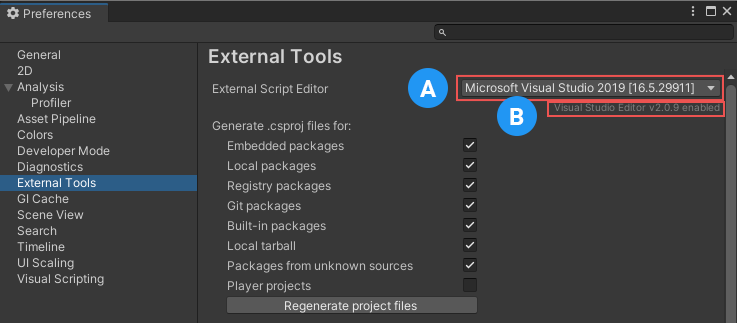
Section titled “Installation of Visual Studio, Rider or another Scripting environment”Before scripting in C# you need to install Visual Studio or Rider. Please check the documentation on the Unity website about installing Visual Studio:
🔗 https://docs.unity3d.com/Manual/VisualStudioIntegration.html
Scripting realvirtual.io with C#
Section titled “Scripting realvirtual.io with C# ”Most important thing is, if you wan to use realvirtual.io classes and properties, to embed it by putting this using in front of your code (or alternatively put your code into the
using game4automation;
Here is a small example of a PLC like script for controlling a Drive based on a Sensor:
    using realvirtual;    using UnityEngine;
    //! PLC Script for the game4automation demo model    public class PLC_CanConveyor : ControlLogic    {        public bool On = true;
        [Header("References")] public PLCOutputBool StartConveyor;        public PLCInputBool SensorOccupied;        public PLCInputBool ButtonConveyorOn;        public PLCOutputBool LampCanAtPosition;
        // Call this when all Updates are done        void FixedUpdate()        {
            if (SensorOccupied.Value == false && On && ButtonConveyorOn.Value == true)            {                StartConveyor.Value = true;            }            else            {                StartConveyor.Value = false;            }
            LampCanAtPosition.Value = SensorOccupied.Value;        }    }