
Project Path Display
A compact Unity Editor feature that displays the current project path directly in Unity’s toolbar for easy reference during development.
Overview
Section titled “Overview”The Project Path Display shows the full path of your current Unity project in Unity’s main toolbar, providing immediate visual confirmation of which project you’re working on. This feature is particularly useful when working with multiple realvirtual projects or when team members need to verify project directories.
Features
Section titled “Features”Toolbar Integration
Section titled “Toolbar Integration”The Project Path Display is now integrated directly into Unity’s main toolbar, providing immediate visibility without taking up additional screen space:

Project path displayed in Unity's main toolbar showing "E:\realvirtual6\game4automation\realvirtual"
Configuration Options
Section titled “Configuration Options”Access the Project Path Display settings through the right-click menu in the toolbar:

Right-click menu showing "Show Project Path in Toolbar" and "Apply Standard Settings" options
Properties
Section titled “Properties”- Toolbar Integration: Displays directly in Unity’s main toolbar for maximum visibility
- Auto-updating: Path updates automatically if the project changes
- Space Efficient: No additional window required - integrated into existing interface
- Always Accessible: Visible whenever Unity is open
- Context Menu: Easy toggle on/off through right-click options
Enabling the Feature
Section titled “Enabling the Feature”Method 1: realvirtual Menu
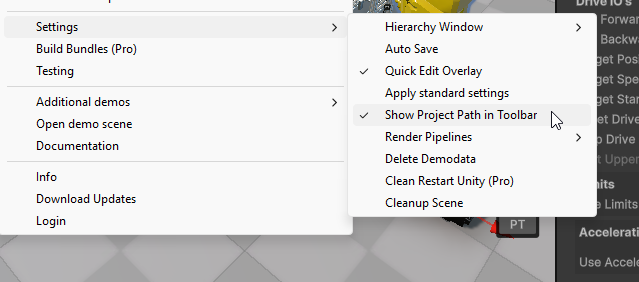
realvirtual menu showing "Show Project Path in Toolbar" and "Apply standard settings" options
- Go to realvirtual menu in Unity’s main menu bar
- Select “Show Project Path in Toolbar” (✓ indicates it’s enabled)
- The full project path will immediately appear in the toolbar
Method 2: Right-Click Context Menu
- Right-click on the Unity toolbar (in the project path area)
- Select “Show Project Path in Toolbar” from the context menu
- The full project path will immediately appear in the toolbar
Disabling the Feature
Section titled “Disabling the Feature”- Uncheck “Show Project Path in Toolbar” from either the realvirtual menu or right-click context menu
- The project path display will be hidden from the toolbar
Additional Features
Section titled “Additional Features”Project Settings
Section titled “Project Settings”The realvirtual menu also provides access to “Apply standard settings” which configures comprehensive Unity project settings optimized for industrial automation.
For detailed information about this feature, see the dedicated Project Settings page.
See Also
Section titled “See Also”- Editor User Interface - Overview of all editor interface tools
- Quick Edit - Quick edit overlay menu with toolbar integration