
Login & Download Updates (Pro)
Customers using the Professional version of realvirtual can access the User Hub, an in-app tool to manage your license, download updates, and activate the UPM registry.
The User Hub has four tabs: News, Login, Downloads, and Packages.
Opening the User Hub
Section titled “Opening the User Hub”Access the User Hub from the Unity main menu:
Tools > realvirtual > User Hub
Or via the realvirtual toolbar dropdown in the editor toolbar.
The Login tab offers two login methods, selectable at the top:
Invoice + ZIP
Section titled “Invoice + ZIP”Use this method if you purchased realvirtual directly or via the Unity Asset Store:
- Select Invoice + ZIP as the login method
- Enter your Invoice Number — a realvirtual invoice or Unity Asset Store invoice number
- Enter your Billing ZIP Code — required for realvirtual invoices, leave empty for Unity Asset Store invoices
- Enter your Email address
- Check the License Agreement checkbox
- Click Login
Temporary License Key
Section titled “Temporary License Key”Use this method if you received a Partner Key (PK-XXXX-XXXX-XXXX) or a Temporary Code (SUB-XXXX-XXXX-XXXX-XXXX) from your sales partner or license administrator:
- Select Temporary License Key as the login method
- Enter your key or code in the Code field
- Enter your Email address
- Click Login
Your license activates immediately. Keys and codes track concurrent sessions — when you close Unity, your seat is freed for others.
Once logged in, the Account Status shows You are logged in in green.
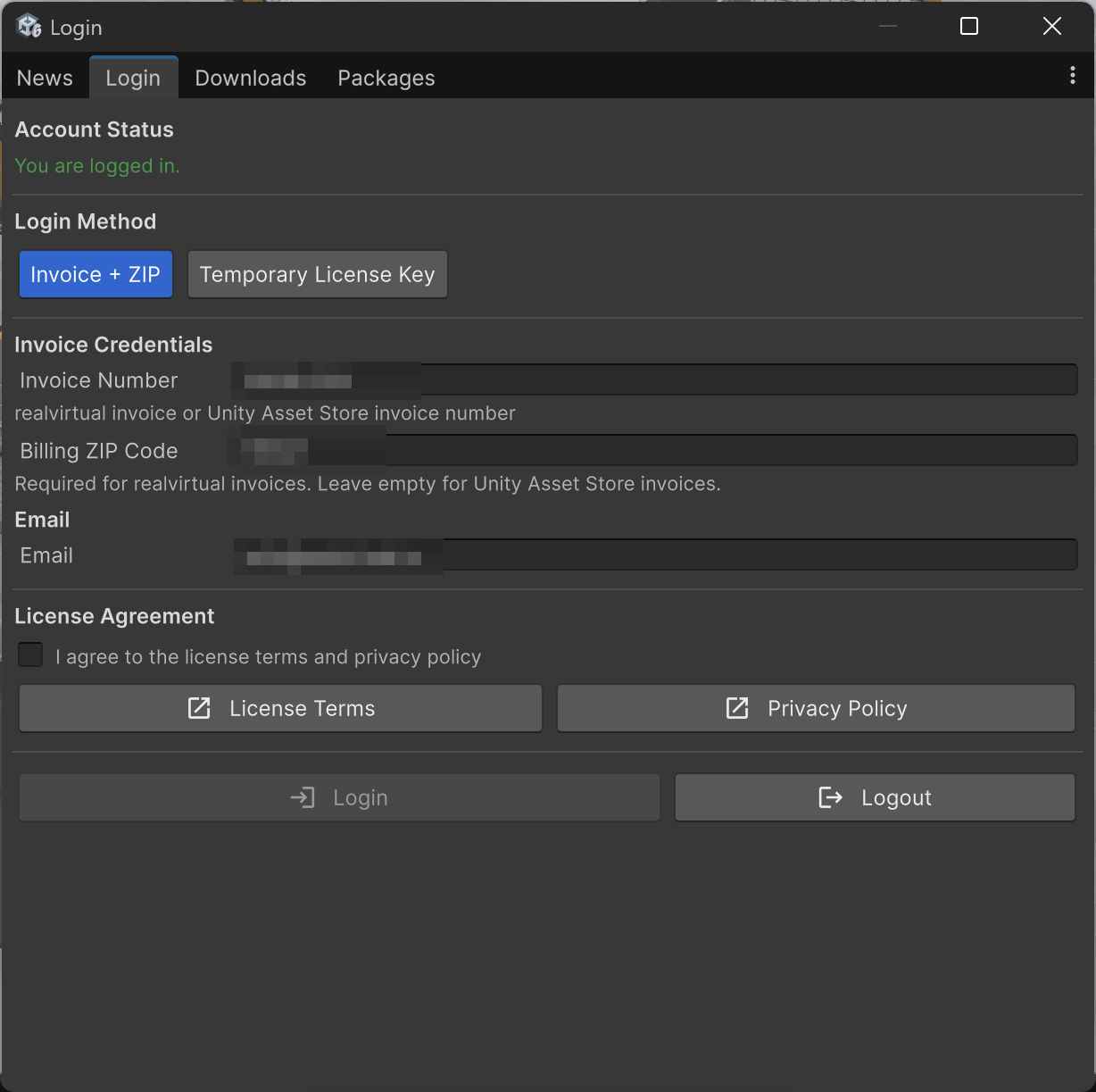
User Hub — Login tab with Invoice + ZIP method
Downloads
Section titled “Downloads”The Downloads tab lists all packages available for your license. Click Refresh to update the list.
Available packages include:
- UPM packages (
.tgz) — For Unity 6 projects (e.g.,io.realvirtual.professional,io.realvirtual.starter) - Legacy packages (
.unitypackage) — For older Unity versions - Archived versions — Previous releases for backward compatibility
Click Download next to any package to download it.
One-Click Install
Section titled “One-Click Install”UPM packages (.tgz) additionally show an Install button. Click it to download the package and install it directly into the open project — no manual Package Manager → Add package from tarball step needed. The status line below the file list shows the download progress and the installation result.
The package is installed as a local tarball in your project’s Packages folder. If you use the UPM registry (see below), activating the registry switches the package back to registry-based updates.
When installing realvirtual for the first time into a project, install io.realvirtual.starter before io.realvirtual.professional.
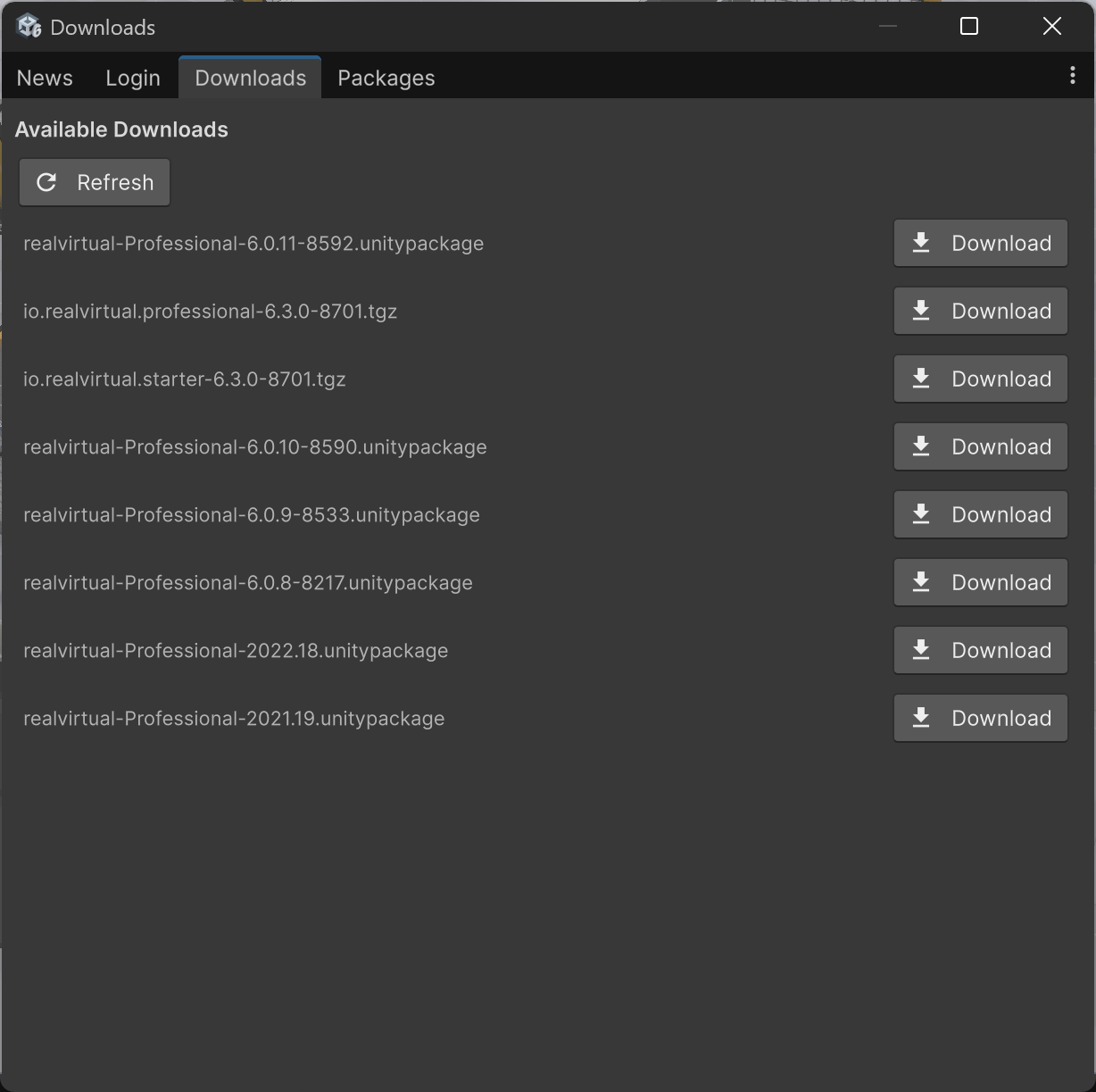
User Hub — Downloads tab with available packages
Packages
Section titled “Packages”The Packages tab manages the realvirtual UPM scoped registry for automatic package updates.
UPM Registry
Section titled “UPM Registry”After logging in, click Activate Registry to configure the realvirtual scoped registry in your project. Once active, the status shows Active in green along with the current channel.
Select a Channel:
- Stable — Production-ready releases
- Beta — Early access to upcoming features
Installed Packages
Section titled “Installed Packages”Click Check for Updates to see if newer versions are available on the registry.
What’s New
Section titled “What’s New”Shows the latest package versions available on the registry. Click Release Notes to open the full release notes in your browser.
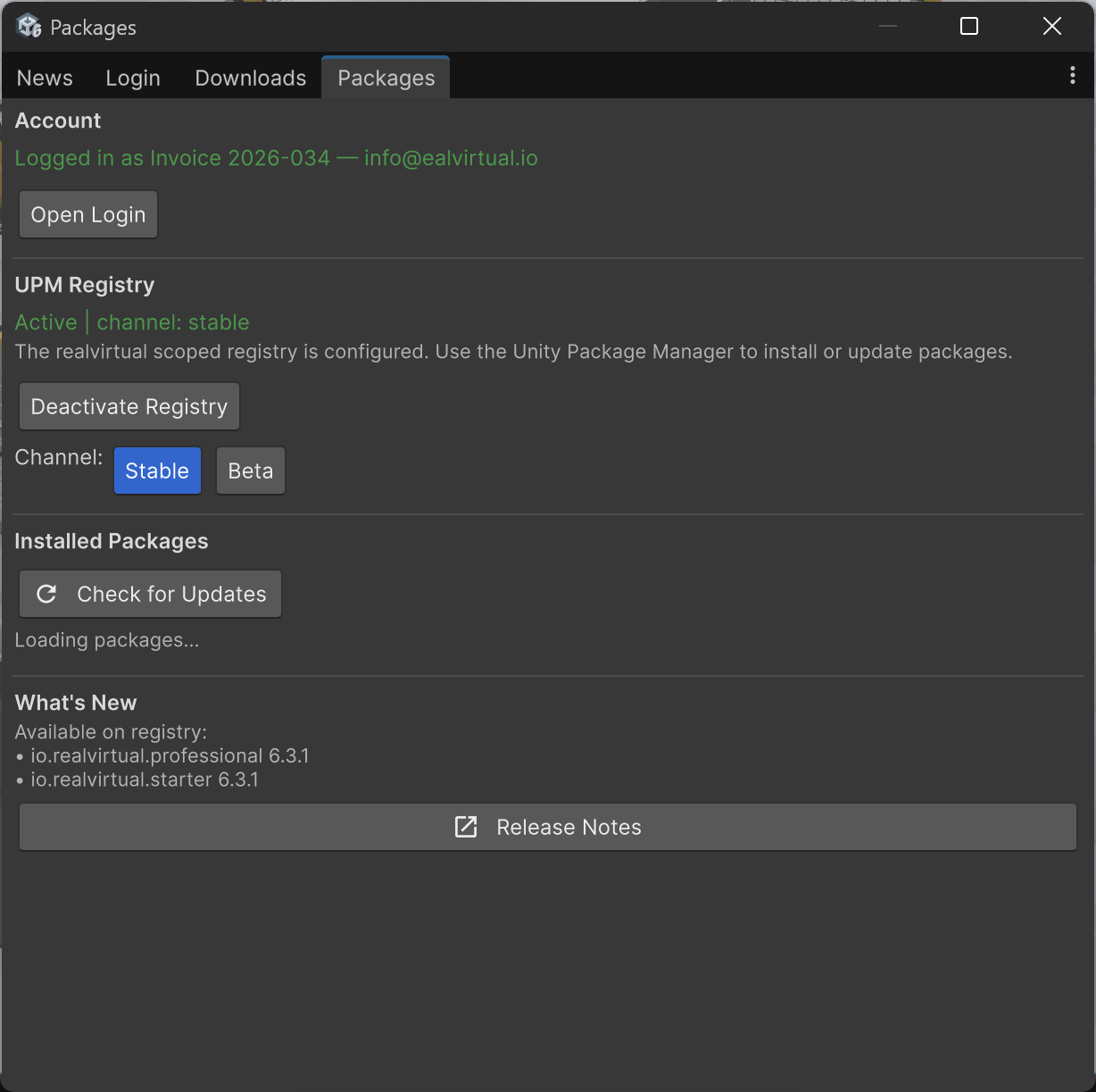
User Hub — Packages tab with UPM registry and channel selection
Once the registry is activated, realvirtual packages also appear in Window > Package Manager under “My Registries” and can be updated like any other UPM package.
Updates Behind Corporate Proxies
Section titled “Updates Behind Corporate Proxies”Some corporate networks use TLS-inspection proxies that replace server certificates with a company-internal certificate. The Unity Package Manager validates certificates against its own certificate store, so registry updates can fail with a certificate error even though the realvirtual registry certificate is valid.
The User Hub handles this automatically: when a package update fails with a certificate or network error, it downloads the package directly using the operating system trust store, saves it as a tarball in your project’s Packages folder, and installs it from there. The status line shows the download progress. No manual steps are required — just click Update as usual.
After a fallback installation, the package is referenced as a local tarball in your manifest.json. As soon as the registry is reachable again (for example after your IT adds an exception), click Activate Registry to switch the package back to registry-based updates.
For a permanent solution, ask your IT department to exclude download.realvirtual.io from TLS inspection — the same exception commonly configured for npm or NuGet registries.
The News tab displays release notes and information about new features for each version. It appears automatically once when you start the Unity Editor.
Each release entry includes a summary of new features, improvements, and bug fixes along with a Release Notes button linking to the full documentation.
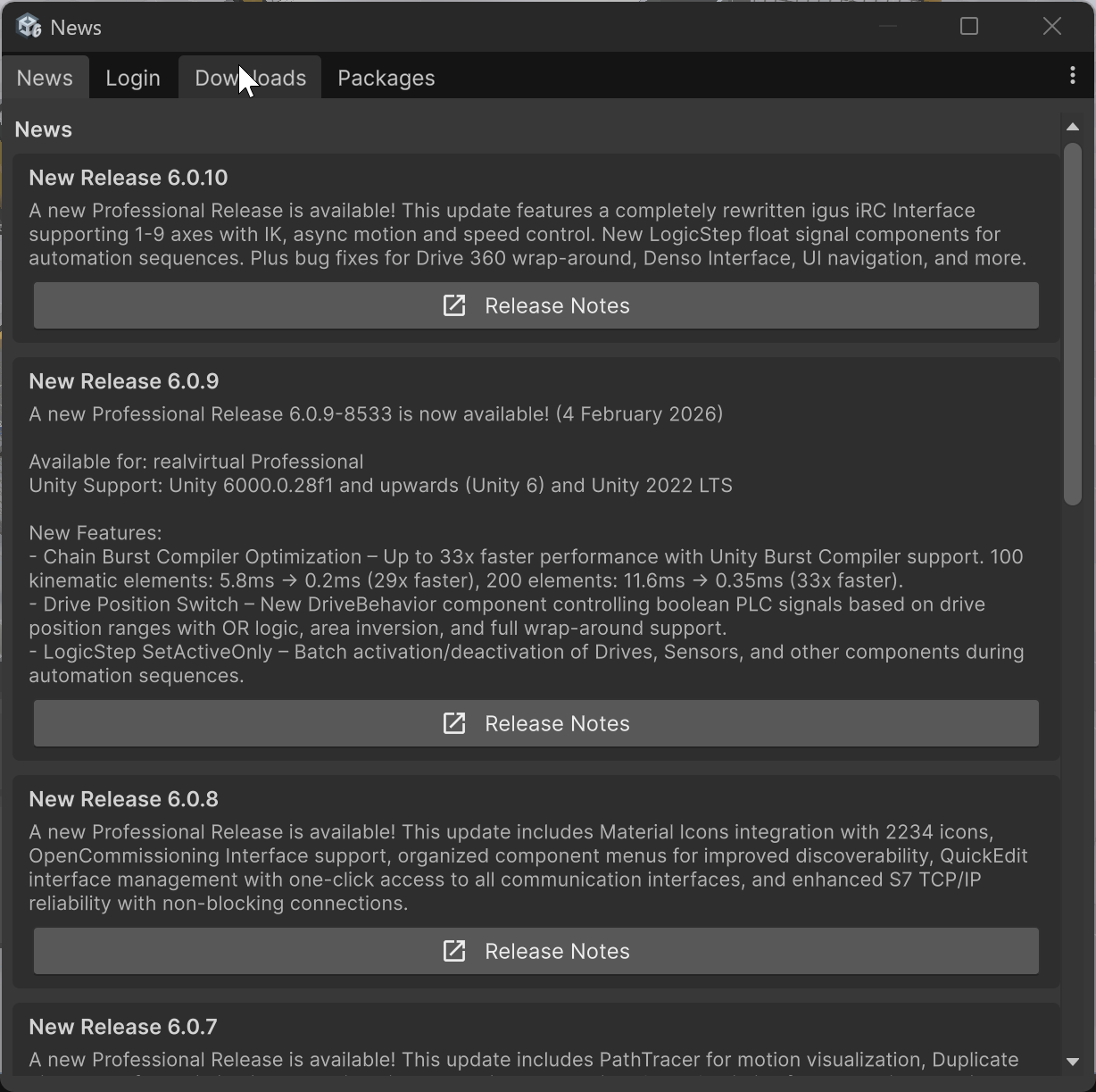
User Hub — News tab with release information
See Also
Section titled “See Also”- Customer Portal — Web-based license management, temporary code generation, and invoice access at download.realvirtual.io