
Material Window (Pro)
The Material Window makes it easy to assign materials to selected objects and includes integrated duplicate detection to identify identical meshes in your scene for performance optimization.
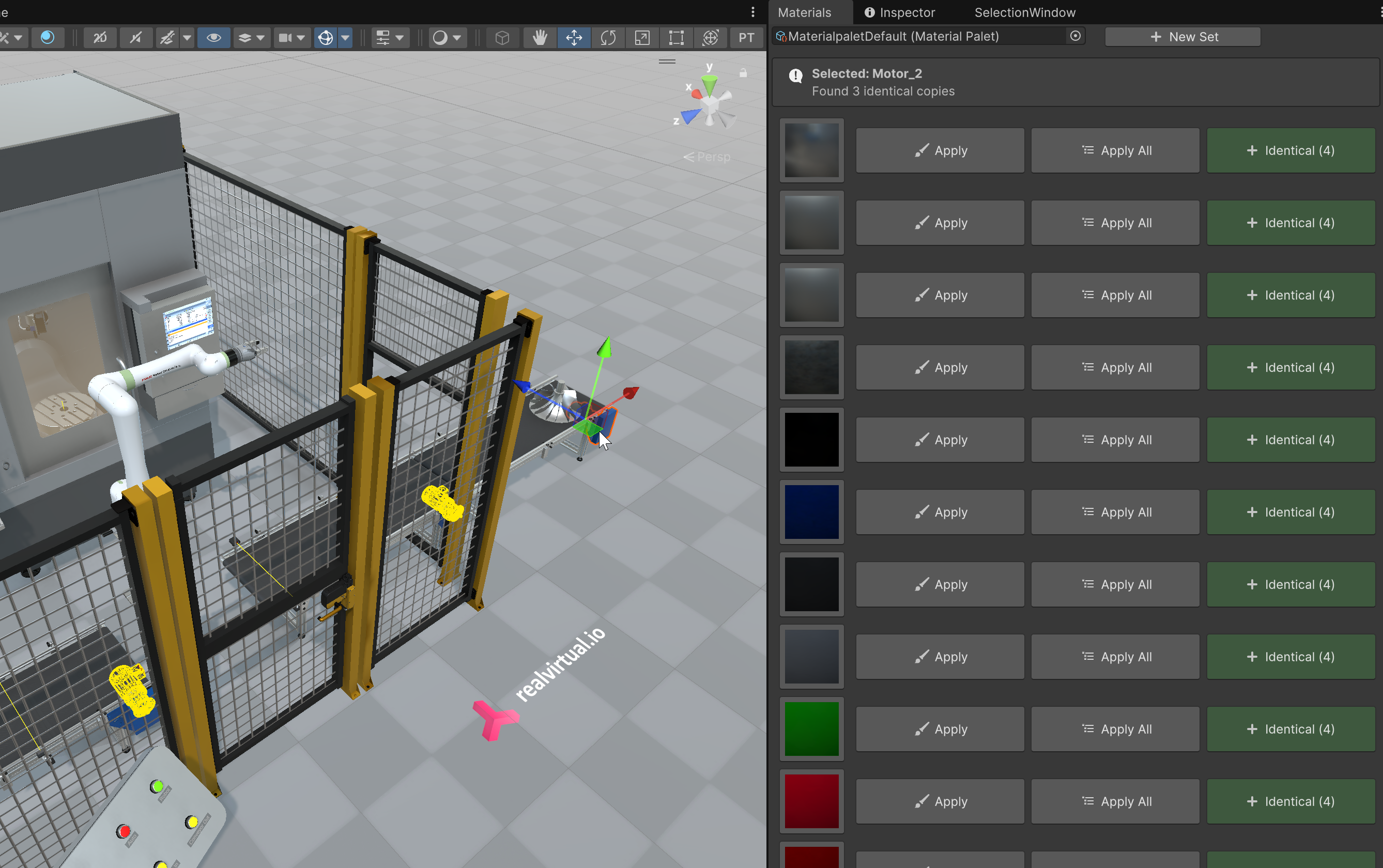
Material Window showing duplicate detection with "Found 3 identical copies" header and Identical (4) buttons
Opening the material window
Section titled “Opening the material window”To open the material window please select: Tools > realvirtual > MaterialWindow (Pro).
Choose a material palette
Section titled “Choose a material palette”To select a palette, simply click on the current material list. If you want to create your own material, click on “New material set”. This creates an asset called: “MaterialPalet” in the Assets folder and displays its parameters in the Inspector. You can then create your material list.
Duplicate Detection
Section titled “Duplicate Detection”When you select an object in the scene hierarchy, the Material Window automatically detects identical meshes:
Selection Header
- Selected Object Name – Displays the name of the currently selected GameObject
- Duplicate Count – Shows “Found X identical copies” if duplicates are detected
Identical Meshes Indicator
- Identical (X) Button (green) – Appears on the right side of each material row
- Click to Open Duplicate Finder – Opens the full Duplicate Finder window for detailed analysis
- Real-time Detection – Updates automatically when selecting different objects
This integrated duplicate detection helps you quickly identify optimization opportunities while working with materials, making it easy to find and consolidate identical geometries in your scene.
Select and set materials
Section titled “Select and set materials”The material window contains a palette of materials with the following actions:
- Apply – Assigns the material to the currently selected object
- Apply All – Assigns the material to all objects in the current selection
- Identical (X) – Opens Duplicate Finder for the material’s associated meshes (when duplicates exist)
See Also
Section titled “See Also”- Duplicate Finder - Full duplicate detection tool with scene visualization
- Model Checker - Scene validation and optimization tool