
Collision Detection
realvirtual WEB checks moving geometry for real collisions while the simulation runs. Every node of the scene can carry a Collision Role — everything below that node counts as one collision body. Bodies with different roles are checked against each other every simulation tick; bodies with the same role never collide.
The check is exact: after a fast bounding-box pre-filter, the actual mesh triangles are tested against each other. A robot arm passing diagonally close to a fixture does not raise a false alarm.
When two bodies intersect, both get a pulsing orange outline — the same alarm silhouette the machine messages use — and a collision card appears in the messages panel on the right. The simulation keeps running: this is a notice, not a safety stop.
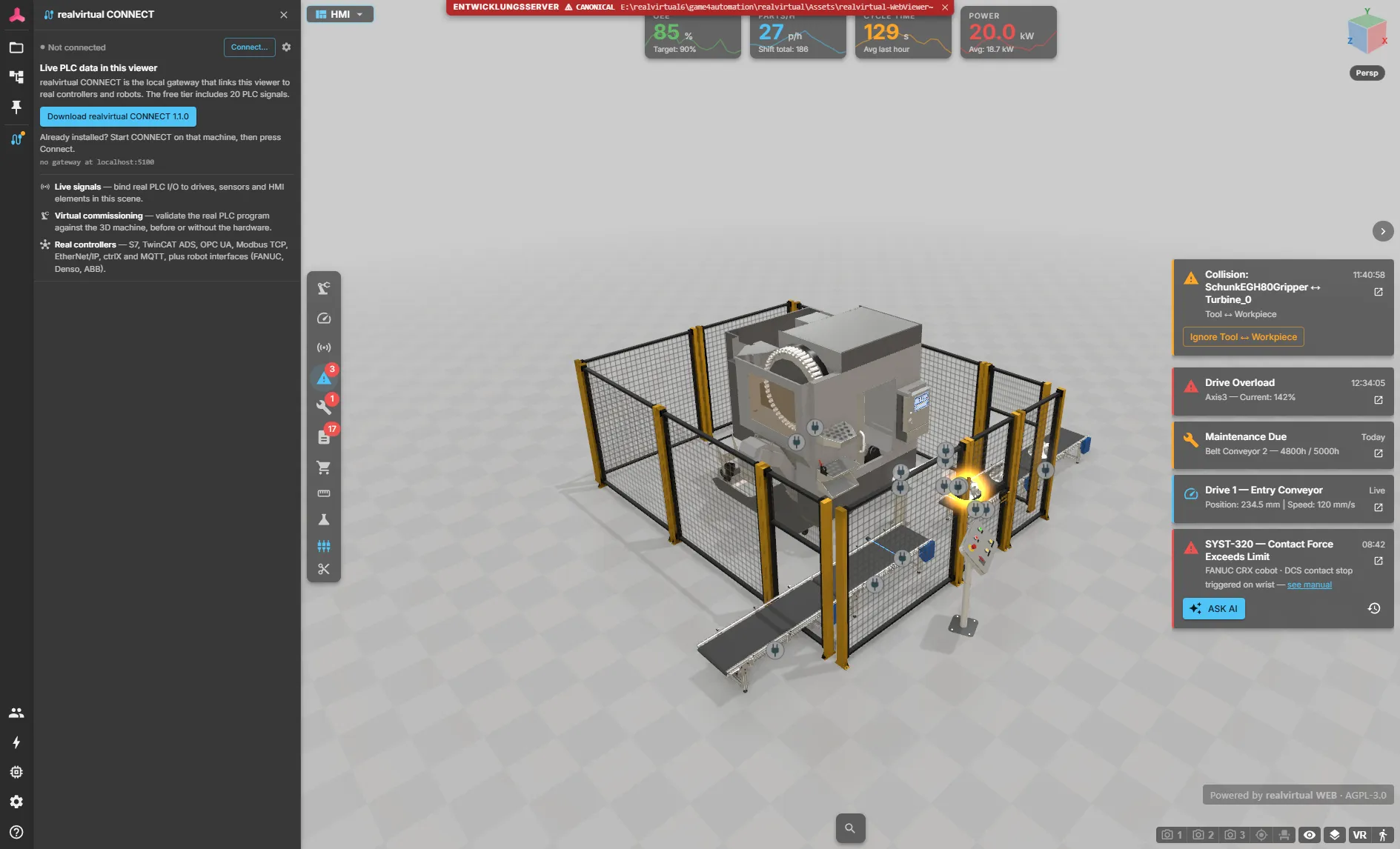
The role is a single dropdown on the node — there are no group lists and no exclusion matrix:
| Role | Meaning |
|---|---|
| None | Default. The node takes no part in collision checking. |
| Tool | Grippers, welding guns, end effectors |
| Workpiece | Parts being produced or handled |
| Machine | Machine frames, fixtures, stations |
| Robot | Robot arms and other kinematics |
| Environment | Floors, fences, walls, surroundings |
Two rules follow from the role:
- Same role never collides. All links of a robot share the
Robotrole and are treated as one body. - Nested bodies are never checked against each other. A gripper (
Tool) mounted on a robot (Robot) touches its own flange by construction — this pair is skipped. The gripper is still checked against machines, workpieces and the environment.
The role covers the node’s whole subtree, down to the next descendant carrying a role of its own — the robot counts up to the gripper.
Collision cards
Section titled “Collision cards”Every collision pair gets its own card in the messages panel, next to the machine messages:
- The card latches. It stays visible after the parts separate again, so a brief brush during a fast motion is never missed.
- Click the card to frame the camera on the collided objects and flash them in the warning color.
- OK acknowledges exactly this collision. While the parts still intersect, the collision is re-detected on the next simulation tick — OK only closes it for good once the contact is over.
- Ignore mutes this collision type — the role pair, e.g. Tool ↔ Workpiece — for the rest of the current run. Use it for contacts that are part of the process, like a gripper closing on a workpiece. Ignores are dropped when the next model is loaded.
The standard demo scene ships with roles pre-assigned — robot (Robot), gripper (Tool), CNC door (Machine) and the spawned workpieces (Workpiece) — so you can watch the system in action right away.
Setting it up
Section titled “Setting it up”- Open the Inspector on the node you want to monitor, for example the robot root
- Add the Collision Role component and pick a role, e.g. Robot
- Assign roles to the counterparts — e.g. Machine on the fixture, Environment on the fence
- Set floors and load-bearing parts that legitimately touch everything to None
- Start the simulation — a collision outlines both bodies and adds a collision card
The role is stored in the model’s rv_extras and survives saving, sharing and reloading the GLB — no Unity export step is required.
Spawned workpieces
Section titled “Spawned workpieces”Parts created at runtime by a Source cannot carry their own role. Instead, set Collision Role For MUs on the Source — every spawned part joins collision checking with that role and leaves it again when a Sink removes it.
PLC signals
Section titled “PLC signals”The collision state is mirrored into the signal store, so a PLC can react to it in Live mode:
| Signal | Type | Direction | Meaning |
|---|---|---|---|
| CollisionActive | bool | read | true while at least one collision is reported |
| CollisionCount | int | read | number of reported collision pairs |
| ResetCollisions | bool | write | rising edge clears all reported collisions and re-arms the check |
Behavior details
Section titled “Behavior details”- Checking runs only while the simulation is playing — nothing is evaluated while editing or paused.
- Overlaps that already exist when the simulation starts are reported immediately. If a machine legitimately stands on the floor, give the floor the role None.
- Only visible geometry takes part — hidden nodes and hidden templates never raise alarms.
- Deformed geometry (for example energy chains) is excluded from checking; a single console warning per model load lists the affected nodes.