
AI Assistant (Bridge)
The AI Bridge is the connection between the twin running in your browser and an AI assistant running on your machine. With it on, the assistant can look at the scene the way you do — find a part, read a drive, take a screenshot — and, where you allow it, operate it: jog an axis, set a signal, build a layout, wire a PLC to a model.
Everything runs locally. The bridge is not a cloud service and does not upload your model: the assistant is a program on your own machine, and realvirtual CONNECT on the same machine is what the two talk through.
Switching it on
Section titled “Switching it on”Open the panel from the AI Bridge button in the tool strip, or from Settings ▸ AI. On a phone or tablet the settings tab is the only route.
Two things can happen before the panel appears.
- No gateway answered. CONNECT hosts the connection, so without it there is nothing to configure. The click offers the CONNECT download instead of an empty panel.
- First time on this device. A one-time dialog states exactly what a connected assistant may reach — the whole scene, every PLC signal including writing them, and the simulation — and how far that reaches: usable on this machine without any configuration, reachable from another machine only with a valid API key. Got it and Configure… both record that you have seen it; Not now leaves without agreeing to anything.
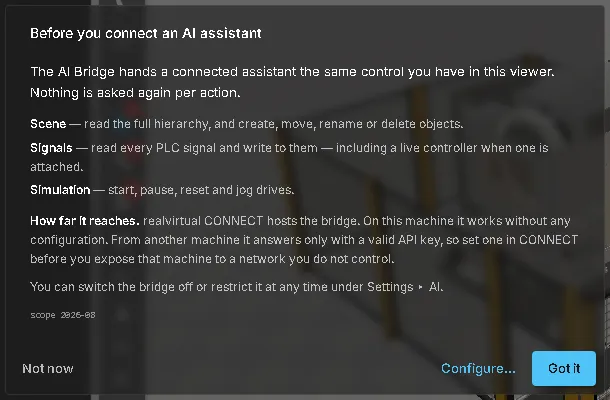
The acknowledgement is stored on this device. It is never granted implicitly, and widening what the bridge may reach asks once more.
Reading the panel
Section titled “Reading the panel”The status section reports the whole chain, not just the connection, because a connected socket is not the same as an assistant actually being there.
| Row | What it tells you |
|---|---|
| Browser → Bridge | The link between this browser tab and the bridge: connected, reconnecting, disconnected or disabled |
| AI client | Which assistant is attached. This is the real proof that an AI is present |
| Last AI activity | How long ago the assistant last did something |
| Tools | How many tools this viewer is offering |
| Port | The port this browser is talking to |
| Bridge | The bridge process: id, port and how long it has been running — useful when two are running by accident |
Below the status:
- Connect to switches between CONNECT (the default) and the two fallback ports described below. A Port field takes any other port.
- Pause / Resume stops and resumes accepting connections.
- Shutdown asks the bridge process to exit. It can only be restarted by the assistant, not from the browser.
- Registered Tools lists live what the assistant can call, and Server Log shows what it is doing.
Seeing that it is working
Section titled “Seeing that it is working”The AI Bridge button takes on the accent colour for as long as the bridge is connected, and its tooltip names the state. While the assistant is doing something, a pill next to the button names the current operation — AI · Drive list — and clears a few seconds after the last one.
That indicator is deliberate: an assistant operating a machine view should never be invisible.
Connecting an assistant
Section titled “Connecting an assistant”CONNECT’s MCP endpoint is on by default, so there is usually nothing to enable on the gateway side. Register the endpoint with your assistant, restart it, then enable the bridge in the panel with CONNECT selected under Connect to.
Claude Code, and the Claude Code desktop application, speak to the endpoint directly:
{ "mcpServers": { "realvirtual-CONNECT": { "type": "http", "url": "http://localhost:5100/mcp" } }}Claude Desktop (classic) can only launch local programs, so it needs a small relay in between. It requires Node.js on the machine:
{ "mcpServers": { "realvirtual-CONNECT": { "command": "npx", "args": ["-y", "mcp-remote", "http://localhost:5100/mcp", "--allow-http"] } }}In Unity, Tools ▸ realvirtual ▸ Settings ▸ Configure Claude Desktop MCP writes both configurations for you.
Connections from a cloud assistant are not supported: that would mean exposing the gateway publicly, which is the one thing this design avoids.
Without a gateway
Section titled “Without a gateway”For a viewer deployed on its own, with no CONNECT on the machine, a small Node bridge is the documented fallback. It is built once from the delivered sources, registered with the assistant in place of the endpoint above, and selected in the panel under Connect to — Node · Desktop or Node · Code, depending on which assistant is using it.
The fallback exists for exactly that case. Where CONNECT is available it is the better route: it is same-origin with the delivered HMI, needs no Node.js and no build step, and carries the gateway’s own tools as well.
Notes on a node
Section titled “Notes on a node”An assistant that works out something about a machine can write it down on the node it belongs to — which axis carries which role, where the real limits are, which part is not the thing its name claims. Select an annotated node and the Property Inspector shows that note: a line naming when it was written, by whom, and how sure its author was, over the note itself. Annotated nodes are marked in the hierarchy, so they can be found without asking.
This is where notes come from, and it answers the question the section otherwise raises:
- They are written by an assistant, not by you. The section is deliberately read-only — there is no edit field and no delete button in it. That keeps one authorship convention instead of two.
- The confidence line matters. observed means measured or seen; inferred and unverified mark a guess as a guess. A note is what somebody worked out, not a specification.
- The date is the only staleness signal. Nothing checks a note against the model. An old note next to a changed machine stays where it is.
- The note travels inside the document. It is part of the GLB, so it follows the file — but a re-export from Unity drops it.
Notes are also given to AI diagnosis when you ask a question about the annotated node, so the manual, the live state and what an earlier session worked out reach the answer together.
Quick Start
Section titled “Quick Start”- Start CONNECT on the same machine.
- Register the endpoint with your assistant and restart it.
- Open AI Bridge in the viewer, read the one-time notice, and switch the bridge on.
- Check that AI client names your assistant and that Tools is not zero.
- Ask it something read-only first — “list the drives in this model” — and watch the activity pill.
See also
Section titled “See also”- AI clients (MCP) — what an assistant can do, and the gateway switches that govern it
- Settings — the AI tab
- AI diagnosis — the other AI feature, which answers from your machine documentation
- Signal binding — the manual counterpart of assistant-driven binding