From your CAD data to a digital twin in hours, with AI
Build your digital twin in the browser from CAD data, with AI support for model setup and programming. Test motion and control sequences, share the model and evaluate axis forces and torques for drive sizing.
Try this use case in the free Public Demo, without an account or installation. Public Demo limits →
Build, program and test your digital twin
Your CAD data provides the starting point for a digital twin in realvirtual. Define kinematics, drives and sensors in the browser editor; AI can help build the model, map signals and write Structured Text programs, so you can test your machine before the hardware is available.
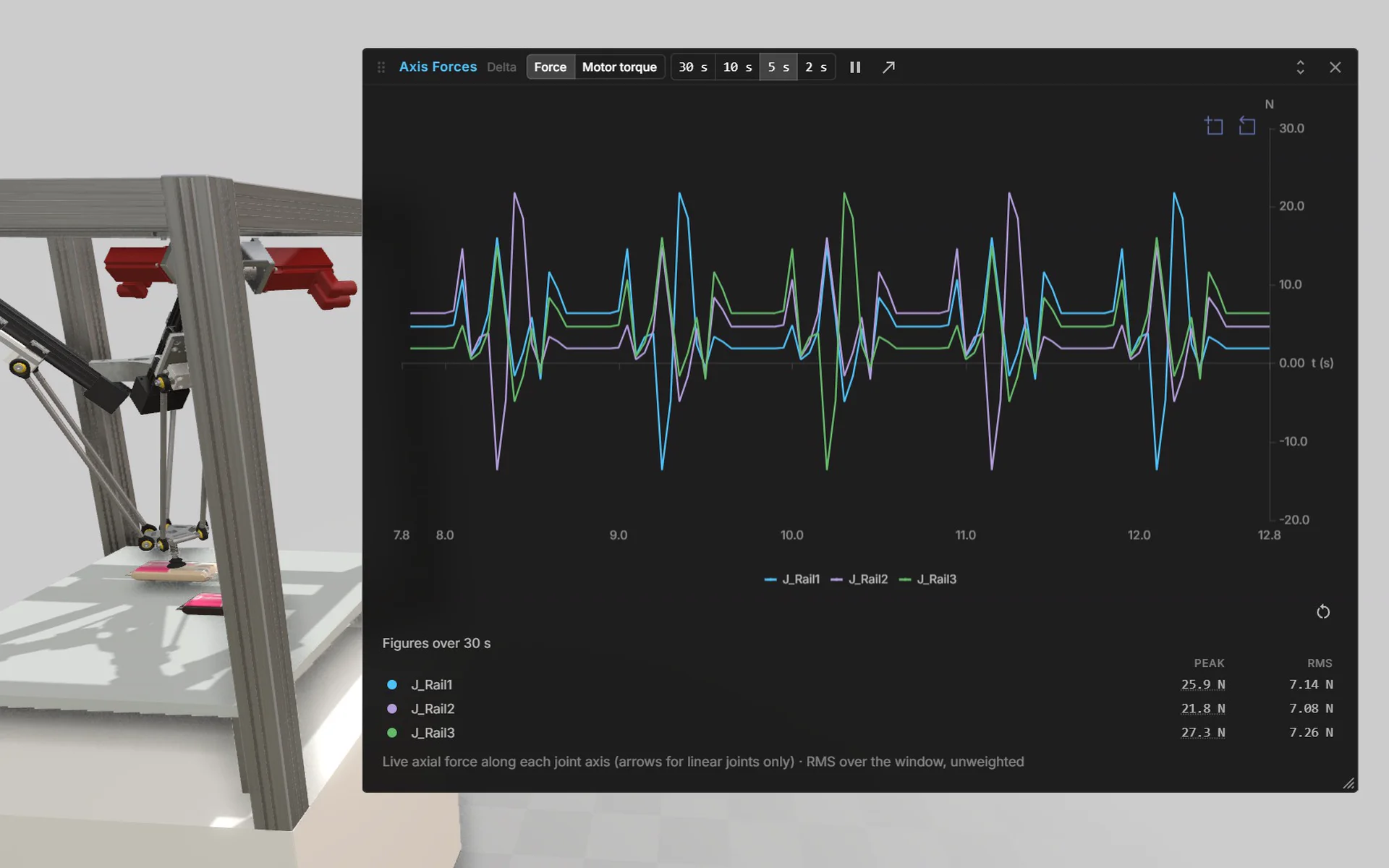
The SEW delta picker brings these tasks together: parallel kinematics, a pick sequence programmed in Structured Text and live displays of motor torque and axis forces. Use the same digital twin to examine motion, control logic and drive loads, then share it in the browser.
From CAD data to a digital twin
Turn your machine geometry into a model you can program and simulate in the browser. Build it in the editor and use AI to assist with individual steps.
Import your CAD data
Import STEP, JT, USD or FBX data, or bring geometry in from Onshape. Use your existing machine design as the basis for the digital twin.
Define motion and signals
Add kinematics, drives and sensors in the editor. Define how parts move and which signals describe their state.
Build with AI support
The AI window connects through realvirtual CONNECT to your local Claude Code or Codex and uses your current selection as context. Your own agent can use the MCP server to create components, set fields, connect parts at snap points, write and run Structured Text, build control panels and map PLC tags to model signals using the signal comments.
Simulate and share immediately
Run the digital twin directly in the browser and test motion, sensors and control sequences. Share the result so others can open and simulate the model in their browser.
Virtual PLC with function blocks
Program the digital twin in IEC 61131-3 Structured Text in the browser editor. Standard ST provides the foundation; manufacturer-specific code is not supported on a one-to-one basis.
Use standard function blocks
Build sequences with the standard function blocks TON, TOF, TP, CTU, CTD, CTUD, R_TRIG, F_TRIG, RS and SR. Test timing, counters, edge detection and stored states directly on the model.
Reuse your own blocks
Define your own FUNCTION and FUNCTION_BLOCK types, including nested blocks, and keep shared blocks in a library. Run multiple PROGRAMs in one scene to structure the machine logic.
Program motion with PLCopen
Use 14 PLCopen Motion blocks, including MC_Power, MC_MoveAbsolute, MC_MoveRelative, MC_MoveVelocity, MC_Halt and MC_Stop. Group commands such as MC_MoveLinearAbsolute control Cartesian movements.
Inspect running control logic
The online view shows live values at the end of each declaration line and when you hover over variables. Executed IF and CASE branches are highlighted, and a watch window lets you monitor selected values.
Control programs and operation
Deploy, run, stop, execute a single cycle or reset your programs; AI can also write and start ST programs. Define a control panel with pushbuttons, selector switches, an emergency stop and a signal tower without code.
Connect the real PLC
Use realvirtual CONNECT to hand control over to the real PLC. A system variable identifies simulation mode so the ST program can release its outputs as soon as the real controller takes over.
From CAD data to drive sizing
Import CAD data
Import your machine geometry into the browser editor. Masses, centres of gravity and inertia tensors are derived from the CAD geometry and can be overridden individually.
CAD import →Build kinematics and drives
Group parts, create drives and define the mechanism. Closed kinematic chains, including parallel kinematics such as a delta robot, are supported.
Kinematics and drives →Program the virtual PLC
Write and run the control sequence in Structured Text using the virtual PLC in the browser. Test how the mechanism responds to your control logic.
Virtual PLC and Structured Text →Calculate axis forces and torques
Examine drive forces and torques per axis and bearing forces per joint throughout the motion cycle. Use the calculated loads to support drive sizing.
Drive sizing →Build with AI assistance
Use the AI window through realvirtual CONNECT to help build kinematics, drives and Structured Text, or connect your own agent through the MCP server. AI is optional and requires your own AI access; it is not available in the Public Demo.
AI-assisted modelling →
Demo models to try
Open the models in the Public Demo, without an account or installation.
Delta picker with SEW drives
Explore a three-axis delta robot programmed in ST with MC_MoveLinearAbsolute, with SEW servo motors, live motor torque and an axis forces window. Try the control panel’s speed override, cycle counter and emergency stop, and open the operating manual attached to the motors as a PDF.
Open in the demo ↗ (opens in a new tab)Laser welding assembly station
Explore five stations, two lifts, a return conveyor and 14 pallets, controlled by 11 ST programs on the virtual PLC using the station’s actual variable list. Select operating modes and use the emergency stop on the control panel in a model ready for virtual commissioning.
Open in the demo ↗ (opens in a new tab)Empty project in the editor
Import your own STEP or JT file and build a digital twin in the browser editor.
Open in the demo ↗ (opens in a new tab)
Choose the browser or Unity Editor for your task
Use realvirtual in the browser to build, simulate and share models without installation. CAD import, kinematics and the virtual PLC are available directly in the browser.
Choose the realvirtual Unity Plugin when you want to work in the Unity Editor with C#, PhysX and standalone builds. GLB serves as the exchange format in both directions between the browser and the realvirtual Unity Plugin. Explore the realvirtual Unity Plugin →
Frequently asked questions
Which data can I use to build the model?
CAD import supports formats including STEP, JT, USD and FBX. Masses, centres of gravity and inertia tensors are derived automatically from the CAD geometry. You can override these values individually.
Can I simulate a delta robot or another closed mechanism?
Yes, realvirtual supports closed kinematic chains, including cranks, couplers and parallel kinematics such as delta robots. Rigid-body kinematics is deterministic and drift-free, with drive forces and torques calculated throughout the motion cycle.
Which loads does the drive calculation include?
The calculation provides drive force and torque per axis and bearing forces per joint, with payloads modelled as mass. It assumes rigid bodies without elasticity. Contact and process forces are calculated by the physics engine.
Do I need AI to build or change the model?
No, you can build and modify the model yourself in the full editor. The optional AI window uses realvirtual CONNECT and your own AI access. You can also connect your own AI agent through the MCP server.
Can I try CAD import and the virtual PLC for free?
CAD import, the asset and kinematics editor, and the virtual PLC are part of Commercial. You can try them in the free Public Demo without an account or installation.
Start building your digital twin
Open the Public Demo to explore working models or import your own CAD data into an empty project. Discuss your machine with us to plan how to build its digital twin with AI support.